
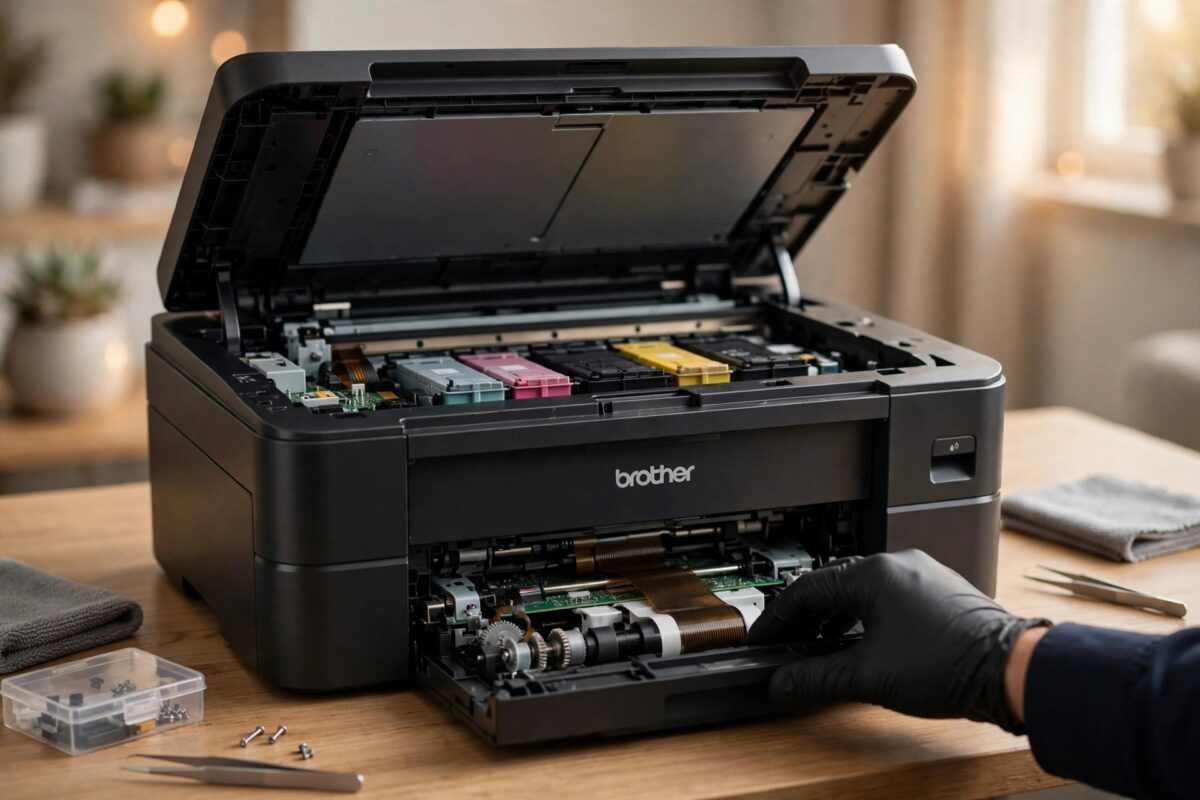
Your Brother inkjet was working fine, and then it stopped with a stark message: Machine Error 46, Unable to Clean, or a warning that the ink absorber is full. The printer will not print, clean, or copy, and the error gives no clear next step. It can feel like the machine has reached the end of its life.
The good news is that Error 46 is a maintenance counter error, not usually a sign that a major part has failed. It means the printer believes the internal waste ink pads have absorbed as much ink as they safely can. This guide explains what the absorber does, why the counter matters, how the official fix works, and what your realistic options are.
Quick Answer
Brother Machine Error 46 means the ink absorber counter has reached its limit and the printer thinks the waste ink pads are full. The proper fix is to replace or professionally clean the ink absorber pads and then reset the counter in maintenance mode. Resetting the counter alone without dealing with the pads risks ink leaking inside the printer, so if the pads are saturated or the printer is under warranty, contact Brother support or a service centre.
What the Ink Absorber Actually Does
Every time a Brother inkjet cleans its print head, purges nozzles on start-up, or runs automatic maintenance, it pumps a small amount of ink that does not go onto paper. That waste ink has to go somewhere. Inside the base of the printer sits an ink absorber box containing felt-like pads. Waste ink is drawn into those pads and held there for the life of the machine.
Over months and years, and faster if you run many cleaning cycles, the pads slowly fill. Brother printers do not have a sensor that directly measures how wet the pads are. Instead, the printer counts cleaning operations, purges, and pages, and estimates how much waste ink should have been collected. When that estimate reaches a set limit, it triggers Error 46 and locks the printer to protect your desk, the electronics, and print quality.
Related Messages You Might See
- Machine Error 46 on the display or in a service check.
- Unable to Clean 46 or Unable to Print 46 on the touch screen.
- Ink Absorber Full or Ink Box Full on some newer models.
All of these point to the same system. The exact wording changes by model and region, but the cause and the correct response are the same.
Why You Should Not Ignore Error 46
It is tempting to search for a quick code to clear the message and keep printing. Many videos show only the reset. That approach has a real risk. If the pads are genuinely saturated, the next cleaning cycles have nowhere to send waste ink. Ink can pool inside the base, leak from the bottom, stain furniture, damage electronics, and create a mess that costs far more than the original service.
Step 1: Confirm the Error and Check Warranty
- Note the exact message and your full model number from the label on the printer.
- Turn the printer off, wait one minute, and turn it on again. If Error 46 returns immediately, it is a latched maintenance error, not a temporary glitch.
- Check whether the printer is still under warranty. If it is, stop here and contact Brother. Opening the machine or using service codes can affect cover.
- Look underneath and around the printer for ink staining or dampness. If you see fresh ink leaking, unplug the printer, place it on old towels or a tray, and do not tilt it.
- Consider age and use. A heavily used printer over several years is far more likely to have truly full pads than a lightly used one.
You can find warranty and service options through the official Brother support portal for product manuals and service. Keep your serial number ready when you contact them.
Step 2: Understand the Official Fix
The official repair has two parts, and both are needed. First, the ink absorber box or pads are removed, inspected, and replaced with new ones, or professionally cleaned and dried where the model allows it. Second, the purge counter is reset to zero in maintenance mode so the printer knows it has fresh capacity.
On most Brother inkjets, the absorber box sits deep inside the machine. Reaching it means removing covers, the scanner unit on all-in-one models, and several internal parts. It is not a user-serviceable part like a cartridge. Brother designs it as a service item because waste ink is messy, the pads must be fitted correctly, and the reset must match the physical work.
If your printer is a low cost home model that is several years old, compare the service cost with the price of a new printer with a full warranty and new cartridges. If it is a higher value model with low running costs that suits your work, a professional absorber replacement is often worthwhile.
Step 3: What Happens in Maintenance Mode
Brother service manuals describe maintenance mode as a technician function for checking counters, printing test patterns, and resetting the purge count after absorber work. The entry method and codes differ a lot between models with touch screens, models with numeric keys, and older models with simple displays. Using a code meant for a different model will not help and can change other service settings if entered incorrectly.
For that reason, this guide does not list a universal reset code, because there is not one. If a qualified technician has replaced your pads and you are following the exact service manual for your precise model, the reset is the final step of that job. Treat any reset as incomplete unless the pads have been inspected first. Resetting alone is clearing a warning light without fixing what it warns about.
If your printer also has print quality problems, our guide on why a Brother printer stops printing black and how to fix it helps you separate absorber faults from cartridge and nozzle faults before you book a repair.
Step 4: Reduce Waste Ink in Future
You cannot stop waste ink completely, because cleaning keeps nozzles healthy, but you can reduce how fast the counter rises.
- Leave the printer plugged in: Brother inkjets run brief, efficient automatic maintenance on standby. Turning the printer fully off at the wall for long periods often triggers a longer, heavier clean on the next start-up.
- Avoid repeated manual cleaning: Run one cycle, test, and wait. Running five cycles in a row pumps a lot of ink into the absorber.
- Print regularly: A small print once a week keeps ink flowing and reduces the need for deep cleans after idle periods.
- Keep firmware updated: Newer firmware sometimes improves cleaning efficiency.
Common Mistakes to Avoid
- Resetting without checking the pads: This removes the protection and risks a leak you will not see until ink appears under the printer.
- Using a reset code for a different model: Maintenance codes are model specific. A wrong code can alter calibration or other counters.
- Tilting a printer with full pads: Keep it level and upright. Waste ink can spill inside if the machine is tipped.
- Washing pads and refitting them wet: Poorly dried or fitted pads do not absorb correctly and can still leak.
- Ignoring early warnings: Some models warn that the absorber is nearly full before Error 46 locks the machine. Booking service at the warning stage avoids a sudden stop during urgent work.
Should You Repair or Replace?
Think about three factors. First, age and condition. If the printer is otherwise printing perfectly, has low running costs, and suits your volume, a professional service extends its life well. Second, cost. Get a quote that includes parts, labour, and a check for leaks, and compare it honestly with a replacement that includes new cartridges and a warranty. Third, downtime. If you print for work every day, a same-day replacement may be more practical than waiting for parts, and you can still have the older machine serviced as a backup.
Conclusion
Machine Error 46 is your Brother printer protecting itself when its estimated waste ink count reaches the limit. The correct fix is physical as well as digital: inspect and replace the ink absorber pads, check for leaks, and only then reset the counter. A reset on its own can turn a routine service job into a leaking, damaged printer. Check your warranty, get a proper service quote, and reduce unnecessary cleaning in future, and you will make the right choice for your model and budget.
Frequently Asked Questions
Can I keep printing after Machine Error 46 appears?
No. The printer locks most functions when Error 46 is active. Restarting may clear it briefly on some models, but it will return until the absorber is serviced and the counter is properly reset.
Is the ink absorber the same as a cartridge?
No. Cartridges supply fresh ink for printing. The absorber is an internal box of pads that collects waste ink from cleaning and priming. It is a service part, not a user-replaceable cartridge.
How long does an ink absorber last?
It depends on how much you print and how many cleaning cycles run. For typical home use it lasts several years. Heavy cleaning, long idle periods followed by deep cleans, and very high volume all fill the counter faster.
Will resetting the counter damage my printer?
The reset itself does not damage the printer, but resetting without replacing full pads removes the safety warning. Waste ink can then overflow inside the machine, causing leaks and damage.
Does Error 46 mean my print head has failed?
Not usually. Error 46 is specifically about the waste ink system and its counter. Print head faults show different errors, such as missing colours even after cleaning.
Leave a Reply