
Your Epson WorkForce WF-3640 was printing fine, and then it stopped with a short message on the screen: error code 0x97. The printer will not print, restarting does not always help, and the display gives no clear reason. This error is frustrating because it can point to something as simple as a scrap of paper stuck inside, or to a deeper hardware fault.
This guide explains what 0x97 means on the WF-3640, why it appears, and the order of fixes to try at home. You will start with safe, free checks, and learn how to tell when the printer needs a repair shop instead of another restart.
Quick Answer
Epson error code 0x97 on the WorkForce WF-3640 is an internal hardware error, most often linked to the print head, carriage movement, or main board. Turn the printer off, unplug it for a few minutes, and check for jammed paper or debris. Reseat the ink cartridges, then restart. If the code returns straight away on every start-up, the print head or main board has likely failed and needs professional repair.
What Does Error Code 0x97 Mean?
On the WorkForce series, 0x97 is treated as a fatal internal error. The printer ran its start-up self-check, found that a key part did not respond as expected, and stopped to protect itself.
Unlike a paper jam or empty ink warning, 0x97 does not name the failed part. That is why you must work through the causes one by one. Often the cause is mechanical: a carriage that cannot move freely, a dirty sensor, or a poorly seated print head. In other cases it is electrical. The WF-3640 is an ageing model, and after years of heat and dust, the main board or print head can wear out. No cleaning trick fixes a failed board, so rule out the simple causes before you spend money.
Common Causes of Error 0x97
- Paper or debris inside: A torn scrap, paper clip, or dust can block the carriage path.
- Carriage problems: If the rail the carriage slides on is dry, dirty, or blocked, movement fails.
- Poorly seated cartridges: A cartridge not clicked in fully can break the electrical contact.
- Failing print head: Dried ink and long periods without printing damage the head over time.
- Power or firmware glitch: A sudden power cut while printing can leave the printer confused.
- Main board failure: The most serious cause, and one home fixes cannot solve.
Before You Start: Safety First
- Turn the printer off and wait for the screen to go dark.
- Unplug the power cable from the wall socket.
- Remove paper from the trays so nothing feeds during checks.
- Work in good light, with a torch nearby for looking inside.
- Never force the carriage. Gentle movement only, and only with power off.
If the printer is still under warranty, do the basic checks only and then contact support. Opening screwed panels can affect your cover.
Fix 1: Do a Full Power Reset
A proper reset clears temporary errors from memory. A quick off-and-on is not the same thing.
- Turn the WF-3640 off and unplug the power cable from the wall.
- Unplug the USB or network cable if fitted.
- Wait three to five minutes to drain leftover charge from the board.
- Hold the power button for 15 seconds while still unplugged.
- Plug power straight into a wall socket, not a loose extension strip.
- Turn the printer on and listen for normal carriage sounds.
If it starts normally, print a test page before a big job. If 0x97 returns during start-up, move to the next fix. If it appears only when printing, the fault is more likely the print head or cartridges.
Fix 2: Check for Jammed Paper and Debris
This is the most common fixable cause, and it is easy to miss. A jam is not always a full sheet; sometimes only a corner tears off and stays inside.
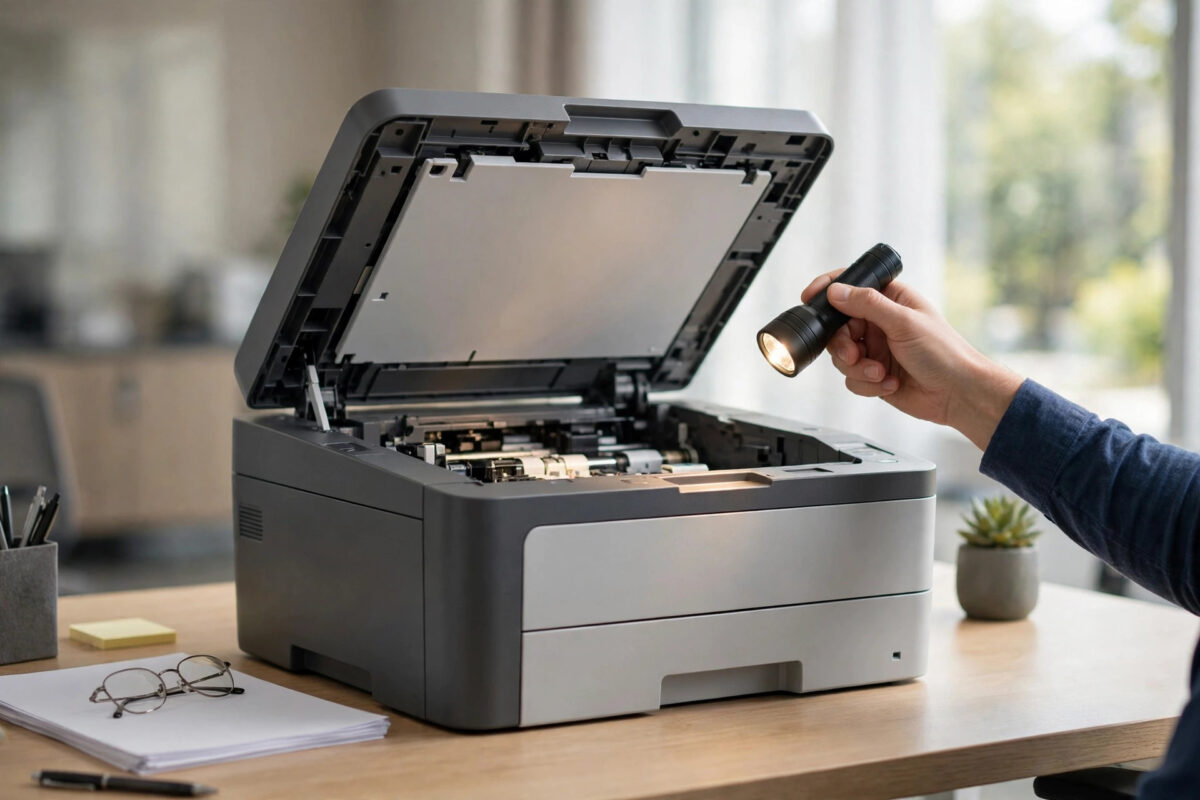
- Open the top cover and look along the full carriage path.
- Check the front tray, rear feed, and output slot.
- Remove paper slowly with both hands, pulling in the direction paper normally travels.
- Look for staples, labels, or bits of torn envelope.
- Check the rear access area if your unit allows it.
- Close everything firmly and restart.
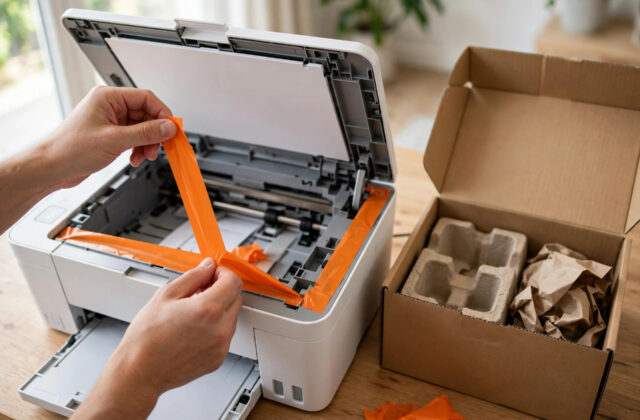
Also check that no packing tape was left inside after a move. For a broader routine, our guide on fixing an Epson paper jam error when no paper is stuck covers sensor checks that also apply here.
Fix 3: Reseat the Ink Cartridges
The WF-3640 reads a small chip on each cartridge. Poor contact can fail start-up checks.
- Turn the printer on, open the cover, and wait for the carriage to reach the change position.
- Remove each cartridge by pressing its tab and lifting it out.
- Check the gold chip contacts. They should be clean, dry, and free of ink.
- Wipe contacts gently with a dry, lint-free cloth if needed. Do not use water on the chip.
- Push each cartridge back until it clicks firmly.
- Close the cover and let the ink charging cycle finish.
If the error started right after fitting a new cartridge, test with the old one or a different genuine cartridge. A faulty chip on a cheap compatible cartridge can trigger errors that vanish when it is changed.
Fix 4: Clean Around the Print Head and Rail
You are not deep-cleaning here, only removing what blocks normal movement.
- Wipe the carriage rail with a dry or slightly damp lint-free cloth.
- Wipe the clear encoder strip behind the carriage very gently, with no chemicals. This strip tells the printer where the carriage is.
- Clean ink residue near the carriage rest position on the right side.
- Turn the printer off and unplug it first.
- Slide the carriage gently to the centre if it moves freely. If not, do not force it.
- Wipe the rail and visible areas, then leave the cover open a few minutes to dry.
- Plug in and test again.
Never spray cleaner inside the printer or use a vacuum on the print head area. Both can cause more damage than the original fault.
Fix 5: Test Without the Computer and Update Firmware
- Cancel all print jobs and clear the print queue on your computer.
- Disconnect the printer from the computer and Wi-Fi for one test start-up.
- If it starts without 0x97, print a nozzle check from its own control panel.
- If that test prints, reconnect and check for a firmware update via the Epson support and drivers page.
- Never switch the printer off during an update.
If the internal test also triggers 0x97, the fault is inside the printer, not your computer or network. That is a useful clue for a technician.
How to Tell If It Is a Hardware Failure
- Error appears instantly on every start-up: Strongly points to main board or print head.
- Error follows a grinding or clicking sound: Points to carriage or gear trouble.
- Error appears only with one cartridge fitted: Points to that cartridge or its contacts.
- Error comes and goes for weeks, then stays: Typical of a part slowly failing.
On an older WF-3640, a board repair can cost close to the value of the machine. Get a written quote before agreeing to work. The Epson contact and service information page lists authorised service options.
Common Mistakes to Avoid
- Forcing the carriage: This can snap the belt or bend the rail.
- Repeated head cleanings: They waste ink and fill waste pads faster, without fixing a hardware error.
- Using sharp tools inside: They can scratch the encoder strip or damage sensors in seconds.
- Ignoring a burning smell: Unplug at once and do not use the printer until it is checked.
- Buying parts before testing: Rule out paper, cartridges, and power first.
Conclusion
Error 0x97 on the WorkForce WF-3640 means the printer found an internal problem, most often around the print head, carriage, or main board. A full power reset, a careful search for hidden paper, reseating the cartridges, and gentle cleaning solve the fixable cases. Test the printer on its own to confirm where the fault lives. If the code returns instantly on every start-up after all these steps, it is very likely hardware failure, and a repair quote will tell you whether fixing this ageing printer still makes financial sense.
Frequently Asked Questions
Can error 0x97 fix itself after a restart?
Sometimes. If the cause was a temporary power or firmware glitch, a full unplugged reset can clear it. If the code keeps returning, the cause is still there. Repeated restarts will not heal a blocked carriage or a failing board.
Is error 0x97 caused by low ink?
No. Low ink produces its own clear warnings. However, a cartridge with a faulty chip or poor contacts can contribute to start-up errors, which is why reseating and testing cartridges is part of the process.
How much does it cost to repair a 0x97 error?
Costs vary by region and failed part. Cleaning and minor mechanical work is usually modest, while a main board or print head replacement on an older WF-3640 can be expensive. Get a quote first and compare it with a new printer with a fresh warranty.
Will a power reset delete my settings?
No. A power reset does not delete saved network or copy settings. A factory reset from the menu would, so avoid that unless support advises it, and note your Wi-Fi details first.
Should I keep using the printer if 0x97 appears only sometimes?
You can finish urgent work, but treat it as an early warning. Avoid very long print runs and plan for repair or replacement. Intermittent internal errors on this model rarely disappear for good.
Leave a Reply