
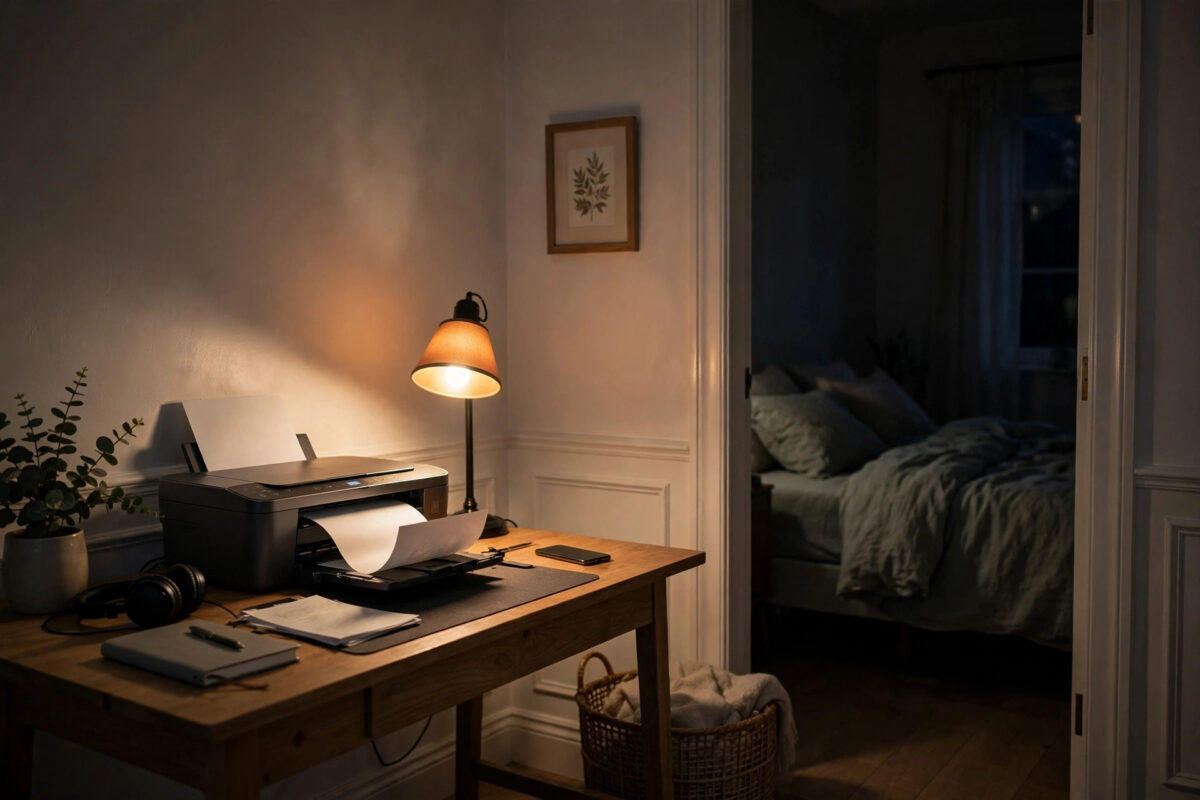
Printing late at night in a quiet house is stressful when your Canon PIXMA clatters, whirs, and beeps through every page. If other people are sleeping in the next room, even a short document can feel far too loud. The good news is that Canon built a solution into most PIXMA models: Quiet Mode, a setting that slows the machine down slightly so it makes much less noise.
This guide shows you how to turn Quiet Mode on from the printer’s screen, from your Windows PC, and on a schedule, so the printer stays quiet during the night hours and runs at full speed in the day.
Quick Answer
On the printer, open Settings or Setup, find Device settings, then look for Quiet mode settings and turn it on, or set it to run during chosen hours. On a Windows PC, open the Canon printer’s Printing preferences, go to the Maintenance tab, open Quiet Mode settings, and choose Use Quiet Mode or set a start and end time. Printing becomes a little slower, but much quieter.
What Quiet Mode Actually Does
Quiet Mode reduces operating noise by slowing down the moving parts. The print head carriage travels more gently, paper feeds at a calmer pace, and the sharp whirring sounds that disturb a sleeping house are softened. Canon designed it for exactly the situation in this guide: printing in the evening or at night near bedrooms and living spaces.
The trade-off is speed. Pages take a bit longer to come out, and the delay is more noticeable on long documents and photo prints. Print quality itself does not drop, because the ink, resolution, and paper handling stay the same. Only the pace changes. For a few pages at midnight, that is a trade almost everyone happily makes.
Method 1: Turn On Quiet Mode From the Printer Screen
The exact menu names vary a little between PIXMA models, but the path is similar on most touchscreen and button-based machines.
- Turn the printer on and go to the home screen.
- Open the Setup or Settings menu, shown as a gear or tools icon on many models.
- Select Device settings.
- Look for Quiet mode settings, sometimes listed under a sound or operation settings group.
- Choose to turn Quiet Mode on. Some models offer choices such as Always on, or Use during specified hours.
- If you choose specified hours, set the start time, for example 22:00, and the end time, for example 07:00, then save.
- Print a test page and listen. The feed and carriage sounds should be clearly softer.
Setting Quiet Mode on the printer itself is the best option when several computers and phones share the machine. The setting lives inside the printer, so it applies to every job from every device, including phones, without anyone changing their own settings.
Method 2: Enable Quiet Mode From Windows
If your PIXMA has no screen, or you prefer working from the PC, use the Canon driver on Windows.
- Open Settings, then Bluetooth & devices, then Printers & scanners.
- Select your Canon PIXMA and open Printing preferences.
- Go to the Maintenance tab.
- Select Quiet Mode settings, sometimes shown as Quiet Settings in the list of maintenance tools.
- Choose Use Quiet Mode for always on, or choose the option to use it during specified hours and enter your start and end times.
- Click OK or Send to apply the setting to the printer, then OK to close the preferences.
- Print a short document to confirm the printer now runs more quietly.
Canon describes these driver options in the Canon driver manual explanation of Quiet Mode settings, including the note that operation slows down when the mode is active. When you apply the setting from the PC, it is written to the printer, so it stays active even if that PC is later switched off.
Method 3: Use Quiet Mode Only at Night, Automatically
For most homes, the scheduled option is the smartest setup. Full speed during the day, quiet running at night, and no need to remember anything.
- Set the start time to when your household winds down, such as 21:30 or 22:00.
- Set the end time to when people wake, such as 06:30 or 07:00.
- Check the printer’s clock is correct. The schedule follows the printer’s internal time and date, which you can adjust in Device settings if it has drifted.
- Remember the schedule applies every day on models without weekday choices, including weekends.
Students and home workers like this setup because a forgotten daytime document still prints quietly if it happens to be sent after the start time, and early morning printing before the end time stays gentle too.
Extra Ways to Make Night Printing Quieter
Quiet Mode does most of the work, but the printer’s surroundings matter as well.
- Surface: A printer on a hollow desk or thin shelf acts like a drum. Move it to a solid, stable surface, or place a firm mat or a piece of dense foam board under it.
- Position: Keep the printer away from a shared wall with a bedroom if you can, and close the room door before a long job.
- Paper ready: Load paper and check ink before the night. Most printer noise complaints include the beeping and lid-opening of a mid-job paper-out stop.
- Job size: Split a very long document into two smaller jobs with a gap between them, rather than one long noisy run.
- Alerts: Some models let you lower or mute beep sounds in the device settings. Reducing alert volume helps, separate from Quiet Mode itself.
If your printer is quiet but keeps losing its connection at night, that is a different problem. Power-saving on routers and PCs can drop the link, and our guide to fixing a printer that keeps showing offline explains how to keep it reachable.
Common Mistakes and Tips
- Setting it in the wrong place: Changing a setting inside one app’s print dialog only affects that app. Use the printer screen or the driver Maintenance tab to set it properly.
- Forgetting the printer clock: A wrong internal clock means Quiet Mode starts at the wrong time. Check it when you set the schedule, and after any long power cut.
- Expecting silence: Quiet Mode reduces noise a lot, but the printer still makes some sound. It is quieter, not silent.
- Wondering why printing slowed down: If pages seem slow in the evening, the schedule is probably working exactly as designed.
- Testing with the cover open: Always test with the printer closed up and in its normal position, because an open unit sounds louder.
- Applying from two PCs: If two computers send different Quiet Mode settings, the last one applied wins. Agree on one schedule for the household.
A practical tip: keep Quiet Mode scheduled rather than always on if you print long reports during the day. You get full speed when noise does not matter and quiet running when it does, with no daily switching.
When Quiet Mode Is Missing From the Menu
Nearly all recent PIXMA models include Quiet Mode, but very old or basic models may place it only in the Windows driver, or not offer the scheduled option. If you cannot find it on the printer screen, check the Maintenance tab in Printing preferences on the PC. If it is missing there too, update the Canon driver to the latest full package, because the basic Windows driver hides Canon’s maintenance tools. After updating, look again in both places.
Conclusion
Quiet Mode is the built-in answer to night printing with a Canon PIXMA. Turn it on at the printer for the whole household, set it from the Windows Maintenance tab if your model has no screen, and use the schedule so the printer is gentle at night and fast in the day. Add a solid surface and loaded paper, and late printing stops being a household disturbance.
Frequently Asked Questions
Does Quiet Mode lower print quality?
No. Quiet Mode only slows the moving parts so the printer runs more quietly. Ink use, resolution, and paper handling stay the same, so your pages look identical. They simply take a little longer to print.
Can I set Quiet Mode to turn on automatically every night?
Yes. Both the printer menu and the Windows driver offer an option to use Quiet Mode during specified hours. Set your start and end times once, make sure the printer’s clock is right, and it switches by itself every day.
Why can I not find Quiet Mode in my settings?
Check both the printer’s Device settings and the Maintenance tab of the Canon driver on your PC. If it is missing in both, you are likely using the basic Windows driver. Installing Canon’s full driver package restores the maintenance tools, including Quiet Mode.
Does Quiet Mode work for copies and scans too?
Quiet Mode mainly calms printing operations, including copying, because the same paper feed and print head movements are involved. Scanning is already fairly quiet, though the slower, gentler movement may apply there as well on some models.
Will Quiet Mode stay on after I turn the printer off?
Yes. The setting is stored in the printer, so it survives restarts and power cuts, and scheduled hours continue to apply. You only need to change it if you want different hours or want the mode fully off.
Leave a Reply