
Support code 5B00 is one of the most confusing Canon errors. The printer may have plenty of ink, no paper jam, and no obvious damage, yet it refuses to print and the alarm light keeps flashing. On many PIXMA models you will also see a message saying the ink absorber is almost full or full.
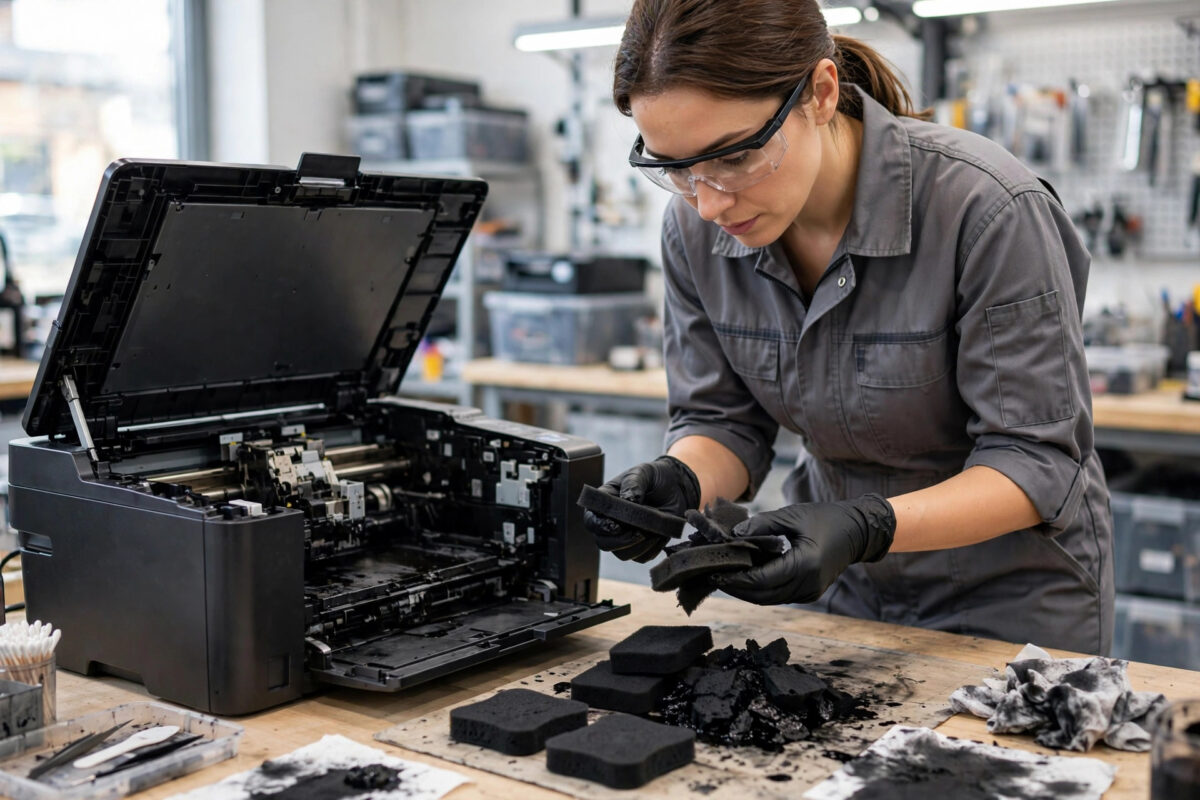
Inside every inkjet printer there are small felt pads that collect waste ink. Every cleaning cycle, borderless print, and start-up purge pushes a little ink into those pads so it does not leak inside the machine. Canon counts that waste ink with a software counter, and when the counter reaches its limit, 5B00 appears and printing stops.
This guide explains what 5B00 means, why simply resetting the counter without checking the pads is risky, how to check whether your model allows a user reset at all, and what a proper service involves. It also covers safe cleaning decisions and how to avoid the error returning too soon.
Quick Answer
Support code 5B00 means Canon’s waste ink counter believes the ink absorber pads inside the printer are full, so the printer stops to prevent ink leaking inside. Some older models can be put into service mode to reset the counter, but the pads still need inspection or replacement, otherwise ink can overflow. If your model has no user reset, or ink is visible around the pads, the safe fix is a Canon service or a reputable repairer who replaces or cleans the pads and then resets the counter.
What the Ink Absorber Actually Does
When your printer cleans its print head, it does not spray the waste ink onto paper. It pulls ink through the nozzles into a small pump and tube system, and that ink ends up in absorbent felt pads hidden in the base of the printer. The same thing happens when the printer primes new cartridges and when it wipes the head between jobs.
Over months and years those pads slowly fill. Canon cannot put a real ink level sensor in cheap felt, so the printer estimates the amount from the number of cleaning cycles, pages, and purges it has done. That estimate is stored as the waste ink counter, sometimes called the absorber counter or D value in service tools.
Why the printer will not just keep going
If saturated pads keep receiving ink, waste ink can pool in the base, reach electrical parts, leak out of the bottom during transport, and create a permanent mess. The lockout is annoying, but it protects the printer and your desk. The Canon error code information in the online manual also directs users to service for this code for the same reason.
Common Reasons 5B00 Appears Earlier Than Expected
- Frequent deep cleaning: Each deep clean uses far more ink than a normal print and fills the counter much faster.
- Turning the printer on and off often: Many models run a small purge at every start-up, which adds up over time.
- Borderless and photo printing: Overspray and extra cleaning around photo jobs create more waste ink.
- Clogged nozzles: A printer that clogs often gets cleaned often, so the counter rises while print quality stays poor.
- Old age and heavy use: A busy home office printer can honestly fill its pads in a few years of normal service.
- A counter that was reset before without changing the pads: The pads may be truly saturated even though the printer is only now showing the code again.
First Checks Before You Try Any Reset
- Write down your exact model name and the full message on the screen, including any support code.
- Check whether the message says almost full or shows 5B00 as a hard error with flashing lights.
- Look under and around the printer for ink stains, a dark wet patch, or a strong ink smell.
- Check how old the printer is and whether the counter has ever been reset before.
- Decide whether the printer is worth servicing by comparing its age, print quality, and cartridge costs with a new model.
After service, if the printer works locally but your computer keeps marking it unavailable, use our guide to fixing a printer that keeps showing offline to sort the connection separately from the absorber problem.
About Service Mode Resets: What They Do and Do Not Do
On some older PIXMA models, technicians enter a special service mode with a sequence of power and resume button presses, then use service software to clear the waste ink counter. You will find many videos and free tools online promising a five-minute reset for every model. Be very careful here.
The limits you need to understand
- Button sequences differ a lot between models. A sequence for one PIXMA can do nothing, or enter the wrong mode, on another.
- Many newer models do not allow a counter reset with buttons alone. They need authorised service tools that are not public Canon downloads.
- Downloaded service tools from random sites are a common source of malware and can write wrong values to the printer firmware.
- Resetting the counter does not remove a single drop of ink from the pads. It only tells the printer to start counting again from zero.
- If you reset a printer with saturated pads and keep using it, the next warning may come only after ink has already leaked inside.
The Proper Fix: Inspect, Clean or Replace the Pads, Then Reset
A proper service follows a clear order. The counter is reset last, after the physical problem has been dealt with.
- The technician powers the printer off, unplugs it, and places it on a protected surface.
- The outer case is opened using the service instructions for that exact model. This often involves hidden clips and screws and is easy to break without the right method.
- The absorber pads are removed and inspected. Lightly used pads may be washable in some workshop settings, but heavily saturated or damaged pads are replaced.
- Any pooled ink in the base is cleaned out and the waste ink tubes are checked for blockages and splits.
- The printer is rebuilt, the pads are seated correctly, and a test purge confirms ink flows to the pads as it should.
- Only then is the waste ink counter reset with the correct service procedure for that model.
- Finally, the technician prints nozzle checks and several test pages and confirms that no new error appears.
How to Get Canon Service Without Wasting Money
- Find your model and serial number on the label at the back or under the scanner unit.
- Contact Canon or an authorised repairer through the Canon UK support page for product help and repairs and quote support code 5B00 clearly.
- Ask for the service fee, the pad replacement cost, and whether the quote includes the counter reset and a short warranty on the work.
- Ask how long the repair will take and whether you need to remove cartridges before transport, following their instructions exactly.
- Transport the printer flat, in a bag or box that can contain any ink, and never tip it onto its side.
Common Mistakes to Avoid
- Resetting the counter only: This is the biggest mistake. The pads remain full and ink damage usually follows.
- Downloading random service tools: Untrusted tools can infect your computer and corrupt printer settings.
- Following a button sequence for a different model: Sequences are model specific and can leave the printer stuck in a strange mode.
- Tilting or shaking the printer: A printer with full pads can spill waste ink from the base when moved carelessly.
- Refitting damp pads: Pads must be fully dry and correctly shaped, otherwise they will not absorb evenly.
- Ignoring the almost full warning: Booking service at the warning stage avoids a hard stop in the middle of important work.
Conclusion
Support code 5B00 is Canon’s way of saying the waste ink system has reached its planned limit. A counter reset on its own is not a repair. The lasting fix is to inspect the absorber pads, clean or replace them as needed, clean any pooled ink, and only then reset the counter with the correct procedure for your exact model. Weigh the service cost against the printer’s age and condition, transport it flat if it goes for repair, and cut down on deep cleaning afterwards so the new pads last as long as they should.
Frequently Asked Questions
Can I keep printing after pressing OK on an absorber warning?
If the message only says the absorber is almost full, many models let you press OK or Resume and keep printing for a while. That is meant as short-term grace, not a permanent solution. Book service soon, because once the counter reaches its full limit, 5B00 will stop the printer completely.
Will resetting the 5B00 counter damage my printer?
The reset itself does not damage the printer, but using it afterwards with truly full pads can. Ink can overflow into the base, reach electronics, and leak out. A reset is only safe when it follows a pad inspection, cleaning, or replacement by someone who knows the model.
How long do ink absorber pads normally last?
It depends mainly on cleaning cycles rather than page count alone. A light home user may never see 5B00 in the printer’s life, while a heavy user who runs frequent deep cleans can reach the limit in a few years. Leaving the printer in sleep mode and avoiding needless cleaning extends pad life a lot.
Is it worth repairing a printer with 5B00?
It is worth it when the printer is a good tank model, prints well, and the service quote is clearly less than a like-for-like replacement. It is rarely worth it for a very old, cheap printer with worn print quality. Always compare a written service quote with the full replacement cost, including new cartridges.
Leave a Reply