
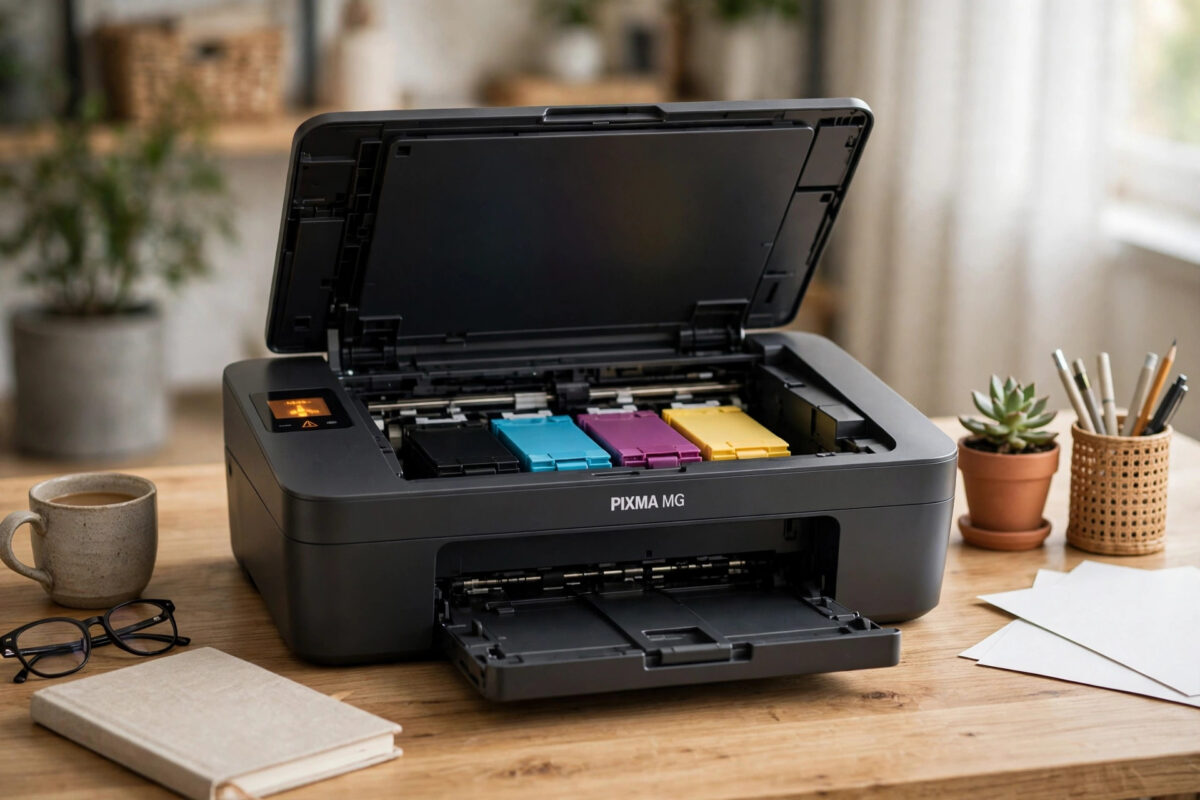
Few printer errors stop you as completely as B200. One moment your Canon PIXMA MG series printer is working fine, and the next moment the screen shows error B200, the power and alarm lights flash, and nothing will print, scan from the panel, or move at all.
This guide explains what B200 really means on MG series models such as the MG3620, MG4250, MG5350, and MG6820, what causes it, and the order in which to try the fixes. Work through the steps slowly. If the print head has truly failed electrically, no reset will save it, but a dirty contact, a bad cartridge, or overheated nozzles can sometimes produce the same code.
Quick Answer
Error B200 on a Canon PIXMA MG series printer usually means the print head voltage or temperature is outside its normal range, which often points to a failing print head or a faulty cartridge. Turn the printer off, unplug it for at least ten minutes, remove and reseat the cartridges, and clean the gold contacts gently. If B200 returns right away after a careful restart and cartridge check, the print head normally needs replacement or the printer needs service.
What Error B200 Actually Means
Your PIXMA does not print by pushing ink through simple holes. Tiny heaters inside the print head boil a microscopic amount of ink to fire droplets onto the page. The printer constantly checks the print head temperature and the voltage running through it.
When those readings go too high or become unstable, the printer shuts down to protect itself. That shutdown is B200. On some MG models you will see ten flashes of the alarm light alongside the code, but the meaning is the same.
It is a protection error, not a paper error
Unlike a jam or an empty tray warning, B200 is not asking you to clear paper or add ink. The printer has detected an electrical or heat problem in the area that does the printing. That is why normal printing, head cleaning from the menu, and sometimes even the power button stop responding.
Common Causes of B200 on MG Series Printers
- A worn out print head: After years of use, the nozzle heaters weaken and readings drift until the printer refuses to run.
- Overheating after heavy cleaning: Running many deep cleaning cycles back to back heats the head with very little ink flow to cool it.
- A faulty or leaking cartridge: Ink on the contacts or a short inside a refilled or third-party cartridge can trigger the same protection code.
- Dirty gold contacts: Dust, dried ink, and fingerprints raise resistance where the cartridge and head meet the carriage.
- Power problems: A failing power adapter, a loose cable, or a recent power surge can corrupt the readings at start-up.
- Very low ink: Printing for a long time with an almost empty colour can overheat that section of the head because ink also acts as a coolant.
Fix 1: Do a Full Power Reset
This sounds too simple, but a single bad reading at start-up can lock the error in memory. A full drain gives the printer a clean check.
- With the printer unplugged, press and hold the power button for about twenty seconds, then release it.
- Leave the printer unplugged for another five minutes.
- Plug the power cable directly into a wall socket, avoiding extension strips for this test.
- Turn the printer on and watch the start-up. Listen for the normal carriage movement.
- If the home screen appears, print a nozzle check pattern from the maintenance menu before printing a real document.
If B200 appears before the carriage even moves, move to the cartridge and contact checks below. If it appears only when you print, heat or ink flow is more likely to be involved.
Fix 2: Remove, Inspect, and Reseat the Cartridges
Many MG series printers use two cartridges, black and tri-colour, with the print head built into the cartridge itself, while other MG models use separate ink tanks and a removable head. The next steps work for both designs, with extra care on tank models.
- Open the front cover or scanner unit as your model requires and wait for the carriage to stop in the replacement position. If it will not move because of B200, unplug the printer first, then gently slide it only if it moves without force.
- Remove each cartridge or ink tank one at a time so you do not mix up the order.
- Check each cartridge for leaks, swollen labels, cracked plastic, and ink pooled around the nozzle plate.
- Look at the gold contacts. They should be bright and even. Dark spots, green marks, or dried ink need cleaning.
- Wipe the contacts once, gently, with a dry lint-free cloth. Do not scrub the nozzle plate and do not use water or alcohol on the nozzles.
- Reseat each cartridge firmly until it clicks. A cartridge sitting half a millimetre high can give bad readings.
- Close the cover, plug the printer back in, and turn it on.
If you have a spare cartridge, especially a genuine Canon one, test with it now. If B200 disappears with the spare, the old cartridge was the fault. Do not keep using a cartridge that triggers B200, even if it still has ink, because it can damage the printer further.
If your printer later connects but will not stay online on your computer, follow our guide to fixing a printer that keeps showing offline after B200 is fully cleared, so you do not confuse a hardware fault with a connection fault.
Fix 3: Let the Head Cool and Avoid Repeated Deep Cleaning
If B200 appeared after a long print run or after several cleaning cycles, heat is a strong suspect.
- Turn the printer off and unplug it.
- Open the cover to let warm air escape and leave it for at least thirty minutes, or one hour in a hot room.
- Check that the vents on the sides and back are not blocked by paper, walls, or other devices.
- After cooling, start the printer and run only one standard cleaning cycle if the nozzle check shows gaps.
- Print a few normal pages with breaks between large jobs for the rest of the day.
When the Print Head Has Really Failed
On tank-based MG models, the print head is a separate part that sits under the ink tanks. If cleaning the contacts and testing with known good tanks does not clear B200, the head itself is likely finished.
You have three realistic choices. First, price a genuine replacement head for your exact model and compare it with the cost of a new printer. Second, ask a local Canon service centre for a diagnosis fee and a written quote before authorising work, using the contact routes on the Canon UK support and contact page. Third, if the printer is old and the head costs more than half the price of a new model, replace the printer and keep the working cartridges only if the new model uses the same ones.
Common Mistakes to Avoid
- Running deep cleaning again and again: This heats the head and wastes ink. One standard clean, then a check, is enough.
- Touching the nozzle plate: Skin oils and scratches damage the tiny nozzles permanently.
- Using water or household cleaners on contacts: Liquid left behind can cause a short at the next start-up.
- Forcing the carriage: If it does not slide easily with the power off, stop. Forcing it can break the encoder strip or the carriage rail.
- Ignoring a leaking cartridge: Ink inside the carriage will keep causing electrical errors until it is replaced and the area is dry.
- Buying parts before testing: Test with a spare cartridge and a different socket first, so you do not spend money on the wrong part.
Conclusion
B200 on a Canon PIXMA MG series printer is a serious code, but it is not always the end of the printer. Start with a full power drain, let the head cool completely, reseat the cartridges, clean the contacts gently, and test with a known good cartridge if you can. Those steps separate a temporary heat or contact problem from a real print head failure. If the code returns instantly on a cold printer with good cartridges, be honest about the economics: a genuine head or a service repair only makes sense when the cost is clearly lower than a replacement printer that meets your needs.
Frequently Asked Questions
Can I reset B200 by holding buttons on the printer?
There is no official button reset that repairs a failed print head. A full power drain can clear a locked or false reading, which is why unplugging for ten minutes sometimes helps. If the head is electrically damaged, button combinations will not fix it and repeated attempts can overheat it further.
Does B200 mean I need a new print head every time?
No. Dirty contacts, a faulty cartridge, overheating, and power problems can all trigger the same code. Test those causes first. A new head is likely only when B200 returns right away on a cold printer with clean contacts and known good cartridges fitted correctly.
Can a refilled cartridge cause B200?
Yes, it can. A refilled or low quality compatible cartridge may leak, have damaged contacts, or draw the wrong current. Testing with a genuine Canon cartridge is one of the fastest ways to find out whether the cartridge or the printer is at fault.
Is it safe to keep using the printer if B200 clears for a while?
Use it gently and watch it closely. Print normal jobs, avoid long runs of deep cleaning, and keep spare cartridges ready. If B200 starts returning more often, plan for repair or replacement soon, because the head is weakening and will usually fail completely in time.
How much does a B200 repair usually cost?
Costs vary by model and country. On many older MG printers, a genuine print head plus labour can approach the price of a new entry-level printer. Always get a written quote for your exact model first, and compare it with a new printer that uses affordable cartridges.
Leave a Reply