
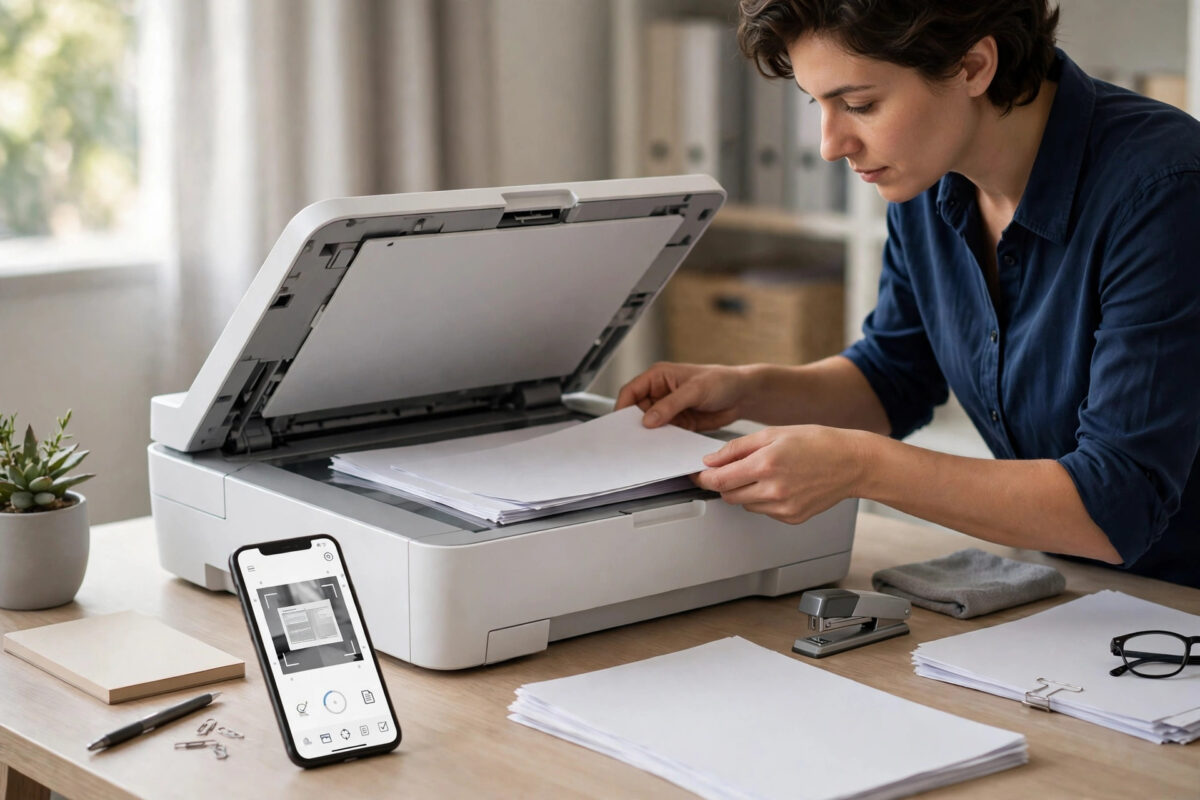
Scanning a contract, application form, or school document page by page and ending up with ten separate image files is a common headache. Most schools, offices, banks, and government portals want one single PDF file with all the pages in the correct order. The HP Smart app can do exactly that, but the option to add pages and save them together is easy to miss if you have never used it.
This guide shows you, step by step, how to scan a multi-page document into one PDF using HP Smart on Windows, Mac, Android, and iPhone. It also covers using the automatic document feeder if your printer has one, fixing page order, choosing the right quality settings, and solving the most common problems, such as pages saving separately or scans looking crooked.
Quick Answer
Open HP Smart, click Scan, place the first page on the glass or load all pages into the document feeder, and press Scan. For glass scanning, click Add Pages after each sheet, place the next page, and scan again until the document is complete. Finally, choose PDF as the file type and click Save to store all pages as one single PDF file.
What You Need Before You Start
A few quick preparations make the whole job faster and prevent rescanning pages later.
- Your HP printer powered on and connected to the same Wi-Fi network as your computer or phone, or connected by USB.
- The HP Smart app installed and your printer added to it. HP Smart is free for Windows, Mac, Android, and iOS.
- Your document pages in order, with staples, paper clips, and sticky notes removed.
If HP Smart cannot find your printer, open the app, click the plus icon, and add it again. If the printer drops off the network often, it is worth working through our guide to fixing a printer that keeps showing offline first, because a scan that loses connection halfway will need to be started again.
Method 1: Scan With the Automatic Document Feeder
If your HP printer has a tray on top that pulls pages through automatically, you have an automatic document feeder, often called an ADF. This is the fastest way to scan a multi-page document because the printer scans every page in sequence and HP Smart combines them into one file by default.
- Load the full stack into the feeder tray on top of the printer, printed side up for most HP models. Check the small icon on the tray if you are unsure which way the pages face.
- Slide the paper guides in so they touch the edges of the stack without bending it. Load no more pages than the feeder rating, usually 20 to 50 sheets.
- Open HP Smart on your computer or phone and select your printer.
- Click or tap Scan.
- Set the source to Document Feeder. If you see options for one-sided or two-sided scanning, choose the one that matches your document.
- Choose Document or PDF-friendly settings: colour for forms with stamps or photos, greyscale for normal paperwork to keep the file smaller.
- Click Scan. The feeder will pull each page through one by one.
- Wait for all pages to appear as thumbnails in HP Smart, then check the preview before saving.
Method 2: Scan Page by Page on the Glass
Printers without a feeder, including most DeskJet models, scan one sheet at a time on the flat glass. The key is the Add Pages button, which keeps every page in the same job instead of saving separate files.
- Lift the scanner lid and place the first page face down on the glass. Align its corner with the marker, usually at the front left or back left of the glass.
- Open HP Smart, select your printer, and click Scan.
- Set the source to Scanner Glass and choose the page size, such as A4 or Letter, to match your document.
- Click Scan and wait for the preview of page one to appear.
- Lift the lid, remove page one, and place page two in exactly the same position.
- Click Add Pages in HP Smart, then click Scan again.
- Repeat this process for every remaining page. The thumbnail strip shows how many pages are in the current job.
- When the last page is scanned, stop adding pages and move to the editing and saving steps below.
Work at a steady pace and keep the finished pages in a separate pile face down. The most common cause of a mixed-up final PDF is simply placing a page twice or skipping one during a long glass-scanning session.
Edit the Scan Before Saving
HP Smart gives you a short editing stage before you save, and thirty seconds here can save you from rescanning the whole document.
Reorder, rotate, and delete pages
- Reorder: Drag page thumbnails left or right into the correct sequence.
- Rotate: Select a page that scanned sideways or upside down and use the rotate button until the text reads correctly.
- Delete: Remove blank pages, feeder accidents, or a page you scanned twice.
- Crop and adjust: On many versions of HP Smart you can drag crop corners to cut off dark edges, and apply auto-enhancement to brighten grey backgrounds on thin paper.
Choose sensible scan settings
For most documents, 300 DPI in colour or greyscale is the sweet spot: text stays sharp, signatures and stamps are clear, and the file size remains reasonable for email. Use 200 DPI for basic paperwork where file size matters most. Reserve 600 DPI for photos or very small print, because a long document at 600 DPI can become too large to email. The official HP guide to scanning with HP Smart explains the preset options for each printer family in more detail.
Save All Pages as One PDF
This is the step that decides whether you get one file or many.
- After editing, click Save, Done, or Share/Save, depending on your version of HP Smart.
- Set the file type to PDF. If you see Basic PDF or PDF, choose PDF. Never choose Image for a document job, because image saving creates one file per page.
- Type a clear file name, such as Rental-Agreement-Scan or Passport-Application-2026.
- Choose where to save it on your computer or phone, then confirm.
- Open the saved PDF and scroll through it. Confirm the page count matches your document and every page is in order and readable.
On a phone, HP Smart may show Share instead of Save. Tap Share, choose Save to Files or your file manager, and the complete multi-page PDF is stored as one file. You can also share it directly to email or a messaging app from the same screen, which sends the single combined PDF, not separate pages. More device-specific steps are listed on the HP Smart support page.
Tips for Clean, Professional Results
- Clean the glass: Dust and fingerprints show up as spots and lines on every page. Wipe the glass with a soft, slightly damp lint-free cloth and dry it before a big job.
- Keep pages straight: A page placed at an angle scans crooked. Use the corner marker every time instead of eyeballing it.
Troubleshooting Common Problems
Each page saved as a separate file
This happens when the file type is set to an image format, or when you save after each page instead of using Add Pages. Redo the job in one session: scan, choose Add Pages for each new sheet, and only save at the very end with PDF selected.
Scan stops halfway or the app freezes
Move closer to the router, restart the printer and the app, and try again with fewer pages in the feeder. USB scanning avoids Wi-Fi dropouts entirely for very long documents. Save your work after each successful batch if you are scanning a very large file in sections, then combine the PDFs later if needed.
Conclusion
Scanning a multi-page document into one PDF with HP Smart comes down to one habit: keep every page in a single scan job. Use the document feeder when you have one, or scan on the glass and press Add Pages between sheets. Check the thumbnails, fix order and rotation, then save once with PDF selected. Open the finished file to verify the page count, and you will have a clean, single document that is ready to email, upload, or archive.
Frequently Asked Questions
Can I add more pages to a PDF I already saved?
HP Smart cannot reopen a saved PDF and add pages to it. Instead, scan the extra pages as a new PDF and combine the two files with a PDF merging tool, or rescan the complete document in one job using Add Pages. For important documents, rescanning in one job gives the cleanest result.
What is the best DPI for scanning documents to PDF?
300 DPI suits almost all paperwork, forms, and contracts. It produces sharp text and clear signatures while keeping file sizes manageable. Use 200 DPI when file size is the priority, and 600 DPI only for photos, artwork, or documents with extremely small print.
Why does HP Smart save my scan as JPEG instead of PDF?
The file type was probably set to Photo or Image, or you used a photo scan preset. Start the scan from the Scan tile, choose a document preset, and at the save screen change the file type drop-down to PDF before confirming. On phones, select PDF in the Save or Share options.
Can I scan to one PDF from my phone without a computer?
Yes. Install HP Smart on Android or iPhone, add your printer, and tap Scan. Use Add Pages for glass scanning or load the feeder, then tap Save or Share and select PDF. The finished single-file PDF can be saved to your phone or sent directly to email and cloud storage.
How do I scan a double-sided document into one PDF?
If your feeder supports two-sided scanning, select the two-sided option in HP Smart and it will scan both sides automatically in order. If it does not, scan all front sides, then follow the HP Smart prompt to reload the stack for the back sides, or scan backs manually with Add Pages and reorder the thumbnails before saving.
Leave a Reply