
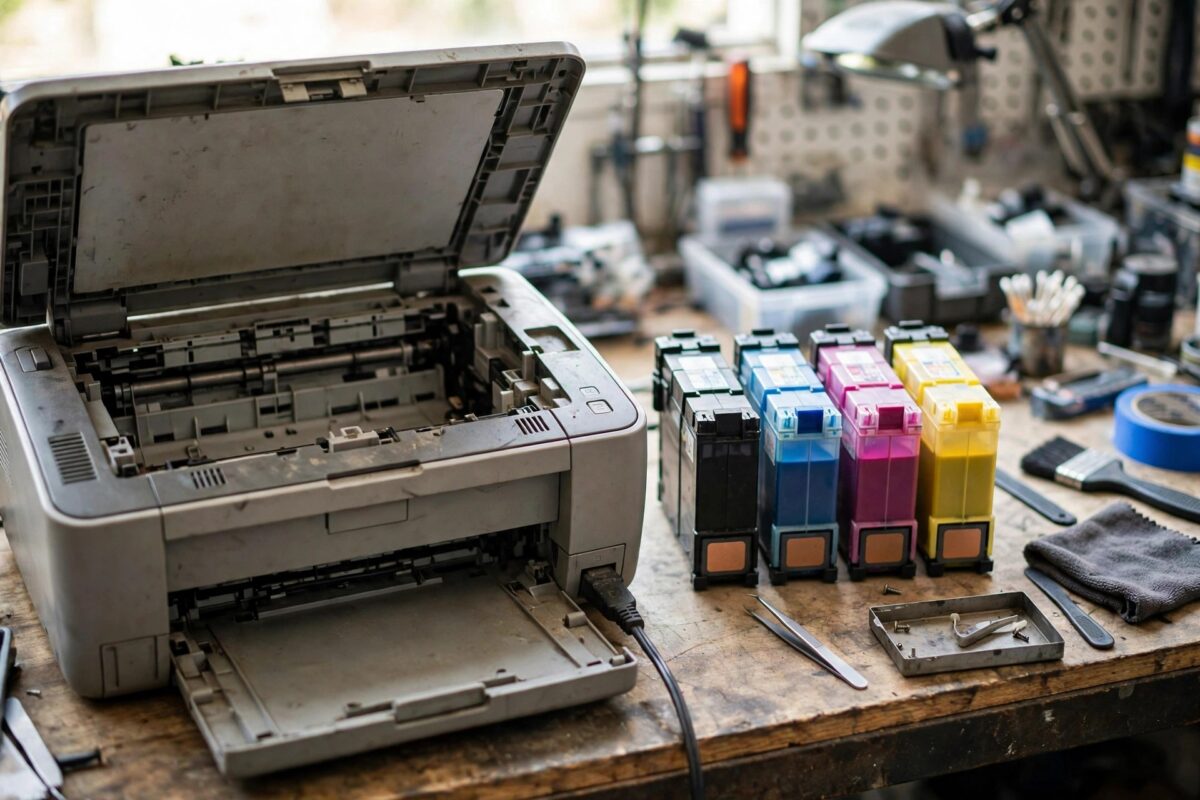
Owners of older HP Photosmart printers know this message well: “Ink System Failure — error 0xc18a0206”, sometimes with instructions to turn the printer off and on again that never seem to work. This code appears on Photosmart models with separate ink cartridges and a semi-permanent printhead (the C6100, C7200, D7200 and similar generations). The good news is that this particular code has a well-known reset procedure using the printer’s hidden support key combinations, which clears the error in many cases where the ink system is actually healthy. This guide explains the reset, plus the physical checks to do first.
Quick Answer
HP error 0xc18a0206 is an ink system failure code on older Photosmart printers. Start by removing the cartridges, checking for leaks or empty cartridges, and cleaning the contacts. Then perform the Photosmart reset: unplug the printer, hold the # and 6 keys (or # and 9 on some models) while reconnecting power, and let the printer run its reset and re-prime the ink system. If the code returns with known-good cartridges fitted, the printhead or ink system pump has genuinely failed.
Before the Reset: Physical Checks
A reset cannot fix a physical problem, and these models are old enough that physical problems are common:
- Check every cartridge: remove all of them. One completely empty or leaking cartridge can trigger an ink system failure. Look for ink pooled inside the printer beneath the carriage.
- Inspect the printhead area: on these models the printhead lifts out after releasing a latch. Check its nozzles and contacts for ink build-up and clean gently with a lint-free cloth dampened with distilled water.
- Clean the cartridge contacts and the matching contacts in the carriage.
- Look for the service station on the right side — a pad where the printhead parks. Years of ink sludge here can block the head from seating and priming properly. Wipe away excess.
The Photosmart Ink System Reset (Step by Step)
This is the widely used reset for the 0xc18a family on Photosmart printers. It clears the error flag and forces the printer to re-initialise and re-prime the ink system:
- With the printer on, remove all the ink cartridges and close the access door.
- Unplug the power cable from the back of the printer. Leave the other end in the wall socket.
- Press and hold the # and 6 buttons on the printer’s keypad together. (On some Photosmart models the combination is # and 9 — if # and 6 produces no response, repeat the process with # and 9.)
- While still holding both buttons, plug the power cable back in.
- Keep holding the buttons until the display goes blank or the printer begins to power up, then release.
- The printer will run a longer-than-usual initialisation. Follow any on-screen prompts.
- When asked, refit the cartridges. The printer should then prime the ink system — you will hear the pump working — and print an alignment page.
HP never prominently documented this sequence for end users, but it is the standard support response for this code on this generation of printers, and it matches the reset philosophy in HP’s ink system failure documentation: clear the error, re-prime, and only replace parts if the error returns.
After the Reset: Verify Properly
- Print a Print Quality Diagnostic page from the Tools menu. Check all colours are present and even.
- If one colour is missing after the reset, run one cleaning cycle and retest. Do not run more than two or three — these printers use a lot of ink per cycle.
- Print several normal documents over the next day. An error that stays away through a dozen jobs is genuinely cleared.
- If 0xc18a0206 returns quickly with good cartridges fitted, the cause is hardware: typically the printhead’s ink channels or the priming pump. On a printer of this age, weigh repair cost against replacement honestly.
If the reset got you printing but quality is poor, our guide to cleaning printer heads safely covers the manual soak method suitable for these removable Photosmart printheads.
Common Mistakes to Avoid
- Resetting without removing the cartridges first — the classic sequence expects the cartridges out; with them in, the error often survives.
- Releasing the keys too early — hold # and 6 until the display responds or goes blank, not just for a second or two.
- Assuming one reset failure means the printer is dead — try the alternate # and 9 combination and re-check the physical basics before giving up.
- Refitting a leaking cartridge — it will re-trigger the failure and can damage the printhead contacts.
- Endless cleaning cycles after the reset — if a colour channel is dead, cycles just empty the other cartridges.
What to Expect from These Printers Going Forward
It is worth being realistic about the generation of Photosmart printers that shows this code. These machines were built in the mid-to-late 2000s, and the ones still running have outlived two or three sets of replacement models. Their ink systems use a pump-and-tube arrangement that ages even when the printer is idle — seals harden, tubes stiffen, and ink slowly thickens in the lines, which is precisely why the 0xc18a family of errors becomes more frequent with age and disuse. If the reset in this guide restores your printer, the best thing you can do for it is use it: a page or two every week keeps ink moving and the priming system exercised, and printers of this era that print weekly genuinely outlast identical ones left in a cupboard. Store spare cartridges sealed and upright, and expect any cartridge that has been open for years to be part of the problem rather than part of the solution. When the error finally stops responding to resets, the printer has not betrayed you — it has simply reached the end of a long service life.
One last check if the reset works but print quality is streaky afterwards: these printheads often need a day of normal use to fully settle after a re-prime, as air works out of the ink lines. Print a handful of ordinary pages across a day before judging the result, rather than running repeated cleaning cycles in one sitting and draining the cartridges you just rescued.
Conclusion
Error 0xc18a0206 on an older Photosmart is often a latched error rather than a dead ink system. Clean and check the cartridges and printhead first, then run the # and 6 power reset and let the printer re-prime. If the code returns with known-good cartridges after a proper reset, the printhead or pump has failed — and on a printer of this vintage, that is usually the point to replace rather than repair.
Frequently Asked Questions
Is the # and 6 reset safe? Will it wipe my settings?
It performs a semi-full reset: network and user settings may need re-entering afterwards. It does not harm the printer. Note your Wi-Fi details before starting.
My Photosmart has no # key on the panel. What then?
Models with touchscreens use different sequences — try # and 9 equivalents via the on-screen keypad during a service call, or use the power reset (unplug for two minutes with cartridges removed) and the printhead cleaning steps in this guide.
The error cleared but keeps returning every few days. Why?
Something marginal is re-triggering it: a cartridge nearly empty, a weeping cartridge seal, or a printhead channel slowly blocking. Replace the suspect cartridge first; if it persists, the printhead is on its way out.
Can I still scan when this error is showing?
Usually not — these all-in-ones lock most functions while an ink system failure is active, which is why clearing the code matters even if you rarely print.
Is a replacement printhead worth it for these models?
Rarely. These Photosmarts are well over a decade old; a printhead can cost more than a modern replacement printer that uses cheaper ink. The reset is worth trying precisely because it is free.
Leave a Reply