
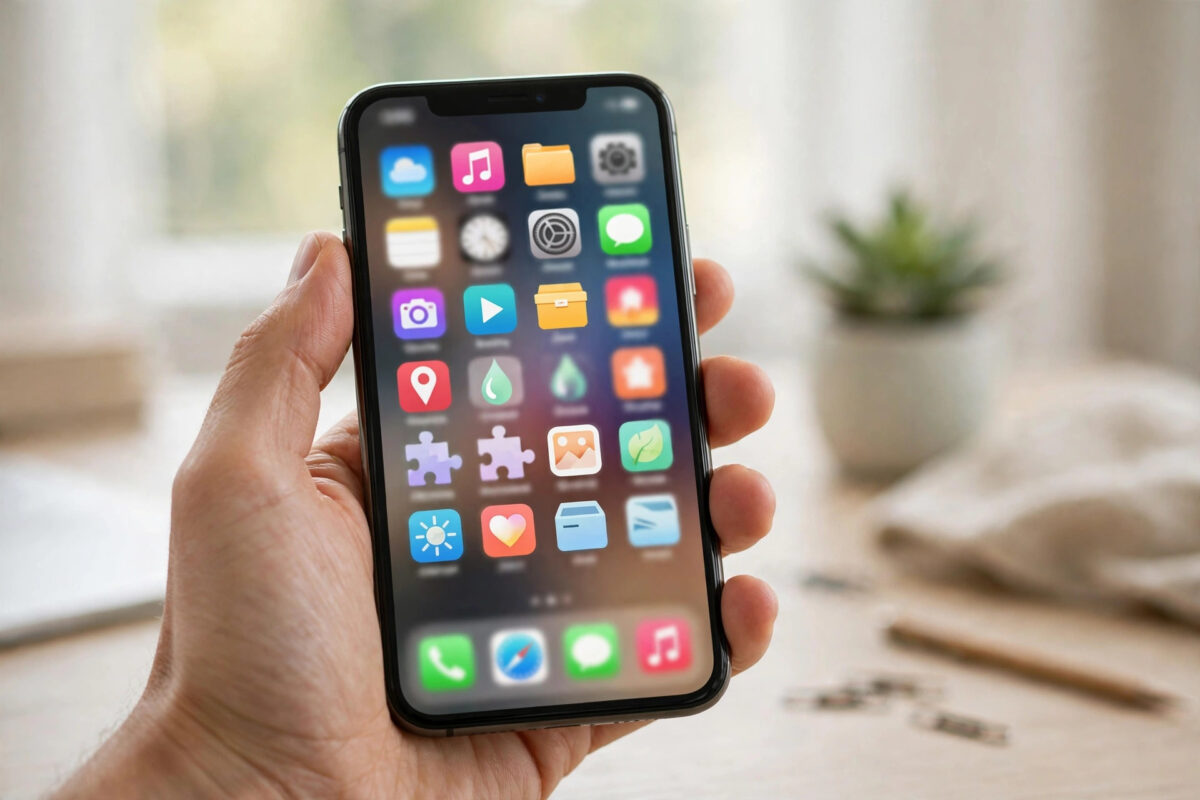
Running out of storage on an iPhone is frustrating. Photos, videos, and social apps can fill your phone quickly, and deleting an app feels risky when you have unsaved drafts, saved posts, and logins you do not want to lose.
Offloading is different from deleting. When you offload an app, iOS removes the app itself but keeps its documents and data on your phone. When you reinstall it, your settings, drafts stored locally, and login information should return in most cases.
This guide explains how offloading really works for social apps, what is safe, what is stored online, and what you should check before you offload anything important.
Quick Answer
To offload social apps on iPhone without losing drafts and logins, first check that your drafts are synced or backed up inside the app, then go to Settings, General, iPhone Storage, tap the social app, and tap Offload App. Offloading removes the app but keeps its local data, so reinstalling from the same storage screen restores the app with your settings intact. Never tap Delete App if you want to keep local data.
Offload App vs Delete App: What Is the Difference?
This is the most important point to understand before you start.
What Offloading Does
When you offload an app, iOS deletes the app binary, which is the large part that takes up most space, but it keeps the app icon on your Home Screen with a small cloud symbol. Your documents, settings, and local data stay on the device. Tapping the icon downloads the app again from the App Store and puts your data back in place.
Apple explains this feature in Apple Support guidance on checking iPhone storage and offloading apps, where you can see how to free space without deleting your data.
What Deleting Does
When you delete an app, iOS removes the app and all of its local data. If the app did not back up that data online, it is gone. Drafts that only lived inside the app, offline downloads, and some login tokens may be lost. You will need to sign in again and start fresh.
For social apps with important drafts, offload is almost always the safer choice.
What Happens to Drafts and Logins When You Offload?
Each social app stores data in a slightly different way, so results can vary.
- Instagram: Posts and Reels drafts saved inside the app are mostly stored locally. Offloading should keep them because iOS keeps app data, but drafts are not fully backed up to your Instagram account online. There is always a small risk if the app updates in a way that changes draft storage.
- TikTok: TikTok drafts are stored locally on the device and tied to the app data. Offloading should preserve them, deleting will remove them. Drafts do not transfer to a new phone automatically.
- Facebook and X: Most of your content, saved posts, and settings live on your online account. Offloading or even reinstalling is usually safe after you sign back in.
- Snapchat: Memories are backed up online if you enabled Smart Backup. Chats and login are account-based, but check your Memories before you offload.
Logins are usually safer than drafts. Many apps store login tokens in the iOS Keychain or in the preserved app data, so you may open the reinstalled app and already be signed in. In some cases, especially after a long time or a major app update, the app will ask you to sign in again for security. Keep your password and two-factor method ready just in case.
Before You Offload: A Safety Checklist
Do these checks first. They take five minutes and prevent most problems.
- Connect to Wi-Fi and charge your iPhone or make sure the battery is above 50 percent.
- Open each social app and check your drafts folder. Save your most important draft as a private post or export the video to Photos if possible.
- Make sure you know your username, email, and password for each account.
- Check that two-factor authentication is working. Test your authenticator app or phone number.
- Update the app to the latest version in the App Store before offloading. This reduces compatibility problems when you reinstall.
- Take a full iCloud or computer backup if you have very important drafts. This gives you an extra safety net.
If a draft is truly irreplaceable, the safest option is to export it. Save the video or image to your Photos app, or publish it as a private or close-friends post, then offload with confidence.
How to Offload Social Apps Manually
Manual offloading gives you full control over which apps are offloaded and when.
- Open Settings.
- Tap General.
- Tap iPhone Storage and wait for the list to load.
- Tap the social app you want to offload, for example Instagram or TikTok.
- Tap Offload App.
- Tap Offload App again to confirm.
- Check that the app icon stays on your Home Screen with a cloud download symbol.
The storage screen will show you how much space you saved. The Documents and Data size stays listed, which confirms your data was kept.
How to Reinstall an Offloaded App
- Tap the app icon on your Home Screen, or go back to Settings, General, iPhone Storage.
- Tap the app name.
- Tap Reinstall App.
- Wait for the download to finish on Wi-Fi.
- Open the app and check your drafts, saved items, and login status before you make new posts.
If the app asks you to sign in, sign in with the same account you used before. Your online content, followers, and saved collections should appear after syncing.
How to Turn On Automatic Offloading
iOS can offload unused apps automatically when storage is low. This is helpful if you have many apps you rarely open.
- Open Settings.
- Tap App Store.
- Turn on Offload Unused Apps at the bottom of the screen.
You can also enable it from the iPhone Storage screen when iOS recommends it. Automatic offloading only targets apps you have not used in a long time, so your daily social apps are unlikely to be offloaded unless you stop using them for weeks.
If you want more storage tips that work alongside offloading, see our guide on how to free up iPhone storage without deleting photos for other safe ways to reclaim space.
Social App Tips for Drafts and Saved Content
Instagram Drafts and Saved Collections
Saved collections are stored on your Instagram account online, so they return when you sign in on any device. Drafts are riskier because they are local. Before offloading Instagram, open your drafts, and for any important Reel, tap Save to Device or share it privately. That creates a copy outside the app.
TikTok Drafts
TikTok warns that drafts may be lost if you remove the app data. Offloading is designed to keep data, but do not rely on it for your only copy of a finished video. Export the draft video to Photos first. Even if the editable draft layers are lost, you still keep the final video file.
YouTube and Other Creation Apps
YouTube drafts and uploads in progress are partly tied to your Google account, but local project files in editing apps like CapCut are local. Offload CapCut only after you export projects or back them up to its cloud service if you use one.
Common Mistakes to Avoid
- Tapping Delete App instead of Offload App: The two buttons look similar on the storage screen. Read carefully before you confirm. Delete removes data, offload keeps it.
- Offloading without knowing your password: You may need to sign in again after reinstalling. Resetting a forgotten password while logged out is much harder.
- Assuming TikTok and Instagram drafts are backed up online: They are mostly local. Export important drafts first.
- Offloading when the app is no longer in the App Store: If an app was removed from the App Store, you may not be able to download it again. Check first for older or region-specific apps.
- Not checking after reinstalling: Open the app and verify your drafts and logins right away, while your backup is still recent, instead of discovering a problem weeks later.
Conclusion
Offloading social apps is one of the safest ways to free space on an iPhone without losing your data. It removes the large app file but keeps documents, settings, and local drafts, so reinstalling feels like you never left.
The key is preparation. Check your drafts, export anything irreplaceable, confirm you know your logins, and always choose Offload App, not Delete App. With those steps done, you can reclaim gigabytes of storage and bring your apps back in minutes whenever you need them.
Frequently Asked Questions
Will I stay logged in after I offload and reinstall a social app?
In most cases yes, because offloading keeps app data and many login tokens are preserved. Sometimes the app will ask you to sign in again for security, especially after an update, so keep your password and two-factor method ready.
Are Instagram drafts safe when I offload the app?
Offloading is designed to keep local app data, so drafts should remain. However, Instagram drafts are not fully backed up online, so export your most important drafts to Photos before offloading to be completely safe.
How much storage does offloading actually save?
It depends on the app. Social apps can be 300 MB to over 1 GB for the app itself, plus cached videos and images. Offloading saves the app size immediately, and you can check the exact amount on the iPhone Storage screen.
Can I offload WhatsApp without losing my chats?
Yes, offloading WhatsApp keeps its local data, and chats are also backed up if you use iCloud backup. Still, make a fresh WhatsApp chat backup inside the app before offloading for extra safety.
What if an offloaded app will not reinstall?
Check your internet connection, make sure you have enough free space for the download, and confirm you are signed in to the App Store with the same Apple Account. Restart your iPhone and try again from Settings, General, iPhone Storage.



Leave a Reply