
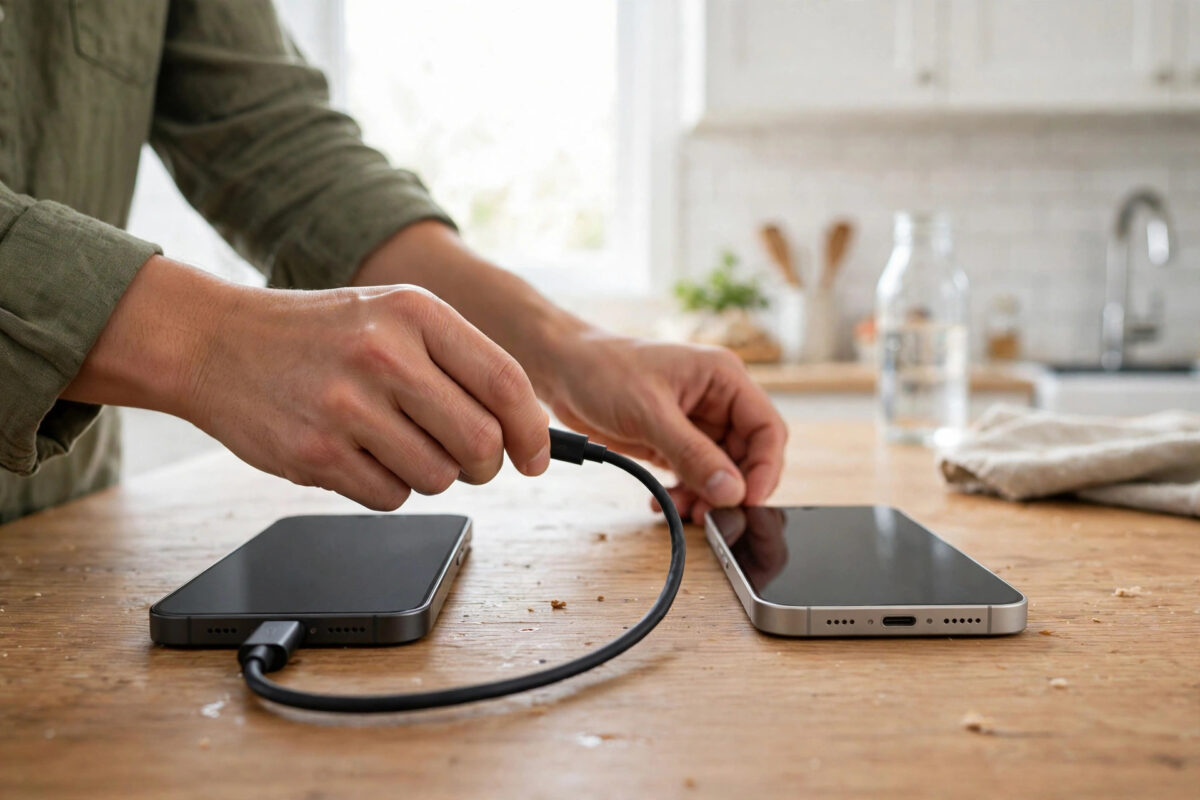
You set up your shiny new phone, log in to TikTok, open your profile — and your drafts folder is empty. Months of filmed ideas, gone. Or are they? The single most important fact about TikTok drafts is that they are not stored in your account at all. They live in the app’s local data on the phone where you created them. That means your drafts are almost certainly still sitting on your old phone, perfectly safe, and recovery is mostly a matter of understanding what can move, what cannot, and how to rescue the videos themselves.
This guide explains your real options, from best case to last resort.
Quick Answer
TikTok drafts do not transfer to a new phone automatically, because they are stored locally on the old device, not in your account. If you still have the old phone, your drafts are there: open TikTok on it, then save each draft to the device album or post it privately (“Only me”) so it reaches TikTok’s servers, and from there download it on the new phone. There is no official one-tap draft migration, so the old phone is the key to recovery.
Best Case: You Still Have the Old Phone
If the old phone works and TikTok is still installed and logged in, full recovery is straightforward, just manual.
- On the old phone, open TikTok and go to your profile’s drafts folder. Photograph or list the drafts so you know what you have.
- For each important draft, open it and continue to the posting screen.
- Choose one of two rescue methods per draft:
- Save to device: Use the option to save the video to the phone’s album, then move that file to the new phone by cable, cloud storage, or a transfer app.
- Post privately: Set visibility to “Only me” and post. The video uploads to TikTok’s servers under your account. On the new phone it appears in your private videos, and you can download it from there.
- For drafts built from many clips and effects that you may want to keep editing, note that saving or posting gives you the finished video, not the editable project. TikTok offers no way to move an editable draft project between phones.
TikTok’s own support information on managing drafts confirms drafts are tied to the device, which is why this manual rescue is the official reality.
If the Old Phone Is Gone, Broken, or Reset
Be honest with yourself about the categories, because effort should go where recovery is possible:
- Phone lost or wiped, TikTok uninstalled: The draft data went with the device. No cloud copy exists, and TikTok support cannot restore drafts.
- Footage filmed with the phone’s camera: Check your cloud photo backups — Google Photos, iCloud, Samsung Cloud. The raw clips may be there even though the drafts are not, letting you rebuild the videos.
- Drafts previously saved or posted: Anything you ever saved to an album or posted (even privately, even later deleted from public view) may survive in galleries, backups, or your TikTok data download.
- Your TikTok data download: Requesting your account data from TikTok gives you your posted content and account information. It does not include unpublished drafts, but it is worth having for everything else.
If drafts also vanished from the old phone itself around an update, our companion guide on drafts disappearing after an app update explains the local-storage causes and the survivor hunt in more detail.
What About Phone Transfer Tools?
Full-device transfer tools — the ones that clone your old phone to the new one during setup — sometimes carry app data across on the same platform, and occasionally drafts survive an Android-to-Android or iPhone-to-iPhone clone. This is luck, not a feature: it fails often, especially across platforms, and TikTok does not promise it. If you have not yet wiped the old phone and are about to set up the new one, running the manufacturer’s full transfer is worth trying first — but still rescue your most important drafts manually with the save or private-post method before you rely on it.
Rebuilding on the New Phone
For drafts you recover as finished videos, you have two paths on the new phone: post them as they are, since the creative work is already done, or use the recovered video as a base and add new edits on top. For drafts lost entirely, your raw clips — if backed up — let you recreate them. Painful, but creators are often surprised how much footage their photo cloud quietly saved.
Set Up a Draft-Safe System Now
- Private-post anything precious: The moment a draft becomes valuable, post it as “Only me.” Server storage survives every phone change.
- Save finished drafts to the album: Make it the last step of every editing session.
- Film originals with the camera app: Raw footage in your gallery syncs to the cloud and outlives any app.
- Before switching phones: Add “rescue drafts” to your migration checklist, right next to photos and messaging backups.
A Simple Pre-Switch Checklist for Creators
Treat your next phone change like a small move, with drafts on the checklist alongside photos and chats. The night before switching: open your drafts folder and count what is there; privately post or save every draft you would miss; export a list of draft ideas into a notes app as a final safety net; and only then run the phone transfer. On the new phone, before wiping or trading in the old one, open TikTok, confirm your private videos and saved files are all present, and scroll the drafts folder on the old phone one last time.
This twenty-minute routine converts the most fragile part of a phone switch into the safest. Drafts feel like scratches in a notebook, but for working creators they are inventory — and inventory deserves a checklist, not a hope.
Common Mistakes to Avoid
- Wiping or selling the old phone first: Once it is reset, the only copy of your drafts is gone. Rescue drafts before letting the phone go.
- Believing a login restores drafts: Logging in restores your account, posts, and followers — never drafts.
- Paying for draft-recovery software: Nothing can extract data from a phone you no longer have or from servers that never held it.
- Skipping the check on the old phone: Many people assume drafts are gone without ever opening TikTok on the old device, where they sit untouched.
Conclusion
Recovering TikTok drafts on a new phone is really about the old phone: drafts are local, so the old device is the vault. If you still have it, save or privately post every draft that matters and the videos are yours again in minutes. If it is gone, your cloud photo backups and raw clips are the fallback. Either way, leave this experience with a new habit — nothing valuable should exist only as a draft.
Frequently Asked Questions
Why didn’t my drafts move when everything else did?
Because drafts are not account data. Your posts, followers, and settings live on TikTok’s servers and follow your login anywhere. Drafts live in the old phone’s app storage, and TikTok provides no transfer mechanism for them.
Can I transfer drafts from Android to iPhone or the reverse?
Not as editable drafts. The cross-platform route is the manual one: on the old phone, save each draft to the album or post it privately, then download the finished videos on the new phone.
My old phone is broken but turns on. What should I try?
If it powers up and TikTok opens, rescue drafts immediately with the save-to-album or private-post method, starting with the most valuable ones, in case the phone fails again mid-rescue.
Does TikTok’s data download include drafts?
No. The data download covers your account information and posted content. Unpublished drafts are excluded because they were never uploaded to TikTok.
Will a full phone clone during setup bring my drafts?
Sometimes, on same-platform transfers, app data including drafts may come across — but it is inconsistent and unsupported. Treat it as a bonus, and still manually rescue important drafts from the old phone first.



Leave a Reply