
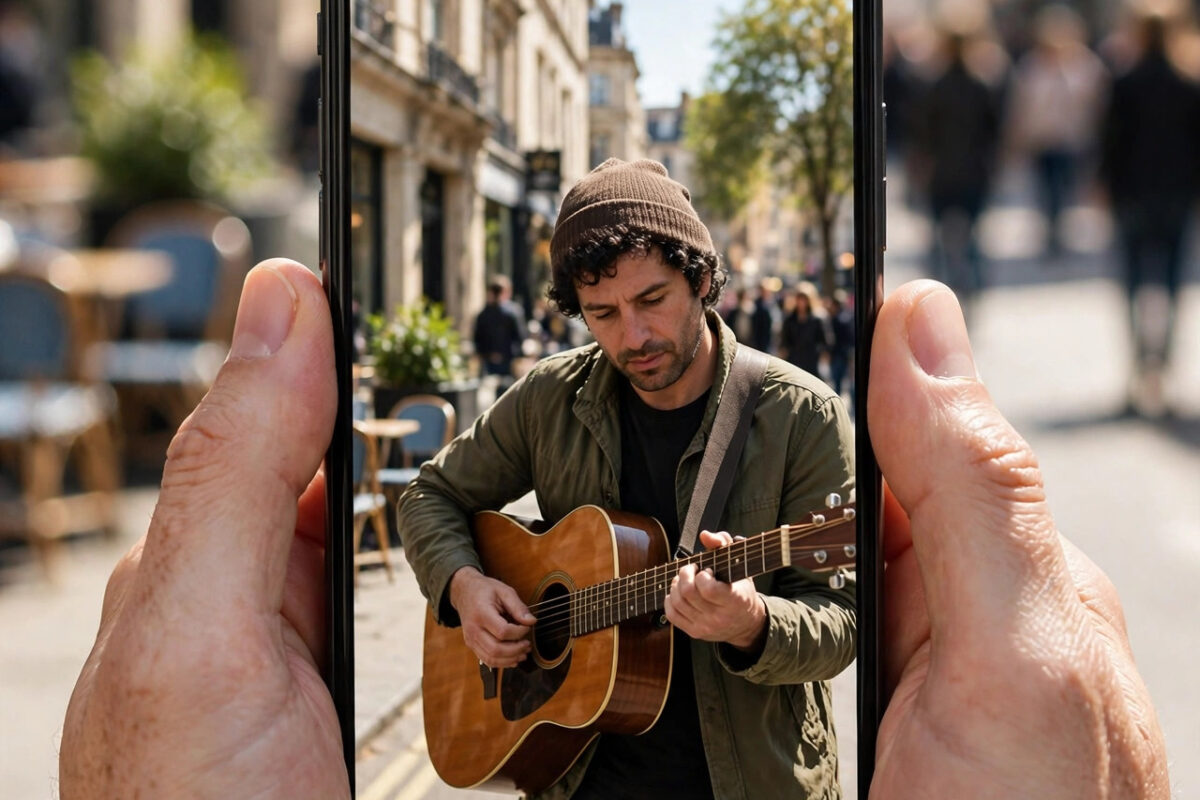
You shoot a perfect vertical video, open it in Instagram Stories, and the app zooms in like it is looking through a keyhole. Heads get cut off, text near the edges disappears, and the framing you carefully composed is ruined. This automatic zoom is one of the most common story complaints, and it happens because your video’s shape does not match the shape Instagram wants. The fix is understanding aspect ratios — and once you do, you can stop the crop every time instead of fighting it on every post.
Here is why stories zoom in, and the exact ways to post full-frame vertical videos.
Quick Answer
Instagram Stories are designed for a 9:16 frame (1080 x 1920). If your video is wider, taller, or a different ratio — like the 19.5:9 or 20:9 screens on many modern phones, or a 4:3 or 16:9 clip — Instagram zooms and crops it to fill the story frame. Fix it by recording in 9:16, pinching to shrink the video to fit when posting, or editing the clip onto a 1080 x 1920 canvas in an editor before uploading.
The Aspect Ratio Problem Explained Simply
Aspect ratio is just the shape of your video: width compared to height. Stories want 9:16. Problems start when your source does not match:
- Phone screen recordings and some cameras: Many Android phones record video in the screen’s native shape, which can be taller than 9:16. Instagram crops the top and bottom — or zooms — to compensate.
- 16:9 landscape clips: A horizontal video in a vertical frame either gets huge blurred bars or a severe zoom if you pinch it wrong.
- 4:3 or 1:1 videos: Older or square clips are zoomed to fill the width, cutting off top and bottom content.
- Front camera defaults: Some phones shoot selfie video in 4:3 or full-sensor shapes that do not match stories.
Fix 1: Pinch to Fit When Posting
The fastest fix happens right inside the story editor.
- Add your video to your story as usual.
- Before posting, use two fingers to pinch the video smaller, the same gesture as zooming out a photo.
- Shrink it until the entire frame is visible. Instagram fills the leftover space with a background colour or gradient.
- Position the video where you want it, then post.
This trades full-bleed drama for showing everything. If the background fill looks plain, this is often still better than losing the top of someone’s head.
Fix 2: Record in True 9:16
Prevention beats repair. In your camera app, check the video aspect or resolution settings before recording story content. Many phones offer a 9:16 or “full” choice; pick the one that matches 1080 x 1920 proportions. On phones that record in the screen’s extra-tall ratio, switching to a 16:9 or dedicated 9:16 mode stops the story crop at the source. Instagram’s own creator guidance on story dimensions recommends 1080 x 1920 as the ideal story size.
Fix 3: Put the Video on a 9:16 Canvas in an Editor
For videos you cannot reshoot, an editor gives you full control:
- Create a new project at 1080 x 1920 (9:16).
- Import your video and scale it to fit the width or height — whichever keeps all important content visible.
- Fill the empty space with a blurred version of the video, a solid colour, or a gradient background. Most editors, including CapCut, have a one-tap background fill.
- Export at 1080 x 1920 and post the result. Instagram now has nothing to crop.
This is also the professional approach for mixing clips of different shapes in one story sequence: everything arrives pre-framed, so Instagram leaves it alone. While you are editing, the export settings in our guide to fixing reel frame rate drops will help your story exports stay smooth as well as correctly shaped.
Fix 4: Keep Important Content in the Safe Zone
Even a perfect 9:16 video has areas covered by the interface: your profile name and the reply box sit at the top and bottom. Frame your shots so faces and text sit in the middle 80 percent of the frame. If you add text or stickers inside another app before posting, keep them away from the very top and bottom edges so nothing important hides under Instagram’s own overlays.
Fix 5: Check the “Letterbox” Behaviour on Your Phone
Some phones and Instagram versions behave differently with the same file: one fills the screen, another shows the full frame with borders. If stories suddenly started cropping after an app update, update Instagram again when a newer version appears, and test the same video after clearing the app cache on Android. Occasional versions have had aggressive-crop bugs that later updates quietly fixed.
Working With Videos From Other Apps and People
Cropping problems multiply when the video was not made by you for stories: a clip sent by a friend, a download from another platform, or footage from a drone or action camera. Each arrives in its own shape — GoPro footage, for instance, is often 4:3 or a wide superview — and Instagram will make a brutal crop decision if you post it raw. The canvas method from Fix 3 is built for exactly this: drop the foreign clip onto a 1080 x 1920 project, choose the scale that keeps the action visible, and let a blurred fill handle the remaining space.
One more habit protects you across every source: before posting anything important, preview the story on the final screen and actually look at the corners. Ten seconds of checking beats discovering after posting that your title text was amputated. If the preview shows any unwanted zoom, back out, fix the shape in the editor, and post the corrected file instead of accepting the crop.
Common Mistakes to Avoid
- Stretching the video to fill: Pinching one direction only can distort people. Scale evenly or use a canvas.
- Recording in the phone’s tallest mode: Extra-tall footage guarantees a crop on stories.
- Adding captions at the very bottom in other apps: They end up under the story reply box, unreadable.
- Reposting a downloaded story: It carries the first crop plus a second one, and quality falls apart.
The Ten-Second Habit That Prevents Most Crops
Professional creators build one small habit: before recording anything meant for stories, they glance at the camera’s aspect indicator and confirm it shows 9:16 or 1080 x 1920. That single glance eliminates the problem for nearly every clip, because the vast majority of story crops are born at the moment of recording, not at the moment of posting. Everything else in this guide is rescue work for clips where that glance was missed.
Conclusion
Stories zoom and crop because your video’s shape is not 9:16, and Instagram fills its frame at your content’s expense. Record in 9:16, pinch to fit when posting, or place clips on a proper 1080 x 1920 canvas in an editor. With the shape fixed at the source, your stories will show exactly the framing you shot.
Frequently Asked Questions
What is the exact size for Instagram Stories?
1080 x 1920 pixels, a 9:16 aspect ratio. Content at this size fills the story frame exactly with no cropping and no borders.
Why does my selfie camera video crop more than the rear camera?
Many phones record front-camera video in a different shape, often 4:3 or the full sensor ratio, while the rear camera uses 16:9 or 9:16. Check your front camera’s video settings and switch its ratio to match stories.
Can I post a landscape video without cropping?
Yes. Pinch it down to fit the width, accept the background space above and below, or place it on a 9:16 canvas in an editor with a blurred background fill. Both keep the whole landscape frame visible.
Why did the same video post fine last month but crop now?
App updates occasionally change how Instagram handles non-standard ratios, and camera updates can change your default recording shape. Re-check both your camera’s aspect setting and the pinch-to-fit gesture after updates.
Does cropping reduce quality too?
Yes. Zooming in to fill the frame enlarges a smaller part of the image, which softens detail. Posting at native 9:16 avoids both the crop and the quality loss.



Leave a Reply