
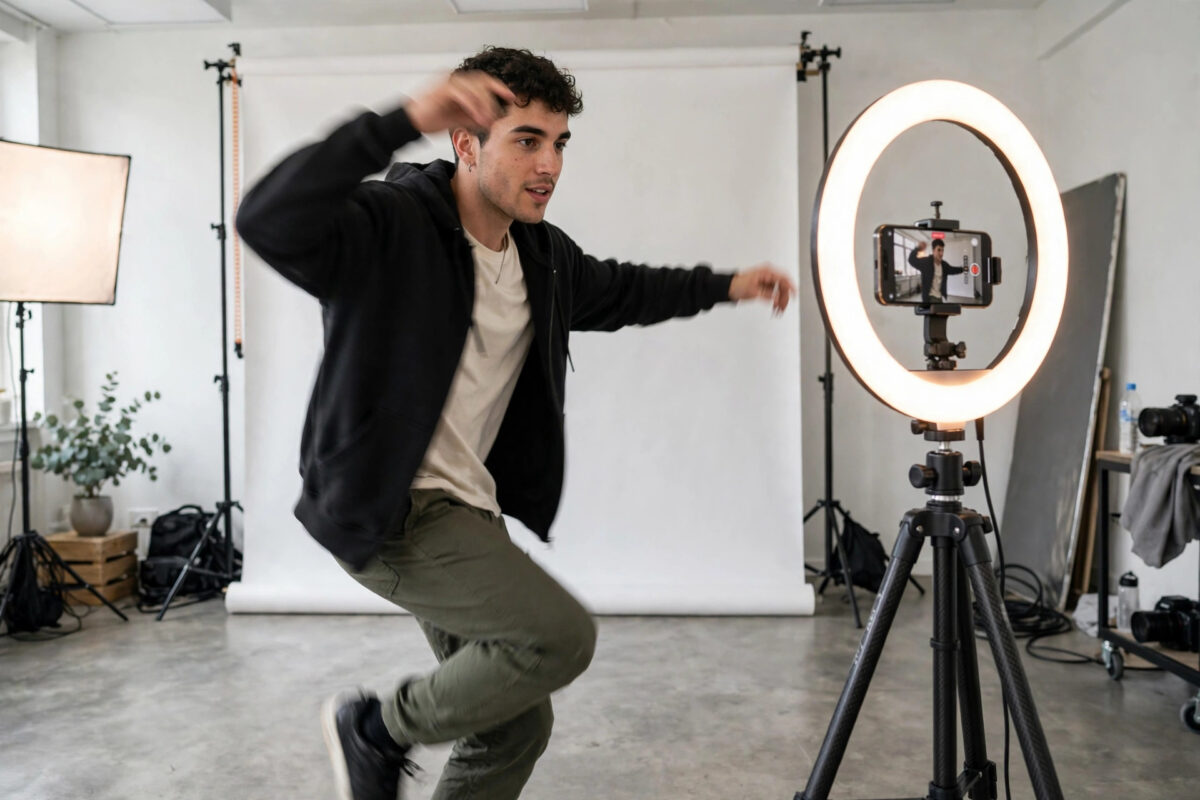
You film a smooth 60fps video — a dance, a skate trick, a pan across a landscape — and it looks fluid on your phone. Then you upload it as a reel, watch the published version, and the motion looks choppy, like frames are missing. Instagram has converted your 60fps recording down to 30fps. This conversion is a known annoyance for creators, and it happens because of how Instagram processes uploads, which settings your account uses, and sometimes simply the connection you uploaded on.
Here is what causes the frame rate drop and the reliable ways to keep your reels smooth.
Quick Answer
Instagram often re-encodes reels to 30fps, especially when the upload happens on a weak connection, when “upload at highest quality” is off, or when the source video’s format forces extra conversion. Record and export at 1080 x 1920 in MP4 with H.264, turn on Upload at highest quality in Instagram’s media quality settings, upload on strong Wi-Fi, and avoid editing apps that export at 30fps by default. Even then, Instagram may cap some content, so the goal is giving it the cleanest 60fps source possible.
Why Instagram Converts 60fps to 30fps
Instagram cares about file size and playback smoothness across millions of different phones. A 60fps video takes roughly twice the data of a 30fps one. During processing, Instagram frequently standardises reels to 30fps to keep files small and streaming reliable.
Several factors make conversion more likely:
- Data-saving settings: If your account uses data saver modes, Instagram processes uploads more aggressively.
- Weak upload connection: A struggling upload can trigger a lighter processing profile.
- Unusual source formats: High frame rate modes like 120fps slow motion, HDR video, or unusual codecs force conversions where frames get dropped unevenly.
- Editor exports: Many editing apps default to 30fps export even when the project was filmed at 60fps, so the reel was already 30fps before Instagram saw it.
Step 1: Check Your Editor’s Export Settings First
Before blaming Instagram, confirm the file you upload really is 60fps.
- In your editing app, open the export or share settings for the project.
- Set resolution to 1080 x 1920, frame rate to 60, and format to MP4.
- Export and check the exported file’s details in your gallery or file manager — frame rate should say 60.
CapCut, VN, and phone gallery editors all have frame rate options buried in export screens. One wrong default here explains most “Instagram downgraded my video” cases.
Step 2: Turn On Upload at Highest Quality
- Open Instagram and go to your profile, then the menu, then Settings.
- Find Media quality (under “Your app and media” in many versions).
- Turn on Upload at highest quality.
- Also turn off Data saver options while you are uploading important reels.
Instagram itself notes in its help information about reel upload quality that highest-quality uploads take longer and work best on strong connections.
Step 3: Record With Reels in Mind
Film at 1080p 60fps rather than 4K 60fps for content destined for reels. Instagram downscales everything to about 1080 wide anyway, and a 1080p 60fps file passes through processing with fewer changes than a 4K file that needs both resizing and frame decisions. Disable HDR or Dolby Vision recording for reel footage if your phone offers it, because HDR sources are frequently converted in ways that also affect frame handling.
Step 4: Upload on Strong Wi-Fi, Then Wait
Upload the reel on fast Wi-Fi and keep the app open until posting completes. After it publishes, give it a few minutes before judging smoothness: Instagram serves a quickly processed version first and a better version shortly after. Judging in the first sixty seconds leads many creators to delete and re-upload unnecessarily. The same processing delay affects stories, which is why our guide on keeping Instagram story quality high also warns against instant verdicts.
Step 5: Test With a Short Clip
Before posting an important reel, upload a five-second 60fps test clip as an unlisted-style post to a private account or close-friends test, watch it after ten minutes, and confirm the motion is smooth. If the test plays at 30fps despite everything, the limitation is likely account or region processing, and your best option is to make your 30fps output as clean as possible by exporting a deliberate, high-quality 30fps version rather than letting Instagram do a messy conversion.
A Word About Slow Motion and High Frame Rate Modes
Slow-motion footage deserves special handling because it is where frame rates get silently destroyed. A clip shot at 120fps or 240fps is meant to be slowed down on a timeline. If you upload it raw, Instagram either plays it at full speed — ruining the effect — or conforms it to 30fps in its own way, discarding the frames you cared about. Always finish slow-motion edits inside your editor: set the slowdown there, export the result as a normal 1080p 60fps (or deliberate 30fps) file, and upload that finished file. The export becomes the single point where frame decisions happen, under your control instead of Instagram’s.
The same principle applies to screen recordings of gameplay and camera footage mixed in one reel. Different sources arrive at different frame rates, and the editor’s timeline forces them into one consistent rate. Export that rate deliberately, check the file details before uploading, and you remove the most common hidden cause of the 30fps surprise.
Common Mistakes to Avoid
- Assuming the editor exported what you filmed: Export frame rate is a separate setting in nearly every app.
- Uploading slow-motion clips normally: A 120fps or 240fps clip needs to be conformed to a 60fps timeline in your editor first, or Instagram will decide the frames for you.
- Re-uploading repeatedly: Each re-upload is re-processed and never improves on the source. Fix the export, then upload once.
- Judging quality instantly: The first playable version is not the final encode.
Quick Pre-Upload Checklist
Before posting your next reel, run this thirty-second check. One: open the exported file’s details and confirm it truly says 1080 x 1920 and 60fps. Two: confirm Upload at highest quality is on and data saver is off. Three: connect to strong Wi-Fi and plug in if your battery is low, since phones throttle uploads to save power. Four: after posting, wait ten minutes before judging the result. Most creators who adopt this checklist stop seeing surprise 30fps conversions, because the checklist catches the problem at the stage where it actually happens — before Instagram ever receives the file.
Conclusion
Reels dropping from 60fps to 30fps are usually lost at three points: the editor’s export, your account’s media quality settings, or a weak upload that triggers heavy processing. Export a true 1080p 60fps MP4, enable highest-quality uploads, post on strong Wi-Fi, and wait for final processing before judging. That gives your footage its best chance of keeping the smooth motion you filmed.
Frequently Asked Questions
Does Instagram officially support 60fps reels?
Instagram accepts 60fps uploads and many reels do play back at higher frame rates, but processing varies by account, content, and connection. There is no setting that guarantees 60fps playback on every reel.
Why does my friend’s reel look smooth but mine does not?
Usually the difference is in the export and upload chain: a clean 1080p 60fps export, highest-quality upload enabled, and a strong connection. Small differences at each step compound into a visibly smoother result.
Should I upload from a computer to keep 60fps?
Uploading through the desktop site uses the same processing pipeline, so it does not guarantee a better frame rate. It can help if your phone connection is the weak point, since the computer may have faster, more stable internet.
Does video length affect frame rate conversion?
Longer reels are larger files and can attract heavier processing, especially on slower connections. Keeping reels concise and uploading on Wi-Fi reduces the chance of aggressive conversion.
My exported file says 60fps but the reel still looks choppy. Why?
Check whether the choppiness is actually frame rate or bit rate. A low-bit-rate 60fps export looks blocky in motion and can feel choppy. Re-export with a higher bit rate — around 12 to 20 Mbps for 1080p — and compare.



[…] so Instagram leaves it alone. While you are editing, the export settings in our guide to fixing reel frame rate drops will help your story exports stay smooth as well as correctly […]