
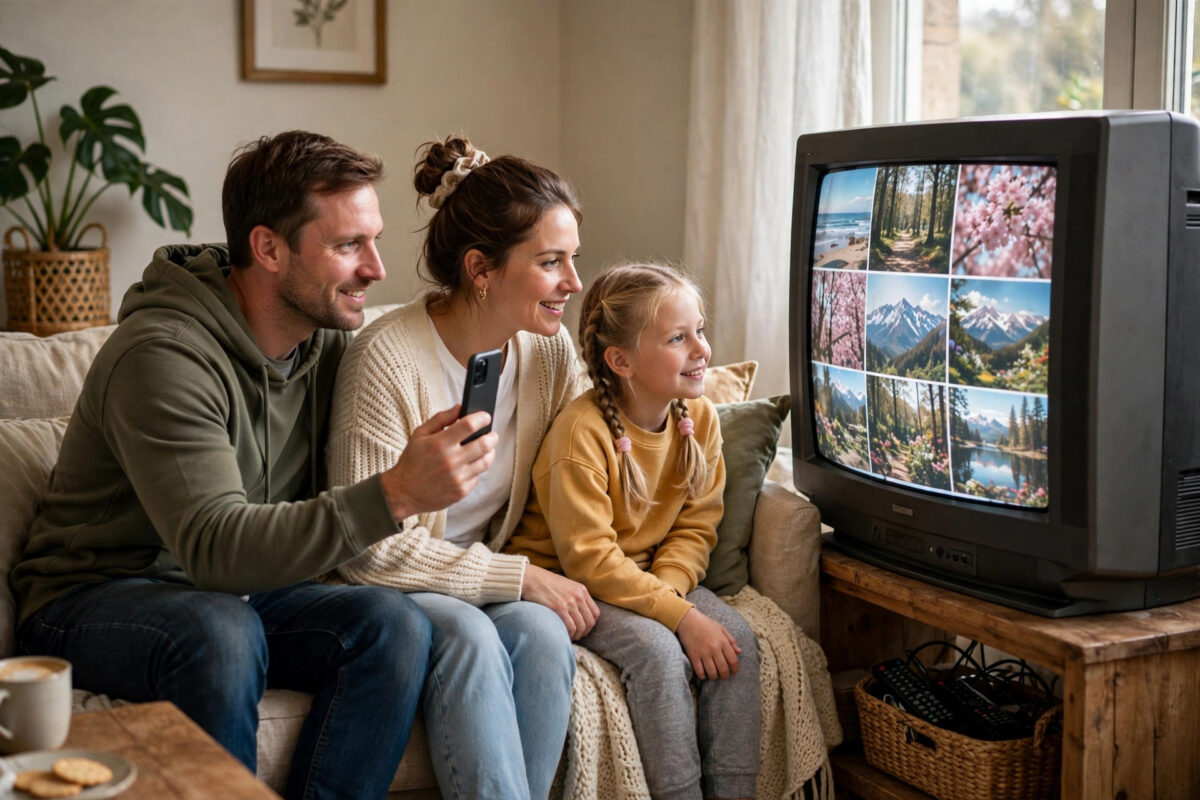
An older TV with a great picture does not need replacing just because it lacks apps. With the right method you can mirror anything on your phone — photos, videos, video calls, presentations — onto that big, “dumb” screen. There are four practical routes: a streaming stick, a wireless display adapter, a simple cable, and (if the TV is not smart but has a network port) built-in but hidden standards. This guide compares them honestly and walks through each setup.
Quick Answer
The easiest all-round method is a streaming stick or box (Chromecast, Fire TV Stick, Apple TV) plugged into an HDMI port: it receives your phone’s screen or casts from apps over Wi-Fi. Android phones mirror to Chromecast via the Google Home app (“Cast my screen”); iPhones mirror to Apple TV or AirPlay-enabled sticks via Screen Mirroring in Control Centre. A USB-C-to-HDMI cable is the zero-lag, no-Wi-Fi alternative.
Method 1: Chromecast (Best for Android)
- Plug the Chromecast into an HDMI port and power it from the wall adapter; set it up on your home Wi-Fi (full walkthrough in our Chromecast setup guide).
- Connect your phone to the same Wi-Fi network.
- For whole-screen mirroring: open the Google Home app, tap the Chromecast, tap “Cast my screen” and confirm.
- For individual content (better quality): open YouTube, Netflix, Photos, or another cast-enabled app, tap the Cast icon, and pick the TV — this is casting rather than mirroring, and the stream comes from the internet, not your phone.
- To stop: tap the Cast icon again and choose Disconnect, or use the persistent notification on the phone.
Expect a small delay (about half a second to a second) on mirrored screens — fine for photos, slides, and browsing; noticeable in fast games.
Method 2: Fire TV Stick (Best Budget All-Rounder)
- Plug the Fire TV Stick into HDMI and set it up with your Amazon account.
- On the stick, hold the Home button on its remote and choose “Mirroring” (or Settings > Display & Sounds > Enable Display Mirroring). The TV shows a waiting screen.
- On an Android phone, open the quick-settings panel and tap Cast / Smart View / Screen Cast (names vary by brand), then select the Fire TV.
- iPhone users: the Fire TV does not receive AirPlay natively on most models; install an AirPlay receiver app on the stick (such as AirScreen) and then use iPhone Screen Mirroring.
Method 3: Apple TV (Best for iPhone)
- Connect the Apple TV box to the TV by HDMI and join it to your Wi-Fi.
- On the iPhone, swipe to open Control Centre and tap Screen Mirroring.
- Select the Apple TV. Enter the four-digit code shown on the TV the first time.
- Everything on your phone now appears on the TV, including video calls and games, with the least lag of the wireless options. Photos and videos can also be sent individually with the AirPlay button inside apps, which preserves full quality.
Method 4: A Cable (No Wi-Fi, No Lag)
If the TV lives somewhere with poor Wi-Fi, or you are presenting in an office, a cable is unbeatable:
- Android phones and iPhone 15+: A USB-C to HDMI cable or adapter — plug one end in the phone, the other in the TV, select the HDMI input, and the screen appears. Check your phone supports “DisplayPort Alt Mode” — most flagships and mid-range Samsung (DeX), Google, and Motorola models do; some budget phones omit it.
- Older iPhones (Lightning): Apple’s Lightning Digital AV Adapter does the same job.
- Bonus: The phone charges if you use an adapter with a power pass-through port — worth it for long presentations.
The cable route is also the fallback used for meeting rooms, and it pairs nicely with the projector advice in our guide on connecting a laptop to a projector — the adapter habits are identical.
Method 5: Receivers You May Already Own
Before buying anything, check the devices already connected to the TV — several double as mirror receivers. A PlayStation or Xbox can receive content from companion apps (Spotify, YouTube, and Netflix apps on the console accept casts from the phone app). A Windows laptop connected to the TV can act as a Miracast receiver: Settings > Apps > Optional features > install “Wireless Display”, then open the Wireless Display app and cast from an Android phone with Windows + K-style casting or the phone’s Cast menu. Many Blu-ray players and set-top boxes (including some Sky, Virgin, and cable boxes) include YouTube and Netflix apps that pair with your phone by a TV code in the app’s settings — not full mirroring, but for the most common job (getting a video from phone to TV) it is instant and free. Even an old Android TV box or a Raspberry Pi running Kodi can receive through apps like AirScreen. The principle is simple: receivers are everywhere once you start looking, and the best mirroring setup is often the one you do not have to buy.
Mirroring vs Casting: Pick the Right One
- Mirroring copies your entire screen in real time — notifications and all. Best for presentations, showing an app with no cast support, or video calls. Quality is capped and there is a slight delay, and your private notifications appear on the TV, so enable Do Not Disturb first.
- Casting hands a stream to the TV device; the phone just remote-controls it. Better picture and sound, the phone stays free and its battery lasts, and it keeps working if you lock the phone. Always cast when the app offers the button.
The underlying standards are documented in the Miracast article on Wikipedia (the technology behind most “Screen Cast” options on Android and Windows) if you want to understand why some phone-and-TV combinations refuse each other.
Common Mistakes to Avoid
- Phone and TV on different networks: The phone on mobile data or a guest network will never see the Chromecast or stick. Same Wi-Fi, always.
- Expecting Netflix mirroring to work from the phone screen: Many streaming apps block screen mirroring for copyright reasons and show a black rectangle. Use the app’s own Cast/AirPlay button instead — it works perfectly.
- Buying a random “mirroring cable” for a phone without video-out: If the phone lacks DisplayPort Alt Mode, no passive cable will work; you need a stick instead.
- Leaving mirroring on during private moments: End the session when you finish; a forgotten mirror can share your messages with the whole living room.
Conclusion
A non-smart TV is one inexpensive accessory away from mirroring your phone. Android households should reach for a Chromecast, iPhone households for an Apple TV (or an AirPlay receiver app on a stick), and anyone presenting or fighting bad Wi-Fi should keep a USB-C-to-HDMI cable in the drawer. Set it up once and the big screen stops gathering dust.
Frequently Asked Questions
Can I mirror my phone to a TV without Wi-Fi?
Yes, with a cable (USB-C/Lightning to HDMI) — no network needed at all. Some sticks also support peer-to-peer modes, but the cable is the simple, reliable answer.
Why is the mirrored picture delayed or jerky?
Mirroring encodes your screen in real time and sends it over Wi-Fi, so delay and stutter follow weak signals. Move the router closer, use the 5GHz band, close other heavy network use, or switch to casting (for video apps) or a cable (for games and presentations).
My phone cannot find the TV device. What is wrong?
Almost always the network: confirm both are on the same Wi-Fi, turn off any VPN on the phone, and restart the stick and router. On Android, also make sure the Google Home app has local-network permission.
Can I mirror an iPhone to a Chromecast?
Not the whole screen natively — iOS mirroring speaks AirPlay, not Google Cast. Individual apps (YouTube, Netflix, Spotify) cast to Chromecast happily from iPhone, and third-party mirroring apps exist with mixed reliability. For true iPhone mirroring, use an Apple TV or an AirPlay-capable receiver.
Does mirroring use a lot of phone battery?
Yes — the phone is encoding video constantly, and the screen usually stays on. Expect noticeably faster drain than normal use; plug the phone in for long sessions, or prefer casting, which uses very little power.



Leave a Reply