
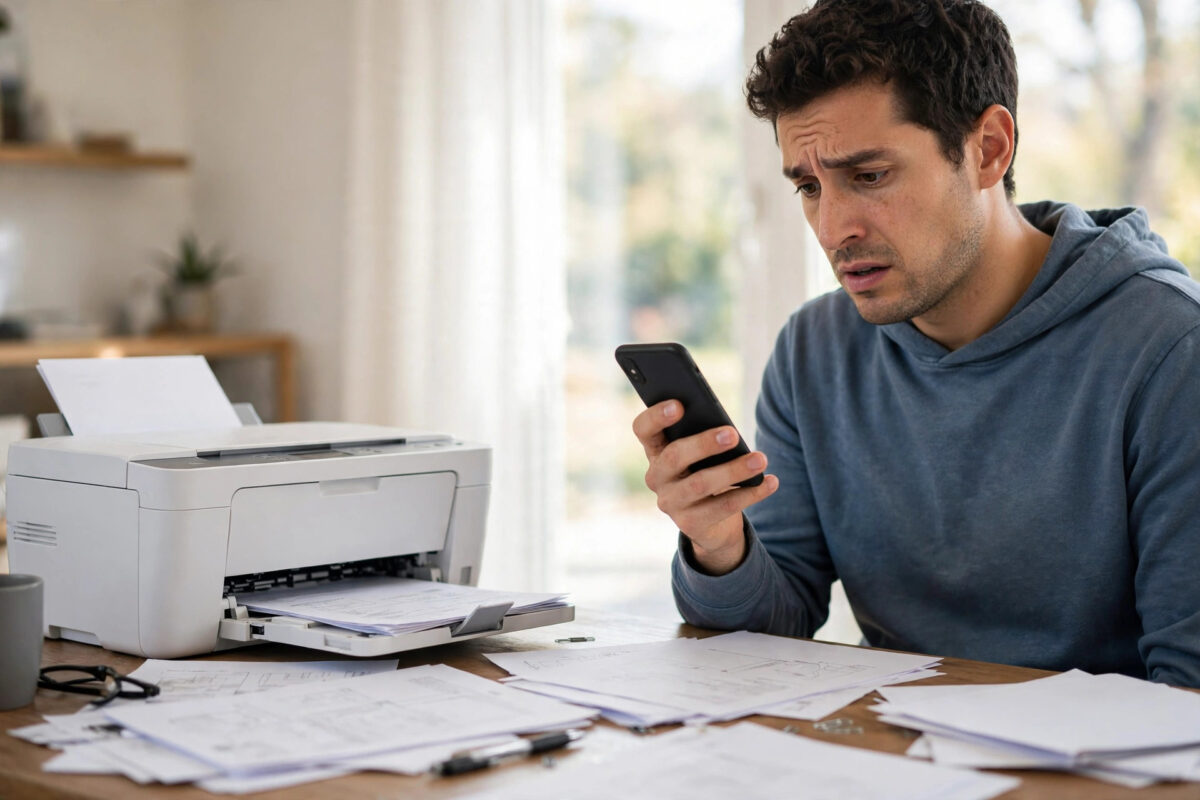
Printing from a phone should be the easiest job in the house: tap Share, tap Print, done. When it fails, the cause is usually that the phone and printer are not actually talking to each other — different networks, a printer that has dropped offline, or a missing print service on Android. The good news is that phone printing leaves very few places to hide, so working through this checklist in order nearly always finds the fault.
Quick Answer
Make sure the printer is switched on, connected to the same Wi-Fi network as your phone, and showing as online. On iPhone, use AirPrint from the Share menu. On Android, install your printer brand’s print service plugin (HP, Canon PRINT, Epson iPrint, Brother) or use the built-in Default Print Service, then print from the app’s Share or menu option. Restarting the printer and router fixes most stubborn cases.
Step 1: Confirm the Printer Is Ready
- Check the printer is on, has paper, and shows no error lights or messages (an empty cartridge or open cover blocks phone jobs silently).
- Look at its Wi-Fi indicator: it should be solid. If it is blinking, the printer is not on the network — reconnect it through its own Wireless Setup Wizard (Settings > Network/Wireless on the printer screen).
- Print a test or network page from the printer itself. If the printer cannot print its own test page, the problem is the printer, not the phone — and if the printer also shows as offline on your computer, the fixes in our printer offline troubleshooting guide apply to both.
Step 2: Check the Phone Is on the Same Network
This is the single most common failure. Your phone must be on the same home Wi-Fi as the printer:
- If Wi-Fi is off and the phone is using 4G/5G, it cannot see the printer at all.
- If the phone joined the “Guest” network, most routers isolate guests from devices like printers.
- If your router has separate 2.4GHz and 5GHz names, either band is fine for most modern routers, but some older routers block discovery between bands — try putting the phone on the 2.4GHz band, since the printer almost certainly is.
- Turn off any VPN on the phone while printing; VPNs route traffic away from your local network.
Step 3: Print from iPhone (AirPrint)
- Open the document, photo, or web page and tap the Share icon.
- Scroll down and tap Print.
- Tap “No Printer Selected” and choose your printer from the list — AirPrint finds it automatically with no app needed.
- Set copies and options, then tap Print.
If no printer appears, the printer either does not support AirPrint (check the model on the manufacturer’s site) or is not on the network. Many printers without AirPrint still work through the manufacturer’s free app, which adds its own print option. Apple maintains a list of AirPrint-compatible printers that is worth checking before you blame the phone.
Step 4: Print from Android
- Install your brand’s app or print service plugin from the Play Store: HP Smart / HP Print Service Plugin, Canon PRINT, Epson iPrint, or Brother iPrint&Scan.
- Open Settings > Connected devices > Connection preferences > Printing and confirm the service is switched on (exact path varies slightly by brand).
- Open the file, tap the three-dot menu or Share, choose Print, and select the printer at the top of the screen.
- If the printer is missing, tap “All printers” > “Add printer” > “Add by IP address” and type the IP shown on the printer’s network page — a reliable workaround for discovery problems.
Step 5: Restart the Chain
If everything looks right but jobs vanish, restart in this order: printer off at the wall for 30 seconds, router rebooted, phone’s Wi-Fi toggled off and on. Then send a small test job — a single photo — before trying the 40-page document again. On Android, also clear a stuck queue: Settings > Apps > (show system apps) > Print Spooler > Storage > Clear cache.
When the Printer Is New to the Phone
If you have never printed from this phone, or the printer recently got a new router, the printer may need to be re-registered: open the brand’s app (HP Smart, Canon PRINT, etc.), sign in, and add the printer by following the in-app setup. Brand apps also unlock scanning to the phone and ink-level checks, and they update the printer’s firmware, which quietly fixes many phone-printing bugs. If the printer flatly refuses to join a new router’s network, our dedicated guide on connecting a wireless printer to a new router covers WPA3, band steering, and other router settings that block older printers.
A Workaround That Always Works: Email-to-Print and Brand Apps
If you need the page printed now and discovery keeps failing, use the printer’s email address. HP (ePrint), Epson (Epson Connect), and Canon all assign printers an email address: send the document as an attachment from your phone’s mail app and the printer prints it from the cloud, no local network needed at all. You will find the address in the printer’s web-services menu or its information page. It is not a long-term replacement for proper Wi-Fi printing — attachments print with default settings and it needs the printer online with its cloud service — but as a same-day workaround it is flawless, and setting it up once gives you a permanent backup route for the next time the network misbehaves. The brand apps offer a similar path: their built-in “print a document” feature sometimes finds the printer through the account rather than local discovery, succeeding where the system print dialog fails.
Common Mistakes to Avoid
- Printing to the printer’s “DIRECT” Wi-Fi: Jobs may print, but your phone loses internet while connected to it, and nothing else works until you switch back.
- Assuming a printer has AirPrint or Mopria: Very old models predate both standards and can only print through a computer or the brand’s desktop software.
- Ignoring a firmware update prompt: Printer firmware updates specifically fix phone discovery bugs after iOS and Android updates.
- Standing too far away during setup: Bluetooth-assisted setup in brand apps needs the phone within a couple of metres of the printer.
Conclusion
When a printer will not print from your phone, check the chain link by link: printer ready and online, phone on the same Wi-Fi with VPN off, then the right print path for your platform — AirPrint on iPhone, the brand plugin on Android. Most failures die at one of those three steps. A full restart of printer, router, and phone Wi-Fi clears nearly everything else.
Frequently Asked Questions
Why does my phone say “printer unavailable”?
The phone found the printer before but cannot reach it now — it has gone to sleep, changed IP address, or dropped off Wi-Fi. Wake the printer by pressing its power button, and if it recurs, reserve a fixed IP for the printer in your router settings.
Can I print from my phone without Wi-Fi?
Yes, some printers support Wi-Fi Direct (the printer creates its own network) or a USB cable with an OTG adapter on Android. Email-to-print services from HP (ePrint) and Epson also work from anywhere, including mobile data.
Do I need the printer brand’s app?
On iPhone with an AirPrint printer, no. On Android, the brand’s print service plugin makes discovery far more reliable, and the full brand app is needed for scanning and maintenance, so it is worth installing.
Why does printing work from my laptop but not my phone?
The laptop probably has the full driver installed and knows the printer’s address, while the phone relies on network discovery (Bonjour/mDNS), which your router or a VPN may be blocking. Adding the printer by IP address in the phone’s print settings bypasses discovery entirely.
Can I print photos directly from my phone’s gallery?
Yes — open the photo, tap Share > Print. For better results on photo paper, use the brand app, which lets you choose paper type, size, and quality settings that the basic system print dialog hides.



[…] or an event. If your printer refuses to appear on the network at all, our troubleshooting guide on fixing a printer that won’t print from your phone covers the connection checks step by […]