
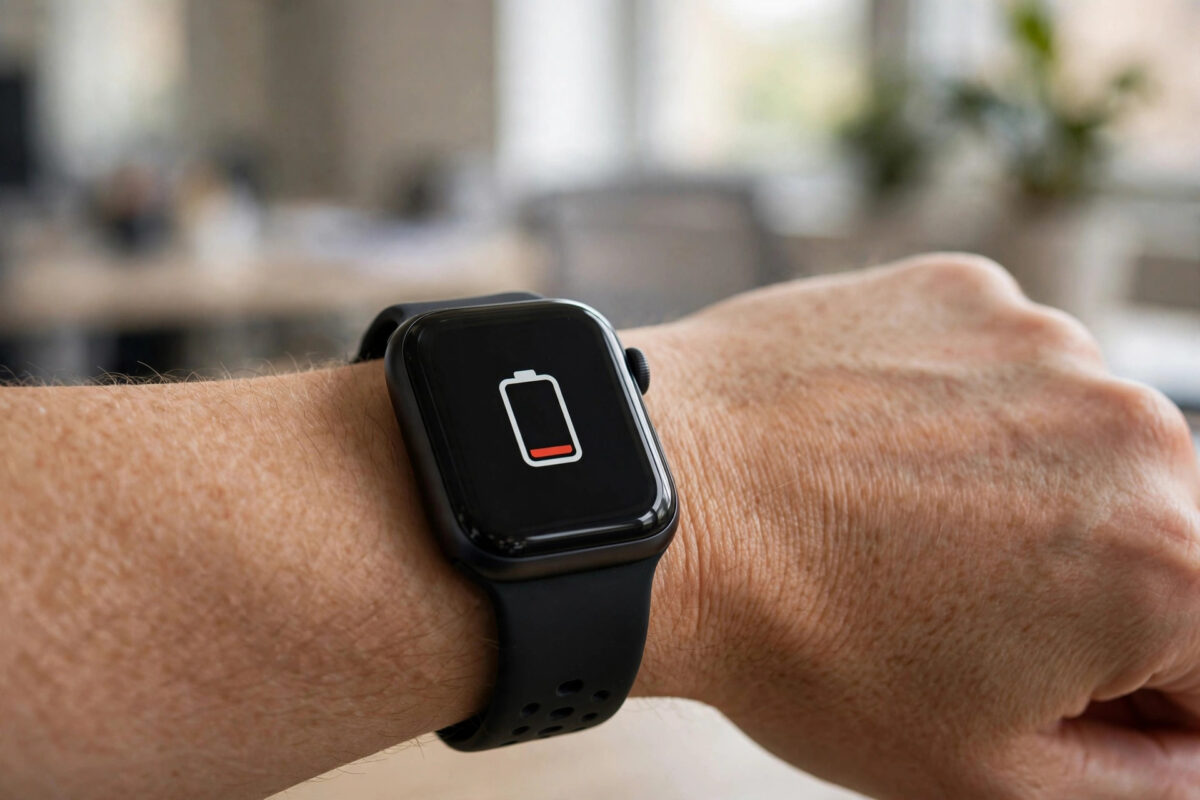
A smartwatch that promises three days of battery but dies by dinner is one of the most common gadget complaints. The battery itself is tiny — smaller than a coin in most models — and it has to power a bright screen, a heart-rate sensor, GPS, and a constant Bluetooth conversation with your phone. When a watch drains fast, it is almost always one or two features quietly working overtime rather than a faulty battery. This guide explains what eats the charge, in order of impact, and how to calm each one down on Apple Watch, Samsung Galaxy Watch, and Wear OS devices.
Quick Answer
The biggest battery killers are the always-on display, frequent heart-rate and blood-oxygen measurements, GPS workouts, a weak connection to your phone that makes the watch keep searching, and a fresh software update still indexing in the background. Turning the display to wake-on-raise, reducing sensor frequency, and restarting the watch after updates typically restores normal battery life within a day.
The Main Battery Drains, Ranked
1. The Always-On Display
The screen is by far the hungriest component. An always-on display can use a third of the daily charge by itself. On Apple Watch, go to Settings > Display & Brightness and turn off Always On, or reduce brightness a notch or two. On Galaxy Watch, open Settings > Display and disable Always On Display. You still see the time instantly when you raise your wrist — you just stop lighting the screen for an empty room.
2. Sensor Frequency
Continuous heart-rate tracking, blood oxygen (SpO2) readings during the day, stress monitoring, and skin-temperature sensing all fire LEDs and photodiodes into your wrist. Each reading is cheap; thousands a day are not. Solutions:
- Apple Watch: In the Watch app on iPhone > Privacy, you can turn off Blood Oxygen measurements, and in Workout settings enable “Fewer GPS and Heart Rate Readings” on newer models.
- Galaxy Watch: In Samsung Health > Settings > Measurement, set heart rate to “Every 10 mins while still” instead of continuous, and set stress measurement to manual.
- All watches: Turn off automatic SpO2 during sleep if night readings wake sensors you do not use — though remember sleep data will be less complete.
3. GPS Workouts
A GPS-tracked run can burn 5–10% of the battery per hour. That is normal, but if the watch is recording “workouts” you never started — some watches auto-detect walks and switch GPS on — the drain adds up invisibly. Check the activity history in your health app. If auto-detection is the culprit, turn off automatic workout detection or auto-pause features you do not need. When you do track exercise deliberately, using the phone’s GPS instead (by keeping the phone with you and connected) saves watch battery, and our guide on tracking fitness accurately with a smartwatch explains how to keep accuracy high either way.
4. A Weak Link to Your Phone
When the watch keeps losing Bluetooth — because the phone is in another room, in a bag with power-saving enabled, or the watch keeps switching to Wi-Fi or LTE to compensate — it radios constantly and drains fast. LTE models are hit hardest: a weak mobile signal can halve battery life. Keep the phone reasonably close during the day, and if you have an LTE watch, test a day with mobile data set to “Auto” or off to see the difference.
5. Notifications and Chatty Apps
Every notification wakes the screen and fires the vibration motor. A busy group chat can light your wrist two hundred times a day. Trim the list: on iPhone, Watch app > Notifications, and mirror only the apps you actually act on from your wrist. On Galaxy Watch, use the Galaxy Wearable app > Watch settings > Notifications > App notifications to do the same.
6. Updates and Background Indexing
For a day or two after a major watchOS or Wear OS update, the watch re-indexes data, re-syncs photos and music, and recalibrates health models. Battery complaints that start the morning after an update usually settle by themselves within 48 hours. A restart speeds this up: hold the side button and crown (Apple), or the Home key (Samsung), and power off and on.
How to Check What Is Draining Your Watch
- Apple Watch: On the paired iPhone, open the Watch app > General > Usage to see time since last charge, and check Settings > Battery on the watch itself (or the iPhone’s Settings > Battery for watch-related apps).
- Galaxy Watch: Galaxy Wearable app > Watch settings > Battery shows percentage used per app since the last charge — the fastest way to name the culprit.
- Pixel Watch / Wear OS: Swipe down on the watch > Settings > Battery shows an estimate and the recent usage pattern.
If one app dominates the list and you do not use it, uninstall it from the watch — music and podcast apps that sync large libraries are frequent offenders.
When It Really Is the Battery
Lithium batteries wear out. After roughly two to three years of daily charging, most smartwatch batteries hold about 80% of their original capacity, and the decline speeds up from there. Signs it is wear rather than settings: the watch dies at 20–30% suddenly, the back feels warm during light use, or the case back is lifting slightly (a swollen battery — stop using it and contact the manufacturer). Apple shows battery health under Settings > Battery > Battery Health on the watch; Samsung offers a diagnostic in the Galaxy Wearable app and via the Samsung support diagnostics pages. Replacement is usually a manufacturer service job, and on older models a new watch can be better value.
Common Mistakes to Avoid
- Charging to 100% and draining to 0% daily: It will not ruin the battery overnight, but shallower cycles are gentler. Many watches now offer an 80–90% charge limit — use it.
- Blaming the battery before checking apps: One misbehaving app is a far more common cause than cell wear on a watch under two years old.
- Leaving Wi-Fi and LTE forced on: Set both to automatic so the watch prefers the low-power Bluetooth link to your phone.
- Using third-party watch faces with constant animations: Animated and data-heavy faces refresh far more often than stock faces and can cost hours of runtime.
Conclusion
Fast-draining smartwatches are usually suffering from features, not failure: an always-on screen, non-stop sensors, invisible GPS sessions, or a phone that keeps wandering out of range. Work through the ranked list above, check the per-app battery screen to confirm the culprit, and give the watch a restart after any update. If it still dies early with everything trimmed, then — and only then — suspect a worn battery.
Frequently Asked Questions
How long should a smartwatch battery last?
Most Apple and Galaxy watches are designed for 18–36 hours of typical use; watches with smaller screens and no LTE, such as many Fitbit and Garmin models, run for five days to two weeks. “Typical use” assumes the always-on display is used moderately.
Why did my watch battery suddenly get worse after an update?
Updates trigger background re-indexing, re-syncing, and recalibration that can last a day or two. Restart the watch, keep it on the charger overnight so background tasks finish while powered, and judge the battery again after 48 hours.
Does turning off always-on display help much?
Yes — it is the single biggest saving for most people, often adding 20–30% more runtime, because the screen is the most power-hungry part of the watch.
Is it bad to charge my watch every night?
No, modern watches manage charging intelligently. Enabling the optimised or capped charging feature (80–90% limit) where available reduces long-term wear if you charge nightly.
My watch gets hot and drains fast. What should I do?
Restart it first — a stuck process is the usual cause. If heat and drain persist, unpair and re-pair the watch with your phone. If the back of the watch is bulging or the screen is lifting, stop using it: the battery may be swollen and needs manufacturer service.



[…] makes some people loosen settings until tracking suffers — if that is you, our explainer on what drains a smartwatch battery shows which savings cost you data and which cost […]