
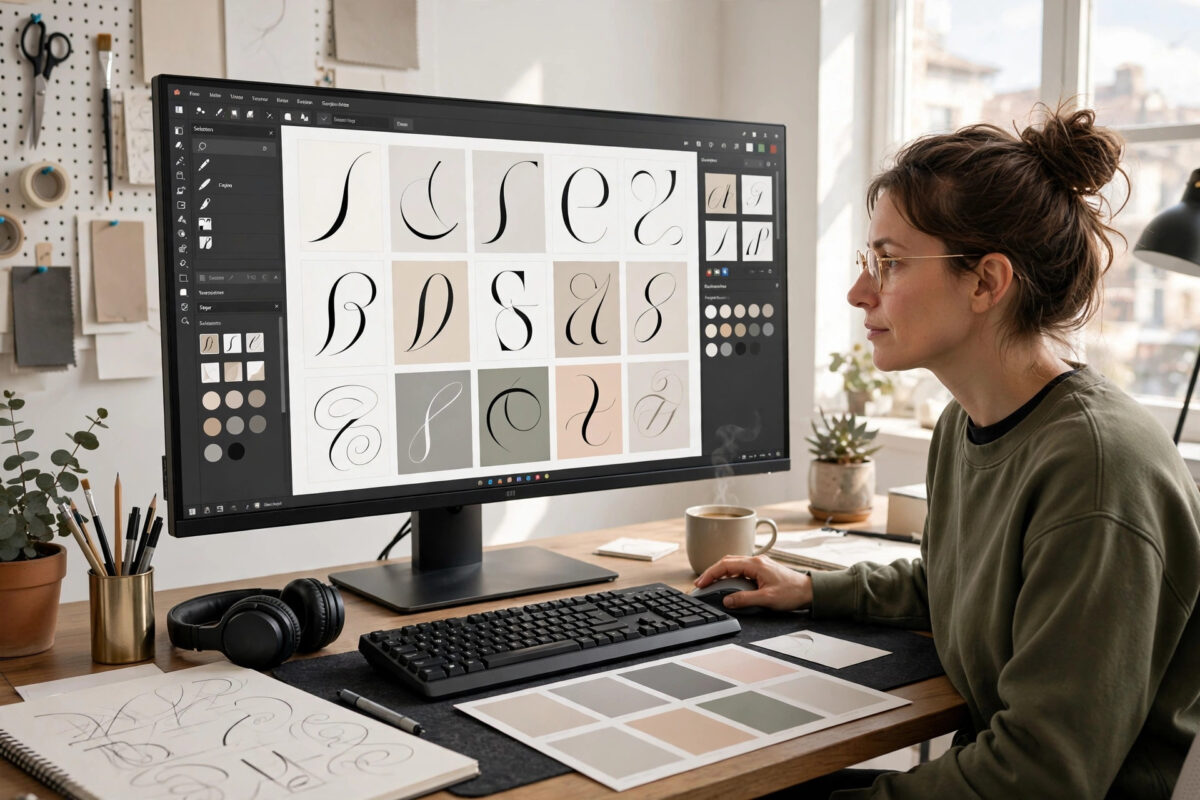
The right font can change a design completely. A poster, logo, presentation, or social media graphic that looks ordinary in a default typeface can look polished and professional with one well-chosen font. If you work in Photoshop, Illustrator, Canva for desktop, Figma, or any other design software on Windows, knowing how to install fonts properly is a basic skill you will use again and again.
Windows makes font installation easy once you know where the settings live, but beginners often run into the same frustrations: a font downloads as a ZIP file and nothing happens, or the font installs yet never appears inside the design app. Both problems have simple causes and simple fixes.
This guide walks through every reliable method for installing fonts on Windows 10 and Windows 11, where to download fonts safely, how to install them for one user or for everyone on the PC, and how to troubleshoot fonts that refuse to show up in your software.
Quick Answer
To install a font on Windows, download the .ttf or .otf file, extract it if it arrives in a ZIP folder, then right-click the file and choose Install, or drag it into Settings > Personalization > Fonts. Restart your design software and the new font will appear in its font list.
Understanding Font File Types Before You Start
Fonts arrive in a few standard formats, and your design software handles them slightly differently. Knowing which file you have saves confusion later.
- TrueType (.ttf): The most common format. It works in virtually every Windows application and is the safest choice for beginners.
- OpenType (.otf): A newer format that often includes advanced features such as ligatures, alternate characters, and small caps. Preferred by many professional designers.
- WOFF and WOFF2: Web font formats designed for websites. Desktop design apps generally cannot install these directly, so do not download them for Windows use.
- Variable fonts: A single file that contains an entire family of weights, from thin to black. Windows 10 and 11 support them, but older design software may show only one weight.
When a download offers several files, install the whole family. Bold, italic, and light versions are separate files, and your apps need each one to offer you the full range in the font menu.
Where to Download Fonts Safely
Font files are programs in a small way, and downloading them from random sites is a genuine security and licensing risk. Stick to reputable sources. Google Fonts, the free open-source font library, is the best starting point: every font there is free for personal and commercial use, clearly licensed, and free of malware. Other well-known libraries with clear licensing include Font Squirrel and the foundry stores where you can buy premium families directly from their designers.
Whatever source you use, read the license before using a font in client or commercial work. Many fonts marked free are only free for personal projects. Keep the license file that downloads with the font family so you can prove your right to use it later.
Method 1: Install With the Right-Click Menu
This is the fastest method for one font or a small family, and it works on both Windows 10 and Windows 11.
- Download the font and open your Downloads folder in File Explorer.
- If the font is inside a ZIP file, right-click the ZIP and choose Extract All, then open the extracted folder.
- Double-click a font file to preview it. The preview window shows the alphabet in that typeface and includes an Install button at the top.
- Either click Install in the preview window, or close it, right-click the font file, and choose Install.
- For several files at once, select them all with Ctrl + A, right-click, and choose Install.
- Wait a few seconds. Windows copies the files into the fonts system with no restart needed.
If you are signed in with an administrator account, you may also see Install for all users on the right-click menu. Choose that option on a shared or work PC so every account and every application can use the font.
Method 2: Install Through Settings
The Settings method is ideal when you are installing a large family, because you can drag in many files at once and see them appear as you go. Our wider tutorials at Network Ustad’s Windows and software guides cover similar Settings workflows if you want more background.
- Open Settings with Windows key + I.
- Go to Personalization > Fonts. In Windows 10 the path is the same: Settings > Personalization > Fonts.
- Open the folder containing your extracted .ttf or .otf files in a separate File Explorer window.
- Drag the font files onto the Add fonts box at the top of the Settings page.
- Scroll the installed font list to confirm each new family appears, then click a family to preview its styles and check its details.
Microsoft’s own documentation at Microsoft Support for Windows confirms this drag-and-drop method as the standard approach for Windows 11, and it behaves identically in current builds of Windows 10.
Method 3: Install Through the Classic Fonts Folder
The traditional Control Panel route still exists and is useful if Settings is unavailable or if you are following older instructions from a design course.
- Press Windows key + R, type fonts, and press Enter. The Fonts folder opens.
- Drag your extracted font files into the folder, or copy and paste them with Ctrl + C and Ctrl + V.
- Approve the administrator prompt if one appears.
- Use the search box inside the folder to confirm the new family is listed.
Making the Font Appear in Your Design Software
Installing a font in Windows does not update an application that is already open. Photoshop, Illustrator, InDesign, CorelDRAW, and most other design programs build their font list when they start. If your new font is missing, save your work, close the program completely, and reopen it. The font should now appear, usually in alphabetical order.
A few programs need one extra step. Some older applications only read fonts installed for all users, so reinstall with Install for all users if a font shows in Word but not in your design app. Cloud-based tools behave differently again: the Canva website, for example, cannot use your Windows fonts at all unless you upload the font file through a paid Canva plan, while the Figma desktop app reads local fonts automatically and the Figma browser version needs the Figma font service installed.
Finding the Font by Its Real Name
Remember that apps list fonts by family name, not file name. A file called Montserrat-Bold.ttf appears simply as Montserrat, with Bold selected in the style menu beside it. If you cannot find a font, search the app’s font box by the family name shown in the Windows preview window.
How to Remove or Manage Fonts
Too many fonts slow down font menus and can slow older PCs. Review your collection occasionally and remove families you never use.
- Open Settings > Personalization > Fonts and click the family you want to remove.
- Click Uninstall and confirm. In the classic Fonts folder, you can right-click a font and choose Delete instead.
- Do not delete core system fonts such as Segoe UI, Arial, Times New Roman, or Calibri. Windows and many apps depend on them, and Windows will protect most of them automatically.
- To preview before deciding, click any family in Settings to see every weight and style it contains.
Common Mistakes to Avoid
- Installing the ZIP file itself: Windows cannot use a font still inside a ZIP. Always extract first, then install the .ttf or .otf files.
- Forgetting to restart the design app: This is the number one cause of missing fonts. Close and reopen the program before troubleshooting anything else.
- Ignoring the license: Personal-use fonts in commercial client work can create real legal problems. Check and keep the license.
- Downloading from unsafe sites: Font bundles from unknown download portals often carry unwanted software. Use trusted libraries only.
- Installing duplicates repeatedly: Windows will warn you if a font is already installed. Choose replace only if you are deliberately updating the family.
- Deleting system fonts to save space: Fonts use very little storage. Removing system families breaks layouts and interfaces.
Conclusion
Installing fonts on Windows takes under a minute once the routine is familiar: download from a safe, properly licensed source, extract the ZIP, install by right-clicking the file or dragging it into Settings > Personalization > Fonts, and restart your design software. Manage the collection through the same Settings page, keep licenses with the files, and you will always have the right typeface ready the moment a project needs it.
Frequently Asked Questions
Why is my installed font not showing in Photoshop?
Almost always because Photoshop was open during installation. Save, close Photoshop completely, and reopen it. If the font still does not appear, reinstall it with Install for all users and check you are searching by the family name, not the file name.
What is the difference between TTF and OTF fonts?
Both work in Windows and in modern design software. OTF fonts often carry extra typographic features such as ligatures and alternate characters, while TTF is the older, universally compatible standard. For everyday design work, either format is fine.
Can I install fonts without administrator rights?
Yes, in most cases. The standard Install option adds the font for your user account only, which needs no administrator password. Fonts installed this way will not appear for other user accounts on the same PC.
How many fonts can Windows handle?
Modern Windows handles thousands of fonts, but very large collections make font menus slow to browse and can delay older design applications at startup. Keep your active collection tidy and uninstall families you no longer use.
Are Google Fonts free for commercial projects?
Yes. Fonts in the Google Fonts library are open source and free for personal and commercial use, including client work and products for sale. You should still keep a copy of the license file with your project records as good practice.



Leave a Reply