
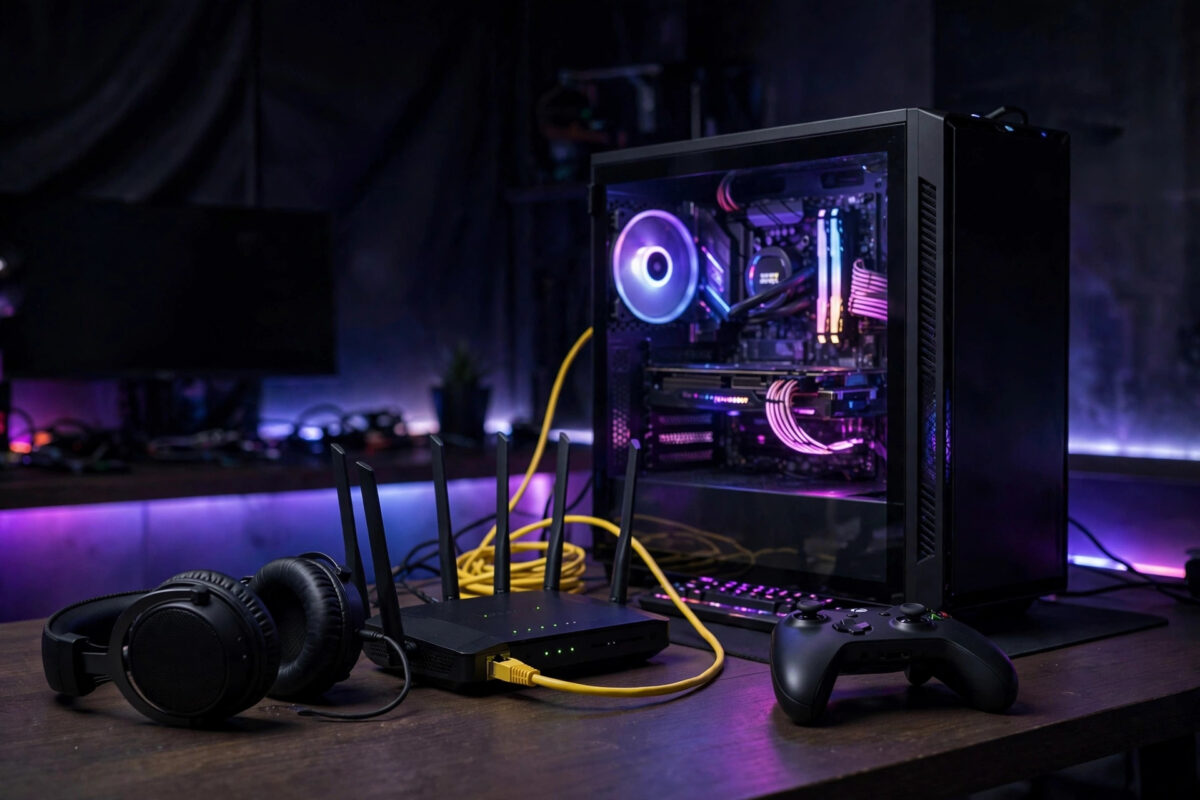
You aimed first, you clicked first, and you still lost. Then you glance at the corner of the screen and see it: ping jumping between 85ms and 240ms while your opponent seems to move in a perfectly smooth world.
Ping decides how responsive online games feel, far more than raw download speed does. The good news is that most high ping at home is caused by fixable things — Wi-Fi, busy devices and poor settings — not by your broadband package.
Quick Answer
To reduce ping, connect your PC or console with an Ethernet cable, stop downloads and backups on other devices, choose the game server closest to you, and restart your router. Those four steps fix most cases. A good home ping is under 30ms; under 50ms feels smooth in almost every game, while over 100ms causes visible delay.
What Ping Actually Is
Ping measures the time a small packet of data takes to travel from your device to the game server and back again. It is measured in milliseconds, written as ms, and lower is always better.
Think of it as conversation delay. At 20ms, the game hears you almost instantly. At 150ms, there is a noticeable pause before anything you do appears on screen — and by then, events have already moved on.
If you want the deeper background, the Wikipedia article on lag in video games explains the different types of delay, from network lag to the display lag added by your screen.
What Counts as Good Ping?
- Under 20ms: Excellent. Typical of a wired connection to a nearby server.
- 20 to 50ms: Good. Smooth and competitive for the vast majority of players.
- 50 to 100ms: Playable, but fast shooters and fighting games begin to feel unfair.
- Over 100ms: Noticeable delay, rubber-banding and shots that fail to register.
- Over 200ms: Effectively unplayable for real-time games.
Also watch for jitter and spikes. A steady 45ms is far better than an average of 40ms that keeps leaping to 300ms every few seconds, because games cannot hide sudden jumps.
Step One: Get Off Wi-Fi
This is the biggest single improvement most players can make. Wi-Fi adds delay and, worse, inconsistent delay, because your signal competes with walls, neighbours and household appliances.
An Ethernet cable gives your device a private, stable path to the router. Players routinely see ping fall by 10 to 30ms and, more importantly, the random spikes disappear almost completely.
- Run a cable: Connect your PC or console directly to a spare port on your router using a Cat5e or Cat6 cable.
- Turn off Wi-Fi: Disable wireless on the gaming device so it cannot quietly fall back to it.
- Test in the same game: Join the same server type as before and play for ten minutes, watching the in-game ping display.
- If a cable cannot reach: Use a powerline adapter or a mesh node with an Ethernet port near your setup. Both usually beat a weak Wi-Fi signal, though a direct cable remains best.
If cabling is impossible, at least connect to the 5GHz band, keep a clear line to the router, and look at our step-by-step guide on setting up a Wi-Fi extender properly — placed halfway to the router, not in the dead zone itself.
Step Two: Stop Other Devices Stealing the Line
Games use surprisingly little bandwidth, often less than 1 Mbps. The problem is not the size of other traffic — it is that a full connection queues your small game packets behind huge downloads.
This effect is called bufferbloat. One cloud backup or game update can push a healthy 18ms ping past 250ms, even on a 500 Mbps connection, because the upload side in particular fills up quickly.
- Pause big downloads: Stop game updates, cloud sync and 4K streaming on other devices while you play competitively.
- Schedule updates overnight: Set consoles and PCs to download in the early hours instead of at 8pm.
- Enable QoS or SQM: Log in to your router — usually at 192.168.0.1 or 192.168.1.1 — and look under Advanced or Traffic. Enable Quality of Service and prioritise your gaming device.
- Set a fair limit: If your router allows it, cap downloads at about 90 percent of your line speed in QoS settings. This small sacrifice keeps the queue short and ping stable.
Step Three: Choose the Right Server and Settings
Distance is physics. Data cannot travel faster than the speed of light through fibre, so a server in another continent will always add delay, no matter how good your broadband is.
A server in London might give a UK player 8 to 15ms. The same player on a US East Coast server might see 75 to 90ms, and on an Asian server, 160ms or more.
- Pick the nearest region: In the game settings, select the server region closest to your real location, not the one your friends defaulted to.
- Turn off automatic distant matching where possible: Some games expand the search to far regions when queues are long. Accept a slightly longer wait for a much better match.
- Close background apps: On PC, shut launchers, browsers with many tabs, and streaming software that uploads while you play.
- Check with a wired speed test: Use Speedtest by Ookla to measure your ping and jitter to a nearby server before you play. If it already shows over 50ms wired and idle, the problem is outside your gaming setup.
Step Four: Fix the Router Itself
Routers are small computers, and tired ones add delay. A router that has been running for six months, sitting hot in a cupboard, handling forty devices, will not route game packets as crisply as it should.
Restart it properly — off for 30 seconds, then on — and give it a few minutes to reconnect fully before testing. Check for firmware updates in the admin page at the same time, as manufacturers do fix latency bugs.
Position matters for any device still on Wi-Fi. Keep the router raised, central and in the open, away from thick walls, fish tanks and metal cabinets, and never on the floor behind a television.
DNS Changes: Honest Expectations
Changing DNS to 1.1.1.1 or 8.8.8.8 is often recommended for gaming. It can make game launchers and web pages resolve a fraction faster, but it does not lower in-game ping, because DNS is not used during the match itself.
It is still a sensible general setting, and it does no harm. Just do not expect it to turn 90ms into 30ms — only distance, routing and your local network can do that.
When the Problem Is Your Provider
If a wired, idle connection to a nearby server still shows high or wildly unstable ping at peak hours, the fault is likely congestion on your provider’s network or a line problem.
Test at different times and keep the results. Ping of 15ms at 10am but 120ms with heavy jitter every evening is a pattern worth reporting, especially alongside slow wired speed tests at the same hours.
Full-fibre connections generally offer the lowest and steadiest ping, often 5 to 15ms to UK servers. Older copper-based connections typically sit a little higher and suffer more at peak times, which is worth weighing if competitive gaming matters in your home.
Common Mistakes to Avoid
Buying a faster package to fix ping. Upgrading from 150 Mbps to 500 Mbps rarely changes latency at all. Ping depends on distance, routing and queues, not headline bandwidth.
Gaming on 2.4GHz Wi-Fi from another floor. That band travels far but is crowded and slow to respond. If you must use Wi-Fi, use 5GHz in the same room, or wire up.
Using a VPN while gaming. A VPN adds an extra journey for every packet and usually raises ping by 10 to 50ms. Only use one if a specific routing problem makes it faster — and test carefully.
Judging by one match. One laggy lobby could be a distant server or another player’s connection. Judge changes over several matches on the same server region.
Conclusion
Low ping is mostly about removing obstacles between you and the server: the Wi-Fi hop, the family download filling the queue, and the needless thousands of miles to a distant server. Fix those three and most home connections feel transformed.
Start with a cable, quiet the network, and pick the nearest server. Test after each change, keep notes, and you will know exactly which step gave you your smooth games back.
Frequently Asked Questions
What ping do I need for competitive FPS games?
Aim for under 40ms, and under 25ms if you play seriously. Beyond about 60ms, peeker’s advantage and delayed hit registration become noticeable in fast shooters, even if the game still feels broadly playable.
Does a gaming router actually reduce ping?
It can help through better QoS, a faster processor and stronger Wi-Fi, especially in busy homes. It cannot beat distance to the server, and a cable into an ordinary router usually beats Wi-Fi from an expensive gaming router.
Why is my ping fine in the morning but terrible at night?
Evening is peak time. Your household is busiest then — streaming, updates and calls — and your provider’s local network is also at its most congested. Wiring up and enabling QoS addresses the home half of the problem.
Can an Ethernet cable really make that much difference?
Yes. It removes interference, retransmissions and signal variation in one step. Reductions of 10 to 30ms are common, and the near-elimination of spikes matters even more than the average figure.
What is jitter and why does it matter?
Jitter is the variation in ping between packets. High jitter means your delay constantly changes, which games show as stuttering and rubber-banding. A stable 50ms with low jitter feels far better than 30ms that jumps around.


Leave a Reply