
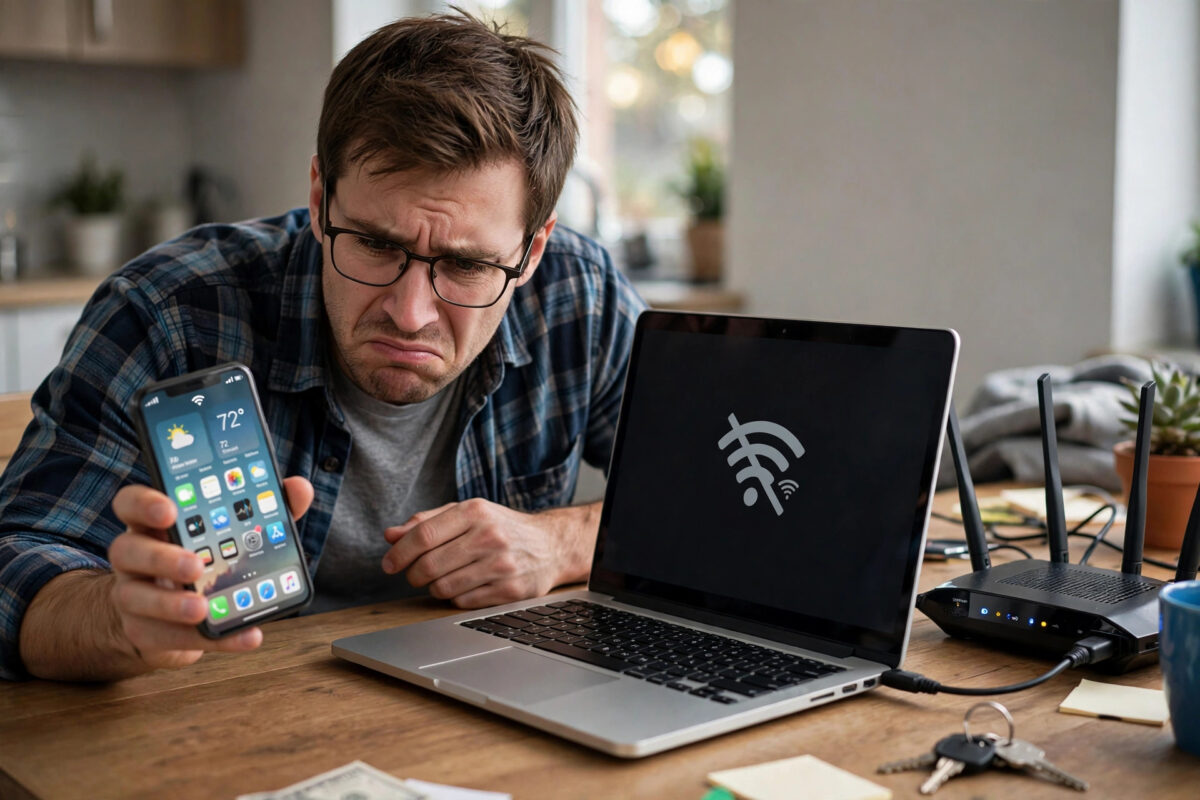
It is one of the most frustrating home network problems there is. Your phone loads websites instantly, your laptop will not connect at all, and the smart TV in the next room keeps dropping off Wi-Fi every evening. The internet is clearly working, because some devices are fine, yet others act as if there is no connection at all.
This split behaviour is actually a useful clue. When every device fails at once, the problem is usually your broadband line or your provider. When only some devices fail, the problem is almost always inside your home: a weak signal in one room, an overloaded Wi-Fi band, a faulty setting on a single device, or a router that is quietly struggling to manage too many connections.
In this guide, I will walk you through the real causes in the order you should check them, from two-minute fixes to less obvious settings support teams often miss.
Quick Answer
If your internet works on some devices but not others, the cause is usually a weak Wi-Fi signal on the failing device, a congested 2.4 GHz or 5 GHz band, an incorrect IP or DNS setting on that device, or a router limit being reached. Restart the failing device and the router, move closer to the router to test the signal, and forget and rejoin the network. Those three steps fix the majority of cases.
Start With the Simplest Checks
Before changing settings, narrow the problem down. Is the failing device on Wi-Fi or cable? Does it fail everywhere or only in one place? Each answer points in a different direction.
Step 1: Restart the Right Things in the Right Order
- Turn Wi-Fi off and back on again on the failing device, then try loading a website.
- Restart the failing device completely, not just sleep mode, and test again.
- Unplug your router for 30 seconds, plug it back in, and wait two full minutes for it to reconnect.
- If you have a separate modem, restart that first, wait until its lights are stable, then restart the router.
- Test both a previously working device and the failing device so you can compare the results fairly.
Step 2: Check Whether It Is a Range Problem
Take the failing device and stand within two metres of the router. If it suddenly works perfectly, you have a coverage problem, not an internet problem. Wi-Fi weakens through brick walls, metal, and floors, and 5 GHz loses strength much faster than 2.4 GHz. A signal of -50 dBm or better is excellent, -60 to -70 dBm is usable, and anything weaker than -75 dBm will cause dropouts.
The Most Common Causes, Explained
Band Congestion and Band Steering Problems
Modern routers broadcast on at least two bands. The 2.4 GHz band travels further but is slower and crowded, often delivering 30 to 80 Mbps in real homes. The 5 GHz band is much faster, typically 200 to 600 Mbps near the router, but its range is shorter. Many routers use band steering to move devices between bands automatically, and this does not always work well. An older laptop or a cheap smart plug may get pushed onto 5 GHz, fail to hold the connection, and appear broken while newer devices thrive.
The fix is to split the bands into two network names, for example HomeWiFi and HomeWiFi-5G. Connect distant or older devices to 2.4 GHz and keep devices near the router on 5 GHz. If the problem disappears, band steering was the issue.
Too Many Devices for Your Router
A typical household now has 15 to 25 connected devices once you count phones, tablets, TVs, consoles, smart bulbs, cameras, and doorbells. Budget routers supplied free by providers often struggle beyond 20 to 30 active connections, even though their marketing suggests far higher numbers. When the limit is reached, the router starts dropping the weakest or least active devices, which is why a tablet that has been idle may fail while your phone, already connected, keeps working.
If this sounds familiar, check our detailed guide to how many devices can connect to one Wi-Fi router for the realistic limits by router class and the signs that you need an upgrade.
IP Address Conflicts and DHCP Failures
Every device needs a unique IP address, handed out automatically by your router through DHCP. Occasionally two devices get assigned the same address, or a device holds onto an old address from another network, and the result is a connection that shows as joined but passes no data. This is especially common after a router change or when a device has a manually set static IP.
On the failing device, make sure IP assignment is set to Automatic or DHCP, not Manual. Then forget the network and rejoin it, which forces a fresh address.
DNS Problems on a Single Device
Sometimes a device is online but cannot look up website names, so every page fails while some apps still work. This is a DNS problem, and the Domain Name System explained on Wikipedia covers how that lookup works. To fix it, set the device DNS manually to 1.1.1.1 and 8.8.8.8, restart the browser, and test again.
Device-Specific Issues to Rule Out
Outdated Drivers, Software, and Saved Networks
A laptop that has not updated its Wi-Fi driver in years may fail on newer router security settings, particularly WPA3. If your router offers a mixed WPA2/WPA3 mode, use it rather than WPA3 only, as many older devices and smart home gadgets cannot join a WPA3-only network at all. Also delete old saved networks with the same name, as a device may be trying to use an outdated password or security profile.
VPNs, Parental Controls, and Blocking Lists
VPN apps, firewalls, and privacy features can break connectivity on one device while leaving others untouched, so disable them temporarily and test. Routers also include pause schedules and MAC filtering: a device paused at 9 p.m. by a parental control profile looks exactly like a broken connection. Check the connected devices list in your router app for anything paused, blocked, or restricted.
When the Router Itself Is the Problem
If different devices fail on different days, with no pattern, suspect the router. Signs include needing weekly restarts, a very hot casing, firmware that has not updated in years, and problems that began after adding many smart home devices. Test by connecting a laptop directly to the router with an Ethernet cable. If the wired connection is fast and stable while Wi-Fi devices struggle, your broadband line is fine and the wireless side of the router is failing. Running a check through a reliable internet speed test on Speedtest.net on both wired and wireless connections gives you the numbers to compare.
At that point you have three options: update the router firmware, add a mesh Wi-Fi system to spread the load and coverage, or replace the router entirely. A modern Wi-Fi 6 mesh kit with two or three nodes solves most whole-home cases and typically supports 75 to 100 devices comfortably.
Common Mistakes to Avoid
- Resetting to factory settings too early: a full reset wipes your network name, password, and provider settings. Try a simple restart first, which is a completely different action.
- Testing with only one website: a single site can be down on its own. Always test two or three well-known sites and an app before blaming your network.
- Placing the router in a cupboard or behind the TV: enclosed, low, or obstructed positions destroy coverage. Central, elevated, and in the open works best.
- Ignoring the 2.4 GHz band: distant devices are often far happier on the slower but longer-range band than clinging to a weak 5 GHz signal.
- Buying a booster before diagnosing: an extender amplifies a bad signal just as faithfully as a good one. Fix the root cause first.
Conclusion
When the internet works on some devices but not others, your broadband line is rarely at fault. The problem is usually signal strength in one room, a congested or poorly steered Wi-Fi band, a stale IP or DNS setting on a single device, or a router reaching its practical device limit. Restart in the right order, test close to the router, split the bands, and refresh the failing device’s network settings, and you will resolve most cases without spending anything. If wired connections are rock solid while Wi-Fi keeps failing across multiple devices, treat that as your sign to upgrade to a modern mesh system rather than fighting an ageing router.
Frequently Asked Questions
Why does my phone connect to Wi-Fi but my laptop does not?
This usually comes down to the laptop’s Wi-Fi driver, a saved network profile with old settings, or a router security mode the laptop does not support. Forget the network on the laptop, update the wireless driver, and set the router to mixed WPA2/WPA3 mode before reconnecting.
Why does the internet work downstairs but not upstairs?
That is almost always a range and obstruction problem, because floors and ceilings weaken Wi-Fi significantly, especially on 5 GHz. Connect upstairs devices to the 2.4 GHz band, move the router to a more central spot, or add a mesh node upstairs.
Can too many devices really stop one device from connecting?
Yes. Budget routers often become unreliable beyond 20 to 30 active devices, dropping the weakest connections first. Reducing idle smart devices, upgrading the router, or moving to a mesh system with a higher device capacity resolves it.
Why does a device say connected but no internet?
That message means the device joined your local network but cannot reach the wider internet, commonly due to an IP conflict, a DNS failure, or a paused device profile in parental controls. Forgetting and rejoining the network plus a router restart clears most of these cases.
How do I know if my router needs replacing?
If it needs frequent restarts, runs very hot, has not received firmware updates in over a year, and fails with several different devices while wired connections stay stable, replacement is the sensible move. Most routers serve well for four to five years.



Leave a Reply