
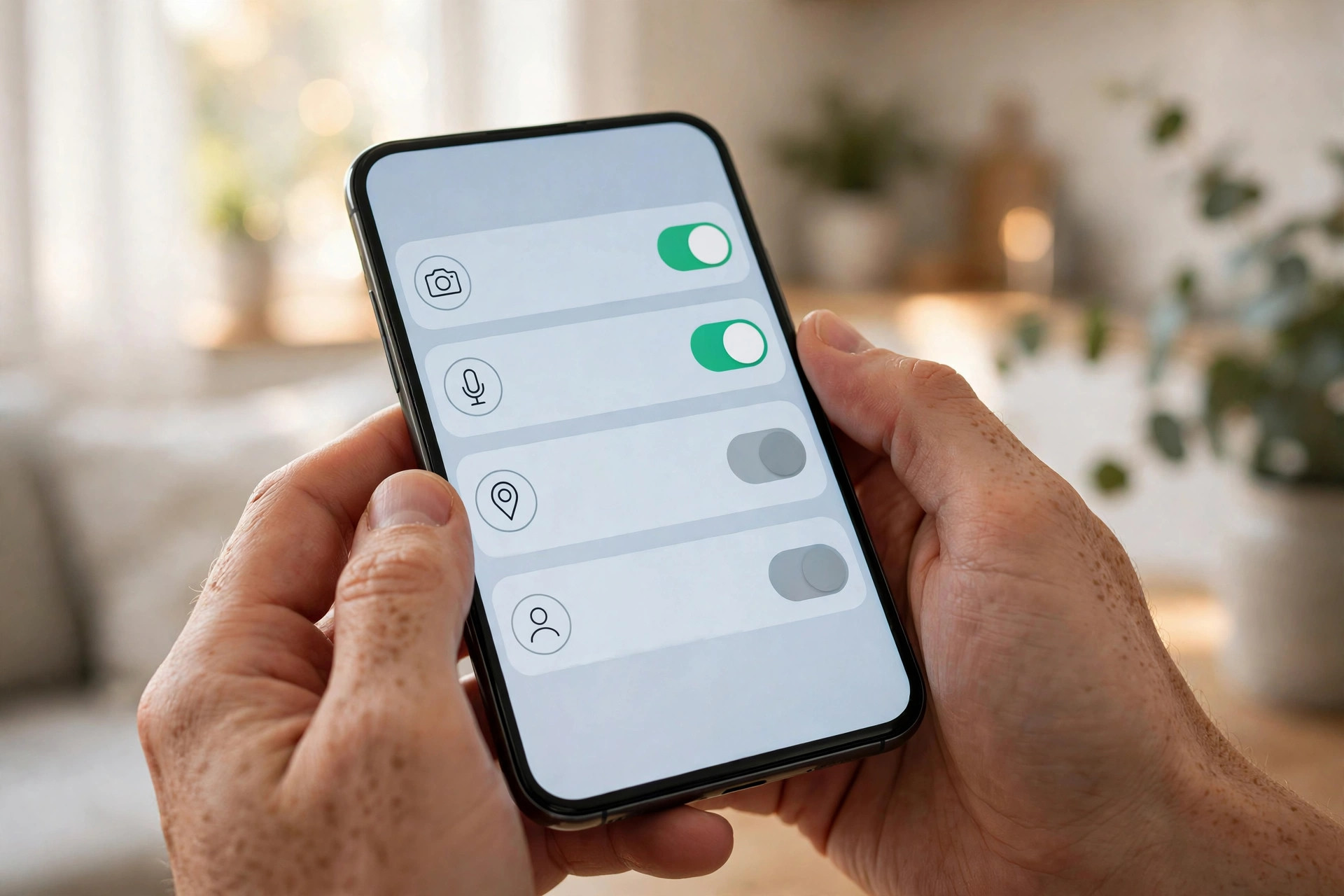
Every app on your phone asks for permission to access something — your camera, microphone, location, contacts, photos, or notifications. Some of those requests make perfect sense. A maps app needs location, and a video calling app needs a camera and microphone. Others are much harder to justify, like a simple game asking for your contacts or a torch app wanting precise location at all times.
Over time, permissions pile up. You install an app, grant what it asks for, and forget about it, yet it may keep accessing sensitive data in the background. Reviewing permissions regularly is a simple, effective privacy habit that takes only a few minutes.
This guide shows you exactly how to audit permissions on Android and iPhone, explains which permissions deserve extra attention, and gives you a repeatable routine so a quick check becomes part of how you look after your phone, not a one-off clean-up.
Quick Answer
On Android, go to Settings, Privacy, Permission Manager to review permissions by type. On iPhone, go to Settings, Privacy and Security to do the same. Remove access that an app does not clearly need, change location to While Using or Ask Every Time, and repeat this review every month. Uninstall apps you no longer use instead of just restricting them.
Why App Permissions Matter More Than Most People Realise
Permissions are the gateway between an app and your personal life. Location reveals where you live, work, and travel. Contacts expose your social network, including people who never installed that app themselves. Microphone and camera access can, if misused by a malicious or careless app, capture far more than a single photo or call. Even seemingly harmless access, like photos, can reveal documents, screenshots of tickets, and images with location data embedded in them.
The main risk today is gradual over-sharing: dozens of ordinary apps each collecting a little more than necessary for advertising and analytics. A regular review reverses that drift.
How to Review App Permissions on Android
Android gives you a powerful central view organised by permission type, which is the fastest way to spot problems across all apps at once. Menu names vary slightly between Samsung, Pixel, and other brands, but the path is very similar.
- Open Permission Manager. Go to Settings, then Privacy, then Permission Manager. On some phones, look under Settings, Apps, then the three-dot menu for Permission Manager.
- Work through sensitive permissions first. Tap Location, Camera, Microphone, Contacts, and Photos and Videos one by one. Each screen lists which apps are allowed always, allowed only while in use, ask every time, or not allowed.
- Tighten location access. For each app, ask whether it needs your location in the background. Change delivery, shopping, and social apps to Allow only while using the app or Ask every time. Reserve Allow all the time for navigation or safety apps you truly rely on.
- Turn off precise location where it is not needed. Many Android versions let you toggle off Use precise location for weather, news, and retail apps. Approximate location is enough for a forecast or local offers.
- Remove camera and microphone from apps that do not need them. A retailer, bank, news, or wallpaper app rarely needs either. Keep them only for calling, scanning, photography, and voice note apps.
- Check special access. Scroll to settings for notifications, display over other apps, and install unknown apps. Revoke anything unfamiliar. Unused apps may also be auto-restricted — confirm that Pause app activity if unused is enabled.
- Review one app at a time for anything unclear. Go to Settings, Apps, select the app, then Permissions, and adjust individually if the grouped view was confusing.
Google documents these controls in detail on its official Android help page for changing app permissions, including differences between phone manufacturers. Keep that page in mind if your menus look slightly different.
How to Review App Permissions on iPhone
Apple organises privacy controls by data type, with a useful App Privacy Report that shows what apps have actually accessed recently — not just what they are allowed to access.
- Open Privacy and Security. Go to Settings, then Privacy and Security. You will see categories such as Location Services, Contacts, Calendars, Photos, Microphone, and Camera.
- Start with Location Services. Tap Location Services and review the list. Change apps to Never or Ask Next Time Or When I Share where possible. Set most apps to While Using the App, and disable Precise Location for apps that only need a general area.
- Limit photo access. Tap Photos and switch apps from Full Library to Limited Access, then select only the images that app genuinely needs. Photo editing and social apps are the main candidates for limited access.
- Check Microphone and Camera. Open each category and switch off any app you do not use for calls, recording, scanning, or video. If you do not recognise why an app is listed, turn it off.
- Review Contacts, Calendars, and Health. These categories are often over-shared. A shopping or transport app does not need your full contacts or health data. Remove access freely — you can grant it again later if a feature breaks.
- Turn on and read App Privacy Report. In Privacy and Security, enable App Privacy Report if it is off. After a week of normal use, return to see which apps accessed location, photos, microphone, or contacts and how often, and which network domains they contacted.
- Check Tracking. Tap Tracking and ensure Allow Apps to Request to Track is off if you prefer not to be tracked across apps and websites for advertising.
Apple explains each control on its official iPhone privacy settings guide, which is helpful if you want to understand what a specific category covers before changing it.
A Simple Monthly Routine That Takes Five Minutes
A one-time clean-up helps, but permissions creep back as you install new apps and accept prompts under time pressure. A short monthly routine prevents that build-up and becomes automatic after two or three repetitions.
- Pick a fixed trigger. Tie the review to something you already do monthly, such as paying a bill, updating your phone, or charging on the first Sunday of the month.
- Delete first, restrict second. Uninstall any app you have not opened in a month and no longer need. There is no safer permission than an app that is not installed.
- Check the big five. Review only location, camera, microphone, contacts, and photos. That covers the highest risk in a few minutes without overwhelming you.
- Look for changes. Updates can add new permission requests. If an app you trust suddenly appears in a sensitive category, investigate before accepting it.
- Review children’s and family devices too. Games and free apps on a child’s phone or tablet often request the broadest access. Apply the same five-minute check there.
If you want a broader checklist for the whole household, our step-by-step technology and online safety guides for everyday users include similar short routines for accounts, backups, and home Wi-Fi that pair well with this permission habit.
Common Mistakes to Avoid
- Granting Allow all the time for location by habit. Very few apps need background location. While Using is sufficient for almost everything except navigation and safety tools.
- Giving full photo library access to every app. Use limited or selected photos on iPhone and scoped access on Android wherever offered.
- Ignoring apps you no longer use. A forgotten app with broad permissions is still collecting access. Deleting beats restricting.
- Approving prompts without reading them. Slow down for two seconds on install prompts. Choosing Ask Every Time is a safe default when you are unsure.
- Only checking new apps. Older, trusted apps can change policies or add features after updates, so the regular full review still matters.
- Forgetting notification and account access. Check which apps can read notifications or sign in with your Google or Apple account, and revoke stale connections.
Conclusion
Reviewing app permissions is not technical work reserved for experts. It is basic housekeeping for the device that holds your photos, messages, location, and accounts. By using Permission Manager on Android or Privacy and Security on iPhone, tightening the five most sensitive categories, and repeating a five-minute check each month, you dramatically reduce unnecessary data sharing without losing the apps you value.
Start today with location alone. Open that one list, tighten anything that says Always or Full Access without a clear reason, and notice how many changes you can make in under three minutes. That quick win makes the full routine feel easy next month.
Frequently Asked Questions
How often should I review app permissions on my phone?
Once a month is ideal for most people, with a quick extra check whenever you install a new app or notice an unfamiliar permission prompt after an update. A short regular review is far more effective than a rare, exhausting deep clean.
Will removing a permission break my apps?
Usually not. Most apps work normally with reduced access or ask again only when you use a specific feature that needs it. If something does stop working, you can re-enable that single permission in seconds from the same settings screen.
Which permission is the riskiest to share?
Background location is among the riskiest because it can reveal home, work, routines, and travel over time. Microphone, camera, contacts, and full photo access are also highly sensitive and should only go to apps with a clear, immediate need.
Should I allow precise location or approximate location?
Choose precise location only for navigation, ride-hailing, fitness tracking, and delivery while an order is active. For weather, news, shopping, and social apps, approximate location gives the app enough information while revealing far less about you.
What is the App Privacy Report or Privacy Dashboard, and should I use it?
These tools show what apps actually accessed recently, not just what they may access. Use them during your monthly review to spot surprising behaviour, such as a simple game checking location repeatedly, and remove that app or its permission.



Leave a Reply