
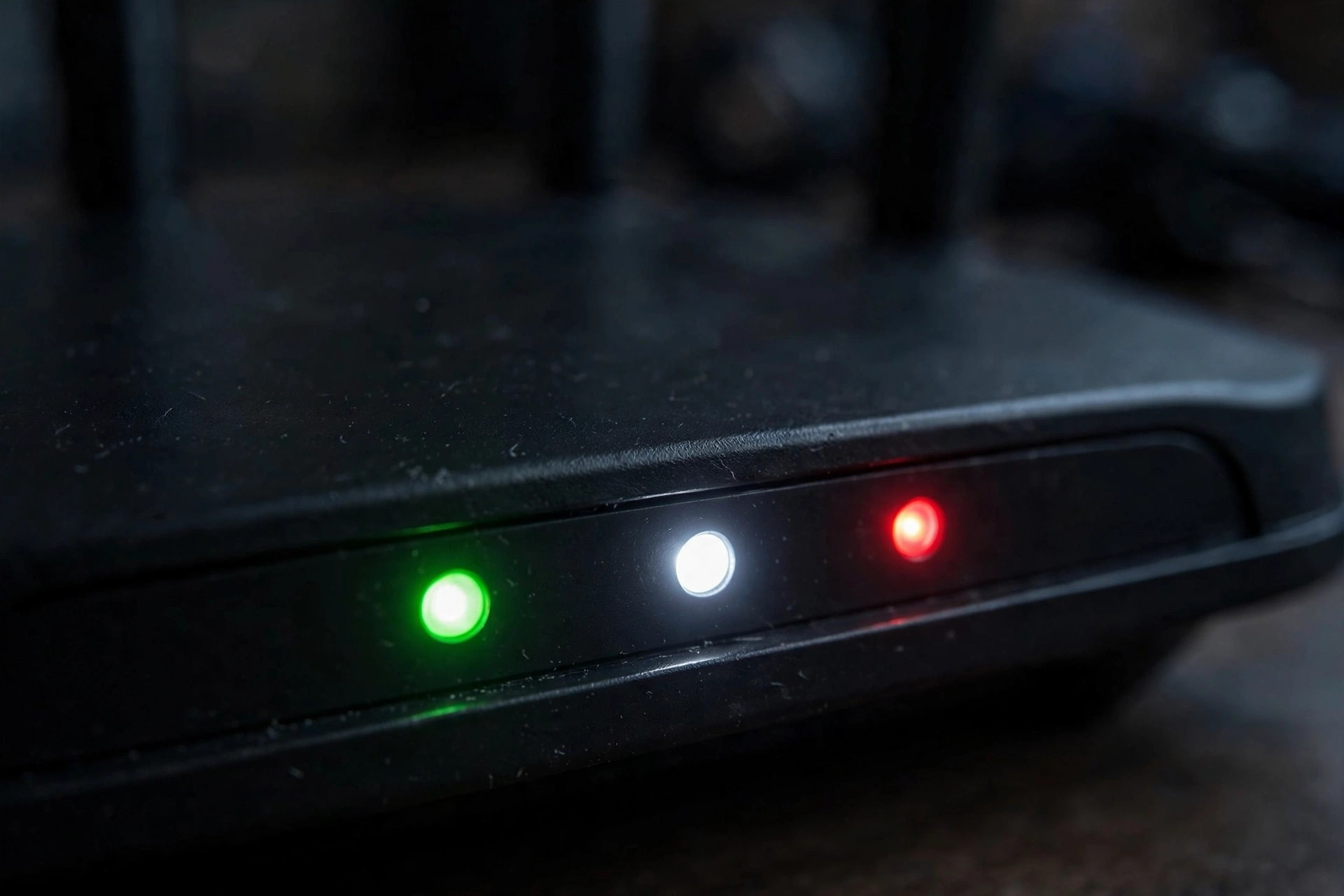
Your router has no screen and no keyboard, so it communicates the only way it can: through a row of small lights. To most people those lights are just decoration — until the internet drops and suddenly everyone is staring at the box asking what a red globe or a blinking arrow is supposed to mean. Learning to read them turns panic into diagnosis: in ten seconds you can tell whether the problem is your power, your line, your Wi-Fi, or a single device.
While labels vary between brands, nearly every router uses the same set of symbols. This guide decodes each light, explains what solid, blinking, off, and red actually signify, and gives you a quick troubleshooting path for the patterns you will meet most often.
The Golden Rule: Colour and Behaviour
Two things matter: colour and movement. Green, white, or blue generally means healthy. Amber or orange usually means “working on it” or a warning. Red almost always means a fault. A solid light means a stable state — connected, powered, ready. A blinking light means activity or negotiation — data moving, a connection being established, a device pairing. A light that is completely off means that function is inactive: no power, no connection, or the feature disabled. During startup, expect two to three minutes of blinking chaos before everything settles; judge the lights only after that.
Light by Light: What Each One Means
Power Light
Solid means the router is on and booted. Blinking during startup is normal; blinking forever suggests the router is stuck booting or updating firmware — do not unplug it mid-update. Off means no power: check the adapter, socket, and power switch.
Internet / WAN Light (Globe Icon)
This is the most important light in the house. It shows the router’s connection to your provider. Solid green/white means you are online. Blinking usually means it is negotiating or passing data, depending on brand. Red or off means no internet connection — the line, the modem, or your account credentials are the suspects.
DSL / Broadband Light
On modem-routers, this light shows synchronisation with the line (DSL) or the fibre/cable signal. Solid means the physical line is trained and healthy. Slow blinking means it is trying to sync; if it never stops, the problem is the line itself, the cable, or a provider outage.
Wi-Fi Lights (2.4GHz and 5GHz)
These show the wireless radios. Solid means the band is broadcasting; flickering means data is flowing — that is healthy and normal during use. Off means that band is disabled in settings, the Wi-Fi schedule has switched it off, or the physical Wi-Fi button on the router was pressed.
LAN / Ethernet Lights (Numbered 1–4)
Each numbered light corresponds to a wired port. Solid or flickering with a cable plugged in means a healthy wired link — the flicker is data activity. Off with a cable connected means the cable, the port, or the device at the other end is off or faulty.
WPS Light
Blinks while the router is waiting for a device to pair after you press the WPS button, then goes solid briefly on success or goes out. If it blinks red or stays in pairing mode unusually long, the pairing attempt failed.
USB and Phone Lights
A USB light shows a connected storage drive or printer. On routers with VoIP, a phone light shows your landline-over-internet service is registered; off means the phone service is down even if the internet works. Brands place these symbols slightly differently, so for model-specific diagrams check your manufacturer’s support library — TP-Link’s support and FAQ library is a good example of how brands document their indicators.
Five Patterns You Will Actually Meet
Globe Light Red, Everything Else Normal
Your Wi-Fi works locally but the router cannot reach the internet. Power-cycle in order — modem first, then router — and check for a provider outage.
All Lights Off
No power. Check the wall socket with another device, reseat the adapter, and suspect a failed power supply — a common casualty after storms and outages.
Wi-Fi Lights Off but Internet Light On
Your Wi-Fi is switched off — the physical button was pressed or a Wi-Fi schedule is active. Log in to the admin page and re-enable the bands. Our admin-page walkthroughs at Network Ustad’s router troubleshooting guides will get you there.
Internet Light Blinking Forever
The router is stuck negotiating. For DSL, check the line cable and filters; for cable/fibre, check the coax/ONT connection. If it persists for more than ten minutes, call your provider — the fault is likely on their side.
LAN Light Off with a Cable Plugged In
Try a different cable and a different port, and confirm the device at the other end is powered. Cables fail far more often than ports do.
A Note on Routers with No Visible Lights
Some modern routers and most mesh systems have replaced the light row with a single status LED — or even buried status in the app entirely. The language is simpler but cruder: typically a solid white or blue means all is well, a pulsing light means booting or pairing, amber means a warning such as a weak connection between mesh nodes, and red means no internet. Mesh nodes add one private signal of their own: a node glowing amber is often complaining about its link back to the main unit — move it closer or remove obstructions. If your router’s lights can be turned off in settings (a popular bedroom-friendly feature), remember you did it before concluding the router is dead at 2 a.m.; the app or admin page will still report full status. And on any system, the app is now the richer dashboard: it shows which devices are connected, whether the internet link is up, and per-node health — the modern equivalent of reading the lights, with words.
Common Mistakes and Tips
The commonest mistake is interpreting flickering Wi-Fi and LAN lights as a fault — that flicker is simply data moving, the sign of a working network. Second, unplugging the router while the power light blinks during a firmware update, which can corrupt it; give updates ten undisturbed minutes. Third, phoning the ISP before a basic ordered restart, which their agent will make you do anyway. A genuinely useful tip: take a photo of your router’s lights when everything works. On the day something breaks, you have a reference for what “healthy” looks like on your exact model.
Conclusion
Router lights are a language, and a simple one: colour tells you health, movement tells you activity, and each symbol points at one function — power, internet, line, Wi-Fi, wired ports. Learn the six or seven lights on your box and you will diagnose most connection problems in seconds, know whether the fix is yours or your provider’s, and never again describe a fault as just “the internet is broken.”
Frequently Asked Questions
Why is my router’s internet light red?
A red globe means the router has no working connection to your provider. Restart the modem first, then the router, and check for outages. If it stays red, the fault is the line, the modem, or your account settings.
Is it normal for router lights to blink constantly?
Yes. Blinking or flickering Wi-Fi and LAN lights indicate data being transferred. Only judge the lights as a group: power solid, internet solid, and activity flickering is a healthy router.
What does it mean when all my router lights flash and restart?
The router is rebooting — either you restarted it, it is applying an update, or it crashed. Watch it for three minutes; if it loops endlessly, the firmware or power supply may be failing.
My power light is on but there are no other lights. What’s wrong?
The router may be stuck early in boot. Unplug it for 60 seconds and power it back on. If only the power light ever appears, suspect a corrupted firmware or hardware fault and contact the manufacturer.
Do light meanings differ between brands?
Symbols and colours follow broad conventions, but details vary — for example, some brands blink the internet light for activity while others keep it solid. Your router’s manual or support site has the exact chart for your model.



Leave a Reply