
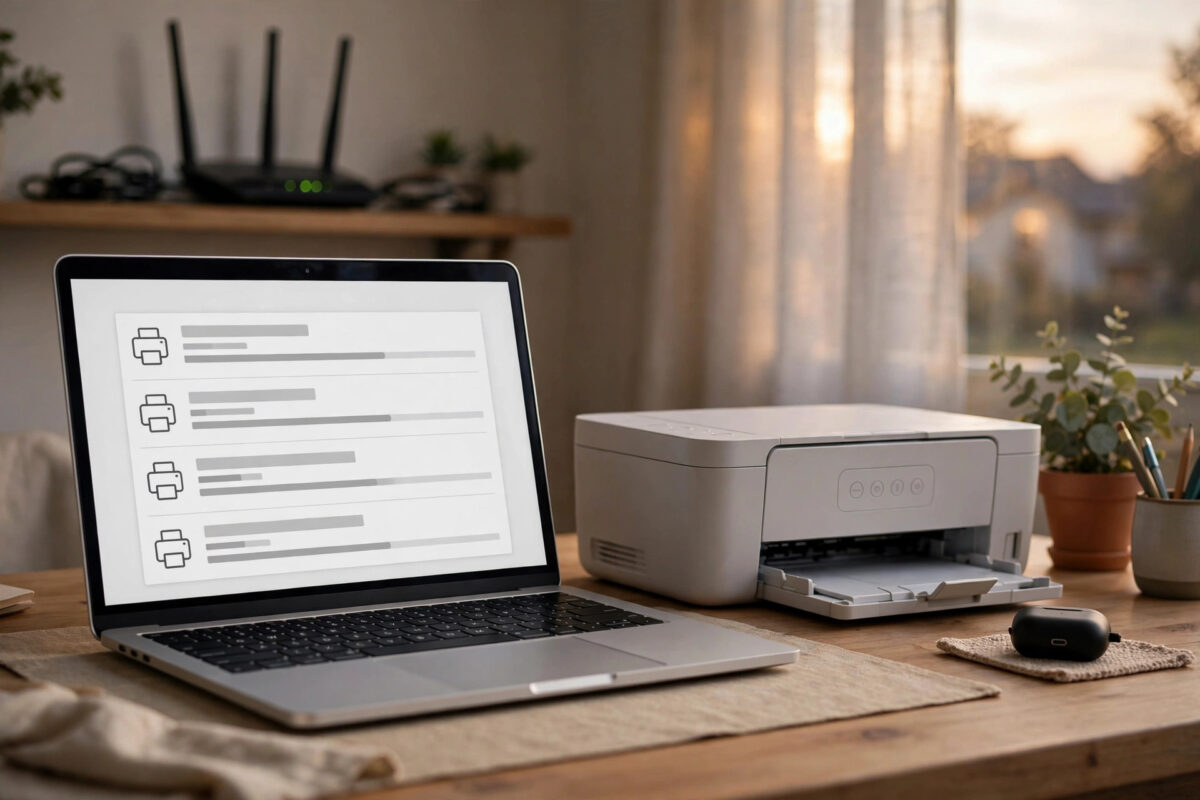
Your Epson printer is switched on, connected to the same Wi-Fi as always, and printed fine last week. Now your Mac running macOS Sonoma insists the printer is offline. You can see it in the print queue, greyed out, and every job just sits there waiting. This is one of the most common Mac printing problems after a system update, a router restart, or a change in network settings, and it rarely means the printer itself is broken.
On a Mac, offline usually means the computer cannot reach the printer. It may have a new IP address, a corrupted queue, or an outdated driver. This guide works through the checks in order, ending with removing and re-adding the printer.
Quick Answer
To fix an Epson printer showing offline on a Mac with macOS Sonoma, confirm the printer and Mac are on the same Wi-Fi network, unpause the print queue and clear stuck jobs, then restart both devices. If it stays offline, remove the printer in System Settings, restart the Mac, and add it again using AirPrint or the latest Epson driver. A changed printer IP address is the most common cause.
First, Confirm What Offline Really Means Here
macOS shows offline when it cannot connect at the moment it checks. A sleeping printer, a guest network, a VPN, or one stuck job at the front of the queue can all cause the same message.
Stand next to the printer. Confirm it is on, shows no error or ink warning, and displays Wi-Fi. Print a network status sheet if you can — it gives the IP address and network name you may need later.
Step 1: Check Both Devices Are on the Same Network
- On your Mac, click the Wi-Fi icon and note the exact network name you are connected to.
- On the printer screen, open Wi-Fi or Network Settings and note its network name. The names must match exactly.
- Watch for similar names, such as a main network and a guest network, or a 2.4 GHz and 5 GHz version with slightly different names.
- If the printer is on the wrong network, reconnect it using its Wi-Fi Setup Wizard and your network password.
- Turn off any VPN on the Mac while you test, because a VPN can hide local printers from the computer.
Many Epson models connect more reliably on the 2.4 GHz band, which reaches further through walls. If your router combines both bands under one name, that is normally fine. If it splits them, try putting both devices on the same band for the test. Move the printer closer to the router if the status sheet shows a weak signal, because a marginal connection drops in and out and Sonoma reports it as offline.
Step 2: Unpause the Queue and Clear Stuck Jobs
- On the Mac, open System Settings, then Printers and Scanners.
- Select your Epson printer and open the Print Queue.
- If the queue says Paused, click Resume.
- Delete every waiting job by selecting each one and removing it. Do not leave an old failed job at the front.
- Close the queue, open a simple app such as TextEdit, and print a one-line test page.
This simple step fixes more offline reports than people expect. A queue paused months ago by a paper jam will stay paused through restarts until someone resumes it. Clearing the jobs also removes any corrupt job file that Sonoma keeps trying and failing to send.
Step 3: Restart in the Right Order
- Turn the printer off with its power button and unplug it for 30 seconds.
- Restart the router and wait until its internet and Wi-Fi lights are steady.
- Turn the printer back on and wait until it shows as connected to Wi-Fi.
- Restart the Mac.
- Try the test print again from TextEdit.
Order matters because the router hands out addresses as devices join. Letting the router settle first, then the printer, then the Mac gives each device a clean connection and a fresh address. If the printer comes back online after this restart but drops again within a day, note that pattern. It points to an address problem, covered in a later section.
For Mac printing basics and queue management, Apple’s guide on how to solve printing problems on Mac is the official reference that matches the Sonoma settings used here.
Step 4: Remove and Re-Add the Printer Correctly
If the printer still shows offline, the saved queue on your Mac is likely damaged or pointing at an old address. Removing and re-adding it builds a fresh connection.
- Open System Settings, then Printers and Scanners.
- Select the Epson printer and remove it with the Remove Printer button. Confirm the removal.
- Restart the Mac. This clears cached printer software that a simple removal leaves behind.
- Make sure the printer is on and connected to Wi-Fi.
- Return to Printers and Scanners and click Add Printer, Scanner or Fax.
- Wait for your Epson model to appear in the Default list. Select it.
- In the Use menu, choose AirPrint if it is offered, or Secure AirPrint. Click Add.
- Print a test page before you try a large or important document.
AirPrint is the best first choice on Sonoma because Apple maintains it and it avoids old driver conflicts. If you need Epson-specific features, install the current driver for your model from the official Epson support site and select it in the Use menu instead.
If you manage several printers at home or in a small office, our guide on how to fix a printer showing offline on a Mac covers the wider checks for other brands that can sit alongside this Epson-specific fix.
Step 5: Add the Printer by IP Address if Discovery Fails
Sometimes the Mac simply cannot discover the printer automatically, even though both are on the same network. Adding by IP address bypasses discovery.
- Find the printer IP address on its network status sheet or in its network settings screen. It will look like 192.168.1.45.
- In Printers and Scanners, click Add, then choose the IP tab, shown as a globe icon.
- Enter the IP address, choose IPP or Line Printer Daemon as the protocol if prompted, and give the queue a clear name.
- Select the correct driver or AirPrint in the Use menu and click Add.
- Print a test page.
To make this permanent, reserve a fixed address for the printer in your router’s DHCP Reservation settings using its MAC address from the status sheet. This is the best long-term cure for repeated offline problems.
Also check local network permission for your app in Privacy and Security settings, and install any pending macOS updates, which have fixed several Sonoma printing bugs.
Common Mistakes to Avoid
- Adding the printer again without removing the old queue: You end up with two copies, one working and one offline, and apps keep choosing the wrong one. Remove the old queue first.
- Connecting the printer to a guest network: Guest networks often block devices from seeing each other, so the Mac can never reach the printer.
- Testing with a large photo first: Always test with a one-line TextEdit page. It isolates the connection from app and file problems.
- Ignoring the printer screen: An ink, paper, or maintenance warning on the printer itself can present as offline on the Mac. Clear the physical warning first.
- Using a driver for the wrong model or macOS version: A near-match driver may install but fail in use. Match both the model number and Sonoma exactly.
If every device loses the printer or the signal is very weak, test the printer in the same room as the router. Placement, a mesh node, or a wired connection may be the real fix.
Conclusion
An Epson printer showing offline on macOS Sonoma is usually a connection or queue problem, not a broken printer. Confirm both devices share the same network, clear and resume the queue, restart in order, and, if needed, remove and re-add the printer with AirPrint or the current driver. If it keeps dropping, reserve a fixed IP address for it. Work through the steps once, in order, and test with a simple page after each stage, so you know exactly which fix brought your printer back.
Frequently Asked Questions
Why did my Epson printer go offline after updating to Sonoma?
Major macOS updates can replace or disable older printer drivers and reset saved printer connections. The printer itself is usually fine. Removing the old queue, restarting, and adding the printer again with AirPrint or a Sonoma-ready Epson driver restores a clean, supported connection.
Should I use AirPrint or the Epson driver on Sonoma?
Start with AirPrint for reliable everyday printing, because Apple maintains it within macOS. Install the Epson driver as well if you need brand-specific features, special paper types, or Epson maintenance tools. Avoid very old drivers written for earlier macOS versions.
Why does my printer work for a day, then go offline again?
The most likely cause is its IP address changing when the router restarts or the printer sleeps. Your Mac keeps trying the old address. Reserve a fixed address for the printer in your router’s DHCP settings, then remove and re-add the printer one final time.
Can a VPN make my Mac printer show offline?
Yes. Many VPNs route all traffic away from your local network, so the Mac cannot see a printer sitting in the same room. Disconnect the VPN to test and to set the printer up. Some VPNs offer a local network or split tunnelling option that lets printing work while connected.
How do I print a network status sheet from my Epson?
On most models, open Settings, then Network Settings, then Print Status Sheet or Network Status. Models without a screen often print it by holding the network or information button for several seconds. The sheet shows the network name, signal strength, IP address, and MAC address.
Leave a Reply