
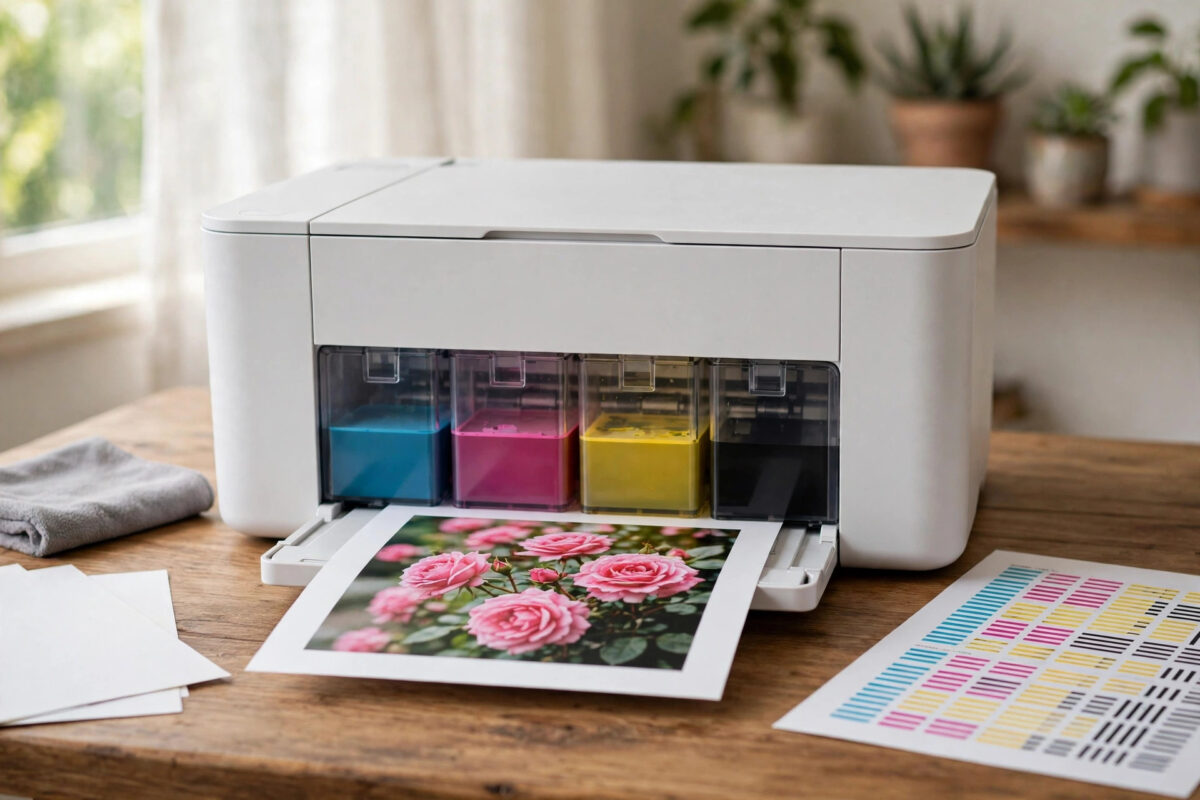
It is a frustrating and very specific problem. You leave your Epson EcoTank unused for a few weeks, come back to print a photo or a school project, and everything that should be red comes out pink. Skin tones look washed out, red text looks magenta, and a nozzle check often shows a colour that is weak or missing entirely. The printer has not run out of red ink, because EcoTank printers do not use red ink at all.
Understanding that one fact makes the fix much clearer. Your printer builds red by mixing magenta and yellow on the page. If yellow is missing, weak, or blocked, magenta prints on its own and you see pink. After weeks of sitting unused, dried yellow ink or air in the yellow line is the most common reason. This guide explains how to prove which colour is at fault, clear it safely, and stop it happening next time you take a break from printing.
Quick Answer
An Epson EcoTank prints pink instead of red after sitting unused because the yellow ink is not reaching the page, so only magenta prints where red should be. Print a nozzle check to confirm the yellow pattern has gaps, check the yellow tank and ink tube, then run one head cleaning and, if needed, let the printer rest before checking again. A manual soak helps if cleaning alone does not restore yellow.
How Your EcoTank Makes Red
Most home EcoTank printers use four inks: black, cyan, magenta, and yellow. There is no red tank and no red cartridge. When software asks for red, the printer lays down a full layer of magenta and a full layer of yellow in the same spot. Your eye blends them and sees red. Orange, green, and purple are made in a similar way from other pairs.
That is why colour faults are revealing: pink points to yellow. Magenta is clearly working, so do not replace it. Start with yellow.
Why Sitting Unused for Weeks Causes This
Dried Ink at the Nozzles
Ink dries at the nozzles on the underside of the printhead. The parked seal is not perfect over many weeks, especially in a warm, dry room, so yellow can form a plug that stops drops reaching the paper.
Air in the Ink Lines
EcoTank ink travels from the tanks through thin tubes to the printhead. Over time, tiny air bubbles can form or grow in a tube, particularly if a tank was allowed to get very low. Air compresses where ink should flow, so the printhead fires but delivers little or no yellow. This is why a printer can show a full yellow tank and still print no yellow at all.
Each tank needs its cap closed properly during printing and its air vent clear. A cap left loose, a tank filled past the upper line, or a printer that was tipped during a move can all upset ink flow for one colour. These are quick checks that cost nothing, so do them before you use ink on cleaning cycles.
Step 1: Print a Nozzle Check First
- Load plain A4 or letter paper.
- On the printer screen, open Settings, then Maintenance, then Nozzle Check. On models without a screen, use the Epson software on your computer.
- Print the check and lay it on a flat surface in good light.
- Look at each colour block separately. Count the missing lines in the yellow block.
- Keep this print. You will compare it after each fix, so you can judge progress honestly.
If yellow is completely missing, the clog or air gap is total. If yellow shows a broken staircase pattern, the blockage is partial, which is a better sign. If yellow looks perfect but red still prints pink in photos, the problem is more likely a colour setting, a wrong paper type, or an empty-looking magenta behaviour in software, so check those before cleaning further.
Step 2: Check the Yellow Tank, Cap, and Tube
- Look at the yellow tank window at the front. The level should be above the lower line. Refill with the correct Epson ink bottle for your model if it is low.
- Press the tank cap closed firmly. Listen and feel for a proper click or seal.
- Open the scanner unit and follow the ink tubes to the carriage. Look for a long clear gap in the yellow tube, which suggests air, or a kinked section.
- Make sure the printer sits flat and has not been tilted since you last printed well.
- Confirm you used genuine or correctly matched ink. Mixing ink types can change colour balance and increase clogging.
For the correct ink numbers and refill procedure for your model, use the official Epson support pages and ink finder rather than guessing from a similar model, because EcoTank ink codes differ between series.
Step 3: Run One Cleaning, Then Wait
- From the Maintenance menu, run Head Cleaning once.
- When it finishes, print another nozzle check and compare the yellow block with the first print.
- If yellow has improved, even slightly, stop cleaning. Turn the printer on, leave it parked, and wait two to three hours.
- Print a fresh nozzle check after the wait. Air and loosened ink often settle in that time, and yellow can return without more cleaning.
- Only if there is no improvement at all, run one more cleaning. Avoid running three or more in a row.
Repeated cleanings waste ink from all colours and can push more air through the system. The wait between cleans is part of the fix.
Step 4: Use Power Cleaning Only If Directed
Many EcoTank models offer Power Cleaning or Ink Flushing in the maintenance menu. This is a stronger routine that uses much more ink and is designed for exactly this kind of stubborn colour loss after a long idle period. Use it only if the standard cleaning has failed, your tanks are at least one-third full, and your maintenance box has enough space, because the printer may refuse to start or may stop partway if either is low.
After a power clean, Epson advises leaving the printer for up to 12 hours before judging the result. That long rest lets pressure and air in the tubes stabilise. Test with a nozzle check first, not a large photo, so you do not waste expensive paper while yellow is still recovering.
Step 5: If Yellow Is Still Missing, Try a Manual Soak
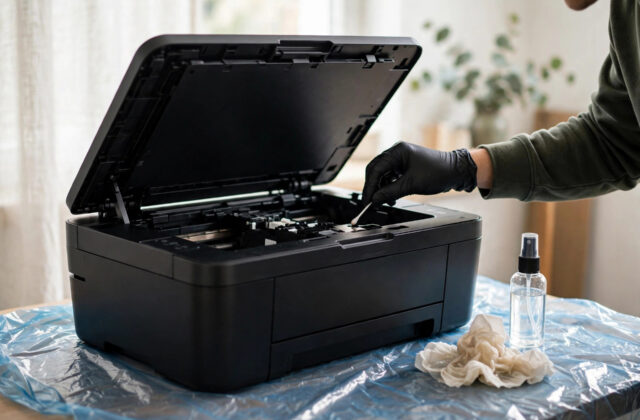
If standard and power cleaning have not restored yellow, dried ink on the printhead surface is the likely remaining cause. A gentle paper towel soak, dampened with warm distilled water, placed under the printhead for several hours, can soften the yellow plug from the outside. Follow a careful, model-safe method and never scrub the printhead. Our detailed guide on how to unclog an Epson printhead manually when cleaning cycles fail walks through that process step by step, including the safety limits.
Once yellow returns, test with a small image. If one app still prints pink, check its paper type and colour settings, and try a second app, before cleaning again.
Common Mistakes to Avoid
- Replacing or refilling magenta: Magenta is the colour you can see. The missing colour is yellow, so extra magenta makes the pink worse.
- Running clean after clean: This drains all tanks and can add air. One clean, a wait, and a fresh check is a better pattern.
How to Stop It Happening Next Time
Print a small colour page once a week, leave the printer plugged in, and switch it off with its power button so the printhead parks over its seal. Keep tanks above the lower line and away from heaters or direct sun.
Conclusion
Pink instead of red is your EcoTank telling you, quite precisely, that yellow is not arriving. Confirm it with a nozzle check, check the yellow tank, cap, and tube, then use one cleaning and a patient wait before you consider stronger options. Most printers recover fully once the yellow plug softens or the air clears. Build a weekly colour print into your routine, and the same fault is far less likely to greet you after your next break.
Frequently Asked Questions
Why is there no red ink tank in my EcoTank?
Because red is made on the page by mixing magenta and yellow ink. Your printer only needs black, cyan, magenta, and yellow tanks. That is why a yellow problem shows up so clearly as pink or magenta prints where red, orange, and warm skin tones should be.
How long can an EcoTank sit unused before colours clog?
It varies with temperature and humidity, but problems often appear after two to four weeks without colour printing. A dry, warm room shortens that time. Printing a small colour page every week is the simplest way to keep all nozzles wet and the tubes primed.
Should I run Power Cleaning straight away?
No. Try a standard head cleaning and a rest period first, because Power Cleaning uses a lot of ink and fills the maintenance box. Use Power Cleaning only when standard cleaning shows no improvement, your tanks are well filled, and you can leave the printer resting afterwards.
My nozzle check is perfect but photos still look pink. What now?
If every colour block is solid, the printhead is working. The fault is likely in settings: check the paper type, turn off manual colour adjustments for a test, try a different app, and reinstall or update the printer driver. Compare the same photo printed from your phone and computer.
Can old or third-party ink cause pink prints?
Yes. Ink that is out of date, mixed with another type, or poorly matched to your model can shift colour balance and clog more easily. If problems began after a refill with a new ink, note the ink code, compare it with the tank label, and seek Epson guidance before flushing the system.
Leave a Reply