
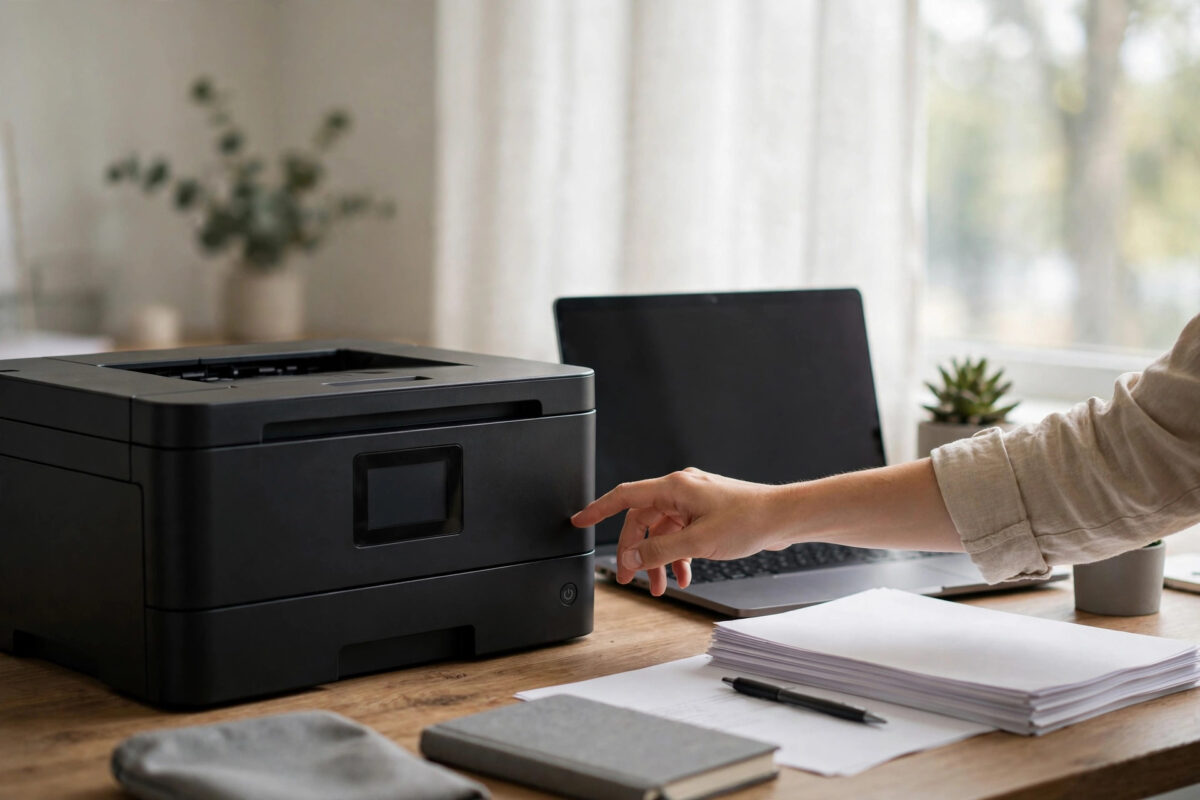
You walk back to your Canon printer with a document to print, and it is off again. No error, no warning. It simply switched itself off after a few minutes of doing nothing. If this keeps happening, your printer is probably not broken at all. It is following its own power saving setting.
Most Canon PIXMA and MAXIFY printers have an Auto Power Off feature. It is helpful for saving electricity, but the default timing is too short for many homes and small offices. This guide shows you how to find the setting, change it or turn it off, and rule out the few real faults that can look the same.
Quick Answer
Your Canon printer keeps switching itself off because Auto Power Off is enabled in its power settings, often set to 15 or 30 minutes. Open the printer driver Maintenance or ECO settings on your computer, or the Device Settings menu on the printer screen, find Auto Power Off, and set it to Never or a longer time. Also check Auto Power On if you want the printer to wake automatically when you send a print job.
How Auto Power Works on Canon Printers
Canon splits its automatic power features into two separate settings. People often change one and miss the other, so it helps to know both.
Auto Power Off
This setting turns the printer fully off after a chosen period with no printing, scanning, or button use. Common choices are 15 minutes, 30 minutes, 1 hour, 2 hours, 4 hours, 8 hours, and Never or Disable, depending on the model. Once it triggers, the printer will not respond to print jobs until someone presses the power button, unless Auto Power On is also set.
Auto Power On
This setting does the opposite job. When it is enabled, a printer that is off but still plugged in can turn itself on when a print job arrives from a connected computer. It works mainly with USB connections on many models, and with network connections on some. If your printer turns off while idle and never wakes for print jobs, this is the second setting to check.
Sleep Mode Is Different
Sleep mode only dims the screen and lowers power use. The printer still appears online and wakes instantly. Auto Power Off is a full shutdown. If your printer shows as offline and needs the power button, you are dealing with Auto Power Off, not sleep.
Change Auto Power Off From Windows
- Turn the printer on and make sure it stays on while you change the setting.
- Open Settings, then Bluetooth and Devices, then Printers and Scanners. On older Windows, open Control Panel and Devices and Printers.
- Select your Canon printer and open Printing Preferences or Printer Properties.
- Click the Maintenance tab.
- Click Auto Power, Power Settings, or ECO Settings, depending on your model.
- Find Auto Power Off. Choose Never or Disable if you want the printer always ready, or choose a longer time such as 4 hours if you still want some saving.
- If you want automatic wake-up, set Auto Power On to Enable in the same window.
- Click OK or Apply, then OK again to close the driver.
- Leave the printer idle past the old timing to confirm it now stays on.
Canon describes these options in the official Canon guide to auto power and ECO settings. Your model may place the setting under a slightly different button name, but it is always inside the driver maintenance or ECO area.
Change Auto Power Off From a Mac
- Turn the printer on.
- Open System Settings and go to Printers and Scanners.
- Select your Canon printer, then open Options and Supplies.
- Click Utility, then Open Printer Utility.
- In the Canon IJ Printer Utility, open Power Settings or ECO Settings from the menu.
- Set Auto Power Off to Never or your preferred longer time, and enable Auto Power On if you need it.
- Save the settings and test by leaving the printer idle.
If the utility shows no power options, you are likely using the AirPrint driver. Remove the printer and add it again with the Canon IJ driver to unlock the full settings.
Change Auto Power Off on the Printer Itself
Models with a screen let you change the setting without a computer.
- Press the Setup, Menu, or gear button on the printer.
- Open Device Settings or Printer Settings.
- Find Power Settings, ECO Settings, or Energy Saving Settings.
- Select Auto Power Off and choose Never, Disable, or a longer time.
- Select Auto Power On if listed, and set it to On if you print from a computer often.
- Exit the menu. The setting saves automatically on most models.
On button-only models without a screen, use the computer driver method. It is clearer and shows you exactly which timing is currently active. If the printer also vanishes from your network when it powers down, you may see offline errors after it wakes. That separate issue is covered in our guide to fixing a printer that keeps showing offline, which helps you bring the connection back cleanly.
Other Causes That Look Like Auto Power Off
Not every shutdown is a power saving setting. Check these if changing Auto Power Off does not stop the problem.
Loose Power Cable or Faulty Socket
A cable that is half out of the printer or a worn wall socket can cut power randomly. Push both ends of the cable in firmly. Plug the printer directly into a wall socket for testing, not a cheap extension strip. Try a different socket in the room.
Overheating in a Tight Space
A printer squeezed into a closed cabinet with no airflow can shut down to protect itself. Move it to an open shelf, keep vents clear, and test again. Heat shutdowns often happen after long print jobs, not after true idle time.
Scheduled Power or Quiet Mode Confusion
Some Canon models have separate schedule or quiet settings that reduce activity at set hours. Quiet mode should not turn the printer off, but a custom power schedule can. Review every entry under ECO and Device Settings so one setting is not undoing another.
Firmware Glitches
Rarely, old firmware mishandles idle timing. Check Canon support for a firmware update for your exact model and follow its instructions exactly. Never unplug a printer during a firmware update.
Mistakes and Tips for Getting This Right
- Changing sleep settings instead of Auto Power Off. Sleep will not fix a full shutdown. Look for the words Auto Power Off specifically.
- Forgetting to click Apply or OK. Driver windows often need two confirmations. Close the window and reopen it to confirm your new timing was saved.
- Setting Never and then using a timer plug. A plug that cuts power hard every night defeats the setting and can cause ink maintenance problems. Let the printer manage its own power.
- Ignoring Auto Power On. If your real complaint is that print jobs fail when the printer is off, enabling Auto Power On may solve your problem without disabling power saving at all, at least for USB printing.
- Testing for too short a time. If the old setting was 30 minutes, test for at least 40 minutes of true idle time before you decide the fix failed.
A Sensible Setup for Most Homes and Offices
For a home printer, setting Auto Power Off to 4 hours with Auto Power On enabled is a good balance. For a small office printer that must always be ready, choose Never. Canon also lists power saving guidance in the Canon support information on printer power settings if you want the model-specific defaults.
Conclusion
A Canon printer that switches itself off after a few idle minutes is almost always obeying its Auto Power Off timer, not failing. Find the setting in the driver Maintenance or ECO menu, or in Device Settings on the printer screen, and set it to Never or a time that suits your routine. Add Auto Power On if you want jobs to wake the printer. Only if shutdowns continue at random times should you suspect the cable, socket, heat, or hardware.
Frequently Asked Questions
Is it bad to set Auto Power Off to Never?
No, it is safe. The printer uses very little power while idle and can run short maintenance routines that protect the printhead. Your electricity cost rises slightly compared with full shutdown, but for most homes the difference is small and the convenience is worth it.
Why does my printer still turn off after I changed the setting?
The most common reason is that the change was not saved, or it was changed in the computer driver while a different timing was set on the printer screen. Check both places, confirm the same setting in each, and test past the old idle period. Also rule out a loose power cable.
Will Auto Power On work over Wi-Fi?
It depends on the model. On many PIXMA printers, Auto Power On works reliably with a USB connection, while network wake-up is limited or unavailable. Check your model manual. If you print over Wi-Fi, the practical fix is to disable Auto Power Off or set a long timer.
What is the difference between Auto Power Off and sleep mode?
Sleep mode lowers power but keeps the printer online and ready, so it wakes the moment you print. Auto Power Off shuts the printer down fully, so it appears offline and needs the power button or Auto Power On to start again. They are separate settings in the same menu area.
My printer turns off during printing, not while idle. What should I do?
Shutdowns during a job point away from the idle timer and toward power or heat. Try a different wall socket, remove extension strips, clear the vents, and let the printer cool. If it still cuts out mid-print with an error code, note the code and contact Canon, because that pattern can indicate a hardware fault.
Leave a Reply