
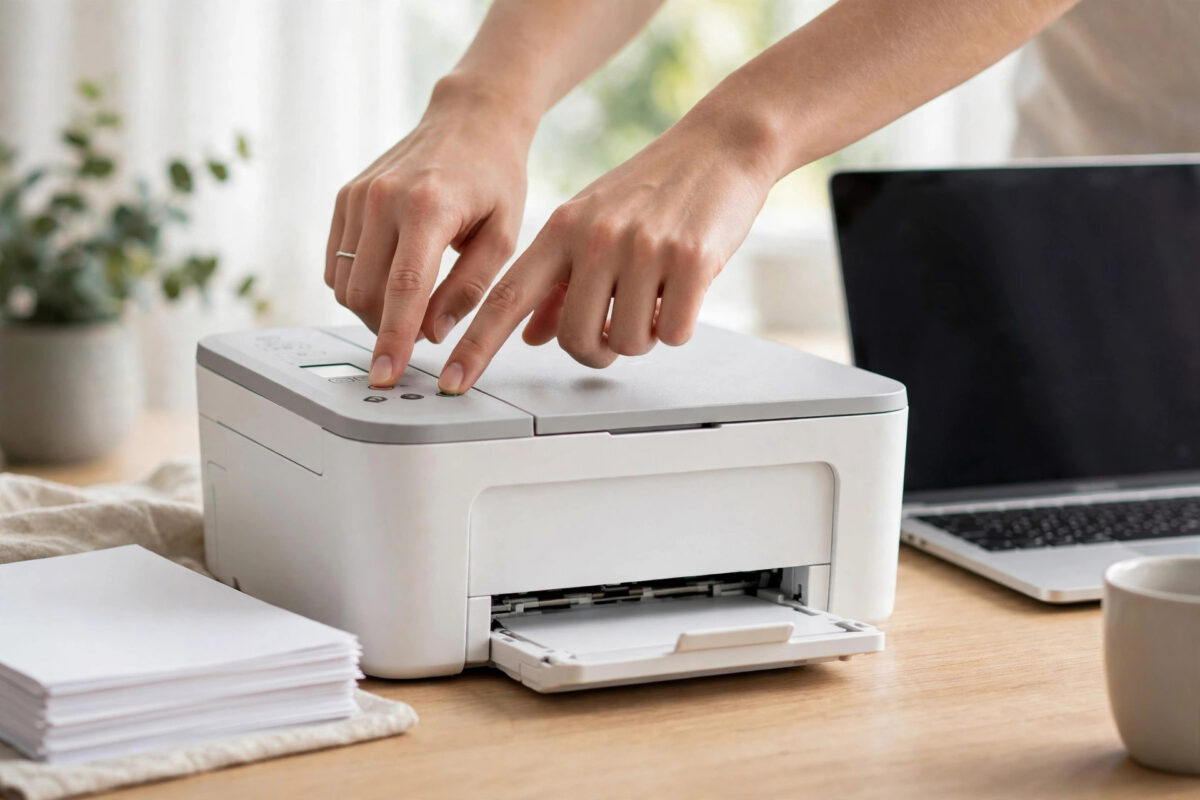
Your Canon PIXMA can start acting strange over time. It may forget Wi-Fi, print slowly, show errors that make no sense, or refuse to connect to a new router. Often the saved settings inside the printer have become messy after months of changes or failed setup attempts.
A factory reset clears those saved settings and brings the printer back to how it was when new. It does not damage the printer and does not use up ink. It simply removes Wi-Fi details, paper defaults, language choices, and other options so you can set up fresh. This guide explains the button sequence for most PIXMA models, what to do before you reset, and how to set up again without common mistakes.
Quick Answer
Turn the printer on, press Setup, use the arrows to find Device Settings and press OK, then choose Reset Settings and Reset All and confirm Yes. On basic models with no screen, hold the Stop button for about 10 seconds until the Alarm light flashes many times, then release it. The printer will clear its settings and return to the language setup screen.
What a Factory Reset Actually Does
A reset is stronger than turning the printer off and on. A restart keeps all your saved choices. A reset erases them.
After a reset, the printer forgets your Wi-Fi name and password, language, paper size defaults, quiet mode, and any fixed IP address. Waiting print jobs may also be cleared. It does not remove ink from tanks, and it does not delete software from your computer. You may need to add the printer again on your computer or phone, but you rarely need to reinstall the full driver.
Use a reset when simple restarts have not helped, the printer keeps using an old network, or the same setup error returns again and again. A clean start is often the fastest fix.
Before You Reset: Four Things to Check
- Write down your Wi-Fi details. You will need the exact network name and password. One wrong letter will block setup.
- Note special paper settings. If you print photos, labels, or envelopes often, note those sizes so you can re-enter them quickly.
- Finish urgent jobs. Anything still waiting in the queue will be lost.
- Keep power connected. Never unplug the printer in the middle of a reset. Wait until the home or language screen returns.
If the printer is frozen and the screen does not respond, unplug it, wait 60 seconds, plug it back in, turn it on, then try the reset.
Method 1: Reset Using the Screen and Setup Menu
This is the safest method for most modern PIXMA printers, including many TS, TR, and G series models with a small screen. Menu wording varies a little, but the path is very similar.
Step-by-Step Instructions
- Press power and wait until the home screen is fully loaded and the printer is quiet.
- Press the Setup button, or tap the gear icon on touch screen models.
- Find Device Settings and press OK.
- Scroll to Reset Settings and select it.
- Choose Reset All for a full factory reset. Other options include LAN settings only or other single groups.
- Confirm by selecting Yes.
- Wait while the printer resets. The screen may go blank briefly. Do not press buttons or turn off power.
- When the language screen appears, the reset is done. Choose your language and follow the prompts.
As the official Canon PIXMA manual for device settings explains, you can reset only one group of settings if you do not want to erase everything. Resetting only LAN settings is a good choice if your only problem is Wi-Fi.
Method 2: Reset Using the Stop Button Sequence
Some older and basic PIXMA models without a full menu use a button sequence. The Stop button is marked with a red triangle inside a circle.
- Make sure the printer is on and no job is running.
- Press and hold the Stop button in one steady press.
- Keep holding it. The Alarm light will flash. Do not release too early.
- Hold for about 10 seconds, until the Alarm light has flashed around 19 to 21 times, depending on model.
- Release the button. The printer will clear its settings.
- Wait one to two minutes until the power light is steady and the printer is ready.
If it does not work first time, turn the printer off, wait 30 seconds, turn it on, and repeat slowly. Timing matters more than force.
Note: a separate sequence sometimes mentioned online for the ink absorber warning is a service task, not a normal reset. If your printer says the ink absorber is full, a factory reset will not fix it. Contact Canon support instead of trying random codes from forums.
Method 3: Reset Only Network Settings
You do not always need a full reset. If print quality is fine and only Wi-Fi is the problem, a LAN-only reset is faster.
- Go to Setup, then Device Settings, then LAN Settings.
- Choose Reset LAN Settings or Restore Default LAN Settings.
- Confirm with Yes and wait for the network system to restart.
- Reconnect to Wi-Fi using the Wireless LAN Setup wizard.
If the printer still will not stay online after this, try the full Reset All method. You can also follow our guide to fixing a printer that keeps showing offline for router and computer checks that work well alongside a reset.
How to Set Up Again After the Reset
- Choose language and region so paper sizes and formats are correct.
- Load plain paper. Place A4 or Letter paper in the tray and slide the guides to touch the edges lightly.
- Check ink only if asked. Make sure tanks or cartridges are seated correctly, then close the cover.
- Connect to Wi-Fi. Run Wireless LAN Setup, select your network carefully, and type the password slowly. Passwords are case-sensitive.
- Print a test page. Use Maintenance or Device Settings to print a nozzle check and confirm colors are clean.
- Add the printer on your devices. On Windows, use Settings, Printers and scanners. On Mac and iPhone, it should appear as an AirPrint printer once on the same Wi-Fi.
Give the printer a few minutes after Wi-Fi setup before judging success. Some routers take a short time to give a newly reset device an address.
Common Mistakes to Avoid
- Resetting for the wrong reason: A reset will not fix a paper jam, empty ink, or a dirty print head. Fix the physical problem first.
- Using the wrong Wi-Fi band: Many PIXMA printers only work on 2.4 GHz. If your router shows 2.4 GHz and 5 GHz, connect the printer to 2.4 GHz during setup.
- Interrupting the reset: Turning off power midway can leave settings half-cleared. Always wait for the language screen.
- Typing the wrong password: This is the most common failure after a reset. Re-type it carefully instead of resetting again.
- Expecting old jobs to return: The queue is cleared. Resend your documents after setup.
Tip: if you use scanning to a folder or other advanced features, those shortcuts may need to be created again after a full reset, even though basic printing works right away.
When a Reset Is Not Enough
If a full reset and correct Wi-Fi setup still leave hardware errors, repeating blinking lights, or a printer that will not feed paper at all, the fault is likely hardware. Note the exact error code or light pattern. Repeated resets will not repair a worn roller, damaged sensor, or full ink absorber. In that case, visit Canon UK support for product help and repair options and search for your model and error.
Conclusion
A factory reset is a simple, powerful fix for a Canon PIXMA stuck with old settings, wrong network details, or repeated setup errors. Use Setup and Reset All on screen models, or the Stop button hold on basic models. Prepare your Wi-Fi password first, let the reset finish, then set up language, paper, and Wi-Fi in order. With those steps, most printers are printing normally again in under ten minutes.
Frequently Asked Questions
Will a factory reset waste ink or delete ink levels?
No. It clears settings like Wi-Fi, language, and paper defaults. It does not empty tanks or cartridges. The printer may run a short check during setup, which uses only a tiny amount of ink.
Do I need to reinstall Canon software after a reset?
Usually not for basic printing. Your computer may see the printer as new on the network, so add it again in printer settings if needed. Reinstall the full software only if scanning or special features stop working.
How long does a Canon PIXMA factory reset take?
The reset itself takes one to two minutes. Full setup after, including Wi-Fi and a test print, usually takes five to ten minutes if you have your password ready.
What is the difference between Reset All and Reset LAN Settings?
Reset All erases almost every custom setting. Reset LAN Settings only clears network details like Wi-Fi and IP settings, keeping other preferences. Use LAN-only if your problem is only connection.
My printer has no screen. Can I still reset it?
Yes. Hold Stop for about 10 seconds until the Alarm light flashes many times, release it, and wait until the printer is ready before setting it up again.
Leave a Reply