
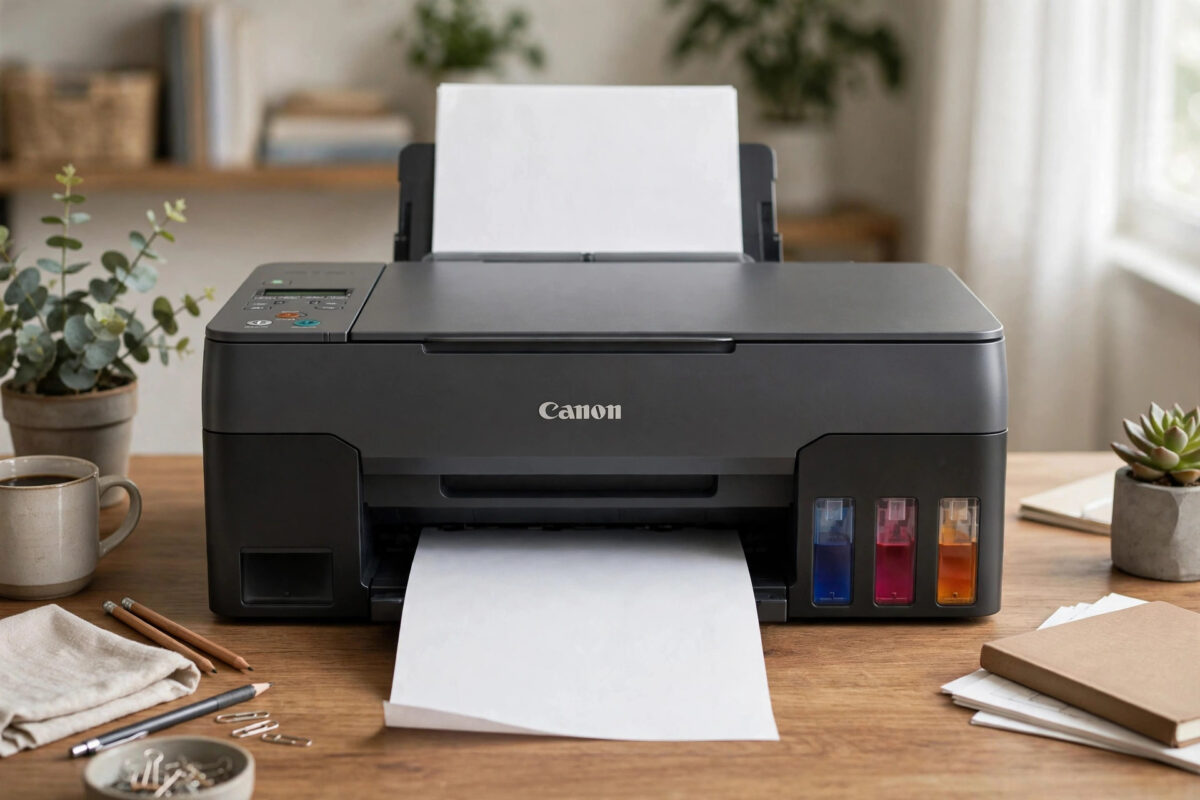
Error 6000 on the Canon PIXMA G3420 stops printing with a paper feed complaint, even when the rear tray looks full and nothing seems jammed. The printer tries to pick up a sheet, fails to move it correctly, and gives up. Sometimes you hear the rollers spin without grabbing paper. Sometimes a sheet goes in crooked, stops halfway, or crumples at the entrance.
The G3420 is a refillable tank printer, built for high page volumes at low cost. That makes feed problems especially frustrating, because the printer is otherwise economical and reliable. The good news is that error 6000 is usually mechanical and visible: paper loaded wrongly, dirty or worn pickup rollers, a small obstruction in the feed path, or paper that is damp, curled, or outside the supported range.
This guide works through the feed path in order, from how you load the rear tray, through checking for obstructions and cleaning the rollers, to paper quality and the signs of a feed motor or sensor fault that needs a service visit.
Quick Answer
Error 6000 on the PIXMA G3420 means the printer cannot feed paper correctly from the tray. Turn it off, remove all paper, check the full feed path for scraps and objects, reload a small stack of fresh, flat plain paper with the guides set snugly, and clean the paper feed rollers from the maintenance menu. If sheets still will not pick up or 6000 returns with clean rollers and good paper, the pickup roller assembly or feed sensor likely needs professional repair.
How Paper Feeding Works on the G3420
When you press print, a pickup roller in the rear tray presses down and rotates against the top sheet. Friction pulls that one sheet forward, separation parts make sure only a single sheet travels, and feed rollers move it precisely under the print head, a small step at a time, while the carriage prints each band.
Error 6000 is raised when that journey fails its checks. The sheet may never start moving, may start late, may skew so a sensor sees it in the wrong place, or may stall partway. The printer cannot tell you which exact stage failed in plain words, so your inspection has to cover the whole path, as outlined in the G series online manual guidance on paper feeding and jams for this printer family.
Common Causes of Error 6000 on the G3420
- Paper loaded incorrectly: Stack too tall, guides too loose or too tight, or paper pushed in at an angle.
- Dirty pickup rollers: Paper dust coats the rubber until it cannot grip, a very common cause after thousands of pages.
- Unsuitable paper: Damp, curled, very thick, very thin, or heavily textured paper outside the supported range for the rear tray.
- Mixed paper in the stack: Different sizes or types fanned together feed unevenly and skew.
- A small obstruction: A torn paper corner, label, paper clip, or dried ink flap in the feed path.
- Multiple sheets sticking together: Static and humidity make sheets cling, so the printer pulls several or none.
- Worn rollers or a feed fault: On a high-volume printer, roller rubber eventually wears smooth and internal gears or sensors can fail.
Step 1: Remove All Paper and Inspect the Feed Path
- Cancel the print job on your computer and turn the printer off.
- Unplug the power cable if you will be reaching into the feed path.
- Remove every sheet from the rear tray, including any sheet that is half fed.
- If a sheet is stuck, pull it out slowly and evenly with both hands in the direction of travel. If it tears, note where the missing piece is likely to be.
- Shine a torch into the rear tray slot and along the path under the cover. Look for scraps, folded corners, labels, and foreign objects.
- Open the printer as your manual directs for jam access and check the area under the carriage as well, because paper that entered crooked can fold there.
Do not use metal tools inside the feed path. A scratched guide or a bent sensor flag creates new feed errors that are much harder to trace than the original scrap of paper.
Step 2: Prepare and Reload Paper Correctly
Loading sounds too basic to matter, yet it fixes a large share of 6000 errors.
- Take a small stack of fresh plain A4 paper, about ten to twenty sheets, from a dry pack.
- Fan the stack and tap it square on a flat surface so no sheets stick together or stick out.
- Reject any sheet that is curled, creased, damp feeling, or has a bent corner. Test with perfect paper first.
- Load the stack into the rear tray with the printable side facing the way the tray markings and manual show.
- Slide the side guides in until they touch the paper edges lightly. They should hold the stack straight without bowing it.
- Confirm the paper size and type settings on the printer and in the driver match the loaded paper.
Once feeding works again, if the printer still will not appear on your network for other computers, sort that with our guide to fixing a printer that keeps showing offline, because a feed fault and a connection fault need different fixes.
Step 3: Clean the Paper Feed Rollers
The G3420 has a built-in roller cleaning function, and it should be your next step if good paper still will not feed.
- Remove all paper from the rear tray.
- On the printer screen, open Setup, then Maintenance, and select Roller Cleaning.
- Follow the on-screen prompts. The rollers will rotate, and the printer may ask you to load plain paper partway through so the rollers can clean against it and eject dust.
- Repeat the process once if the ejected sheet shows a lot of grey dust.
- Reload your fresh test stack and print a multi-page document, listening for the confident single-sheet pickup sound.
Step 4: Restart Cleanly and Test in Stages
- With the path clear and fresh paper loaded, plug the printer in and turn it on.
- Let start-up finish fully. Do not send a job while the printer is still initialising its tanks and rollers.
- Print a nozzle check from the maintenance menu as a single-sheet test.
- Print a five-page plain document and watch the pickup for each sheet at the rear tray.
- Only then return to your real job, using the same paper you tested with.
A quick test that separates the causes
If fresh plain paper feeds perfectly but your usual paper does not, the paper or loading was the cause, not the printer mechanism.
When Error 6000 Needs a Repairer
If the path is provably clear, rollers have been cleaned twice, fresh supported paper is loaded correctly, and the printer still cannot pick up a single sheet, the fault is probably worn pickup rollers, a damaged separation pad, a slipping feed gear, or a faulty paper sensor. Listen for clues: a motor that never turns, a roller that turns but never presses down, or a loud clicking at pickup all suggest mechanical wear rather than a loading mistake.
Common Mistakes to Avoid
- Overfilling the rear tray: A stack above the load limit mark presses and skews, causing exactly the error you are trying to fix.
- Leaving guides loose: Even a few millimetres of play lets sheets enter crooked and trip the sensor check.
- Printing on damp or curled paper: One bad stack can cause a week of confusing feed errors. Test with fresh paper early.
- Tearing out jammed sheets: Slow, even pulling saves you from hunting torn corners inside the path later.
- Ignoring roller cleaning: On a high-volume tank printer, roller cleaning is normal maintenance, not a last resort.
Conclusion
Error 6000 on the PIXMA G3420 is the printer reporting that paper did not travel as expected. Most cases end with a cleared scrap, a correctly loaded stack of fresh paper, snug guides, or a roller cleaning cycle. Work in that order and test in stages, so you know which step cured it. If clean rollers and perfect paper still will not feed, accept that the pickup assembly or a sensor has worn, and get the printer serviced before a forced feed damages more of the mechanism.
Frequently Asked Questions
Why does error 6000 appear when there is no paper jam?
Because feeding and jamming are different stages. If the pickup roller cannot grip the top sheet, often due to dust, smooth worn rubber, or curled paper, no sheet ever enters the printer, yet the printer still reports a feed failure as 6000. Roller cleaning and fresh, flat paper are the first fixes for that pattern.
How often should I clean the G3420 feed rollers?
Clean them whenever pickup starts to hesitate, sheets slip, or error 6000 appears, and as routine maintenance after a few thousand pages in a dusty environment. The built-in roller cleaning in the maintenance menu is designed for regular use and takes only a few minutes.
Can thick card cause error 6000 on the G3420?
Yes, if the card is heavier than the rear tray supports or is loaded in too tall a stack. Test with plain paper first. If plain paper feeds perfectly and card does not, check the supported paper weight in the G3420 manual, load only a few sheets of card, and set the correct media type.
The printer picks up several sheets at once. Is that also a feed problem?
Yes, and it shares causes with 6000: sheets sticking together from humidity or static, worn separation parts, and an overfilled tray. Fan the stack, reduce the load, store paper dry, and clean the rollers. If multi-feeds continue with fresh paper at a low stack height, the separation pad may need service.
Is error 6000 a sign my G3420 is worn out?
Usually not. Most 6000 errors are loading, paper quality, obstruction, or dirty roller problems that cost nothing to fix. It only points to wear when clean rollers, a clear path, and correct fresh paper still fail, especially on a printer with a very high page count.
Leave a Reply