
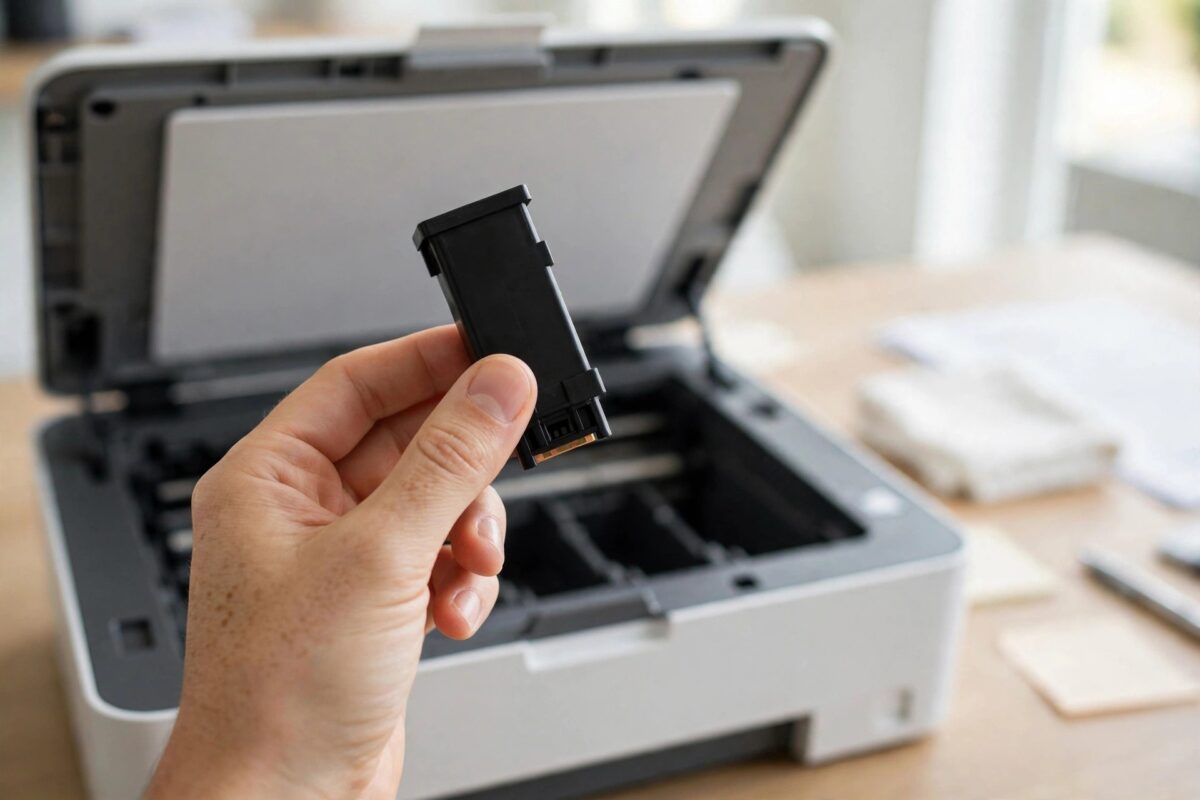
Few printer messages are as insulting as “Used or Counterfeit Cartridge Detected” — especially when the cartridge in your HP OfficeJet Pro 9010 is a legitimate refill or a reputable remanufactured unit, not a fake. The message does not actually mean HP has proven your cartridge is counterfeit. It means the printer read the chip and found something it does not like: a chip that reports the cartridge as previously used, or a non-HP chip its firmware is set to distrust. This guide explains how to get past the message and print.
Quick Answer
On the OfficeJet Pro 9010 series, “Used or Counterfeit Cartridge Detected” appears when a cartridge’s chip reports it as used or non-original. If the message offers Continue or OK, accept it — printing usually proceeds normally. To stop it recurring, turn off Cartridge Protection and the authorised-cartridge policy in the printer settings so refilled and remanufactured cartridges are accepted, clean the cartridge contacts, and avoid firmware updates that tighten chip checks if your current cartridges work.
What Triggers This Message
- A refilled genuine cartridge: the chip still carries its original identity and page history, so the printer reports it as “used” — which is true, and usually harmless.
- A remanufactured cartridge with a recycled chip: same story — the chip’s history gives it away.
- A third-party cartridge with a new non-HP chip: the printer cannot verify it as HP-authorised and may warn or, on stricter firmware, block it.
- Cartridge Protection / policy settings: with these on, the printer escalates chip complaints from a dismissible warning into a refusal.
Note what the message is really telling you: it is about the chip’s identity, not about ink quality or whether the cartridge will print well.
Step 1: Continue Past the Message (If Offered)
On the 9010 series, this warning is often informational. Tap OK or Continue on the printer’s screen (or in the pop-up on your PC) and send a test print. If the document prints normally and quality is good, you can simply dismiss the message each time it appears — annoying, but functional. The remaining steps reduce or eliminate the nagging.
Step 2: Clean Contacts and Reseat
- Open the cartridge access door and remove the cartridge named in the message.
- Wipe the gold chip contacts on the cartridge with a dry lint-free cloth.
- With the printer unplugged, gently wipe the matching contacts inside the carriage.
- Refit the cartridge firmly until it clicks, close the door, and let the printer re-read it.
A marginal contact read can make a borderline chip look worse than it is; a clean reseat sometimes turns a refusal back into a dismissible warning. HP’s cartridge error guidance for the OfficeJet Pro 9010 series starts with the same reseating advice.
Step 3: Turn Off Cartridge Protection and Cartridge Policy
- Type the printer’s IP address into a browser to open its settings page.
- Find HP Cartridge Protection (under Settings, Preferences or Supplies) and set it to Off.
- Find the Cartridge Policy — the option requiring authorised HP cartridges — and set it to Off as well, if your model and firmware expose it.
- Apply the changes, then remove and refit the cartridge so it is assessed under the new rules.
These two settings decide whether a chip complaint is a shrug or a shutdown. With both off, most refilled and remanufactured cartridges print without further argument. Our guide to turning off HP Cartridge Protection explains the feature’s background and its one big limitation (cartridges already locked to another printer stay locked).
Step 4: Be Deliberate About Firmware Updates
HP periodically ships firmware for the 9010 series that updates which chips are accepted — and users of third-party cartridges have repeatedly found working cartridges blocked after an update. Practical approach:
- If your current cartridges work (even with a dismissible warning), turn off automatic firmware updates in the printer settings and update only when an update fixes a problem you actually have.
- If you have already updated and a previously fine cartridge is now hard-blocked (no Continue option), the realistic options are a genuine HP cartridge, or a remanufactured cartridge with a chip certified for the new firmware — ask the supplier specifically about your printer’s firmware version.
- There is no supported way to roll HP firmware back.
Common Mistakes to Avoid
- Throwing away a good cartridge at the first warning — “used” often just means refilled. Try Continue, clean the contacts, and check the settings first.
- Updating firmware to try to fix a cartridge warning — it is at least as likely to tighten the checks as to relax them.
- Mixing up this message with Instant Ink messages — an ex-subscription Instant Ink cartridge gives a different error and genuinely will not print; this one usually will.
- Buying the cheapest unbranded cartridges repeatedly — chip quality varies wildly. A reputable remanufacturer whose chips match current firmware saves repeated battles.
How to Talk to a Cartridge Supplier About This Message
If you buy remanufactured cartridges for a 9010-series printer, the supplier is part of your support system, and this message is the thing to raise with them before you buy, not after. Ask two specific questions: whether the cartridge’s chip is new or recycled, and whether it is confirmed working with the latest OfficeJet Pro firmware. A good supplier answers both immediately, because firmware compatibility is the entire battleground for these printers; a vague answer predicts a cartridge that argues with your printer. Keep your printer’s firmware version written down (it is on the printer status report) and quote it when ordering. If a cartridge does trigger a hard block, report it to the supplier with that firmware version — reputable remanufacturers replace such cartridges, and your report is how they learn their chip batch has been overtaken by an HP update. Finally, resist stockpiling third-party cartridges for this printer: a firmware update can strand a cupboard full of spares, whereas buying as you need them keeps every purchase matched to the firmware you actually run.
Keep the box and batch number of any cartridge that triggers this message. If a pattern emerges — one supplier’s cartridges always warn, another’s never do — you have the evidence to switch suppliers permanently, and the information genuinely helps the good suppliers identify a bad chip batch.
Conclusion
“Used or Counterfeit Cartridge Detected” on the OfficeJet Pro 9010 is the printer commenting on your cartridge’s chip, not proving anything about its ink. Dismiss it where you can, clean the contacts, switch off Cartridge Protection and the cartridge policy, and treat firmware updates with respect. With those settings in place, legitimate refills and remanufactured cartridges print without the interrogation.
Frequently Asked Questions
Does this message mean my cartridge really is counterfeit?
No. It means the chip reports the cartridge as used or non-original. Refilled genuine cartridges and honest remanufactured ones trigger it routinely.
The message has no Continue or OK button and printing is blocked. What now?
That is a hard block rather than a warning. Check the Cartridge Policy setting (Step 3) and your firmware situation (Step 4). If the policy option is absent on your firmware, a genuine HP cartridge is the reliable way back to printing.
Will using refilled cartridges damage my 9010?
Good-quality refills do not damage printers in normal use. Poorly made cartridges can leak or give bad quality, which is a supplier-quality issue, not a category problem.
Why did the message start after a firmware update?
The update refreshed the chip-acceptance rules. Cartridges accepted by the old firmware can be flagged by the new one. This is exactly why automatic updates deserve caution when you rely on third-party ink.
Can HP tell from this message that I use refills, for warranty purposes?
The printer logs cartridge types locally, and HP’s warranty can exclude damage caused by third-party supplies. The warning itself, though, is not a warranty event — it is just the printer reporting what the chip says.

Leave a Reply