
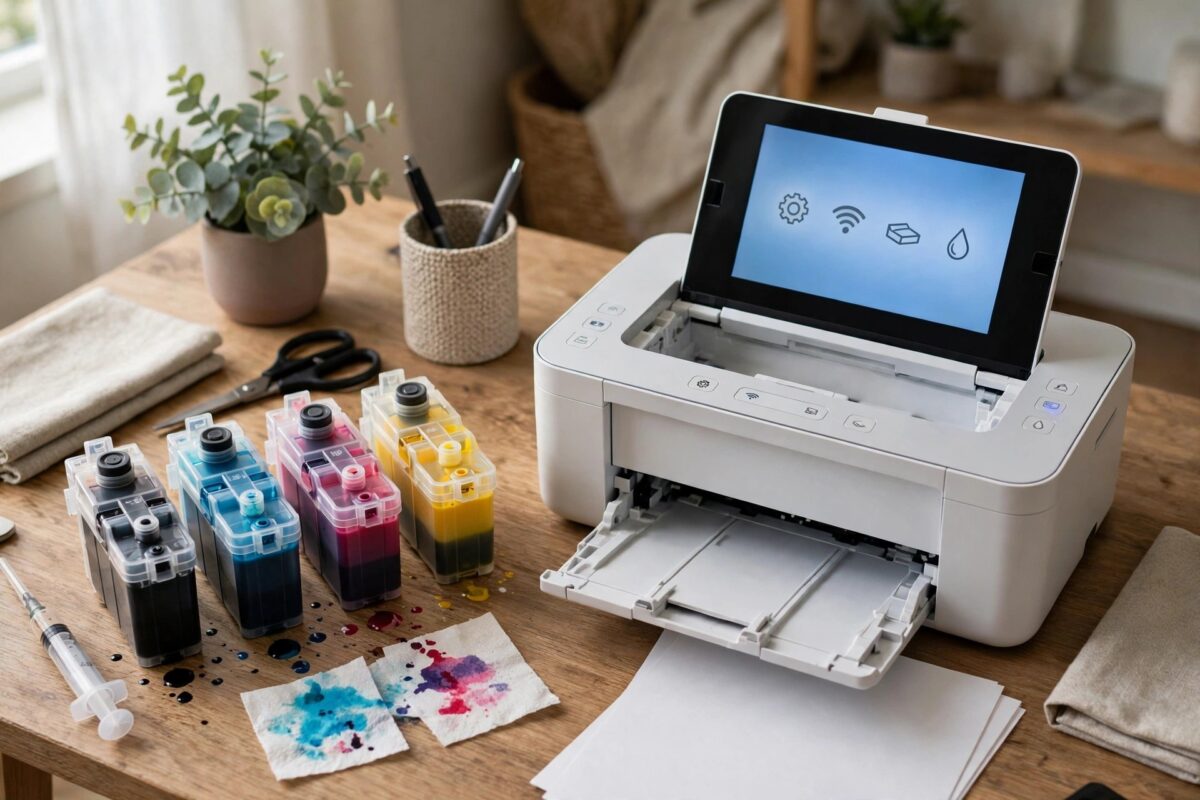
You refilled your HP cartridges or bought quality remanufactured ones, fitted them — and the printer rejects them, saying the cartridge is protected or cannot be used. The feature behind this is HP Cartridge Protection: when it is on, a cartridge becomes locked to the first printer that uses it, and some printers also refuse cartridges that were protected elsewhere. The good news is that Cartridge Protection is a setting you control, and turning it off takes two minutes. This guide shows how, and explains the one important limit of doing so.
Quick Answer
To turn off HP Cartridge Protection, open the printer’s embedded web page by typing its IP address into a browser, go to Settings, Preferences (or Supplies settings), find HP Cartridge Protection, and set it to Off; or find the same option in the printer’s control panel under Setup, Supply Settings, Cartridge Protection. Important: turning it off does not unlock cartridges that were already protected by another printer — it only stops your printer protecting and rejecting cartridges from now on.
What Cartridge Protection Actually Does
Cartridge Protection was designed to stop cartridges being stolen from shared printers or swapped between machines in an office. When it is enabled:
- The first time a cartridge is used, the printer writes a lock onto the cartridge’s chip tying it to that printer.
- That cartridge will then work only in that printer. In any other printer it is rejected as protected.
- Some models with protection enabled also refuse cartridges that carry another printer’s lock — which is why a refilled cartridge (refilled from a cartridge that once lived in a different printer) can be rejected by yours.
For a home user with one printer, the feature offers nothing and causes exactly the headache you are having — which is why HP provides the off switch described in its Cartridge Protection documentation.
Method 1: Turn It Off from the Printer’s Web Page (Most Models)
- Print a Network Configuration page from the printer to find its IP address, or read it from the printer’s network settings screen.
- On a computer on the same network, type that IP address into a web browser. The printer’s embedded web server opens.
- If asked to sign in, use the printer’s admin credentials (on many models the default PIN is printed on a label inside the cartridge access door).
- Go to Settings, then look for Preferences, Supplies, or Security — the exact label varies by model — and find HP Cartridge Protection.
- Select Disable HP Cartridge Protection / Off, and click Apply.
- Remove and refit your refilled cartridge so the printer re-reads it with the new setting in place.
Method 2: Turn It Off from the Control Panel or HP Software
- On printers with a touchscreen, open Setup, then Supply Settings (or Printer Maintenance, then Supplies), find Cartridge Protection, and set it to Off.
- On a PC, HP Smart also exposes it for many models: select the printer, open Printer Settings or Advanced Settings (which opens the same web page as Method 1), and follow the same path.
- While you are in the supply settings, also check the Cartridge Policy option (“Only use authorised cartridges”) — if your refilled cartridges are still refused, setting the policy to Off allows non-HP-chip cartridges on models that offer the choice.
Our related guide on an HP printer not recognising cartridges covers the cleaning and reseating steps to combine with this if a cartridge still is not detected at all.
The Limit You Need to Know
Turning off Cartridge Protection is not retroactive. If a cartridge was already locked to another printer — for instance, a refilled cartridge whose original life was spent in someone else’s machine — your printer will still reject it, because the lock is written on the cartridge’s chip. In that case your options are: return the cartridge to the refiller for one that was never protected, fit a replacement chip (refill suppliers sell them), or use a cartridge that started life in your own printer. Turning the setting off today protects every future cartridge from being locked by your printer, which is the main win.
Common Mistakes to Avoid
- Expecting the off switch to unlock already-protected cartridges — it cannot; the lock lives on the cartridge.
- Updating the printer firmware at the same time — firmware updates can change cartridge behaviour; change one thing at a time so you know what fixed it.
- Turning off protection in an office that shares cartridges deliberately — the feature does have a purpose there; home users are the ones it only hurts.
- Confusing Cartridge Protection with Instant Ink — Instant Ink cartridges stop working when a subscription ends for a different reason; this setting does not affect that.
Cartridge Protection, Cartridge Policy, and Dynamic Security: Three Different Things
HP’s cartridge settings are easy to confuse, and the confusion causes most of the frustration around this topic. Cartridge Protection is the lock described in this guide: it ties a cartridge to one printer, and you can switch it off. Cartridge Policy is your printer’s rule about whether it will accept cartridges whose chips are not HP-authorised; on models that expose it, you can switch it off too, which is what allows many refilled and cloned-chip cartridges to work. Dynamic Security is different again: it is built into the firmware of certain printer models and periodically updates which chips are recognised, and it cannot be switched off in a menu — which is why firmware updates deserve care if you rely on third-party cartridges. When a cartridge is rejected, identifying which of the three is responsible tells you whether the fix is a settings change (the first two) or a cartridge or firmware question (the third). The printer’s exact error wording helps: “protected” points to the first, “not authorised” to the second, and “blocked” or “non-HP chip” to the third.
After switching protection off, fit one cartridge and print a test page before changing any others. Confirming the printer accepts a previously rejected cartridge proves the setting change took effect, and gives you a clean baseline before you draw conclusions about any other cartridge in the set.
Make the change before you next buy cartridges, too: you can then tell your supplier the printer runs with protection off, which widens the range of refilled cartridges that will work in it without argument.
Conclusion
HP Cartridge Protection is optional, reversible, and — for a single home printer — pure downside. Switch it off in the printer’s web settings or supply menu, refit your refilled cartridges, and they will work as long as they were never locked to another machine. Do it before you fit any new cartridge, and the protection problem never starts.
Frequently Asked Questions
Will turning off Cartridge Protection void my warranty?
No. It is a standard, documented HP setting. Warranty questions only arise if a third-party cartridge physically damages the printer, which is a separate matter.
I turned it off but my refilled cartridge is still rejected. Why?
Either the cartridge was protected by another printer in its previous life (the lock is on its chip), or the Cartridge Policy setting is also blocking non-HP chips. Check the policy setting, then ask your refiller about the cartridge’s history.
Does every HP printer have this setting?
Most OfficeJet, ENVY, and LaserJet models from the last decade do. Very basic models may not offer protection at all — in which case a rejection has a different cause, usually contacts or the chip.
Can a protected cartridge ever be unlocked?
Only the printer that protected it can use it; HP provides no unlock procedure. Refillers work around it by replacing the chip.
Should I turn it off before or after fitting new cartridges?
Before. A cartridge first used while protection is on gets locked to your printer immediately. Turning protection off first keeps every cartridge free to move between printers.

Leave a Reply