
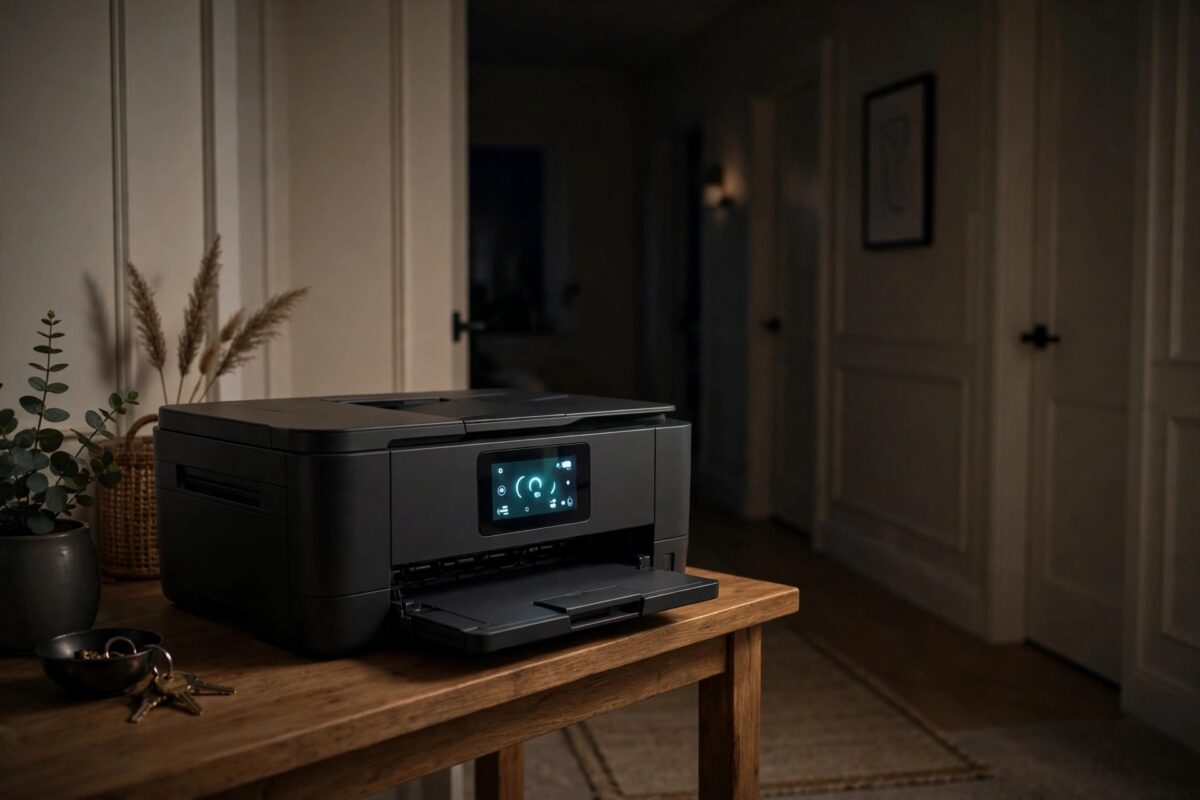
It is 3 a.m. and your HP printer suddenly whirs, clicks, and lights up like it is about to print — then goes quiet again. Nobody sent a job. This “printer wakes up at night” behaviour frightens people more than it should: the printer is almost never haunted or hacked. It is carrying out scheduled maintenance, responding to network chatter, or reacting to a job a computer quietly retried. The trick is identifying which trigger your printer has, because each has a different fix. This guide runs through the causes from most to least common.
Quick Answer
An HP printer that wakes up and makes noise at night is usually doing automatic maintenance ( printhead cleaning or calibration), responding to a scheduled firmware or network check, or waking when a computer on the network retries a stuck print job. Check the printer’s quiet hours and maintenance settings in its menu, clear every computer’s print queue, disable “wake on network” style options you do not need, and turn off automatic firmware checks if they align with the wake-ups. Moving the printer out of the bedroom is the honest last resort.
Cause 1: Automatic Maintenance and Cleaning
Inkjet printers must periodically run their printheads through a cleaning and capping routine, or the nozzles dry out and clog. HP schedules much of this activity for idle hours — which in practice means the middle of the night:
- You will hear the carriage moving, the pump priming, and paper-feed rollers turning briefly, with no page printed (or occasionally a maintenance page).
- The fix is not to disable maintenance entirely — that trades quiet nights for clogged nozzles. Instead, check the printer’s settings for Quiet Mode or scheduled quiet hours (many HP models offer this in Setup, Preferences) and set them for your sleeping hours; maintenance then happens in the daytime idle periods instead.
- If your model allows setting the time for automatic cleaning or calibration, move it to a time when you are awake.
Cause 2: A Computer Is Waking It
Printers wake when something talks to them. Overnight, that something is usually a PC:
- A stuck print job that a computer keeps retrying. Clear the print queue on every computer and phone that uses the printer.
- Scheduled tasks: backup software, cloud print services, or a PC that wakes at night for updates can poll the printer and wake it. If the wake-ups coincide with a PC’s update schedule, that is your culprit.
- HP software checks: HP Smart and Instant Ink check in with the printer for ink levels and status. These are brief and usually silent, but on some models they spin up the mechanism.
- Test the theory: one night, switch off every computer in the house (or disconnect the printer from Wi-Fi using its menu, leaving it powered). If the printer stays quiet, a network device was the trigger.
Cause 3: Network and Firmware Events
Some wake-ups are the printer reacting to its environment:
- Router events: routers that reboot or refresh overnight can cause the printer to wake, renegotiate its connection, and run a status cycle.
- Automatic firmware updates: if the printer is set to check for or install firmware automatically, it may wake, work, and restart. HP describes the settings in its firmware update guidance — set updates to manual or notify-only if the timing bothers you.
- Power fluctuations: a brief mains dip can make a sleeping printer restart fully, with all the usual start-up noises. If lights flicker too, the power event is real; a small UPS smooths it out.
Cause 4: Fax and Phone Line Activity (All-in-Ones)
If your HP is a fax-capable all-in-one with a phone line attached, junk fax calls and line noise can wake it, and its auto-answer may pick up. If you do not use fax, disconnect the phone line or turn fax auto-answer off. If you do use it, set the rings-to-answer higher and enable any fax quiet hours the model offers. Our guide to stopping unwanted printer activity also covers printers that go further and actually print pages unasked.
Common Mistakes to Avoid
- Switching the printer fully off every night — inkjets left off for long stretches skip their capping and maintenance, and clogged nozzles cost more than the disturbance. Use quiet hours instead.
- Assuming it is hacked — a printer running maintenance is normal behaviour. Unless pages with content are printing, there is no sign of intrusion.
- Disabling maintenance in service menus — some hidden settings stop cleaning cycles; the printhead pays for it within weeks.
- Ignoring a pattern that matches a PC’s schedule — if wake-ups happen at exactly the same time nightly, something scheduled is responsible. Random times point to power or maintenance.
Keeping a Log for a Few Nights
If the wake-ups are irregular and none of the obvious triggers fit, gather evidence before changing settings at random. Most HP printers keep an event log viewable from their embedded web page — type the printer’s IP address into a browser and look under Reports or Tools for an event or job log with timestamps. Note the exact times the printer wakes for three or four nights, along with anything else that happened then: a PC’s scheduled backup, the router’s weekly reboot, a heating system timer switching (shared circuits can dip power), even a housemate’s night-shift computer use. Patterns that are invisible in one night stand out clearly across four. If the log shows actual print jobs, it will usually name the source device, turning the investigation into a conversation with one computer. If it shows only maintenance events, you can confidently adjust the maintenance and quiet-hour settings and stop worrying. Either way, you end up fixing the real cause instead of muting a symptom.
If the printer shares a room with a light sleeper and the wake-ups turn out to be unavoidable maintenance, a pragmatic compromise is a timer plug that powers the printer during waking hours only — with the honest caveat that inkjets prefer to stay powered for their capping routines, so use this for a laser model freely, but think twice before doing it to an inkjet you rely on daily.
Whatever trigger you find, resist the urge to fix it by leaving the printer unplugged permanently — a printer that is never powered cannot protect its own printheads, and the eventual repair dwarfs the disturbance you were avoiding.
Conclusion
A printer that wakes at night is doing a job — maintenance, a network check, or answering a computer’s request. Set quiet hours so maintenance moves to the daytime, clear stuck queues on every device, tame automatic firmware checks, and disconnect the fax line if unused. Identify the trigger with the all-computers-off test, and the 3 a.m. concerts stop.
Frequently Asked Questions
Is it normal for an inkjet to make noise every night?
Occasional brief maintenance noise is normal and healthy. Every single night at length is worth investigating — check quiet hours and whether a computer is polling it.
My printer actually prints a page at night. Is that the same thing?
No — maintenance does not produce random documents. A printed page means a real job arrived: a stuck queue retrying, a scheduled report, or someone/something on the network sending it. Start with the queues and report settings.
Will unplugging the printer at night damage it?
Short term, no; long term, an inkjet left unplugged for weeks can suffer clogged nozzles because it cannot run its capping routine. For nightly peace, quiet hours or moving the printer beat unplugging.
The noises match my router’s reboot time exactly. Coincidence?
Probably not. If the router restarts nightly, the printer wakes to rejoin the network. Change the router’s maintenance window, or accept this one — it is harmless.
Can I see what woke the printer?
Some models log events in their embedded web page (type the printer’s IP into a browser and look for logs or reports). The log timestamps help match the wake-up to a cause.

Leave a Reply