
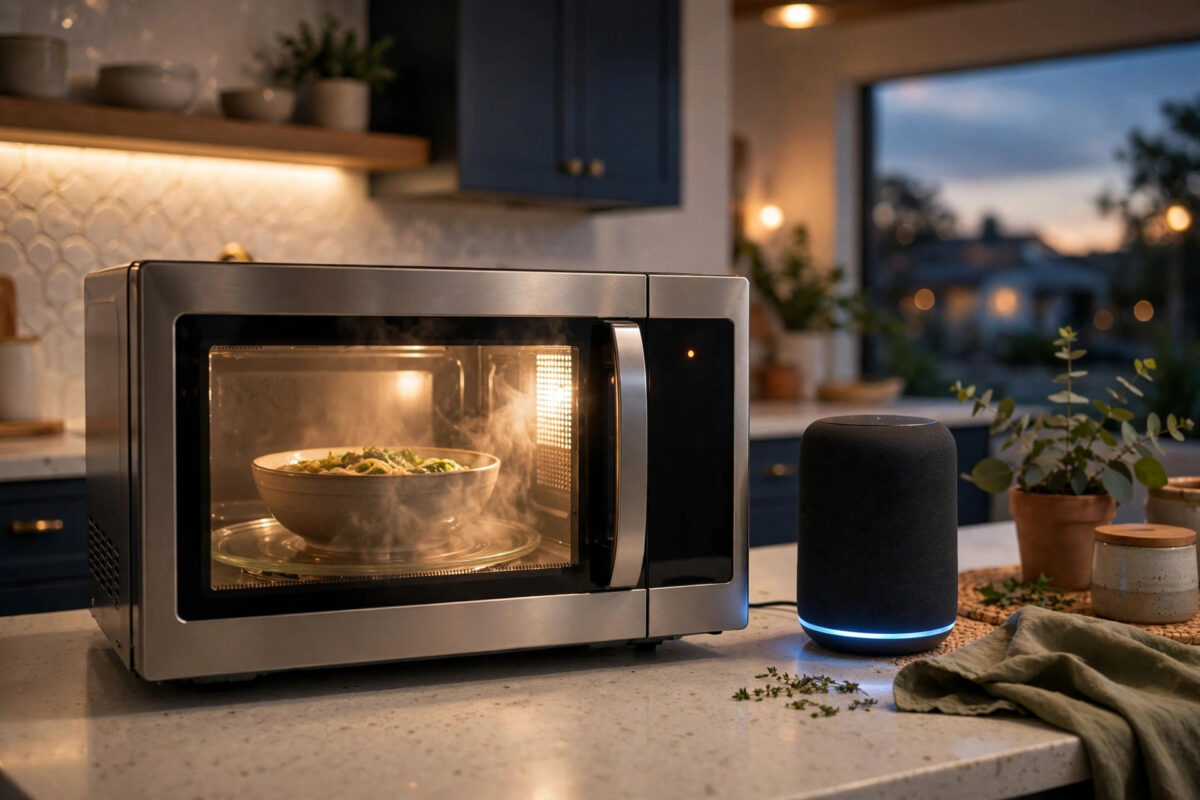
The pattern is so regular it feels personal. You put lunch in the microwave, press start, and the kitchen smart speaker stops mid-sentence. The camera near the kitchen goes offline. Two minutes later, the ping of the microwave ends and — like magic — everything works again. Meanwhile, on the other side of the house, the video baby monitor crackles and the nursery camera drops its feed.
Nothing is broken. Your microwave and baby monitor are shouting on the same radio band your smart devices whisper on, and the loudest voice wins. This guide explains the clash in plain terms and gives you a practical fix list, from free five-minute changes to small upgrades that end the problem for good.
Quick Answer
Microwaves and many baby monitors flood the 2.4GHz Wi-Fi band with interference, which knocks nearby smart devices offline while they run. Fix it by moving important devices to 5GHz where possible, setting your 2.4GHz channel to 1, 6, or 11 — whichever is furthest from the interference — moving the router and devices away from the kitchen, and replacing old analogue baby monitors with DECT or Wi-Fi models that play nicely.
Why Microwaves Attack the 2.4GHz Band
A microwave oven heats food with radio energy at about 2.45GHz. That is almost exactly the frequency your 2.4GHz Wi-Fi uses. The oven door is shielded, and a healthy microwave leaks only a tiny amount of energy — far below anything harmful. But “tiny” for an oven is still enormous next to a Wi-Fi signal. Your router’s signal arrives at a smart plug weakened by walls and distance. The microwave, a few metres away, leaks noise that can be thousands of times stronger at that spot.
The result is not that Wi-Fi “breaks”. The smart device simply cannot hear the router through the noise for the one or two minutes the oven runs. It misses messages, retries, and often gives up and reconnects afterwards. Devices with weak antennas and devices far from the router fail first, which is why the kitchen speaker and the camera near the kitchen are always the victims.
Older or damaged microwaves leak more. A door that does not close flush, bent hinges, or a worn seal all raise the noise level noticeably.
Why Baby Monitors Cause the Same Problem
Many baby monitors — especially older analogue and some digital video models — transmit continuously on or near the 2.4GHz band. Unlike the microwave’s two-minute bursts, a baby monitor can transmit for hours, all night, every night. Some hop between frequencies and stomp across the whole band as they go, which makes them worse neighbours than a fixed interferer.
The clue is timing. If a camera “randomly” fails every night but works all day, or a sensor drops only when the nursery monitor is on, you have found your suspect. DECT audio monitors use a different band entirely and cause no Wi-Fi trouble. Modern Wi-Fi monitors share the network politely instead of shouting over it.
Step 1: Prove It Before You Fix It
Do not guess. Run this two-minute test:
- Note which devices fail and when. Write down times for a day.
- Stand near the failing device with your phone and run a speed test. Note the result.
- Put a mug of water in the microwave and run it for two minutes. Run the speed test again during those two minutes.
- If speed collapses or the connection drops only while the oven runs, interference is confirmed.
- Repeat the test with the baby monitor switched off for an evening and compare the failure log.
This small bit of evidence stops you wasting money on new devices when the real fix is moving a router two metres.
Step 2: Change the 2.4GHz Channel
Wi-Fi’s 2.4GHz band is divided into channels, and only channels 1, 6, and 11 do not overlap each other. Microwave noise is strongest near the middle and upper part of the band, so channel 1 is often the calmest spot in a kitchen-heavy home — but test rather than assume.
- Log in to your router’s admin page or open its app.
- Find the 2.4GHz wireless settings and set the channel manually instead of Auto.
- Try channel 1 for a day, then 6, then 11, keeping the one where failures stop.
- Set the channel width to 20 MHz on 2.4GHz. Wider settings overlap more channels and collect more noise.
For a wider view of neighbour networks and channel choice, our guide to fixing Wi-Fi interference at home walks through reading a Wi-Fi analyser app and picking the quietest channel for your street.
Step 3: Move Devices to 5GHz Where You Can
The 5GHz band is completely untouched by microwaves and baby monitors. Any device that supports it should live there:
- Smart speakers and displays usually support 5GHz — move them.
- Streaming sticks, TVs, and phones belong on 5GHz anyway.
- Cameras are mixed: many newer models support 5GHz, older ones do not. Check the spec sheet.
- Plugs and bulbs are almost always 2.4GHz-only. They rely on the channel and distance fixes instead.
The catch is range. 5GHz fades faster through walls, so a device at the far end of the house may still do better on a clean 2.4GHz channel than a weak 5GHz signal. Test both for any device that gives you the choice.
Step 4: Change Distances and Positions
Interference obeys a simple rule: distance destroys it. Doubling the distance between the microwave and a device cuts the noise dramatically.
- Move the router out of the kitchen if you can, or at least off the counter nearest the microwave.
- Do not place smart speakers, cameras, or hubs on top of or directly beside the microwave or other large appliances.
- Raise the router. A shelf beats a floor corner, and central beats one end of the house.
- If a mesh node sits in the kitchen, try it in the hallway just outside instead.
- Keep the baby monitor’s parent unit and camera unit away from the router and from other receivers where practical.
Often, moving one mesh node by a single room ends the whole saga. Kitchens are the worst room in the house for Wi-Fi — metal appliances, water pipes, and the microwave itself — so any excuse to route around the kitchen helps everything, not just the failing device.
Step 5: Deal With a Bad Microwave or Monitor
If the microwave is old, test its door seal: the door should close firmly with no wobble, and the mesh screen in the door should be undamaged. A microwave that interferes from across the house, rather than just nearby, is leaking more than it should. Replacing a tired microwave is sometimes the real fix — and a sensible one for food safety too. Router makers note the same leakage issue in their help material; TP-Link’s official support pages on Wi-Fi channels describe how appliance interference shows up as sudden drops on 2.4GHz.
For baby monitors, the clean answers are a DECT audio monitor, which uses its own band, or a modern Wi-Fi camera monitor that shares your network properly. The worst offenders are cheap analogue video monitors from a decade ago. If yours is one, upgrading it usually fixes the nursery camera, the nearby sensor, and your evening streaming in one move.
Mistakes to Avoid
- Buying a new smart device. The replacement will fail in the same spot. The problem is the airwaves in that location, not the gadget.
- Using a Wi-Fi booster beside the kitchen. A booster repeats a noisy signal faithfully. Fix the noise or the channel first.
- Setting the router to Auto channel and forgetting it. Auto often lands on the worst channel and can hop mid-evening, dropping devices as it goes.
- Assuming the microwave is dangerous. The leakage that disrupts Wi-Fi is far below safety limits. This is an annoyance problem, not a health scare.
- Ignoring the pattern. Random failures are rarely random. The timing log from Step 1 almost always points straight at the culprit.
Conclusion
When smart devices fail only while the microwave or baby monitor runs, believe the pattern. Both appliances flood the 2.4GHz band that most smart gear depends on. Prove it with a two-minute test, pick the quietest of channels 1, 6, or 11, move what you can to 5GHz, and put distance between the noisy appliances and your router and devices. Nine times out of ten, the “haunted” smart home turns out to be simple radio physics — and simple radio physics has simple fixes.
Frequently Asked Questions
Is it safe that my microwave disrupts Wi-Fi?
Yes. The small amount of energy a healthy microwave leaks is enough to disturb a faint Wi-Fi signal but is far below safety limits. If interference reaches unusually far, though, have the door seal checked or consider replacing a very old unit.
Why does only one device fail when the microwave runs?
It is usually the device closest to the microwave, furthest from the router, or with the weakest antenna. Interference is local, so the nearest and weakest device always suffers first.
Which Wi-Fi channel is best against microwave interference?
Microwave noise sits near the middle and top of the band, so channel 1 is often cleanest. But homes differ — test channels 1, 6, and 11 for a day each and keep the one with no failures.
Will a mesh Wi-Fi system fix this?
It can help if a node gives affected devices a stronger signal on a cleaner path, but mesh does not remove interference. Channel choice, 5GHz use, and distance still do the heavy lifting.
Do all baby monitors interfere with Wi-Fi?
No. DECT monitors use a separate band and cause no trouble, and modern Wi-Fi monitors share your network politely. Older analogue and some hopping digital video monitors are the usual culprits.



Leave a Reply