
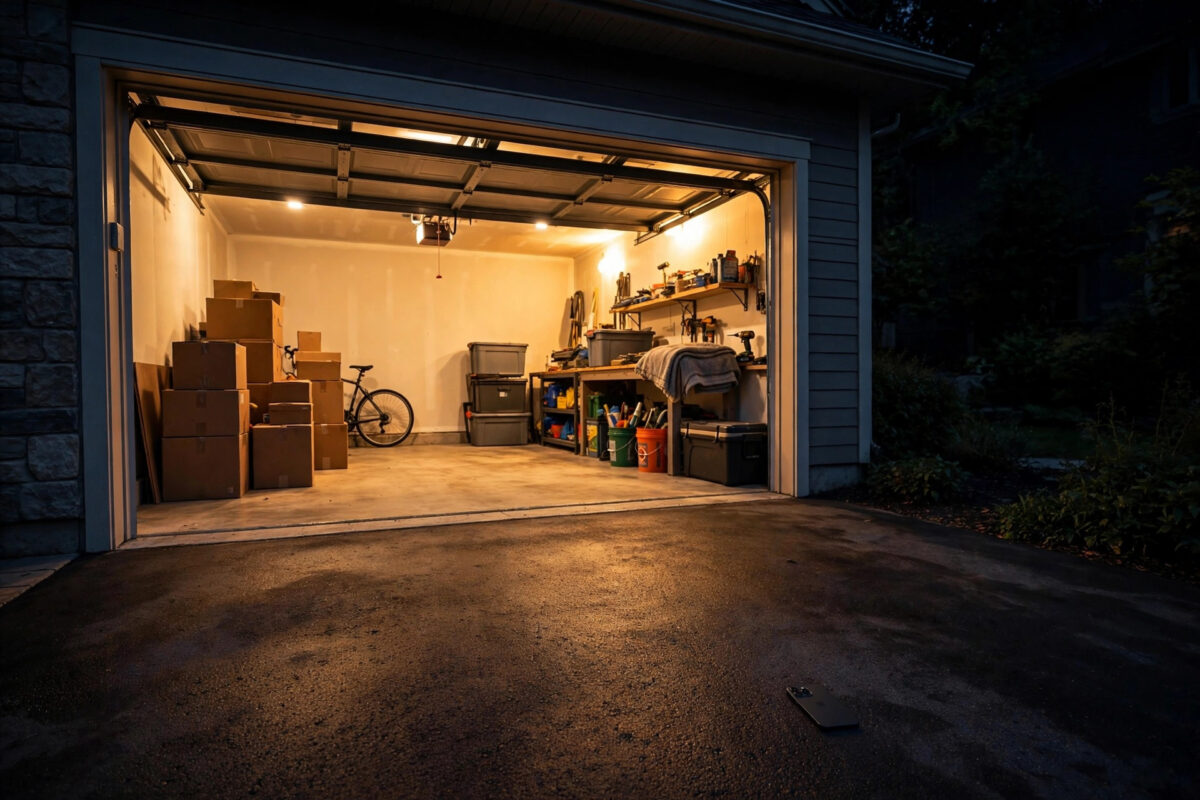
It is a common worry. You are in bed, and you cannot remember if you closed the garage door. Or you drive to work and wonder if it stayed open all day, with tools and bikes on show.
The myQ app can watch the door for you. You can create an alert that warns you when the garage door stays open for more than ten minutes — and you can limit that alert to night hours, so it does not bother you while you are working in the garage during the day.
This guide shows the exact setup, how to test it, and how to make the alert reliable instead of noisy.
Quick Answer
Open the myQ app, go to notifications or alerts, and create a new alert for your garage door with the condition “door open for more than 10 minutes.” Set the schedule to night hours only, such as 9 p.m. to 6 a.m., and turn on push notifications for the myQ app in your phone settings. Test it by opening the door after the start time and waiting — you should get the alert just after ten minutes.
Why a Left-Open Alert Matters
An open garage door is more than a small mistake. It can mean:
- Tools, bikes, and stored items visible to anyone passing by.
- Rain, wind, and animals getting into the garage overnight.
- Easy access to an inside door that many people leave unlocked.
- Higher heating or cooling loss if the garage joins the house.
A timed alert fixes the real problem: forgetting. You do not need to check the app every night. The app checks for you and speaks up only when the door stays open too long.
Ten minutes is a good starting point. It is long enough for loading, unloading, and short jobs. It is short enough that the door never stays open all night by accident.
Before You Set Up the Alert
- Confirm the door status is accurate. Open and close the door once and watch the app. It should show open, closed, and moving states correctly. An alert built on a wrong status will mislead you.
- Check the door sensor or opener connection. Built-in myQ openers report status directly. Add-on myQ hubs use a door sensor — make sure its battery is fresh and it is firmly mounted.
- Update the app. Alert screens change between versions. Update myQ from your app store so the steps below match what you see.
- Allow notifications. In your phone settings, allow myQ to send notifications, including time-sensitive or critical alerts if your phone offers them. An alert you never see is no alert at all.
If your app screens differ from this guide, the alert and notification help on Chamberlain Group’s official myQ support pages matches your exact opener and app version.
How to Create the 10-Minute Night Alert Step by Step
- Open the myQ app and sign in.
- Tap your profile, menu, or notifications icon, depending on your app version, and open the alerts or notifications section.
- Tap the option to add or create a new alert.
- Select your garage door device from the list. In a home with two doors, pick the correct one — or repeat this whole setup for each door.
- Choose the trigger: garage door open, or door open for a set time, if your version lists them separately.
- Set the duration to 10 minutes. This means the alert fires only if the door is still open ten minutes after it opened.
- Set the schedule. Turn on a time window and choose your night hours, for example 9:00 p.m. to 6:00 a.m. Select all seven days, or only the days you need.
- Choose how you are told. Push notification is essential. Add email as a backup if the option is offered.
- Name the alert clearly, such as “Garage open 10 min — night.” Clear names help when you edit alerts later.
- Save the alert and confirm it shows as active in your alert list.
A note on schedule wording
Some versions call this “only during this time” and others show it as alert active hours. The goal is the same: the ten-minute rule should apply at night, not while you are gardening or washing the car at noon. Read the summary line on the save screen carefully before you confirm.
Test the Alert Properly
Do not trust an untested alert. Run this test on the first evening:
- Wait until your night window has started, for example after 9 p.m.
- Open the garage door fully from the app or wall button.
- Start a timer on your phone. Do not close the door.
- At just over ten minutes, you should receive the myQ push alert.
- Tap the alert. It should open the app at the door control, so you can close the door with one tap.
- Close the door from the app and confirm the status changes to closed.
If the alert arrives much later, or not at all, work through the fixes below. A tested alert you trust is worth ten alerts you ignore.
Make the Alert Reliable, Not Noisy
- Keep the window honest: If your family often works in the garage until 10 p.m., start the window at 10:30 p.m. An alert that cries wolf gets muted.
- Use closing schedules as a partner feature: Some myQ setups let you schedule an automatic close at a set night time. An alert first, plus a scheduled close later, gives two layers of protection. This kind of layered routine is a good example of the ideas in our smart home automation ideas for beginners.
- Add a second person: Invite a partner or family member to the myQ home so both phones get the alert. One sleeping person should not be the only safety net.
- Check phone battery savers: Some phones delay apps that use battery in the background. Exclude myQ from aggressive battery saving so alerts arrive on time.
- Review alerts monthly: Delete test alerts and old schedules, so only real warnings reach you.
If the Alert Does Not Fire
The door status is wrong in the app
Fix status first. Replace the door sensor battery, remount a loose sensor, or recalibrate the hub. The ten-minute timer counts from the status the app believes, not from the real door.
Notifications are blocked
Check three places: myQ in-app notification settings, the alert’s own on/off state, and your phone’s system settings for the myQ app. All three must allow the alert.
The schedule excluded the test time
If you tested at 8 p.m. but the window starts at 9 p.m., no alert is correct behaviour. Test inside the window, or widen the window temporarily for the test.
Wi-Fi dropped at the opener
If the opener was offline, the app could not track time. Check the opener’s Wi-Fi signal, restart the router if needed, and confirm the device shows online before the next test.
Mistakes to Avoid
- Setting the timer to zero or one minute: You will get alerts every time you load the car. Alert fatigue leads to muted notifications.
- Forgetting phone permissions: Creating the alert in myQ is only half the job. The phone must be allowed to show it.
- Testing during the day with a night-only schedule: You will wrongly conclude the alert is broken.
- Relying on email only: Email can sit unread for hours. Push alerts are the right main channel at night.
- Never testing after app updates: Updates can reset notification choices. Retest after major app or phone updates.
Conclusion
A myQ left-open alert takes five minutes to create and protects your home every night after. Set the rule to “open more than 10 minutes,” limit it to your night hours, allow push notifications, and test it once for real. Keep the schedule honest so the alert stays meaningful, and share it with a second phone in the home. After that, an open garage door at night stops being something you worry about in bed — your phone tells you, and you close it with one tap.
Frequently Asked Questions
Can I set different times for weekends?
In many app versions, yes. Create one alert for weekday nights and a second for weekend nights with later hours, or edit the days on a single alert if your version allows it.
Will the alert work if my phone is on Do Not Disturb?
It depends on your phone settings. You may need to allow myQ as an exception, or enable time-sensitive notifications, so night alerts break through safely.
Can myQ close the door automatically instead of just alerting me?
Some openers and app versions offer scheduled closing. Use it as a backup, but keep the alert too — you still want to know the door was open, even if it closes itself later.
What if I have two garage doors?
Create a separate alert for each door and name them clearly, such as “Left door” and “Right door.” Test each one on its own evening.
Why did I get the alert even though the door was closed?
The app likely had a wrong status, often from a weak door sensor battery or a sensor that moved. Fix the sensor first; the alert is only as good as the status it reads.



Leave a Reply