
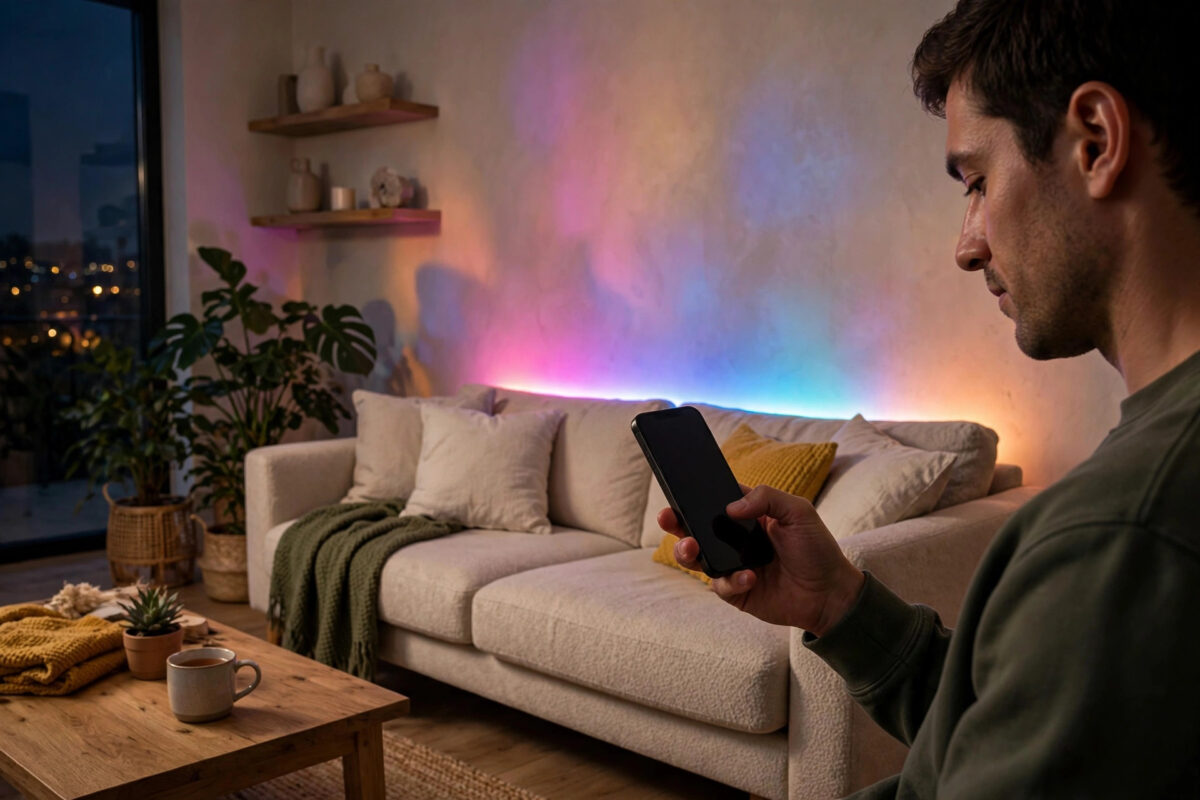
Moving a smart light should be simple. You unplug it, carry it to a new room, plug it in again, and expect it to look the same as before. With Govee lights, that rarely happens. A strip that looked perfect behind your old TV can look washed out in a bedroom. A bulb that felt warm in the living room can look harsh next to different paint, furniture, and daylight.
The light itself has not changed. The room around it has. Calibration is how you tell the Govee app where the light is now, how bright it should feel in that space, and how its colours should match your other lights. This guide walks you through the full process, step by step, with no guesswork.
Quick Answer
Open the Govee Home app, tap the moved light, and open its settings to rename it and assign it to the new room first. Then reset its brightness, colour temperature, and any music or video sync calibration from scratch in the new space, because the old settings were tuned for different walls, distance, and daylight. Finish by testing the light at night and during the day, and save the result as a scene so you can reuse it.
Why Lights Need Recalibrating After a Move
Smart lights do not see a room the way you do, but they are deeply affected by it. Four things change every time you move a light, and each one changes how the light looks and behaves.
Wall Colour and Surface
White walls bounce light back into the room. Dark grey, blue, or wood-panelled walls absorb it. A Govee strip set to a soft warm white in a white-walled room can look yellow and dull in a darker room at the exact same setting.
Distance From Walls and Furniture
Most Govee strips, bars, and panels are indirect lights. They shine onto a wall or ceiling, and you see the reflection. Moving a light bar two feet closer to a wall makes the glow tighter and brighter, even though the brightness slider has not moved.
Before You Start: Get the Basics Right
Do these checks first. They take five minutes and prevent most problems later.
- Plug the light in fully and let it settle. Connect the power adapter, controller, and light properly. Wait two minutes so the light connects to Wi-Fi and finishes any pending update.
- Update the Govee Home app. Open your app store and check for updates. Calibration screens change between versions, and an old app can hide the newest options.
- Check the firmware. In the app, open the device and look for a firmware update prompt in settings. Install it before you calibrate, not after, because an update can reset your tuning.
- Connect to 2.4GHz Wi-Fi. Most Govee lights only use this band, and a weak signal in the new room causes delayed responses that look like bad calibration.
Step 1: Rename the Light and Move It to the Right Room in the App
This step sounds cosmetic, but it matters. Voice assistants, groups, and scenes all depend on the room assignment.
- Open the Govee Home app and tap the light you moved.
- Tap the settings icon in the top corner of the device page.
- Change the device name to match the new location, for example “Bedroom Strip” instead of “TV Strip.”
- Assign the device to the correct room or create a new room if needed.
- If the light is part of a group, remove it from the old group and add it to the new room’s group, or create a fresh group.
- Test voice control once. Ask your assistant to turn the light on by its new name to confirm everything updated.
Step 2: Recalibrate Brightness for the New Room
Brightness is the most important setting to redo. Follow this order:
- Close curtains or wait until evening for your first test, so you can see the light’s true effect without daylight hiding it.
- Set the light to a plain warm white. Remove any colour effects for now.
- Start at 30 percent brightness and sit where you will normally use the room — your bed, desk, or sofa.
- Raise brightness slowly, in small steps, until the room feels comfortable for reading or working, not just for looking at the light itself.
- Note the level that works. Small rooms often need 40 to 60 percent. Larger or darker rooms may need 70 percent or more.
Step 3: Recalibrate Colour and Colour Temperature
Colour temperature is measured in Kelvin. Lower numbers look warm and yellow. Higher numbers look cool and blue-white.
- Bedrooms and living rooms: start around 2700K to 3000K for a relaxed feel.
- Kitchens and bathrooms: try 3500K to 4000K so food and mirrors look natural.
- Desks and work areas: try 4000K to 5000K for clearer focus.
Now test your favourite colours one by one. Reds and oranges are forgiving. Blues and purples reveal problems fastest, because dark walls absorb them. If a colour looks weak, raise brightness for that colour scene rather than changing the colour itself. Save each corrected colour as part of a scene instead of relying on memory.
If you have more than one Govee light in the room, set them all to the same white temperature first. Mixed temperatures — one warm bulb and one cool strip — are the most common reason a room feels “off” after a move, even when each light looks fine alone.
Step 4: Recalibrate Video and Music Sync (If You Use It)
Skip this section if your light does not use sync. If it does, the old calibration is now useless and must be redone.
Video Sync With a Camera
- Mount the camera in its new position, centred on the new screen.
- In the app, open the device, find the video sync or calibration option, and start a fresh calibration.
- Follow the on-screen steps to mark the corners of the screen accurately. Take your time — a sloppy corner point causes wrong colours at the edges for months.
- Play a colourful test video with slow movement. Check that reds appear where reds are on screen, on the correct side.
- If colours are swapped or delayed, re-run calibration in a darker room and reduce reflections from windows or glossy furniture.
Music Sync
Place the controller where it will stay, play music at normal volume, and adjust sensitivity in the app until the light follows the beat without flashing on quiet parts.
For more help getting grouped lights to react together, see our guide on syncing multiple smart lights together in one room.
Step 5: Rebuild Your Scenes, Schedules, and Automations
Old scenes were built for the old room. Reusing them unchanged defeats the whole calibration.
- Scenes: open each scene that includes the moved light, update its brightness and colour to your new values, and save it with a clear name.
- Schedules: check wake-up and wind-down times. A brighter bedroom may need a gentler morning ramp than a living room did.
- Automations: if the light reacts to motion, sunset, or another device, test the trigger once in the new room.
- Voice routines: say your usual commands out loud. Fix any routine that still uses the old name or old room.
The official Govee support centre with device guides and troubleshooting is worth checking here too, because scene and group options differ slightly between strips, bulbs, bars, and panels.
Common Mistakes to Avoid
- Calibrating in full daylight only. You will set everything too bright for the evening, when you actually use the light most.
- Copying the old percentages. Fifty percent in a large white room is not fifty percent in a small dark room. Trust your eyes, not the old numbers.
- Forgetting the group. A perfectly calibrated light will still look wrong if an old group scene keeps overwriting it every night.
- Calibrating before a firmware update. Updates can reset effects. Update first, calibrate second.
- Judging colour while standing under the light. Always judge from where you sit or sleep. That is the view that matters.
- Rushing the camera points. For video sync, two extra minutes on corner placement saves weeks of strange edge colours.
Conclusion
Recalibrating Govee lights after a move is not hard, but it must be done in the right order. Rename the light and fix its room in the app, update the firmware, set brightness from your normal seating position, match colour temperature to the room’s job, redo any video or music sync, and rebuild your scenes. Do it once, carefully, in both daylight and darkness, and the light will feel like it was always meant for that room.
Frequently Asked Questions
Do I need to reset my Govee light completely after moving it?
Usually not. A full reset is only needed if the light will not connect to Wi-Fi in the new spot or you are changing accounts. For a normal room move, updating the name, room, brightness, colour, and sync settings is enough.
Why do my Govee colours look different on the new wall?
Because the wall is part of the picture. Paint colour, finish, and texture change how light reflects back to your eyes. Matte dark paint absorbs colour, while glossy light paint throws it back. Recalibrating brightness and saturation for that surface fixes most of the difference.
How long does calibration take?
For a single bulb or strip without sync, about ten to fifteen minutes. With camera-based video sync and several scenes to rebuild, allow thirty minutes. It is faster the second time because you already know your preferred temperatures.
Can I copy calibration settings from another identical Govee light?
You can copy them as a starting point if the second light is in the same room. Do not copy settings between different rooms, even with identical lights, because wall colour and daylight change the result.
What should I do if the app does not show calibration options?
Update the app and the device firmware first, then close and reopen the device page. If options are still missing, check the product’s page in the Govee support centre, because basic bulbs have fewer calibration tools than strips, bars, and camera sync kits.



Leave a Reply