
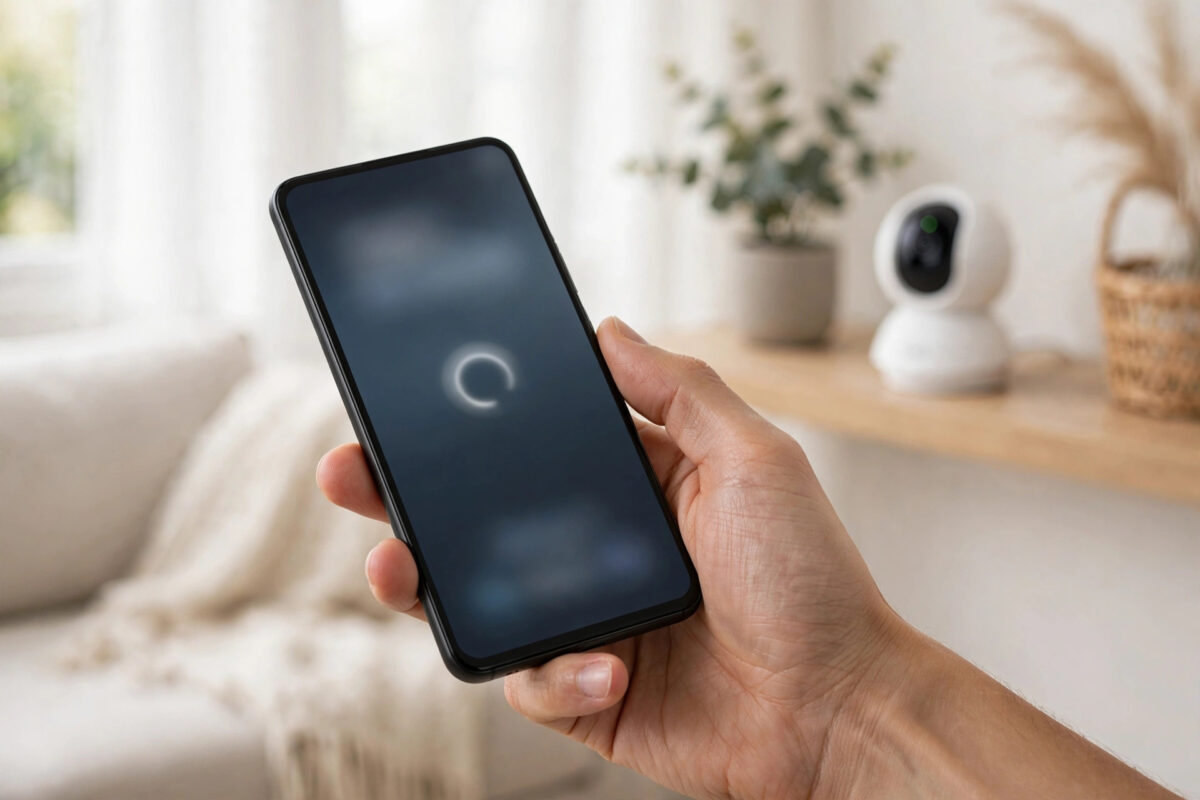
You open the Tapo app on your Android phone, tap your camera, and instead of a live view you get a short message: failed to load. The camera may have worked fine yesterday, and it may even still show correctly on another phone in the house.
This error is common on Android because the app must work across many phone brands, battery settings, and network setups. In most cases the camera itself is fine. The problem sits in the app cache, a permission, a power-saving setting, or the way your phone switches between Wi-Fi and mobile data.
This guide takes you through the fixes in a sensible order, starting with the fastest checks.
Quick Answer
The Tapo “failed to load” error on Android is most often caused by a corrupted app cache, Android battery optimisation closing the connection, or the phone switching networks mid-load. Clear the Tapo app cache, exempt Tapo from battery optimisation, and test on your home Wi-Fi with any VPN turned off. If it still fails, remove the camera from the app and set it up again, then update its firmware.
What the Failed to Load Error Actually Means
The message is a general loading failure, not a specific diagnosis. The app tried to open the live stream or camera page and could not complete the request in time. That can happen at several points, which is why one fix does not work for everyone.
App-Side Problems
A damaged cache, an outdated app version, or a stuck login session can stop pages loading even though your account and camera are fine. Android is prone to this after a big app or phone software update, when old temporary files no longer match the new version.
Phone Network Switching
Many phones switch between Wi-Fi and mobile data to keep a connection. If the phone decides your home Wi-Fi has no internet and jumps to mobile data while the camera page is loading, the local connection breaks. A VPN or private DNS service can also block the local traffic the app needs.
Battery and Background Restrictions
Phone makers such as Samsung, Xiaomi, Oppo, and OnePlus apply aggressive battery saving. If Tapo is restricted, Android may freeze its network activity in the background. The app then opens to a stale state and fails when you tap the camera.
Camera or Router Problems
Less often, the camera itself is struggling. It may be on a weak signal at the edge of your home, stuck after a firmware update, or on a different network than you think. If no phone in the house can load it, focus on the camera and router.
Quick Checks Before You Change Settings
- Try a second device. If the camera loads on a tablet or another phone, your camera and router work. Focus entirely on the first phone.
- Check you are on home Wi-Fi. Connect to the same network the camera uses and try again before testing away from home.
- Restart the camera. Unplug it for 30 seconds, plug it back in, and wait two minutes for the status light to settle.
- Restart your phone. A full restart clears stuck network services more reliably than reopening the app alone.
- Check the status light. A solid light usually means connected. A blinking light often means it has lost Wi-Fi.
Fix the Tapo App on Android Step by Step
- Force stop the app. Go to Settings, then Apps, then Tapo, then Force Stop. Reopen Tapo and try again.
- Clear the cache first. In the Tapo app info screen, tap Storage and then Clear Cache. This removes temporary files without signing you out.
- Check permissions. Make sure Tapo has the local network, notification, and, for two-way talk, microphone permissions it asks for.
- Update the Tapo app. Open the Play Store, search for Tapo, and install any pending update. Updates regularly fix loading bugs after Android changes.
- Install any waiting Android update. Restart after updating and test again.
- Clear app data only if the cache fix failed. This signs you out, but your cameras stay linked to your TP-Link account and do not need resetting for this step.
- Reinstall as a last app step. Uninstall Tapo, restart the phone, install a fresh copy from the Play Store, and sign in. This removes deeper corruption.
Remove Android Battery Optimisation for Tapo
This is the fix many Android owners miss, and on some brands it is the whole problem.
- Open Settings, go to Apps, then Tapo, then Battery.
- Select Unrestricted if offered. On Samsung phones, also add Tapo to Never sleeping apps under Battery and device care.
- On Xiaomi and Redmi phones, set the Tapo battery saver option to No restrictions.
- Lock the app in recent apps on brands that offer it, so a memory cleaner does not close it.
Menus differ by brand, but the goal is the same: Tapo must be allowed to use the network freely in the background. Our related guide on stopping Android from closing smart home apps in the background walks through the exact menus for Samsung, Pixel, Xiaomi, and OnePlus phones.
Fix Network Causes: VPN, Private DNS, and Wi-Fi Switching
Turn Off VPN and Private DNS for Testing
- Disconnect any VPN completely, not just pause it, then test.
- Go to Settings, then Network and Internet, then Private DNS, and set it to Automatic or Off for a test. Some filters block the endpoints Tapo needs.
- Disable data-saving and firewall apps for a test if you use them.
Stop the Phone Jumping Between Networks
- Turn off mobile data temporarily at home and test on Wi-Fi alone. If the camera loads instantly, network switching was the cause.
- Turn off settings named Wi-Fi Assistant, Smart Network Switch, or Switch to mobile data.
- If your router splits 2.4 GHz and 5 GHz into separate names, make sure the camera is on the 2.4 GHz network it supports.
The official TP-Link Tapo camera troubleshooting guidance also covers router and band issues that can stop a camera being reached from the app.
If the Camera Itself Needs Attention
- Improve the camera signal. Move it closer to the router for a test. If it loads reliably when close, the original position has a weak signal.
- Update camera firmware. In the app, open camera settings and check for an update, ideally after moving the camera closer to the router.
- Remove and re-add the camera. Remove the device in the app, hold the camera reset button as directed for your model, and set it up again on 2.4 GHz Wi-Fi.
- Check the microSD card if playback fails but live view works. A failing card can cause loading errors on playback. Test with the card removed.
- Check your account region. Sign in with the exact TP-Link account and region used for setup, as cameras may not load under a different regional account.
For model-specific reset steps, the TP-Link official support and download centre has the user guide for every Tapo model.
Common Mistakes and Helpful Tips
- Clearing data before cache: Always try the cache first. It fixes most cases and keeps you signed in.
- Testing only on mobile data: Always test at home on Wi-Fi first to separate app problems from remote access problems.
- Ignoring the second-device test: Two minutes on another phone can save an hour of changing the wrong settings.
- Resetting the camera repeatedly: If it loads on other devices, resetting will not help and only creates more setup work.
- Forgetting battery settings after reinstalling: A fresh install often returns to optimised mode. Re-check the battery setting.
- Tip for families: Compare Android and Tapo versions between a working phone and a failing one. The difference usually points to the cause.
Conclusion
The Tapo failed to load error on Android looks alarming, but it rarely means a broken camera. Prove whether the fault is on the phone or the camera with a second device, then clear the cache, lift battery restrictions, and rule out VPN, private DNS, and Wi-Fi switching. Only move to firmware updates and re-adding the camera if those phone fixes fail. Worked through in that order, the error normally clears within fifteen minutes.
Frequently Asked Questions
Why does my Tapo camera work on my partner’s phone but not mine?
That pattern proves the camera and router are fine and the fault is on your phone. Common causes are battery optimisation, a corrupted cache, or a VPN or private DNS setting. Work through the app and battery steps on your phone only.
Will clearing the Tapo app cache delete my recordings?
No. Clearing the cache removes temporary app files only. Recordings on the microSD card and any cloud recordings are not deleted. Clearing app data also keeps recordings, but it signs you out.
Why does the error happen only when I am away from home?
Away from home the app reaches the camera through the internet instead of your local network. Check remote viewing, broadband upload stability, and that no VPN is blocking it.
Does the Tapo camera need 2.4 GHz Wi-Fi?
Most Tapo cameras connect to 2.4 GHz only. If your router combines both bands under one name, the camera usually steers itself correctly, but during setup it helps to be near the router. If you split the bands, join the camera to 2.4 GHz.
When should I reset my Tapo camera to factory settings?
Reset only after the camera fails on every device, or its status light shows it has lost Wi-Fi and will not reconnect. A reset removes it from your Wi-Fi and app, so you must set it up again.



Leave a Reply