
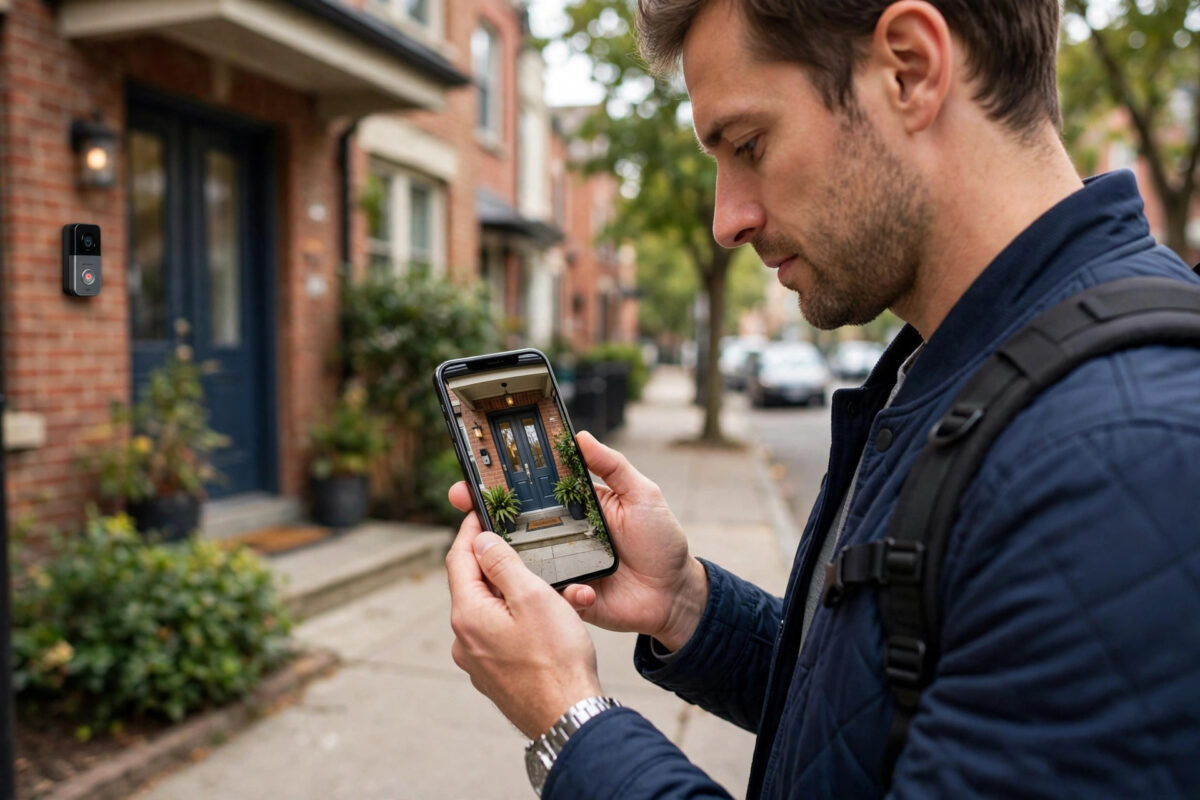
At home everything works. You tap live view on your Ring doorbell and the picture appears in seconds. Then you leave the house, switch to mobile data, tap the same button, and the app spins until it gives up with a connection error. It is one of the most confusing Ring problems because the doorbell itself has not changed at all.
The difference is the path your phone takes to reach the doorbell. On home Wi-Fi the trip is short. On mobile data the video has to travel out of your home, through Ring’s servers, across your mobile network, and back to your phone, and a blockage at any point on that longer route breaks live view while leaving home use untouched.
Quick Answer
Ring live view failing on mobile data but working on Wi-Fi is usually caused by your phone, not the doorbell. Turn off any VPN, check that the Ring app is allowed to use mobile data, disable data-saving modes, and make sure your mobile signal and data allowance are healthy. If it still fails, test on a different mobile network to confirm a carrier or firewall restriction.
Why Mobile Data Changes Everything
When your phone is on the same Wi-Fi as the doorbell, the app can reach the device quickly through your home network and Ring’s cloud with very few obstacles. Mobile data adds several new players: your carrier’s network, its firewalls and address translation systems, your phone’s data-saving settings, and sometimes a VPN that reroutes all your traffic through another country.
Live video is demanding in a way that a simple alert is not. Alerts are tiny messages. Live view is a continuous two-way video stream that needs certain network ports and a stable connection. Anything that inspects, blocks, or throttles that stream, such as a strict VPN, a carrier restriction, or an aggressive battery saver, can stop it while ordinary browsing still works fine.
The Quick Isolation Test
- Turn Wi-Fi off on your phone completely, not just disconnect it.
- Open a web page and a video app to confirm mobile data itself is working.
- Try Ring live view and note the exact error message and how long it spins.
- If possible, try the same test on another phone on a different network, or ask a shared user in the Ring app to test from their phone.
If another phone on another network can open live view, your doorbell and home internet are fine and the fault sits with your phone or your carrier. That single test saves hours of changing doorbell settings that were never broken.
Step 1: Turn Off Your VPN and Security Apps
A VPN is the number one cause of this exact symptom. Many VPNs block or mishandle the type of connection live view uses, or route your traffic through a distant server that adds delay until the stream times out. Some workplace security apps and private DNS services do the same thing quietly in the background.
Disconnect the VPN completely, force close the Ring app, reopen it, and try live view on mobile data again. If it works, you have your answer. Most VPN apps let you exclude individual apps from the tunnel, often called split tunnelling, so you can keep the VPN for other things while letting Ring connect directly. Private DNS settings on Android and content-filtering profiles on iPhone are also worth switching off for one test.
Step 2: Check the Ring App’s Mobile Data Permissions
Phones can block individual apps from using mobile data, and it is easy to set by accident or during a setup prompt you tapped through months ago.
On iPhone
- Open Settings and scroll to the Ring app, or go to Mobile Service and find Ring in the list.
- Make sure the mobile data toggle for Ring is on.
- Also check that Low Data Mode is off for your mobile plan while you test.
On Android
- Open Settings, then Apps, then Ring, then Mobile data and Wi-Fi.
- Allow background data and unrestricted data use while Data Saver is on.
- Check that Data Saver itself is not limiting the app during your test.
While you are in the app settings, confirm the Ring app is updated to the latest version. Live view connection handling improves regularly, and running a very old version alongside a new phone operating system is a recipe for odd failures.
Step 3: Check Your Mobile Signal, Allowance, and Speed
A single bar of signal in a weak coverage area may load text messages happily but collapse when asked to carry live video. Equally, if you have used up your data allowance, many carriers throttle speeds so severely that video cannot start, even though the phone still shows a 4G or 5G symbol.
Run a quick check using the steps in how to check your internet speed at home and on your phone and repeat the same test on mobile data outdoors. If mobile speeds are under a couple of megabits per second, or the test itself struggles, live view has little chance until you are in better coverage. Also confirm your plan has data remaining and that roaming restrictions are not active if you are travelling.
Step 4: Review Battery Savers and Background Restrictions
Modern phones aggressively pause apps they think you are not using. If the Ring app is put to sleep, its connection can be dropped the moment you switch away or the screen locks, and live view requests can fail before the app fully wakes.
- Set the Ring app battery use to unrestricted or not optimised while testing.
- Allow notifications without restriction, because alert and live view features are linked to the app staying responsive.
- Turn off any system-wide ultra power saving mode during your tests.
- After changing these settings, restart the phone once so the new rules apply cleanly.
Step 5: Check Your Home Upload Speed and Router
Remember the other end of the stream. On mobile data you are pulling video out of your home, so your home upload speed becomes the ceiling. If someone at home is uploading large files, backing up photos, or on a video call, there may be nothing left for your doorbell stream.
Restart your router to clear stale connections, and check the doorbell signal reading in Device Health. A doorbell with a weak Wi-Fi signal at home may just manage live view for a phone on the sofa, where retries are quick, but fail the stricter timing of a mobile connection. Improving that home signal helps both cases.
If your router has a strict firewall, a double router setup, or an internet provider gateway with aggressive security filtering, those can also interfere with the return stream. The official Ring support site with live view and connectivity troubleshooting lists the network requirements Ring expects, which is useful if you need to discuss settings with your provider.
Common Mistakes to Avoid
- Replacing or resetting the doorbell: If live view works on home Wi-Fi, the doorbell is almost certainly healthy. A reset just creates setup work.
- Testing with Wi-Fi still on: Phones quietly prefer Wi-Fi. Turn it fully off or your mobile data test proves nothing.
- Forgetting a work profile: Employer-managed phones often carry hidden VPNs and restrictions that block live view by policy.
- Ignoring data limits: A throttled plan after your allowance runs out looks exactly like a Ring fault.
- Changing everything at once: Change one setting, test, and note the result, or you will never know which fix mattered.
Conclusion
When Ring live view works on Wi-Fi and fails on mobile data, trust what that contrast is telling you: the doorbell and your home setup can stream, so the blockage lives in the mobile path. Work through the VPN, app data permissions, data saver and battery settings, signal and allowance, and home upload speed in that order. In most cases live view returns within minutes, usually the moment a VPN or a data restriction is lifted, and it stays fixed for good.
Frequently Asked Questions
Why do I still get motion alerts but no live view on mobile data?
Alerts are tiny push messages that pass through almost any restriction, while live view is a full video stream that needs an open, steady connection. VPNs, data savers, and throttled plans commonly let the small messages through but break the stream.
Can a VPN really block only live view and nothing else?
Yes. Many VPN services struggle with the direct, continuous connections video doorbells use, or route traffic through servers that add too much delay. Browsing and alerts keep working, which is why the VPN is so often overlooked as the cause.
How fast does my mobile data need to be for live view?
A stable few megabits per second is generally enough for a doorbell stream. Stability matters more than headline speed. A fluctuating one-bar signal that drops constantly will fail even if a speed test occasionally shows a good number.
Live view fails on my phone but works on my partner’s. Why?
That pattern points squarely at your phone or your mobile plan: an app data block, a VPN, a work profile, battery restrictions, or a carrier difference. Compare settings side by side with the working phone and the difference usually stands out quickly.
Should I reinstall the Ring app?
It is a reasonable later step if permissions and settings all look correct. Reinstalling clears corrupted caches and forces fresh permissions. Sign back in, allow mobile data and notifications when prompted, and test on mobile data before changing anything else.



Leave a Reply