
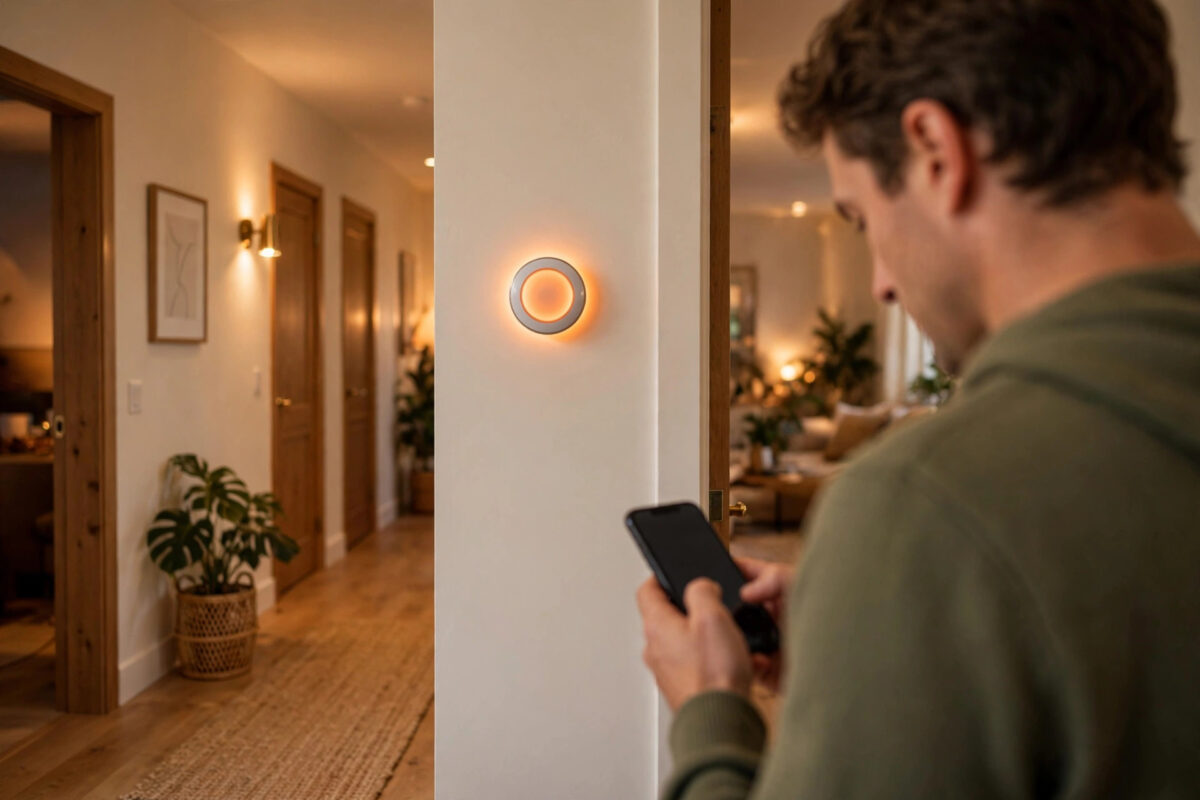
Your Nest thermostat is lit up on the wall, showing the temperature and responding when you turn the dial or tap the screen. Yet the Google Home app insists the same thermostat is offline, so you cannot change it from your phone, use routines, or check it while you are out. Few smart home faults feel stranger than a device that works and does not work at the same time.
This mismatch rarely means the thermostat is broken. The wall unit can keep running its schedule from its own memory while its connection to Google or your Wi-Fi has dropped. This guide helps you find which link has failed.
Quick Answer
First check that your phone and thermostat are on the same home Wi-Fi network, then restart the thermostat from its settings menu and restart your router. In the Google Home app, confirm you are viewing the correct home and account, and check the thermostat battery level on the device itself. If it still shows offline, remove and re-add the Wi-Fi connection on the thermostat, because a working display with an offline app almost always points to a network or account sync problem, not a heating fault.
How a Thermostat Can Work on the Wall but Not in the App
A Nest thermostat is really two systems in one. The first is a local controller. It reads the room temperature, follows the schedule stored on the device, and tells your boiler, furnace, or air conditioning what to do. That part needs no internet at all.
The second system is the cloud link. When the thermostat connects to Wi-Fi, it talks to Google servers. The Google Home app talks to those same servers, not directly to your wall. If Wi-Fi drops, the battery runs low, the account sync breaks, or the servers cannot see the device, the app marks it offline even though local heating control continues normally.
Common Causes Behind the Mismatch
- Weak or dropped Wi-Fi: The thermostat is further from the router than your phone, often near metal boiler parts or thick walls.
- Low battery: Nest models charge from heating wiring or a USB source in some setups. A low battery can shut off Wi-Fi first to save power.
- Wrong home or account: The app may be showing a second home, an old address, or a different Google account.
- Router changes: A new password, new router, band change, or a VPN can break a connection that worked for months.
- Software or sync glitch: Either the thermostat or the app can get stuck after an update.
Step 1: Confirm the Basics on the Thermostat Itself
Start at the wall. Press or turn the thermostat to wake it and look for any message about Wi-Fi, battery, or an error code. Note exactly what it says, because a delay or help message changes what you should do next.
- Check Wi-Fi status: Open Settings, then Technical Info or Network, depending on your model, and see whether it says connected and shows a signal strength.
- Check battery voltage: In the same technical information, look at the battery level. Very low readings often explain random offline periods, especially overnight.
- Test local control: Change the target temperature by two degrees and confirm the heating or cooling symbol appears. This proves the local system is healthy.
- Look at the time and schedule: If the time is wrong, the device has likely lost its internet connection for a while.
If the thermostat says it is not connected to Wi-Fi, skip ahead to the network steps. If it claims it is connected but the app disagrees, the fault is more likely account, app, or sync related.
Step 2: Check the App, Account, and Home
A surprising number of offline reports are the app looking at the wrong place. Check each of these.
- Correct account: Tap your profile picture and confirm the email address is the one used to set up the thermostat.
- Correct home: Use the home switcher at the top and make sure you are not viewing a holiday home, an old flat, or a duplicate home with a similar name.
- Device room listing: Look in the room where the thermostat is assigned. Sometimes the device is present but a favourite tile on the front screen is stale.
- App update: Install any pending Google Home app update, close the app fully, and reopen it.
- Phone network: Turn off any VPN on your phone for testing, and try once on Wi-Fi and once on mobile data to see if the status changes.
Step 3: Restart Things in the Right Order
Restarts clear stuck connections, but order matters. A thermostat restarted before the router may reconnect to a network that is about to disappear again.
- Unplug the router and any mesh units for thirty seconds, then plug them back in.
- Wait a full five minutes until the internet is working on your phone.
- On the thermostat, open Settings and choose Restart. Do not choose factory reset at this stage.
- Wait for the thermostat to come back on and show the normal home screen.
- Force close the app, reopen it, and wait two minutes.
The official guidance on restarts and connection status is covered in the official Google Nest support pages for thermostat connectivity, which also list model-specific menu names if yours differ slightly.
Step 4: Fix the Wi-Fi Connection Properly
If restarts did not help, reconnect the thermostat to Wi-Fi from scratch. This clears a corrupt saved network, a wrong password after a router change, and many band problems.
- On the thermostat, open Settings, then Network or Wi-Fi.
- Choose your home network from the list. If it does not appear, move closer with your phone and check whether your phone can see the network in the same spot.
- Enter the password carefully. Passwords are case sensitive, and thermostat dials make it easy to pick a wrong character.
- Wait for the connection test to finish. A connected message with a good or very good signal is what you want.
- Open the app again and give it a few minutes to sync before testing a temperature change.
If the Signal Is Weak at the Thermostat
Thermostats are often in hallways, near front doors, or beside boiler cupboards, none of which are great for Wi-Fi. A weak signal causes exactly this pattern: fine for hours, then offline in the app. Small placement changes to the router, removing a metal obstruction, or adding a mesh point nearby can transform reliability. Our practical guide to improving Wi-Fi signal strength at home covers the changes that make the biggest difference for fixed smart devices like thermostats and cameras.
Step 5: Check Battery and Power Problems
Some Nest thermostats draw power from the heating system and top up an internal battery. If power is marginal, the thermostat protects heating control first and lets Wi-Fi drop. Check the battery reading again after an hour awake and connected. If it keeps falling, note any wiring messages and consider whether your system needs a common wire or a power connector, fitted by a qualified professional if you are not confident with wiring.
When to Remove and Re-Add the Thermostat
Leave this until you have tried the steps above, because it takes longer and may remove schedules or history from the app view. Only do it if the thermostat connects to Wi-Fi on its own screen but never appears online in the correct home and account, even after restarts.
Before removing anything, photograph your schedule and settings. Then remove the thermostat from the app, restart it, and add it again following the prompts. Set up the schedule again from your photos and test remote control while still at home.
Common Mistakes to Avoid
- Factory resetting first: It wipes schedules and settings when a simple restart or Wi-Fi re-add would have worked.
- Judging too quickly: App status can lag a few minutes after a restart. Wait, then test a real temperature change.
- Testing only on home Wi-Fi: Also test on mobile data. That proves true remote access works, not just local network luck.
- Ignoring the battery: Repeated offline periods with a healthy router often trace back to low or failing power.
- Creating a second home by accident: Adding the thermostat to a new home splits control and confuses everyone in the house.
Conclusion
A Nest thermostat that works on the wall but shows offline in the Google Home app is usually suffering a broken link, not a broken thermostat. Confirm what the device itself reports, check the account and home in the app, restart the router and thermostat in order, and rebuild the Wi-Fi connection if needed. Keep an eye on battery and signal strength, because those two cause most repeat cases. Work through the chain calmly and you will normally restore app control without losing your heating or your schedule.
Frequently Asked Questions
Will my heating still work while the app says offline?
Yes, in most cases. The thermostat keeps following its stored schedule and responds to manual changes on the wall. You lose remote control, app history, and some smart features until the connection returns.
How long should I wait after a restart for the app to update?
Give it at least five minutes after both the router and thermostat are fully back on. Open the app fresh rather than leaving it open, and test by changing the temperature slightly.
Why does my thermostat go offline every night?
Night-time drops often point to low battery, a router schedule or eco setting that restarts Wi-Fi, or interference when other devices are busy. Check the battery reading in the evening and look for overnight router reboot settings.
Should I delete the thermostat from the app and start again?
Only as a later step. Photograph your schedule first, because re-adding can require setting it up again. Try restarts and a Wi-Fi reconnect first, as they solve most cases without any loss.
Can a VPN or new router cause this problem suddenly?
Yes. A VPN on your phone can block local discovery, and a new router changes network names, passwords, and security settings. Connect the thermostat to the current network details and test the app with the VPN off.



Leave a Reply