
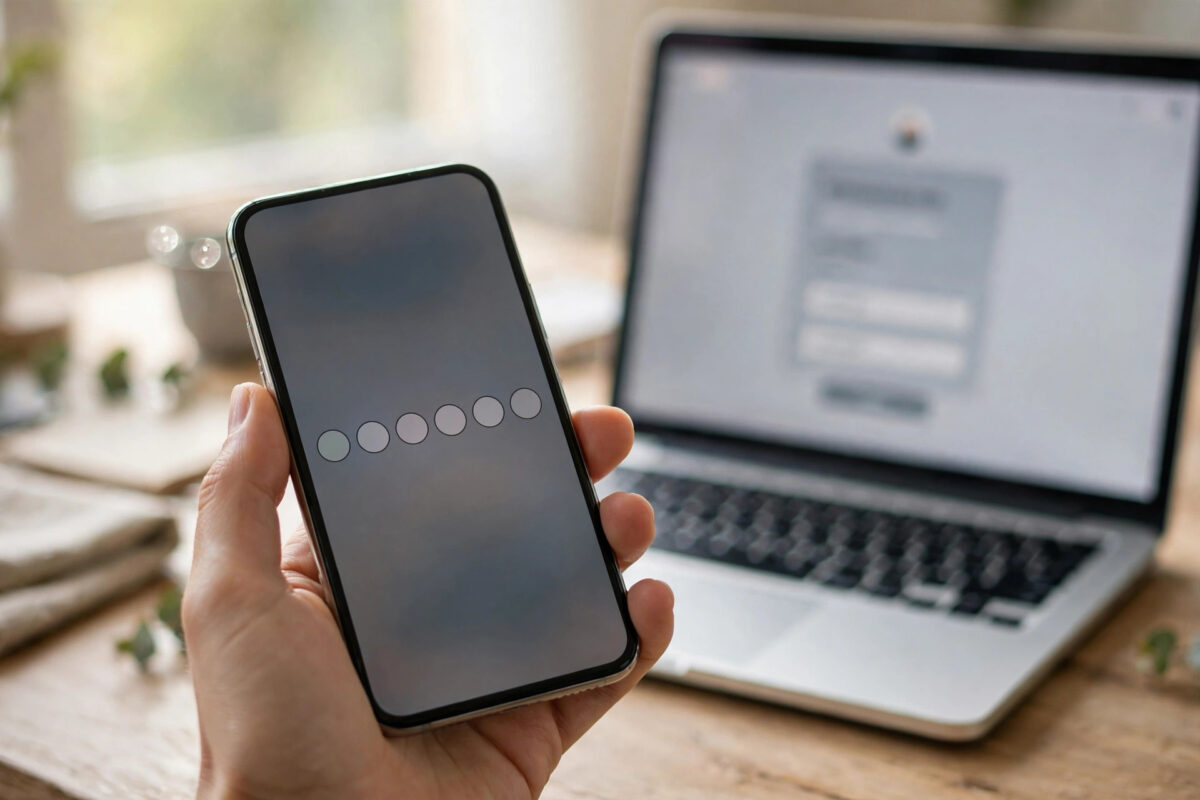
Your authenticator app shows a fresh six-digit code, you type it in quickly, and the website still says the code is invalid. In many cases nothing is wrong with your password or your app. The real problem is often simpler: your phone clock and the server clock disagree.
Two-factor authentication codes are built on time. When the two clocks drift apart by even a minute or two, every code you generate can be rejected, even though it looks normal. This is one of the easiest login problems to fix once you understand why it happens.
Quick Answer
To fix two-factor codes failing because your phone clock is out of sync, turn on automatic date and time on your phone and restart the device. Then open your authenticator app, check if it has its own time correction setting, and generate a fresh code instead of reusing an old one. If codes still fail, remove and re-add the account only as a last resort, using your backup codes to sign in first.
Why Time-Based Codes Depend on Your Phone Clock
Most authenticator apps use a system called Time-based One-Time Password, or TOTP. Your phone and the website both start with the same secret key, which was stored when you scanned the QR code during setup. From that secret, both sides create the same six-digit number using the current time, usually in 30-second blocks.
That design means there is no need for your phone to talk to the website to make a code. It also means time is part of the maths. If your phone thinks it is 10:02 while the server thinks it is 10:00, your phone will produce the code for a different time block. The server checks its own block, and sometimes the one before and after it, but a larger drift falls outside that small window and gets rejected.
How much drift is too much?
Many services allow a small tolerance of one step either side, roughly 30 to 60 seconds. Once your clock is off by more than about a minute, failures become likely, and a drift of several minutes will break almost every code.
Common causes of a wrong phone clock
- Automatic time was turned off and the clock was set by hand.
- You travelled across time zones and the phone did not update.
- The phone was off for a long time with a flat battery.
- A roaming issue stopped the network time update.
How to Check If Your Clock Is the Problem
Compare your phone clock with a trusted time source on another device. If your phone is ahead or behind by a minute or more, you have almost certainly found the cause. Another clue is pattern: if codes fail on several accounts in the same app at once, the shared factor is your phone. If only one account fails, that single account setup is more likely at fault.
Fix the Clock on Android
Android phones get their time from the mobile network or from internet time servers when automatic time is enabled. Turning that setting back on solves most cases.
- Open the Settings app on your phone.
- Tap System, then Date and time. On some phones this is under General management.
- Turn on the option called Set time automatically or Automatic date and time.
- Turn on the automatic time zone option as well.
- Connect to Wi-Fi or mobile data so the phone can update.
- Restart the phone to force a clean time sync.
- Open your authenticator app and wait for a brand-new code before trying again.
Menu names vary between brands, but the wording is always close to automatic date and time. If the time still looks wrong, toggle airplane mode on for ten seconds and off again to force a re-sync.
Fix the Clock on iPhone
On an iPhone, Apple uses its own time service, and the setting works in a similar way.
- Open Settings and tap General.
- Tap Date and Time.
- Turn on Set Automatically. If the switch is greyed out, check Screen Time restrictions or a device management profile.
- Make sure the correct time zone is shown under the switch.
- Connect to Wi-Fi or mobile data and wait a few seconds.
- Restart the iPhone, then open your authenticator app.
- Wait for the code to refresh once, then enter the new code promptly.
Apple explains this behaviour in its guidance on changing the date and time settings on iPhone when Set Automatically is unavailable, which also covers cases where location services affect the time zone.
Use the Authenticator App’s Own Time Correction
Some authenticator apps can correct their own timing. Older versions of Google Authenticator on Android had a time correction option in settings, while newer versions rely on the phone system clock being correct. If your app has a sync or time correction option, run it while online after fixing the system clock, then close and reopen the app before testing.
If you also use backup methods, it helps to review how they fit together. Our guide on recovering Instagram with backup codes when you lose phone or authenticator access explains when backup codes are the safer path than repeatedly trying timed codes.
What to Do If Codes Still Fail After Syncing
Wait for a completely fresh code
Do not reuse a code you typed before fixing the clock. Those attempts were based on the old, wrong time. Wait until the code changes, then enter the new one with plenty of time left on its countdown timer. If only a few seconds remain, wait for the next one instead of rushing.
Check the date and time zone, not only the hour
A phone can show the right hour but the wrong date, or the right local time with a wrong time zone setting that breaks other checks. A date that is a day out will break codes completely. Confirm day, month, year, and time zone all match where you actually are.
Remove other possible causes
- Make sure you are entering the code for the correct account, especially if you have two accounts on the same service.
- Check that you are not using a code from an old phone that still has the account loaded.
- Try signing in on a different browser or network in case the session itself is stuck.
Use a backup method before removing anything
If you still cannot get in, use a backup code, a trusted device prompt, or an SMS or email method if the service offers one. Google’s own advice on signing in when two-step verification codes are not working walks through backup options for Google accounts, and most other services follow a similar pattern. Only remove and re-add an authenticator entry after you are signed in and have fresh backup codes saved, because deleting the entry without access can lock you out for longer.
How to Prevent the Problem From Coming Back
Leave automatic date and time on permanently, and avoid setting the clock manually. After long flights, give the phone a minute on local mobile data or Wi-Fi to settle its time zone before signing in. Also save backup codes for important accounts in a safe place away from the phone, so a clock problem or broken app never leaves you locked out.
Common Mistakes to Avoid
- Typing the same failing code again and again. Repeated attempts can trigger a temporary lock. Wait for a fresh code after fixing the time.
- Deleting the authenticator entry first. This removes your only way to make codes. Sign in with a backup method before you reset anything.
- Fixing only the hour. A wrong date or time zone causes the same failure as a wrong hour.
- Assuming the website is down. If several accounts fail at once, check your own clock before blaming each service.
- Ignoring small drift. A clock that is 40 seconds out may work sometimes and fail at the end of a code window, which makes the problem look random.
- Using codes from two phones. An old phone with a stale clock will keep producing wrong codes even after your main phone is fixed.
Conclusion
When two-factor codes suddenly stop working, time is the first thing to check. Because TOTP codes are created from the current time, a phone clock that has drifted by a minute or more will quietly break every code. Turning on automatic date and time, restarting the phone, and waiting for a fresh code fixes the problem in most cases. Keep automatic time on, store backup codes safely, and you will rarely be locked out for this reason again.
Frequently Asked Questions
Why does my authenticator code say invalid even though I typed it correctly?
The most common reason is a time mismatch. Your phone creates the code from its own clock, and the server creates its expected code from its clock. If those clocks differ by more than about a minute, a correctly typed code will still be rejected.
How far out of sync does my phone clock need to be to break codes?
Many services allow roughly one 30-second step either side. That means small differences may still work, but a drift of one to two minutes or more will usually cause consistent failures on every attempt.
Will turning on automatic time delete my authenticator accounts?
No. Changing date and time settings does not remove anything from your authenticator app. Your saved accounts and their secret keys stay exactly as they were. The setting only corrects the clock those codes are based on.
Should I remove and re-add the account if syncing does not work?
Only as a last step, and only after you have signed in using a backup code or another trusted method. Removing the entry first can leave you with no way to generate codes and no way to sign in to set it up again.
Can a wrong time zone break codes even if the time looks right?
Yes, in some setups. If the phone displays local time using a wrong zone or date, the underlying universal time can still be wrong. Check the date, time zone, and automatic settings together rather than looking at the hour alone.



Leave a Reply