
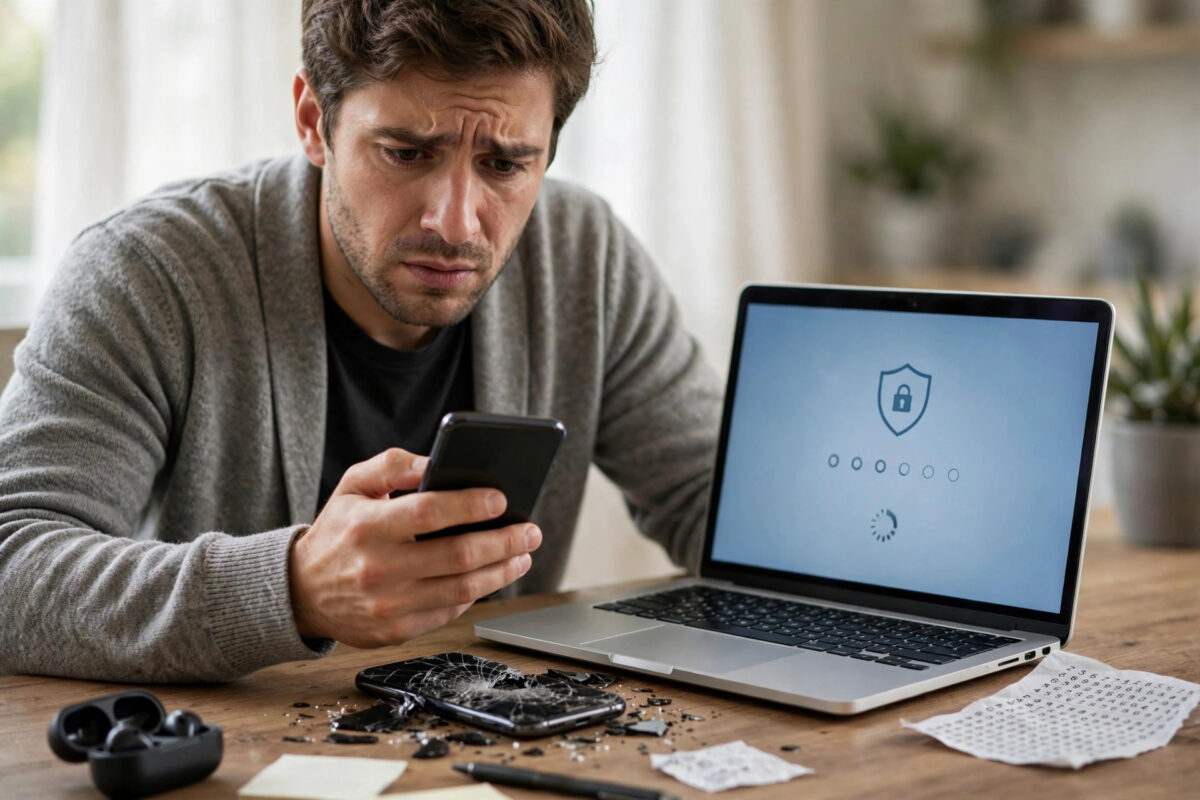
Losing your authenticator app is a sickening moment. You type your Discord password correctly, the two-factor prompt appears, and you realise the phone with your codes is gone, broken, reset, or wiped. Without that six-digit code, Discord will not let you in, no matter how sure you are of your password.
Do not panic, and do not create a new account yet. There are several legitimate ways back in, starting with backup codes and other logged-in devices, and ending with Discord’s support process. Work through them in order, because the earlier options are far faster.
Quick Answer
To recover a Discord account when your authenticator is lost, first try any device where you are still logged in and view or regenerate your backup codes from User Settings, then use a backup code to sign in and set up a new authenticator. If you have no backup codes and no active session, check whether you enabled SMS backup authentication, and if none of that works, contact Discord support with proof you own the account, understanding they may be unable to remove two-factor authentication for security reasons.
Understanding What You Lost
Two-factor authentication, or 2FA, adds a second proof beyond your password. With an authenticator app, that proof is a time-based code generated from a secret key stored only on your old device. Discord does not keep a copy it can simply email you, which is exactly what makes the system secure.
When you first turned on 2FA, Discord also gave you backup codes. Each code works once and exists precisely for this emergency. Recovering your account is mostly a hunt for one of three things: a backup code, an existing logged-in session, or an SMS backup if you set one up.
What Discord Support Can and Cannot Do
Be clear-eyed about the last resort. For security, Discord support generally cannot switch off 2FA on an account just because someone asks, because that would let attackers steal accounts by pretending to lose their phones. Policies can change, and the team at Discord Support is still the official channel to ask, but you should exhaust the self-service routes first and set honest expectations.
Step-by-Step Recovery Options
- Check for a device still logged in. Look at every phone, tablet, laptop, and browser where you have used Discord. If any session is still active, do not log out of it. That session is your golden ticket.
- Get backup codes from the active session. Open User Settings, go to My Account, and find the two-factor section. View your backup codes after entering your password, or download them if offered.
- Use a backup code to sign in. On the login screen, enter your password, then enter one backup code in place of the authenticator code. Each code works only once.
- Set up a new authenticator immediately. Once inside, disable the old 2FA and enable it again with your new phone or app, scanning the fresh QR code.
- Save the new backup codes safely. Download them, store them in a password manager, and keep an offline copy somewhere secure at home.
- Try SMS backup if you enabled it. If you added SMS authentication on a Nitro account, the login screen may offer to send a code by text instead. Use that path if it appears.
- Search your old files for saved codes. Many people saved a screenshot or a text file named something like discord_backup_codes when they enabled 2FA. Search your downloads, photos, cloud drive, and password manager.
- Check your password manager or browser. Some authenticator and password tools back up 2FA secrets. If you migrated apps or phones properly, your Discord entry may exist in the new app already.
- Contact Discord support as the final step. Use the email address linked to the account, explain the situation, and provide any proof of ownership you have, such as Nitro receipts or the account’s creation details.
If You Still Have Your Old Phone Number
An authenticator app is not tied to your SIM card, so getting the same number back does not by itself restore your codes. However, if you enabled SMS backup authentication, regaining your number does restore that route. It is also useful for proving ownership of the account during any support conversation, so keep the number active if you can.
Setting Up 2FA Again the Right Way
Once you are back in, rebuild your security so this never happens twice. Rushing this step is how people lock themselves out a second time.
- Use an authenticator with cloud backup. Modern authenticator apps can back up your codes securely, so a lost phone is an inconvenience, not a disaster.
- Keep backup codes in two places. A password manager plus a printed copy in a safe place at home covers most situations.
- Add more than one method. Where Discord and your account allow it, enable additional options such as security keys or SMS backup.
- Stay logged in on a trusted home device. A permanent session on your own PC acts as an emergency door back into your settings.
- Test a backup code once. Log in on a private window using a backup code to confirm the system works, then save the remaining codes.
If you are rebuilding access across accounts after losing a phone, our guide on clearing up verification loops when signing in to a new job account shows the same careful, one-method-at-a-time approach.
Protecting the Account After Recovery
After a scare, review your account properly. Change your password to a new unique one, check the authorised apps connected to your account and remove anything you do not recognise, and review your active sessions. If anything looks unfamiliar, treat the loss as a possible security incident, not just an accident, and secure your email account too, because email is the master key to most resets.
Common Mistakes to Avoid
- Logging out of your last active session. People often log out everywhere while troubleshooting. If one device still has access, protect that session above everything.
- Trying random codes repeatedly. Guessing does nothing and can trigger temporary locks. Codes from the wrong app entry or an old account will never work.
- Deleting the authenticator app before moving codes. When changing phones, transfer or re-add every account first, and confirm each one works, before wiping the old device.
- Creating a new account in a panic. A new account loses your friends list as a recovery route, your servers, and your Nitro history, and support treats it as a separate account.
- Trusting third-party “recovery” services. Anyone offering to bypass Discord 2FA for a fee is running a scam. Only Discord and your own backup methods can restore access.
Conclusion
Recovering a Discord account without your authenticator comes down to what you saved before the loss: backup codes, an existing logged-in device, or an SMS backup. Hunt for those first, starting with any active session and any file or photo where your codes might live. When you get back in, disable and re-enable 2FA with your new device and store the fresh backup codes in two safe places. And if support is your only remaining route, approach it with honest expectations, because the strictness that frustrates you now is the same strictness that keeps stolen accounts locked.
Frequently Asked Questions
Can Discord support remove 2FA from my account for me?
Usually not as a routine request, because removing it on request would defeat its purpose against account theft. Support remains the official channel to explain your case, but you should rely primarily on backup codes, active sessions, or SMS backup where you enabled them.
Where would I have saved my Discord backup codes?
Discord offered them when you enabled 2FA, often as a downloadable text file or a screen of codes to copy. Common places are your Downloads folder, a screenshot in your photos, a note in your password manager, or a file shared to your cloud storage at that time.
I am still logged in on my phone. What should I do first?
Do not log out. Open User Settings, go to My Account, view your backup codes using your password, and use one to sign in on your other device. Then turn 2FA off and back on to register your new authenticator, and save the new backup codes.
Does getting my old phone number back restore my authenticator?
No, authenticator codes live in the app, not on the SIM. The number only helps if you set up SMS backup authentication, or as proof of identity. Check whether your new authenticator app restored entries from a cloud backup instead.
What if I have no backup codes and no logged-in device?
Your remaining options are SMS backup if it was enabled, any authenticator cloud backup you may have, and contacting Discord support with strong proof of ownership. If none succeed, the account may be unrecoverable, which is why storing backup codes matters so much.



Leave a Reply