
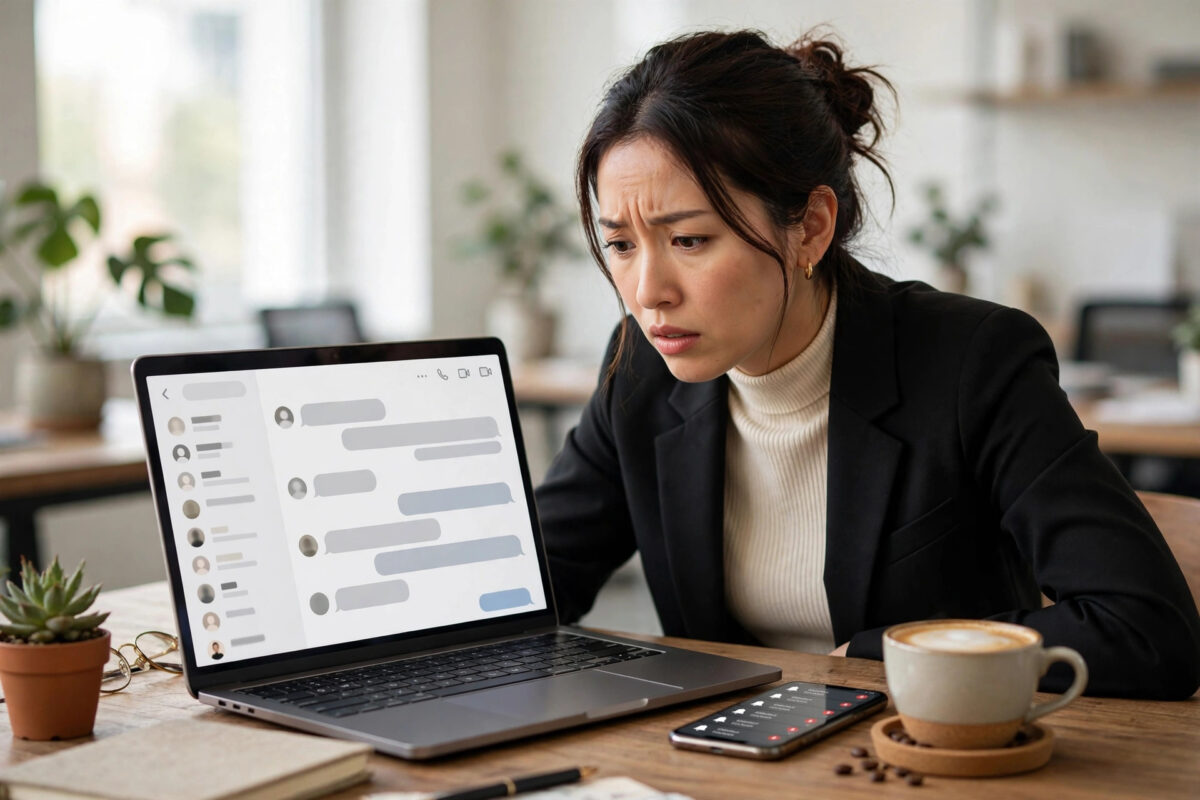
It can feel awkward and confusing when LinkedIn shows your messages as read before you have actually opened them. The other person sees the read marker, expects a reply, and you have not even looked at the conversation yet. Sometimes the opposite worry appears too: you opened a chat briefly, and now feel pressured to respond instantly.
This behaviour is rarely a bug in your account. LinkedIn marks messages as read in several situations that are easy to trigger by accident, from preview windows to other logged-in devices. Once you know what triggers it, you can control it.
Quick Answer
LinkedIn marks a message as read when the conversation is opened or displayed on screen, including in the messaging overlay window, the mobile app preview, or on another device where you are logged in. To stop it, close the messaging overlay, turn off read receipts in Settings under Communications if you prefer privacy, and check every device signed in to your account. Read receipts can be disabled, which hides the read status for both sides.
How LinkedIn Read Receipts Actually Work
LinkedIn shows a small indicator under your last message when the other person has seen it, and the same happens in reverse for messages sent to you. The system treats a message as seen when the conversation thread is rendered on your screen, not when you carefully read every word.
That detail explains most surprises. If the chat window pops open while you browse your feed, if the app loads the thread in the background, or if a notification preview expands the thread, LinkedIn may count it as read. The official LinkedIn Help Center describes how read receipts and typing indicators work, and confirms they can be switched off in your settings.
Read receipts also work as a pair. If you turn them off, you stop sending them, but you also stop seeing them from other people. There is no setting to secretly keep seeing receipts while hiding your own.
Common Reasons Messages Show as Read Early
- The messaging overlay at the bottom of the LinkedIn website opened the thread while you were doing something else.
- You tapped a push notification, which opened the conversation even if you closed it a second later.
- The mobile app preloaded the thread when you opened the Messaging tab to check a different conversation.
- A second device, such as a work computer or tablet, is logged in and displayed the message.
- An email or browser session was left open and refreshed with the conversation visible.
- A shared or managed account was viewed by an assistant or team member, where accounts are used for business pages.
Work through this list before assuming anything is wrong with your account security. In most cases, one of your own sessions opened the thread.
Turn Off Read Receipts Step by Step
On Desktop
- Click your profile icon at the top of LinkedIn and select Settings and Privacy.
- Open the Communications section on the left side.
- Find the option for read receipts and typing indicators.
- Switch it off and wait for the change to save automatically.
- Send a test message to a trusted contact to confirm the marker no longer appears.
On the Mobile App
- Tap your profile picture and open Settings.
- Tap Communications, then Messaging experience.
- Find read receipts and typing indicators and toggle them off.
- Close and reopen the app so the setting applies cleanly.
Remember the trade-off: with receipts off, you will not see when others read your messages either. Many professionals accept this gladly in exchange for replying at their own pace. You can compare this behaviour with other platforms in our guide on turning off read receipts across popular messaging apps.
Check Your Other Logged-In Sessions
If messages keep showing as read at times when you are not using LinkedIn at all, check where your account is signed in.
- Open Settings and Privacy, then Sign in and Security.
- Select the option that shows where you are signed in.
- Review every device and location carefully.
- Sign out of any session you do not recognise, or sign out of all sessions for safety.
- Change your password and enable two-step verification if anything looks unfamiliar.
An old work laptop, a browser you used on a shared computer, or a phone you upgraded from can all sit quietly logged in and mark messages as read when they sync. Signing out everywhere and logging back in only on your current devices gives you a clean start.
Use Notifications Without Opening Threads
Your daily habits matter too. If you want to preview a message without marking it read, while receipts are still on, be deliberate about how you look at it.
- Read the short preview inside the push notification or email alert without tapping through to the thread.
- On desktop, avoid clicking the Messaging icon just to clear the badge, because loading the thread marks it read.
- Keep the messaging overlay collapsed while browsing your feed so threads do not render accidentally.
- Reply in planned batches. Open a conversation only when you are ready to respond.
These habits are a workaround, not a guarantee. The only reliable way to stop sending read markers is switching receipts off in settings.
Understand the Difference Between Seen, Delivered, and Notifications
Part of the confusion comes from three different signals that look similar. A message can be delivered to your account without being seen. It can trigger a notification on your phone without the thread being opened. And it can be marked as seen only when the conversation itself is displayed inside LinkedIn.
Problems start when those signals overlap. For example, opening the LinkedIn app to check a job alert may load your most recent conversation in the background, especially if you left the Messaging tab open last time. The sender then sees a read marker, even though you never looked at their message.
A useful habit is to always return to the Home feed before closing the app, rather than leaving it parked on the Messaging screen. That small step reduces accidental thread loads when you reopen the app later. Similarly, on desktop, close the chat overlay fully instead of minimising it with a conversation still open inside.
What About InMail and Sponsored Messages?
InMail and sponsored messages follow similar display rules, but senders of paid messages often watch response and open rates closely for work reasons. If you manage a company page or recruitment activity, remember that team tools and shared inboxes can also display threads and trigger seen markers for the whole team. Agree within your team who opens what, and when, so nobody creates pressure for a reply before you are ready as a business.
Common Mistakes to Avoid
- Do not panic and assume your account is hacked at the first early read marker. Check your own devices and the overlay window first.
- Do not expect turning receipts off to change old conversations. The setting applies going forward, and markers already sent stay sent.
- Do not use third-party apps that promise invisible reading. They often break LinkedIn rules and can put your account at risk.
- Do not ignore unknown sessions in your security settings. If a device is genuinely not yours, sign it out and change your password immediately.
- Do not open threads accidentally from notification emails if you are not ready to reply. Read the preview text only.
Conclusion
LinkedIn messages show as read early because the platform counts a thread as seen the moment it appears on any of your screens, including overlays, notification taps, and other logged-in devices. Turn off read receipts in the Communications settings if you want full control, review your active sessions for safety, and build careful preview habits. With those three steps, you decide when a conversation truly counts as read: when you are ready to answer it.
Frequently Asked Questions
Can I turn off read receipts for one person only?
No. LinkedIn applies the setting to your whole account. Turning it off hides read markers for all conversations, and you also stop seeing receipts from everyone else.
Why did a message show as read while I was asleep?
Another logged-in device probably synced and displayed the thread, or an app refreshed in the background. Check your active sessions in Sign in and Security and sign out of anything old or unfamiliar.
Does reading the email notification mark the message as read?
No. Reading the email itself does not mark the LinkedIn message as read. The marker appears when the conversation opens inside LinkedIn on the website or the app.
If I turn receipts back on, will old messages show receipts again?
Generally, receipts apply to messages viewed while the setting is on. Conversations you opened while receipts were off do not gain markers later in most cases.
Can the sender see exactly when I read their message?
LinkedIn shows that the message was seen, and in some views a time indicator appears. Turning off read receipts removes this information for messages you open afterwards.



Leave a Reply