
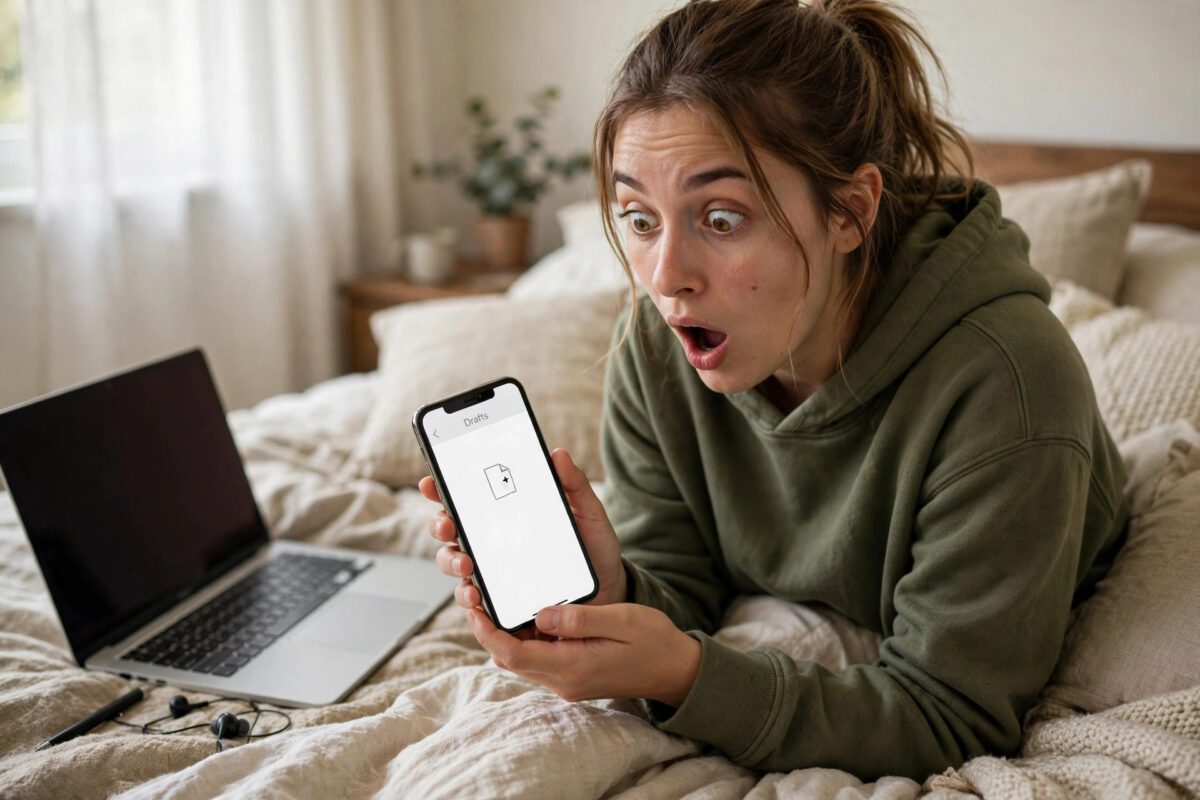
Drafts are where creators keep their half-finished ideas — sometimes dozens of them, filmed over weeks. So when a TikTok update finishes and your drafts folder is suddenly empty, it feels like losing a notebook. Before you assume the worst, understand how drafts actually work: they are stored locally on your phone, inside the app’s data, not in your TikTok account or the cloud. That single fact explains why updates can disturb them, what can still be recovered, and how to make sure it never happens again.
Here is what to check when drafts vanish after an update, and how to protect them going forward.
Quick Answer
TikTok drafts live only on the device where they were created. After an update they may appear missing because you are signed in to a different account, the app is showing a different device or profile, or the update cleared the app’s local data. First check you are on the same account and look in the drafts folder on the profile page. If the app data was wiped — especially if you uninstalled and reinstalled — the drafts are unfortunately gone, because they were never uploaded anywhere.
Step 1: Confirm You Are Looking in the Right Place
It sounds basic, but after an update the app sometimes opens signed out or on a secondary account, and drafts are tied to the account and device combination.
- Open TikTok and go to your profile. Confirm the username is the account that held the drafts.
- Tap the drafts folder shown on your profile grid. Drafts do not appear in the normal video list.
- If you manage more than one account, switch to each and check its drafts folder separately.
- Also confirm you are on the same phone. Drafts do not follow you to a new device — if the “update” coincided with a phone change, the drafts are still on the old phone, a situation covered in our guide on recovering drafts after switching phones.
Step 2: Check Whether the Update Damaged the App Data
A normal update should preserve drafts, because it keeps the app’s data folder. Drafts disappear when that data goes — through a “clear data” action, an aggressive phone cleaner or storage optimiser running during the update, an update that failed and forced a reinstall, or the user uninstalling TikTok and reinstalling it, which many people casually call “updating.”
Ask yourself honestly which happened. If TikTok was uninstalled at any point, its local data — including every draft — was deleted with it. Unfortunately there is no TikTok-side copy to restore from, because drafts are never sent to TikTok’s servers. TikTok’s own help information on drafts, linked from its support pages about saving and managing drafts, makes clear that drafts are stored on the device.
Step 3: Hunt for Survivors Outside the App
Even when in-app drafts are gone, pieces of them may survive:
- Saved copies: If you ever tapped “Save to device” or enabled the option to save drafts to your album when posting, finished versions may sit in your gallery.
- Raw clips: Videos filmed with the phone’s camera before editing in TikTok remain in your gallery untouched.
- Downloads folder and file manager: Search for recent video files by date. Some versions leave exported files behind even when the draft index is gone.
- Cloud photo backups: If your gallery syncs to Google Photos or iCloud, check there for any saved versions.
Clips filmed entirely inside TikTok and never saved anywhere are the ones truly lost with the app data. Knowing which category your drafts were in tells you how hard to keep searching.
Step 4: Stabilise the App
If drafts are missing but the app also behaves oddly after the update — crashing, showing blank folders — the installation itself may be half-broken. Update TikTok once more if a newer version exists, restart the phone, and check drafts again. On Android, clearing the app cache (not data) from system settings is safe and sometimes revives a confused drafts index. Never clear app data while hunting for drafts: that deletes the very storage where drafts live.
Step 5: Protect Your Drafts From Now On
Once you have felt this loss, prevention becomes a habit worth building:
- Post or save important drafts: For any draft you would grieve, either post it privately (“Only me”) so TikTok’s servers hold a copy, or save the video to your device album from the draft editor.
- Keep raw clips: Film key footage with the phone camera first, then edit in TikTok, so the originals always exist outside the app.
- Never uninstall to fix problems: Updates in place are safe; uninstalling erases drafts. Clear cache instead.
- Be wary of cleaner apps: Phone “optimisers” that clear app data can take drafts with them. Exclude TikTok or avoid them.
- Back up before big changes: Before switching phones or doing a factory update, save or privately post every draft that matters.
Recovering the Ideas, If Not the Files
When drafts are truly gone, the files are gone — but the ideas are not, and creators often undersell what they can rebuild. Your TikTok watch and search history can remind you of the sounds and trends each draft used. Your gallery usually holds outtakes, earlier takes, and the photos you shot the same day, which jog memory surprisingly well. Even your messages help: if you described the draft to a friend, that chat is a rough script.
Spend twenty minutes writing down everything you remember about the lost drafts while it is fresh. Many creators find the second version of a video comes out better than the lost first draft, because the idea had time to mature. It is a poor consolation, but a real one — and with the protective habits from Step 5 in place, it is a consolation you will only need once.
Common Mistakes to Avoid
- Clearing app data while troubleshooting: It guarantees the drafts are gone.
- Assuming drafts are in the cloud: They are not. Your account holds posts, not drafts.
- Reinstalling repeatedly: One reinstall already removed the data; more reinstalls change nothing and waste time.
- Trusting recovery apps: Tools promising to restore deleted app data after an uninstall are unreliable at best and scams at worst.
Conclusion
Drafts disappearing after an update almost always comes down to local storage: a different account view, a different device, or app data that was wiped along the way. Check the account and device first, search your gallery and cloud backups for saved copies, and accept that truly local-only drafts cannot be restored once data is cleared. From today, treat drafts as fragile: save or privately post anything that matters, and your next update will hold no fear.
Frequently Asked Questions
Does TikTok keep a copy of my drafts on its servers?
No. Drafts are stored only in the app’s local data on the device where you created them. TikTok’s servers hold your posted videos, including private ones, which is why posting a draft privately is the safest backup method.
I only updated the app, never uninstalled. Why are drafts gone?
Check the account first — updates sometimes sign you out or switch accounts, and drafts belong to the account-device pair. Also check whether a phone cleaner or storage optimiser cleared app data during the same period.
Can TikTok support restore my drafts?
No. Because drafts never leave your device, support has no copy to restore. They can help with account problems, but deleted local data is beyond their reach.
Will clearing the cache delete drafts?
Clearing the cache is generally safe for drafts, because drafts live in app data, not the cache. Clearing data is the destructive action. On Android, use Settings, Apps, TikTok, Storage, Clear cache only.
How do I save a draft to my phone album?
Open the draft, proceed to the posting screen without publishing, and use the save-to-device option where your version offers it; alternatively, post it with visibility set to “Only me” and then download it from your profile. Either way, you end up with a copy outside the drafts folder.



[…] drafts also vanished from the old phone itself around an update, our companion guide on drafts disappearing after an app update explains the local-storage causes and the survivor hunt in more […]