
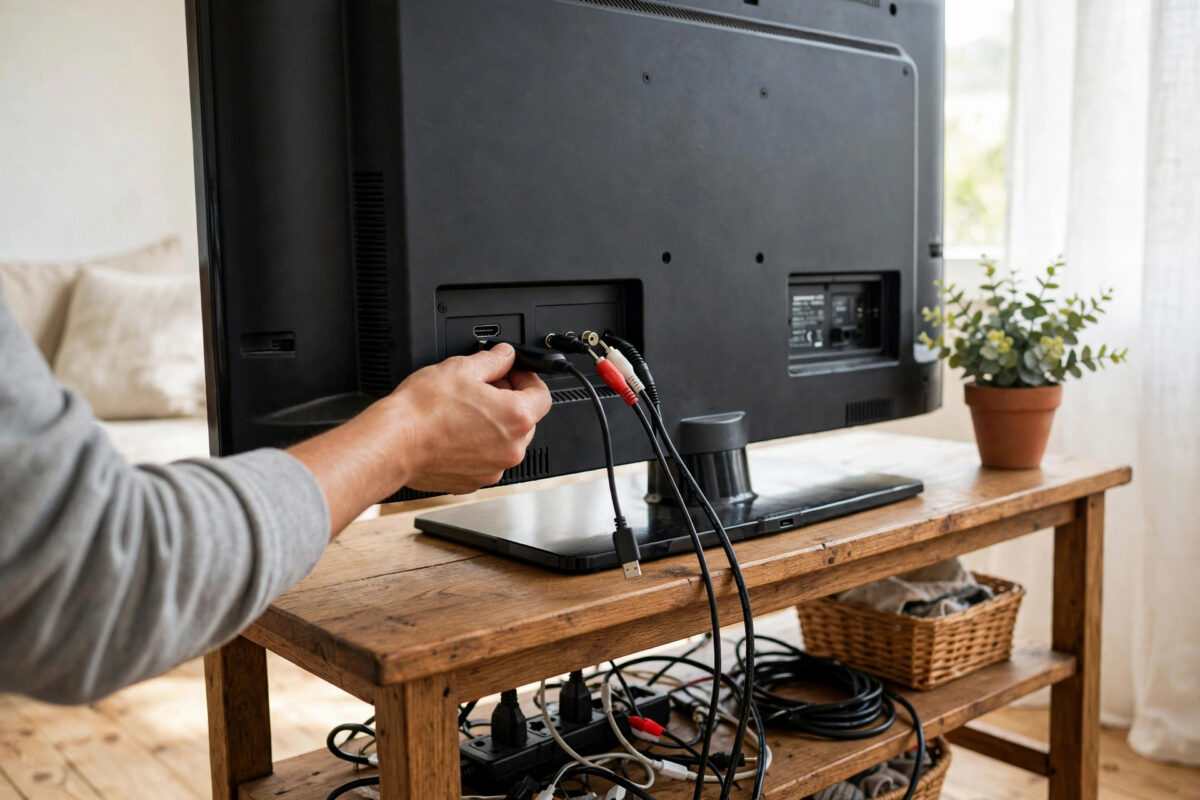
An older TV with a good picture does not need replacing just because it has no apps built in. If it has an HDMI port, you can give it Netflix, YouTube, Disney+, and almost every modern streaming service for far less than the cost of a new TV.
The trick is a small streaming stick or box. It plugs into the TV, connects to your Wi-Fi, and does all the smart work itself. Your old TV simply becomes the screen.
This guide explains what to buy, what you need before you start, and how to set everything up step by step, including options for very old TVs without HDMI.
Quick Answer
To add streaming to an older non-smart TV, buy a streaming stick or box such as a Fire TV Stick, Roku, Chromecast, or Apple TV, plug it into a free HDMI port, connect it to power, and follow the on-screen setup to join your Wi-Fi and sign in to your apps. The whole process usually takes 15 to 30 minutes and works on any TV with an HDMI port.
What a Streaming Stick or Box Actually Does
A streaming device is a tiny computer built for one job: running streaming apps. It connects to the internet itself, loads Netflix or YouTube itself, and sends only the picture and sound to your TV through the HDMI cable. Your TV does not need to be smart, new, or even have Wi-Fi.
Sticks plug directly into the HDMI port and hide behind the TV. Boxes sit on the shelf below and usually offer a little more power, extra ports, or a wired internet connection. Both do the same basic job, and both come with their own remote, so you will not need your old TV remote except for turning the TV on and choosing the input.
What You Need Before You Start
- A TV with a free HDMI port: Check the back or side of the TV. Most TVs from the last 15 years or so have at least one.
- Home Wi-Fi and its password: The stick connects wirelessly, so the signal should reach the TV room reasonably well.
- A power socket near the TV: Some sticks can draw power from a TV USB port, but a wall adapter is more reliable.
- An email address: You will create or use an account for the device brand, such as an Amazon, Roku, Google, or Apple account.
- Your streaming logins: Netflix and other paid services need your existing sign-in details. The subscriptions themselves do not change.
The Main Devices to Choose From
Amazon Fire TV Stick
Often the cheapest option and very easy to set up if you already use Amazon. The remote includes voice search. Picture quality goes up to 4K on the higher models, though an older HD TV will simply show HD.
Roku streaming players
Roku is known for the simplest home screen of all: a plain grid of apps with no fuss. Roku Support lists current models and setup help. Roku suits people who want streaming without learning a complicated menu.
Chromecast with Google TV
This runs Google TV, with strong recommendations and voice search through Google Assistant. It also lets you cast videos from your phone. Our full walkthrough on how to set up a Chromecast on any TV covers that side of it in detail.
Apple TV 4K
The premium option. It is fast, has no adverts on the home screen, and fits neatly into homes that already use iPhones and iPads. It costs several times more than a stick, so it makes most sense if you value speed and the Apple ecosystem.
Step-by-Step Setup for Any Stick or Box
- Plug the device into a free HDMI port on the TV. Note the port number, such as HDMI 1 or HDMI 2.
- Connect the power cable. Use the supplied wall adapter where one is included.
- Turn on the TV and switch the input to the HDMI port you used. The remote Source or Input button does this.
- Put the batteries in the new remote and follow any pairing instruction on screen.
- Choose your language and connect to your home Wi-Fi using your normal password.
- Wait while the device checks for updates. Let it install them and restart if asked.
- Sign in with the brand account, or create one using your email address.
- Download the apps you use, such as Netflix, YouTube, and Disney+, from the device app store.
- Sign in to each app. Many let you approve the sign-in on your phone instead of typing with the remote.
- Play a video to check the picture and sound, and adjust the volume with the new remote.
Most devices also offer to control the TV power and volume from their own remote. Accept that option during setup, and daily use becomes a one-remote job.
What If Your TV Has No HDMI Port?
Very old TVs with only SCART or the red, white, and yellow RCA sockets need one extra piece: an HDMI to AV converter box. The streaming stick plugs into the converter, and the converter plugs into the old sockets on the TV.
Be realistic about the result. The picture will be standard definition and a little soft, because the TV itself cannot show more. Sound and menus still work fine, and for news, older shows, and casual watching it is perfectly watchable. Converters are cheap, but buy one described as HDMI input to AV output, since the reverse type does the opposite job.
For setup help with phone-based options too, Google TV Help covers Chromecast requirements and casting from Android phones and Chrome browsers.
Tips for the Best Results on an Old TV
- Use the wall adapter for power: TV USB ports often switch off with the TV, which makes the stick restart slowly every time, and some do not provide enough power.
- Keep the Wi-Fi signal strong: If the TV is far from the router, a stick with an external position, or an HDMI extender cable included in many boxes, can help it catch a better signal.
- Match the resolution: Devices detect the TV ability automatically, but if the picture looks odd, set the display output to 1080p or 720p manually in settings.
- Update everything once: Run a final software update after setup so apps start on their latest versions.
- Label the input: Many TVs let you rename HDMI 1 to Streaming. It saves confusion for everyone else in the house.
Common Mistakes to Avoid
- Buying a 4K device expecting a 4K picture: The device may support 4K, but an HD TV will still show HD. Buy the cheaper HD model unless you plan to upgrade the TV soon.
- Plugging power into a weak USB port: Random restarts and update failures often trace back to USB power from the TV.
- Forgetting the Wi-Fi password: Setup stalls without it. Find it before you begin.
- Paying for duplicate subscriptions: Your existing Netflix or Disney+ account works on the new device at no extra cost. Sign in, do not subscribe again.
- Throwing away the old remote: You may still need it for TV settings like picture mode, even if the stick remote handles daily use.
Conclusion
Adding streaming to an older non-smart TV is one of the best-value upgrades in home entertainment. A stick or box costing a fraction of a new TV brings it the same apps, the same services, and often a faster, nicer menu than many built-in smart systems. Plug it into HDMI, give it power and Wi-Fi, sign in, and your old TV is modern again in under half an hour.
Frequently Asked Questions
Will a streaming stick work on any TV?
It works on any TV with an HDMI port, which covers most TVs made in the last 15 years. For older TVs with only SCART or RCA sockets, you need a small HDMI to AV converter as well. The picture quality is limited by the TV, not the stick.
Do I need a smart TV to use Netflix?
No. The streaming device runs Netflix itself and sends the picture to the TV. Your TV only needs to display the HDMI input. Your existing Netflix subscription works with no extra charge.
Which is better for an old TV, a stick or a box?
For most older TVs, a stick is enough and costs less. A box is worth it if you want a wired Ethernet connection, extra storage for apps, or the fastest performance. On an HD screen, both show the same picture quality.
Can one streaming stick be moved between TVs?
Yes. Unplug it and plug it into another TV HDMI port. It remembers your Wi-Fi and accounts as long as the new location uses the same network. If you move it to a different home, you will need to join the new Wi-Fi.
Does a streaming stick slow down an old TV?
No. The stick does all the processing itself, so the TV age does not affect speed. In fact, menus on a new stick often feel faster than the built-in system of a mid-range smart TV from several years ago.



Leave a Reply