
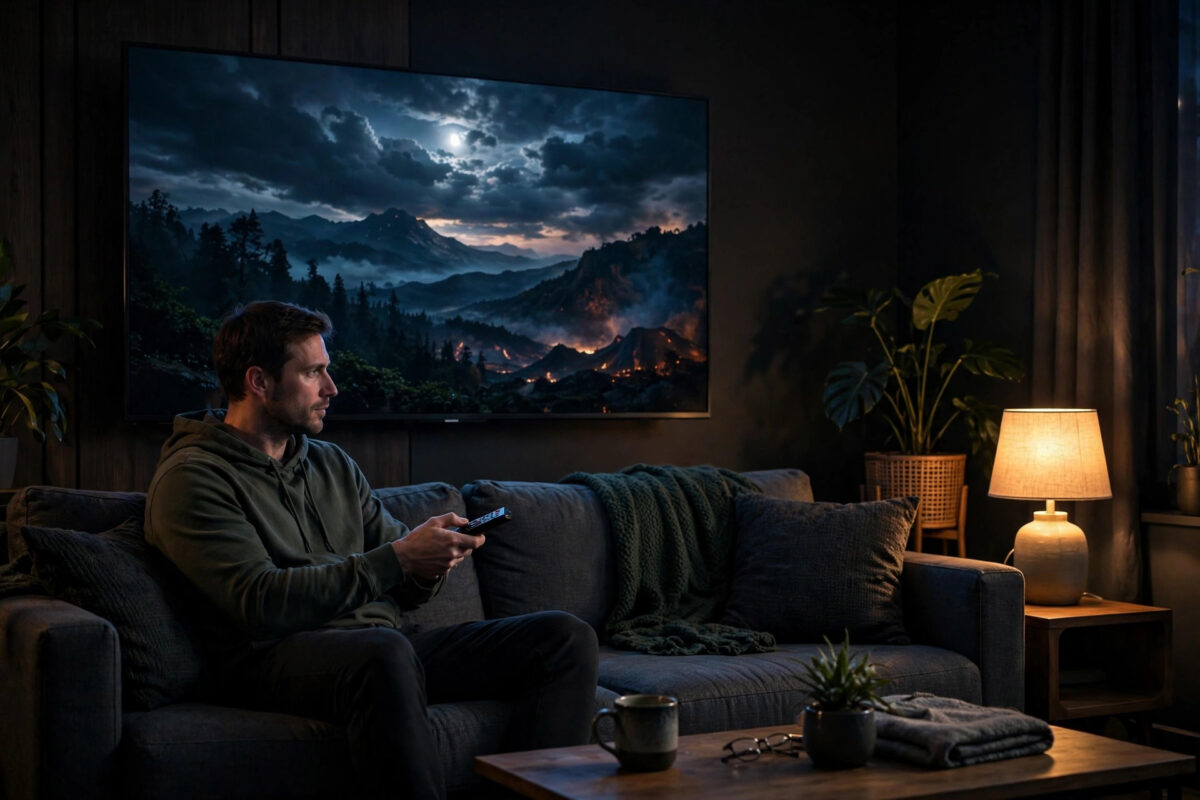
Dolby Vision is supposed to deliver the richest, most accurate picture your TV can produce, with deeper blacks and brighter highlights than standard video. So it is deeply frustrating when a film in Dolby Vision looks the opposite: grey, flat, and washed out, as if a thin fog sits over every scene. The good news is that this problem is almost never a broken TV. It is usually a settings clash, a picture mode issue, or a weak connection forcing a poor-quality stream.
This guide works through the causes in the order you should check them, from the two-minute fixes to the deeper settings. It applies whether you stream through the TV’s own apps, an Apple TV, a Fire TV Stick, a games console, or another external box, because those different sources are exactly where many Dolby Vision problems begin.
Quick Answer
Dolby Vision usually looks washed out because the TV is using the wrong Dolby Vision picture mode, the brightness or backlight has been reduced, or the source device is sending a mismatched signal. Switch the TV to Dolby Vision Bright in a lit room or Dolby Vision Dark in a dark room, turn off energy-saving and ambient light adjustment, confirm the HDMI port is set to its enhanced format, and check that your streaming app is actually delivering a full-quality Dolby Vision stream rather than a low-bitrate fallback.
First, Confirm You Are Really Watching Dolby Vision
Before changing anything, confirm the TV is receiving a Dolby Vision signal at all. Most TVs flash a small Dolby Vision badge in a corner of the screen when playback starts, or list the format in an information display when you press an info or settings button during the film.
If no badge appears, the app may be sending standard HDR or even plain SDR, which would explain a dull picture. Check that the title itself carries a Dolby Vision label on its details page, that your subscription tier includes it, and that the app is updated. A film mastered only in standard HDR will not trigger Dolby Vision no matter what you change.
Fix 1: Choose the Right Dolby Vision Picture Mode
When Dolby Vision content plays, the TV offers its own separate set of picture modes, and the default is often not the one that suits your room.
- Start playing a Dolby Vision film or episode.
- Open the TV’s picture settings while it plays. Settings changed now apply to Dolby Vision content specifically.
- Look at the current mode. Common names include Dolby Vision Dark, Dolby Vision Bright, Dolby Vision Vivid, and on some sets Dolby Vision IQ or Custom.
- In a dark or dim room, choose Dolby Vision Dark for the most accurate result.
- In a bright living room, choose Dolby Vision Bright. Dark mode in a sunlit room is the single most common cause of a washed-out, grey picture.
- Avoid Vivid if colours look unnatural; it boosts saturation and brightness at the cost of accuracy.
Fix 2: Turn Off Energy Saving and Light Sensors
Energy-saving features quietly reduce brightness, and with HDR content that reduction flattens the contrast Dolby Vision depends on.
- Eco mode and power saving: Find these under General, Power, or System settings and turn them off, at least for the input you watch films on.
- Ambient light sensors: Many TVs dim the screen based on room light. A faulty or overactive sensor can drag brightness down mid-film. Disable automatic brightness adjustment and test again.
- Dolby Vision IQ and similar features: These use the light sensor intelligently and help some viewers, but if your picture looks dull, try the plain Bright or Dark mode to remove the sensor from the equation.
Fix 3: Check the HDMI Settings for External Devices
If the problem only happens with a streaming box, console, or Blu-ray player plugged in by HDMI, the port settings are the prime suspect.
- Open the TV settings for external devices or HDMI, and find the port your device uses.
- Set that port to its enhanced format. Brands call this HDMI Enhanced, HDMI Deep Colour, Input Signal Plus, or enhanced 4K mode.
- Use the HDMI cable supplied with a 4K device, or a certified high-speed or ultra high-speed cable. Old or damaged cables can pass a picture but fail at full HDR quality.
- On the source device itself, confirm its display output is set to 4K with Dolby Vision enabled, rather than locked to SDR or standard HDR.
- If the device offers a match dynamic range option, turn it on so Dolby Vision activates only for content that supports it, instead of being forced onto everything.
Forcing Dolby Vision onto non-Dolby Vision content is a classic cause of washed-out streaming. Menus, older shows, and SDR films get stretched into a format they were never made for, and the result is pale and lifeless. Matching the content’s original range fixes this instantly, a point also covered in the official Samsung Support guidance on TV picture and HDR settings for sets that behave this way.
Fix 4: Look at Your Streaming Quality
Dolby Vision needs a healthy stream. When bandwidth drops, services protect playback by lowering quality, and the picture loses contrast and colour depth long before it starts buffering.
- Run a speed check on the TV or a phone beside it. Sustained speeds comfortably above the service’s 4K recommendation are what you want.
- Restart the router and the TV if speeds have dipped, and prefer a wired Ethernet connection or the less crowded 5 GHz Wi-Fi band for the TV.
- In the streaming app’s settings, make sure playback quality is set to high or auto rather than a data-saving option.
- Confirm your subscription tier actually includes 4K and Dolby Vision. Several services reserve both for their top-tier plans.
If buffering and quality drops affect many apps, our troubleshooting guide on why streaming apps stutter and freeze on a smart TV works through the network causes step by step.
Fix 5: Fine-Tune Brightness, Contrast, and Gamma
If the picture is close but still slightly grey, small manual adjustments inside the Dolby Vision mode can help. Change one thing at a time and judge with a familiar scene.
- Backlight or OLED pixel brightness: For HDR, this normally belongs at or near maximum. If a previous adjustment lowered it, raise it back.
- Brightness: This controls how dark the darkest parts are. If blacks look grey, lowering brightness by a small step or two can restore depth. Go too far and shadow detail disappears.
- Contrast: Keep it high for HDR. Reducing it flattens highlights.
- Gamma or black level: A black level set to high when the source expects low, or the reverse, is a classic washed-out cause with external devices. The TV and the source must agree on the same black level setting.
- Colour temperature: Warm settings are most accurate for films. Cool settings can make the image look thin and blue-grey.
The help pages at Netflix Help Centre for HDR and picture quality problems also recommend checking many of these same settings when titles look dull, because the app itself has very few picture controls of its own.
Common Mistakes to Avoid
- Judging by one title. Some films are deliberately graded with a muted look. Test with two or three different Dolby Vision titles before blaming the TV.
- Changing SDR settings and expecting Dolby Vision to change. Each format stores its own picture settings on most TVs. You must adjust while Dolby Vision content is actually playing.
- Turning every enhancement on. Dynamic contrast, noise reduction, and vivid colour tools fight against the careful grading Dolby Vision carries. Less processing usually looks better.
Conclusion
A washed-out Dolby Vision picture almost always traces back to a handful of fixable causes: the Dark mode doing battle with a bright room, energy saving quietly dimming the screen, an HDMI port not set to enhanced, a source forcing Dolby Vision onto content that lacks it, or a stream too weak to carry full quality. Work through the checks in order while a Dolby Vision title plays, and you should recover the deep blacks and rich colour the format is known for.
Frequently Asked Questions
Why does Dolby Vision look worse than standard HDR on my TV?
Usually the Dolby Vision picture mode or an eco setting is at fault, not the format itself. Standard HDR may be using a brighter default mode, while Dolby Vision has defaulted to a dark or energy-saving setup. Set Dolby Vision Bright for lit rooms, turn off power saving, and compare again with the same scene.
Why are blacks grey instead of black in Dolby Vision?
Raised blacks come from a brightness setting that is too high, a black level mismatch between the TV and an external source, or a low-quality stream. Lower the brightness control a step or two, make sure both devices agree on black level, and check your connection speed.
Should I use Dolby Vision IQ or turn it off?
Dolby Vision IQ adjusts the picture using the room’s light sensor and suits many living rooms well. If your picture looks washed out, test with it off and a fixed Bright or Dark mode selected. If the fixed mode looks better, the sensor adjustment was the problem.
Can a bad HDMI cable cause washed-out Dolby Vision?
Yes. A cable that cannot carry the full signal reliably can cause the devices to fall back to a reduced-quality connection, and some faults produce a pale or flickering image. Use a certified high-speed cable and the enhanced setting on the HDMI port.
Why does Dolby Vision look fine in one app but bad in another?
Apps differ in the quality they deliver and the subscription tier they require. One service may be sending full Dolby Vision while another sends a lower-bitrate stream or standard HDR. Check the title’s format label inside each app and your plan level on the service that looks worse.



Leave a Reply