
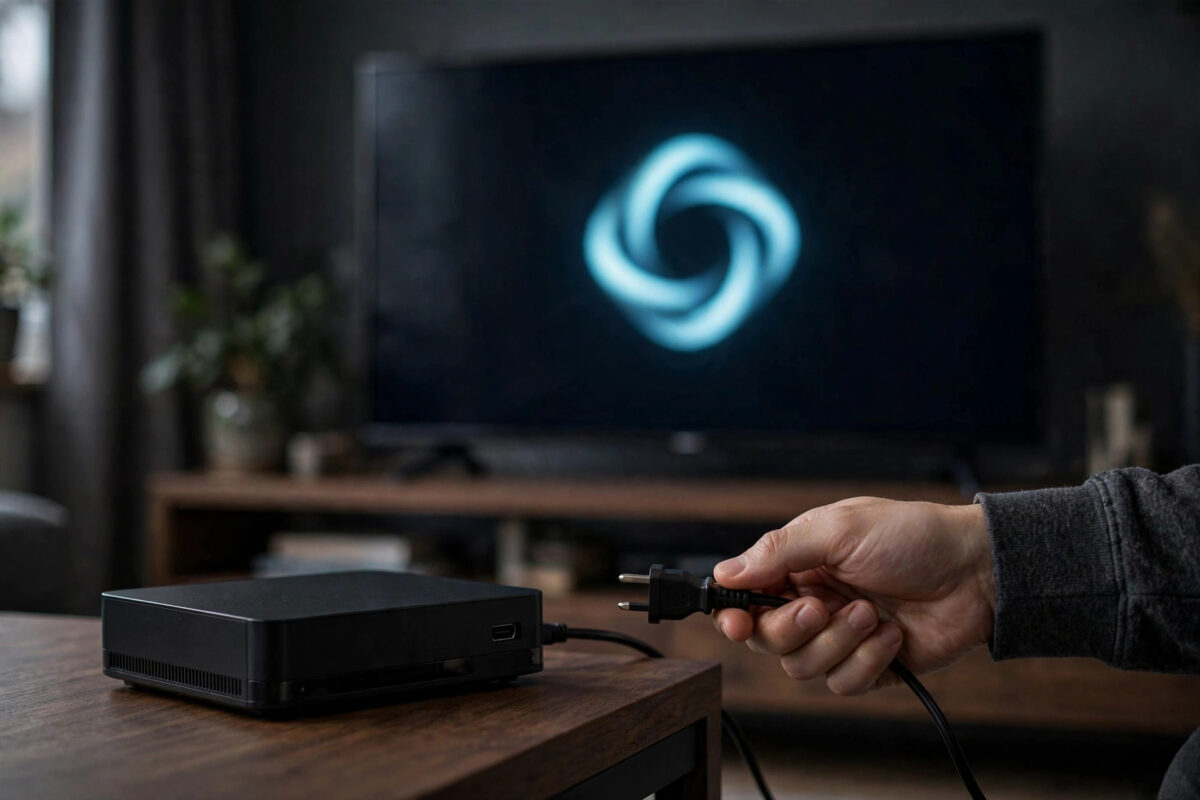
You switch on your Android TV box, the brand logo appears as usual, and then nothing happens. Minutes pass, the logo stays, and no button on the remote does anything. A box frozen on the logo screen looks seriously broken, but in most cases it is stuck during startup rather than dead.
That logo screen is the earliest stage of booting, before Android itself has loaded. A failed update, a corrupted app, a power cut at the wrong moment, or a weak power supply can all trap a box there. This guide gives you a safe order of fixes, from a proper power cycle through to recovery mode, and explains honestly when a box cannot be saved.
Quick Answer
To restart an Android TV box frozen on the logo screen, unplug its power cable, wait at least 60 seconds, then plug it back in using the original adapter and let it boot for up to 10 minutes. If it still sticks on the logo, boot into recovery mode using the reset button and clear the cache partition, and only use a factory reset in recovery as the final fix before considering the box faulty.
Why a Box Gets Stuck on the Logo Screen
When you power on an Android TV box, it loads in stages. First the hardware shows the maker’s logo, then Android itself starts, then your home screen appears. Freezing at the logo means the failure is happening very early.
- An interrupted update. If power was lost or the box was switched off during a system update, the startup files can be left damaged.
- A corrupted app or setting. Occasionally something Android tries to load at startup is broken, and the boot loops or stalls on it.
- A failing or wrong power adapter. Boxes are sensitive to low power. An adapter that delivers too little current can start the box but not carry it through boot.
- Overheating or failing storage. Old boxes run hot, and worn internal storage can develop errors exactly where the system files live.
- A connected USB device. A faulty USB drive or dongle can stall the boot while the box tries to read it.
Work through the fixes in order. Each one is more involved than the last, and most boxes recover at step one or two. For comparison, a fully set-up box should behave like the process in our guide on how to set up a Chromecast and streaming device on any TV, reaching the home screen calmly within a minute or so.
Step 1: The Proper Power Cycle
The remote cannot help you here, because Android has not loaded to listen to it. The fix is physical, and the waiting time matters.
- Unplug the power cable from the box itself, not just from the wall. Some USB-powered boxes should be unplugged at both ends.
- Wait at least 60 seconds. This drains leftover charge and fully resets the hardware state.
- While you wait, unplug every USB device, memory card, and dongle from the box. Leave only power and HDMI connected.
- Plug the power back in, using the original adapter that came with the box wherever possible.
- Watch the TV and wait a full 10 minutes before deciding it has failed. A box repairing itself after an interrupted update can sit on the logo far longer than a normal boot.
If the box now reaches the home screen, reconnect your USB devices one at a time afterwards. If reconnecting one particular device brings the problem back, that device is faulty and should not be used with the box again.
Step 2: Rule Out Power and Cable Problems
If the logo freeze repeats, test the basics that imitate a software fault.
- Try the original adapter and cable. Phone chargers and random USB cables often supply less power than the box expects. Swap in the adapter from the box’s own packaging.
- Plug directly into a wall socket. Remove extension leads and USB power from the TV itself, which often cannot supply steady power during boot.
- Try a different HDMI port and cable. A logo that appears proves there is a picture, but a failing cable can still confuse the connection. It costs two minutes to rule out.
- Let the box cool down. If it is hot to touch, leave it unplugged for 30 minutes somewhere ventilated, then try again.
Step 3: Boot Into Recovery Mode and Wipe the Cache Partition
Most Android TV boxes have a hidden reset pinhole or button, often inside the AV port or on the base, marked Reset or Recovery. Recovery mode is a small maintenance menu that works even when Android will not start.
- Unplug the box’s power.
- Press and hold the reset button. For a pinhole, use a paperclip or SIM tool and press gently until you feel a click.
- While still holding it, plug the power back in.
- Keep holding for 10 to 20 seconds until a recovery menu or an Android figure appears on screen, then release.
- Use the remote, or a USB keyboard if the remote does not respond, to highlight Wipe Cache Partition and select it.
- When it finishes, choose Reboot System Now and give the box up to 10 minutes to start.
Wiping the cache partition removes temporary system files only. Your apps and accounts stay in place, which is why this step comes before any reset. The official Android TV Help centre covers restart and reset behaviour for certified Android TV devices, although the exact button method varies on unbranded boxes.
Step 4: Factory Reset From Recovery, the Last Resort
If the cache wipe does not free the boot, the system itself is likely damaged, and a factory reset from recovery is the remaining home fix. It erases everything: apps, accounts, and settings. The box returns to its first-day state.
- Boot into recovery mode again using the same reset button method.
- Highlight Wipe Data or Factory Reset and select it.
- Confirm the reset and wait while it completes. Do not unplug the box during this process.
- Choose Reboot System Now. The first boot after a reset can take 10 to 15 minutes, so wait patiently.
- Set the box up again, sign in, and reinstall only the apps you use.
After the Reset: Stop It Happening Again
Once the box is alive, install any system update offered, because updates often contain the boot fix for the exact fault you just hit. Keep the box on its original adapter, give it airflow, and avoid cutting power while updates install. That short list prevents the great majority of repeat logo freezes.
When the Box Is Probably Faulty
Honesty matters here. If the box never reaches recovery mode, the logo does not even appear, lights flash in a repeating pattern, or a factory reset completes but the box still freezes on the logo afterwards, the internal storage or board has most likely failed. On inexpensive boxes, repair is rarely worth more than the box costs, and replacement is the sensible route. Keep your accounts safe by removing the box from your streaming services’ signed-in device lists from a phone or computer.
Common Mistakes to Avoid
- Unplugging too quickly during the wait. Giving up at two minutes defeats fixes that legitimately need ten. Use a timer and wait properly.
- Holding the reset button at the wrong time. It must be held while power is reconnected, not pressed after the logo appears.
- Using a random phone charger long-term. It may boot the box today and cause the same freeze next month. Return to the correct adapter.
- Jumping straight to factory reset. The power cycle and cache wipe save most boxes without erasing anything. A reset should be the final step, not the first.
- Interrupting the recovery process. Never unplug the box while a wipe or reset is running. That can damage the system further.
Conclusion
A box frozen on the logo screen is usually stuck, not dead. Unplug it for a full 60 seconds, remove USB extras, power it with its original adapter, and wait a patient 10 minutes. If the freeze returns, clear the cache partition from recovery mode, and keep a recovery factory reset as the final step. Only when even recovery fails should you treat the box as faulty hardware and plan a replacement.
Frequently Asked Questions
How long should I wait on the logo screen before trying a fix?
Give a normal boot one or two minutes. After a power cycle or update problem, wait a full 10 minutes before concluding the box is stuck, as self-repair can look identical to a freeze.
Will wiping the cache partition delete my apps?
No. The cache partition holds temporary system files only. Your apps, accounts, and settings remain untouched, which is why it is the safe first recovery step.
Where is the reset button on my Android TV box?
Usually a small pinhole on the base or back, or hidden inside the AV socket. It may be labelled Reset, Recovery, or Upgrade. Press it gently with a paperclip while reconnecting power.
My box has no reset button. What can I do?
Try the power cycle and adapter checks carefully first. Some boxes enter recovery by holding a remote key combination, which the maker documents. If recovery is impossible and the box never boots, it likely needs professional repair or replacement.
Can a bad HDMI cable freeze a box on the logo?
It is uncommon, but a faulty cable or port can disrupt the connection during boot. Trying another port and cable is quick and rules it out before deeper fixes.



Leave a Reply