
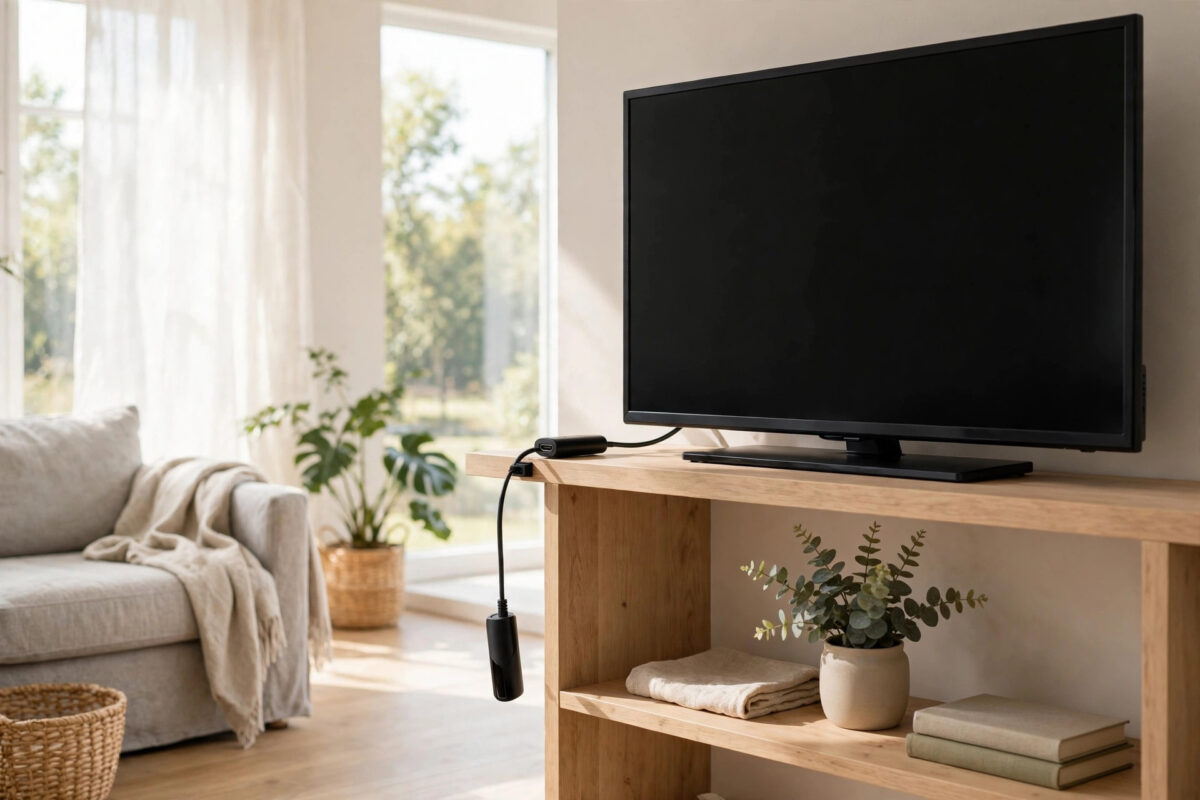
You are halfway through a film when a message warns that your Roku is overheating. Or the picture stutters, the device feels hot, and it shuts down on its own. This warning is common, and it is usually caused by where the device sits rather than a fault inside it.
Roku sticks and boxes are tiny computers with no fans. They rely on the air around them to carry heat away. This guide explains why your Roku overheats, how to cool it down safely, and how to stop the warning coming back.
Quick Answer
A Roku overheating warning means the device is too hot, almost always because it is tucked behind a TV, inside a closed cabinet, or sitting on top of another warm device with poor airflow. Turn it off, unplug it, and let it cool completely. Then move it into open air using an HDMI extender if it is a stick, keep it away from heat sources, and never place it on top of a games console, amplifier, or set-top box.
Why Roku Devices Get Hot
Streaming video is hard work. Your Roku decodes HD or 4K video, runs apps, and maintains Wi-Fi all at once, and all of that produces heat. With no fan and little space inside, that heat can only escape through the case into the surrounding air.
Roku devices are designed to run warm, so a warm stick during a long 4K film is not automatically a problem. Trouble starts when heat cannot escape. A stick behind a TV sits in hot air vented by the TV itself. Add a closed cabinet or another device underneath, and the temperature rises until the warning appears or the device shuts down.
Signs Your Roku Is Overheating
- An on-screen temperature or overheating warning appears while you watch.
- The device feels very hot to the touch, not just warm.
- Video stutters, freezes, or drops in quality even though your internet is fine.
- The Roku restarts by itself, or becomes slow and unresponsive.
- A red or flashing light pattern appears on models that have a status light.
- Problems get worse the longer you watch, and improve after the device has been off for a while.
That last sign is the biggest clue: heat problems build up over thirty minutes or more, unlike connection problems, which appear right away.
What to Do Right Now When You See the Warning
- Pause what you are watching and turn the Roku off. On a Roku TV, turn the TV off as well.
- Unplug the Roku’s power cable. If it is powered from the TV’s USB port, unplugging the USB cable or the whole device works — the point is to cut power completely so it stops generating heat.
- If it is a streaming stick, carefully unplug it from the HDMI port as well. It may be hot, so handle it by its edges and avoid squeezing it tightly.
- Place it on a hard, cool surface in open air and leave it for at least 20 to 30 minutes. Do not use it again until it feels cool to the touch.
- While it cools, fix the placement problem using the steps below, so you are not plugging it straight back into the same hot spot.
Never try to cool a Roku quickly with a fridge, freezer, cold water, or a damp cloth. Sudden cold and moisture can damage electronics and cause condensation inside the device. Patience and fresh air are the safe way, a point Roku makes in its own Roku support guidance on what to do when your player overheats.
Fix the Placement: The Real Long-Term Solution
Use an HDMI Extender for Streaming Sticks
This single change fixes overheating for most stick owners. A short HDMI extender cable lets the stick hang away from the back of the TV, surrounded by open air instead of the TV’s hot back panel. Roku has offered a free extender to stick owners through its website, so check there before buying one.
Give Boxes Open Air on All Sides
If you have a Roku box rather than a stick, place it on an open shelf where air can reach the top and sides. Leave a few centimetres of space around it. Do not stack anything on top of it, and do not push it to the very back of a shelf against a wall. If your TV unit has closed cabinets with doors, either leave the door open during viewing or, better, move the Roku out of the cabinet entirely.
Keep It Away From Other Heat Sources
Your Roku should never sit on top of a games console, AV receiver, amplifier, cable box, or soundbar, because all of these vent heat upwards straight into it. Equally, keep it out of direct sunlight, away from radiators, and not on top of the TV’s warm upper edge. If several devices share your TV unit, the Roku goes on its own shelf space, highest and clearest if possible, since hot air rises from everything below it. For more ideas on arranging your whole setup, see our guide to organising TV cables and devices for a cleaner setup.
Power It From the Wall, Not the TV
Roku recommends using the wall power adapter that came with the device instead of a TV USB port, which can supply inconsistent power and cause restarts that are easy to confuse with overheating. Use the original cable and adapter if you still have them.
Reduce the Workload Slightly
Placement fixes most overheating, but you can also reduce how hard the Roku works:
- Lower the display resolution: In Settings, then Display Type, you can set 1080p instead of 4K. Decoding 4K produces the most heat, so on a smaller TV where the difference is hard to see, this eases the load noticeably.
- Keep the software updated: Check for updates in Settings, then System, then Software Update. Updates sometimes include efficiency improvements.
When Overheating Might Mean a Faulty Device
If your Roku overheats within minutes, in open air, powered by its original wall adapter, at normal room temperature, something else may be wrong. Try these checks:
- Test the Roku on a different TV in a different room, fully in the open.
- Try a different power cable and adapter that meet the same specification.
- Perform a factory reset only after everything else, since it erases your channels and sign-ins, to rule out a software fault.
- If it still overheats quickly, contact Roku support. A device that cannot stay cool in good conditions may have a hardware fault, and if it is under warranty you should pursue a replacement rather than working around it.
Never open the device yourself, and never keep using a Roku that smells of burning plastic, shows damage or swelling, or becomes too hot to hold comfortably. Unplug it and stop using it — that is no longer an overheating warning, that is a safety issue.
Common Mistakes to Avoid
- Ignoring the warning and carrying on: Repeated overheating shortens the device’s life and leads to shutdowns mid-programme. The warning is your chance to fix placement cheaply.
- Cooling it in the fridge or with water: Rapid cooling and moisture damage electronics. Room air and time are the only safe method.
- Plugging the stick straight back into the same port: Without an extender or a new position, the warning will return in the next long film.
- Stacking the Roku on a console: Consoles and amplifiers vent serious heat. Your Roku should share shelf space with nothing warm.
- Covering the device: Do not drape anything over it, push it behind books or ornaments, or tape it flat against the back of the TV where air cannot reach it.
- Assuming warm means broken: A Roku that is warm during use is normal. Very hot to hold, warnings on screen, and shutdowns are the real danger signs.
Conclusion
Roku overheating warnings are almost always a placement problem, not a dying device. Cut the power, let the Roku cool completely in open air, and then fix the cause: use an HDMI extender on sticks, give boxes clear space on an open shelf, keep the device away from other hot equipment and sunlight, and power it from the wall adapter. Do that, and the temperature warning should disappear. If a Roku still overheats quickly in a cool, open position, treat it as a possible hardware fault and contact Roku support.
Frequently Asked Questions
Is it normal for my Roku stick to feel hot?
Warm is normal; very hot is not. Streaming sticks have no fan and sit close to a warm TV, so they always feel warm after an hour of viewing. If you see the overheating warning, the device shuts down, or it is uncomfortable to hold, it needs better airflow.
How long should I let my Roku cool down?
Leave it unplugged in open air for at least 20 to 30 minutes, and do not restart it until the case feels cool to the touch. Plugging it back in while it is still warm just starts the next warning sooner.
Does 4K streaming make overheating worse?
Yes. Decoding 4K video, especially with HDR, is the heaviest work a Roku does and produces the most heat. If your setup is marginal, setting the display type to 1080p is a practical test and a reasonable long-term compromise on smaller screens.
Can overheating damage my Roku permanently?
It can over time. That is why the device warns you and shuts down — to protect itself. Occasional warnings followed by better placement do no real harm, but months of running too hot can shorten the device’s lifespan and cause lasting glitches and restarts.
Where can I get the HDMI extender Roku recommends?
Roku has offered a free HDMI extender for streaming stick owners through its official website, and standard short HDMI extension cables are widely available cheaply. Either works — the goal is simply to move the stick away from the back of the TV into open air.



Leave a Reply