
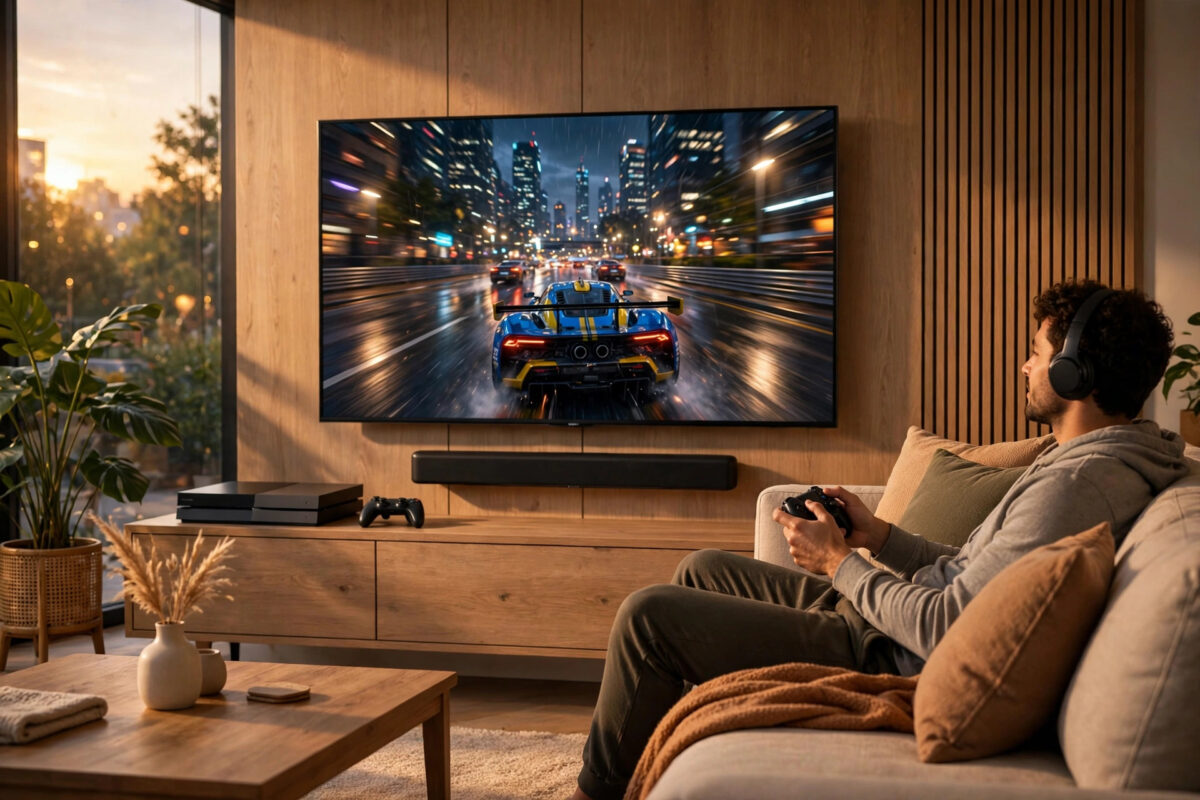
A good soundbar can completely change how a game feels. Footsteps behind you, rain around you, and explosions in front of you become easier to place when the sound is set up the right way.
Many players buy a soundbar, plug it in, and never hear true surround sound. The console, the TV, and the soundbar all need to agree on the same settings. If one link in the chain is wrong, you only get plain stereo.
This guide walks you through the full setup for PlayStation, Xbox, and Nintendo Switch. You will learn the best cable to use, the settings to change, and how to test that surround sound is really working.
Quick Answer
Connect your soundbar to your TV using the HDMI eARC port, then connect your console to another HDMI port on the TV. On your console, set audio output to HDMI, choose 5.1 or 7.1 uncompressed if your soundbar supports it, or Bitstream Dolby Digital or DTS otherwise, and set your TV audio to Passthrough with eARC On. Play a test scene to confirm sound moves correctly from left to centre to right.
What You Need Before You Start
You do not need expensive gear, but you do need the right cables and a few minutes to check your ports. Most problems come from using the wrong HDMI port.
- A soundbar that supports Dolby Digital, DTS, or Dolby Atmos
- A high-speed HDMI cable, ideally HDMI 2.0 or 2.1
- A TV with an HDMI port labelled ARC or eARC
- Your controller to open audio settings
- Optional rear speakers or a wireless subwoofer if your kit includes them
Look at the back of your TV. One HDMI port should say eARC or ARC. That is the only port that can send full-quality sound back to a soundbar. If you use a normal HDMI port, the TV cannot send sound that way, and you will need an optical cable instead.
eARC is better than standard ARC. It can carry uncompressed 5.1 and 7.1 sound and Dolby Atmos. Standard ARC is limited and usually needs compressed Dolby Digital. If your TV and soundbar both support eARC, always use it.
Step-by-Step: Connect the Soundbar the Right Way
Method 1: Console to TV, TV to Soundbar
This is the best method for most homes. The TV acts as the hub for games, apps, and TV channels.
- Turn off the TV, console, and soundbar at the wall.
- Plug an HDMI cable into the HDMI eARC port on your TV.
- Plug the other end into the HDMI OUT or eARC port on your soundbar.
- Plug your console into a different HDMI port on the TV, ideally an HDMI 2.1 port for 4K at 120Hz.
- Turn everything back on. Your TV should show a message like Audio System active.
- Set the soundbar input to HDMI, eARC, or TV, depending on your brand.
Method 2: Console Directly to the Soundbar
Some soundbars have HDMI IN ports. You can plug the console directly into the soundbar, then run a second cable from the soundbar to the TV. This can reduce audio delay on older TVs.
The downside is that many soundbars do not pass through 4K at 120Hz or other gaming video features. If your picture drops to 60Hz on PS5 or Xbox Series X, go back to Method 1.
TV Settings You Must Change
Your TV can block surround sound even when the cables are perfect. Open your TV sound menu and check these settings.
- Sound Output: Set this to HDMI Receiver, Audio System, or Soundbar, not TV Speakers.
- eARC Mode: Set eARC to On or Auto, under Advanced Audio or Expert Settings.
- Digital Audio Output: Set this to Passthrough, or Auto if Passthrough is not listed. Avoid PCM here if you want surround, because many TVs downmix it to stereo.
Brand names vary. Samsung uses HDMI-eARC Mode and Passthrough under Sound Expert Settings. LG uses Digital Sound Output Passthrough and eARC Support. Sony uses eARC Mode Auto and Digital Audio Out Passthrough. The goal is the same: let the TV pass original game audio to the soundbar without changing it.
Console Settings for Surround Sound
On PlayStation 5
- Go to Settings, then Sound, then Audio Output.
- Set Output Device to HDMI Device (Soundbar), or AV Amplifier if that option appears.
- If you choose AV Amplifier, set the channels to 5.1 or 7.1 to match your system.
- Under Audio Format Priority, choose Linear PCM for eARC, or Dolby or DTS for standard ARC or optical.
The official PlayStation guide to changing PS5 sound output settings explains each menu if your screen looks different after an update.
On Xbox Series X and Series S
- Go to Profile and System, then Settings, General, Volume and Audio Output.
- Set Speaker Audio to 5.1 Uncompressed or 7.1 Uncompressed if you use eARC.
- If you use ARC or optical, choose Bitstream Out, then Dolby Digital or DTS.
- Turn on Allow Passthrough in advanced audio settings if your TV supports it.
Microsoft lists the options in its Xbox support page for configuring surround sound settings, which also helps with older Xbox One consoles.
On Nintendo Switch
Go to System Settings, then TV Output, then TV Sound, and choose Surround Sound. The Switch outputs surround only as linear PCM, so you need eARC or a direct receiver-style connection. Through standard ARC, many TVs give stereo only, which is a limit of the console.
Place the Soundbar and Speakers Correctly
- Place the soundbar centred under the TV, close to ear height when seated.
- Do not hide it inside a closed cabinet. Sound needs a clear path to you.
- Put the subwoofer on the floor near a wall, with a small gap so bass stays clean.
- Place rear speakers behind or beside your seat, at ear height, angled toward you.
- Keep side-firing speakers clear of nearby walls if your bar uses virtual surround.
Many soundbars have room calibration. Run it after placement, sitting in your normal gaming seat. It adjusts delays and volume so sounds arrive at the right time. If you have no calibration, raise the centre channel by one or two decibels if voices in cutscenes sound too quiet. The centre channel carries most game dialogue.
For a wider comparison, our guide to the best sound settings for gaming on console compares headset, soundbar, and full speaker setups.
Choose the Right Sound Mode and Test It
Most soundbars offer Movie, Music, News, and Game modes. Game mode is the safest start because it keeps delay low and voices clear. Turn off night mode and heavy virtual effects while you test. Night mode flattens loud and quiet sounds, making explosions dull and footsteps harder to judge.
If your bar supports Dolby Atmos, enable it on the console only when the game supports it. Forcing Atmos on a stereo game does not create real height sound.
- Use the built-in speaker test on your console or soundbar. Listen for left, centre, right, and surround tones in order.
- Load a game you know well. Stand near a fixed sound, like a river or radio, and slowly turn in a full circle.
- The sound should move smoothly around you. If it stays in front, you are likely in stereo.
- Check delay. Fire a weapon or jump. Sound should match the action instantly.
If you hear delay, use Game mode on the TV, turn off extra effects, and confirm you use eARC. Bluetooth from TV to soundbar is a common cause of lag, so use wired HDMI for gaming.
Common Mistakes to Avoid
- Using the wrong HDMI port: Only the eARC or ARC port returns sound from the TV.
- Choosing PCM everywhere: PCM is great over eARC, but over ARC or optical it often means stereo only.
- Leaving TV speakers on: Sound from both TV and bar creates an echo. Set output to the soundbar only.
- Ignoring firmware updates: TVs and soundbars get audio fixes. Update both, then restart fully.
- Stacking effects: TV surround, console surround, and bar virtual surround together usually sound worse. Use one system.
- Forgetting game settings: Some games have their own audio menu. Set it to Home Theatre or Soundbar.
Conclusion
Surround sound with a soundbar is mostly about the chain: console to TV, TV to soundbar over eARC, Passthrough on the TV, and the correct format on the console. Get those four things right and most games will sound wide, clear, and directional.
Take ten minutes to place the bar well, run calibration if you have it, and test with a game you know. Small fixes like raising the centre channel can matter more than buying new gear.
Frequently Asked Questions
Can a soundbar give real surround sound without rear speakers?
A single bar can create virtual surround by bouncing sound off walls. It can sound wide, but it is not the same as real rear speakers behind you. For clearest direction in competitive games, a bar with separate rears is better.
Is HDMI eARC better than optical for gaming?
Yes. Optical is limited to compressed 5.1 and cannot carry uncompressed 5.1, 7.1, or Dolby Atmos. eARC carries all of those and lets your TV remote control the bar volume. Use optical only if you have no ARC port.
Why do voices sound quiet but explosions sound too loud?
The centre channel is usually too low. Raise its level by a few decibels and check the game is set to Home Theatre. Also try setting dynamic range to Full in the game menu.
Should I use Dolby or DTS for games?
Both work well. Use whichever your TV and bar pass through without delay. Over eARC, uncompressed PCM is often best. Over ARC, Dolby Digital is supported by more TVs than DTS.
Why is there a delay between picture and sound?
Delay comes from TV or soundbar processing, or a wireless link. Use HDMI eARC, enable Game mode, turn off extra effects, and adjust the audio sync slider in the soundbar menu if needed.



Leave a Reply