
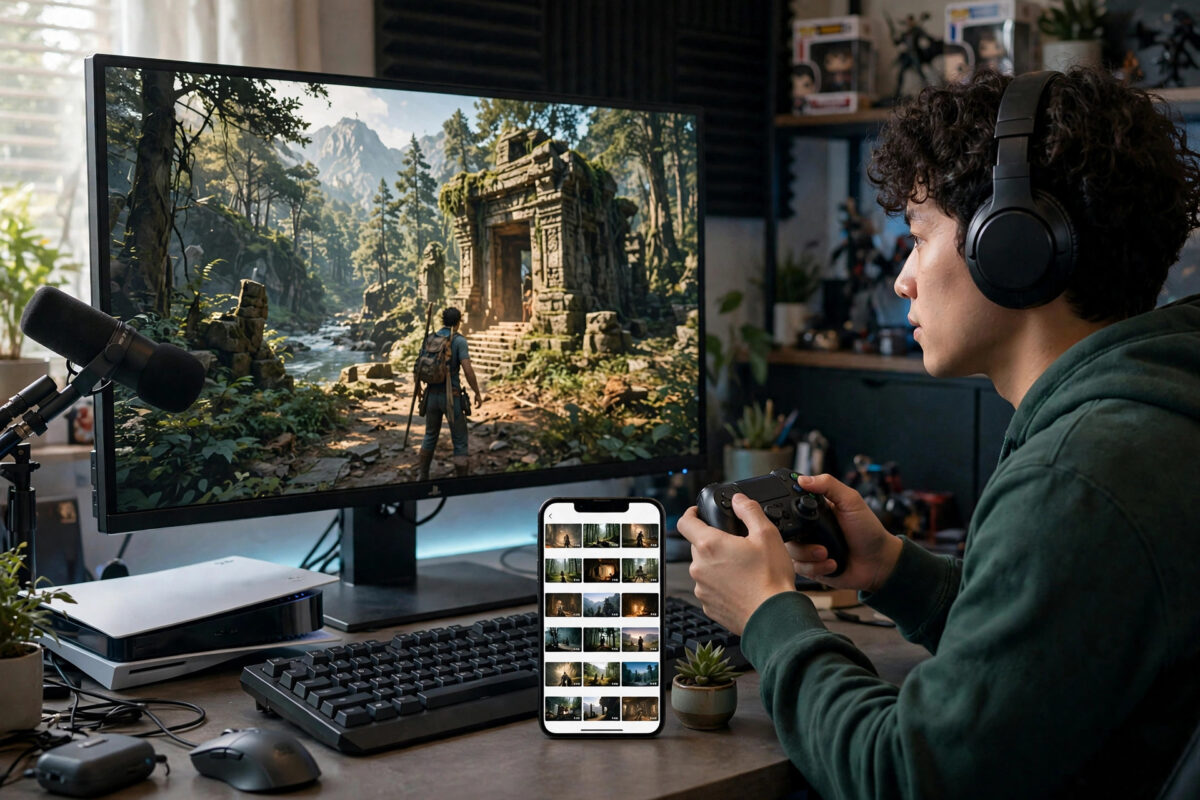
A capture card used to be the only way to save and share console gameplay. That is no longer true. Every current console can record clips and longer sessions on its own, stream directly to Twitch and YouTube, and send footage to your phone or computer without any extra hardware.
This guide explains the built-in recording tools on PlayStation 5, Xbox Series X and S, and Nintendo Switch, how long you can record on each, and how to get the best quality and move your clips where you want them.
Quick Answer
You can record console gameplay without a capture card by using the built-in tools: press the Create button on PS5 or the Share button on Xbox to save recent gameplay or start a recording, and hold the Capture button on Nintendo Switch to save the last 30 seconds. PS5 records up to 4K and Xbox up to 4K depending on settings and storage, while Switch clips are limited to 30 seconds at 720p. You can also stream directly from the console or use remote play on a PC to record longer sessions.
What Built-In Recording Can and Cannot Do
Built-in recording is perfect for highlights, short guides, and sharing moments with friends. The consoles are always buffering recent gameplay in the background, so you can save something brilliant after it happens instead of predicting it in advance.
There are limits to understand. Recording length is capped, especially on Xbox when saving to internal storage and on Switch, where clips are very short. Some scenes are blocked from recording, such as certain cutscenes, system menus, and streaming apps showing films or music. Quality settings also trade against length and storage space: 4K footage looks superb but fills drives quickly. For full-length, high-bitrate videos with overlays and commentary, a capture card still wins, but most players no longer need one to start creating.
How to Record on PlayStation 5
Saving Recent Gameplay
- Press the Create button, the small button to the left of the touchpad on the DualSense controller.
- Choose Save Recent Gameplay.
- Select how much you want to keep, from the last 15 seconds up to a longer stretch of recent play, depending on your settings.
- Find the clip in the Media Gallery app, where you can trim it, share it, or copy it to USB.
Recording Something New
- Press the Create button and choose Start New Recording.
- Play your session. A small indicator confirms recording is running.
- Press Create again and stop the recording when you finish.
Before a big session, visit Settings, then Captures and Broadcasts, then Captures. Set the video format and resolution. The PS5 can record up to 4K, and you can include your microphone audio and party audio if everyone agrees. Shorter clip lengths for the quick-save feature can also be adjusted here. The official walkthrough at PlayStation Support for captures and the Create button covers the current menu layout if yours looks slightly different after an update.
How to Record on Xbox Series X and S
Saving a Clip After It Happens
- Press the Share button in the centre of the controller once to record what just happened.
- The default clip length can be changed in settings, with options from 15 seconds to a few minutes depending on resolution.
- Open the guide, go to the captures section under Share and Capture, and review your clip.
Recording a Longer Session
- Press the Xbox button, go to Capture and Share, then choose Start Recording.
- Recording to internal storage is limited to around 10 minutes. For longer sessions, connect a USB storage device formatted for captures and select it as the capture location.
- Stop the recording from the same menu when you finish.
In Settings, under Preferences and Capture and Share, set your resolution and clip length. Recording at 1080p instead of 4K gives you longer clips and smaller files, which is the sensible balance for most creators. Xbox clips upload to the Xbox network automatically if you allow it, so you can download them through the Xbox app on your phone. Details on capture locations and limits are maintained at Xbox Support for game captures and sharing.
How to Record on Nintendo Switch
- While playing a supported game, hold down the Capture button, the small square button on the left Joy-Con or Pro Controller.
- The console saves a video of the previous 30 seconds of gameplay.
- Open the Album from the home screen to watch, trim, and share the clip or send it to a phone.
Switch recording is deliberately simple and short. Clips are 720p and 30 seconds maximum, and a small number of games disable the feature. For longer Switch sessions, the workarounds below are your main options. If your setup shares a desk display, see our guide on how to connect a console to a gaming monitor with no speakers.
Stream Directly From the Console
Streaming is also a recording method, because your stream is saved as a video on the platform afterwards. PS5 and Xbox both connect directly to Twitch, and PS5 also supports YouTube streaming. Link your account in the console’s broadcast settings, add a title, choose quality, and go live from the Create or Capture menu. Once the stream ends, download the video from your channel if you want a permanent copy.
Built-in streaming is limited in overlays and scene design, but the quality is good and the setup takes minutes. It is the fastest route for new creators who want full-length session videos without buying anything.
Use Remote Play to Record on a PC or Laptop
Remote play sends your console picture to a computer over your home network, where free recording software can capture it. Install the PS Remote Play or Xbox app on your PC, connect to the console, put the game window full screen, and record with the built-in tools: Xbox Game Bar on Windows records with a simple shortcut, and other free screen recorders work just as well.
Quality depends on your network. A wired connection for the console gives the most stable picture, ideally at 1080p. There is a small amount of extra delay, so this method suits recording single-player games rather than playing competitively while you capture.
Getting Clips Off the Console
- PS5: Use the PS App to download clips saved in the Media Gallery, share directly to social platforms, or copy files to a USB drive from the gallery menu.
- Xbox: Clips uploaded to the Xbox network appear in the Xbox app, ready to save to your phone. You can also copy captures from a USB capture drive to a PC.
- Switch: The Album can send clips to a smartphone with a QR code connection, or you can copy the microSD card contents on a computer.
Trim before you transfer. A quick edit on the console removes loading screens and dead time, makes files smaller, and saves you work later.
Tips for Better Quality Recordings
- Record at the highest resolution you can store comfortably, but prefer a steady frame rate over resolution for fast games.
- Turn off HDR for recordings if your editing app or sharing platform handles HDR poorly, because HDR clips can look washed out on ordinary screens.
- Include microphone audio only when you intend to use it, and do a ten-second test recording to check levels first.
- Free space regularly. Consoles can stop saving clips without much warning when storage is full.
- Respect blocked scenes and other players. Some content cannot be recorded by design, and party chat audio should only be included with consent.
Common Mistakes to Avoid
- Expecting unlimited length: Internal recording limits catch everyone out. Set up USB capture storage on Xbox for long sessions and plan PS5 recordings in parts.
- Leaving resolution on the lowest setting: Check capture settings before an important session, not after.
- Forgetting clips expire from quick access: Favourite or transfer important clips promptly instead of assuming they will stay easy to find.
- Recording at 4K for everything: Huge files slow editing and uploads. Match resolution to where the video will actually be watched.
- Ignoring game-specific blocks: If recording silently fails in one title, the game or scene is probably restricted rather than your console being faulty.
Conclusion
You do not need a capture card to start recording console gameplay. The PS5 Create button, Xbox Share features, and Switch Capture button already cover highlights, guides, and shareable clips, while built-in streaming and remote play extend you to full sessions for free. Learn your console’s length and resolution limits, set up an easy way to move clips to your phone or PC, and test your settings before a session that matters. When your channel outgrows the built-in tools, you can add a capture card later with a clear idea of exactly why you need it.
Frequently Asked Questions
How long can I record on PS5 without a capture card?
The PS5 continuously buffers recent gameplay so you can save past moments, and manual recordings can run for extended sessions limited mainly by storage and your chosen resolution. Check the Captures settings to balance length, quality, and free space.
Why are my Xbox recordings only a few minutes long?
Internal storage has strict clip and recording limits, and higher resolutions shorten them further. Lower the capture resolution or record to a suitable USB drive to get longer sessions.
Can I record Nintendo Switch gameplay for longer than 30 seconds?
Not with the built-in video capture, which is fixed at 30 seconds. For longer Switch footage without a capture card, stream if your setup allows it or use repeated clips edited together.
Does recording gameplay affect performance?
On current consoles the impact is minimal because recording is built into the system. Remote play recording can add slight delay and depends heavily on your network quality.
Can I add live commentary without a capture card?
Yes. PS5 and Xbox let you include microphone audio in recordings and broadcasts. Plug in a headset, enable microphone inclusion in the capture settings, and do a short test first to check your levels.



Leave a Reply