
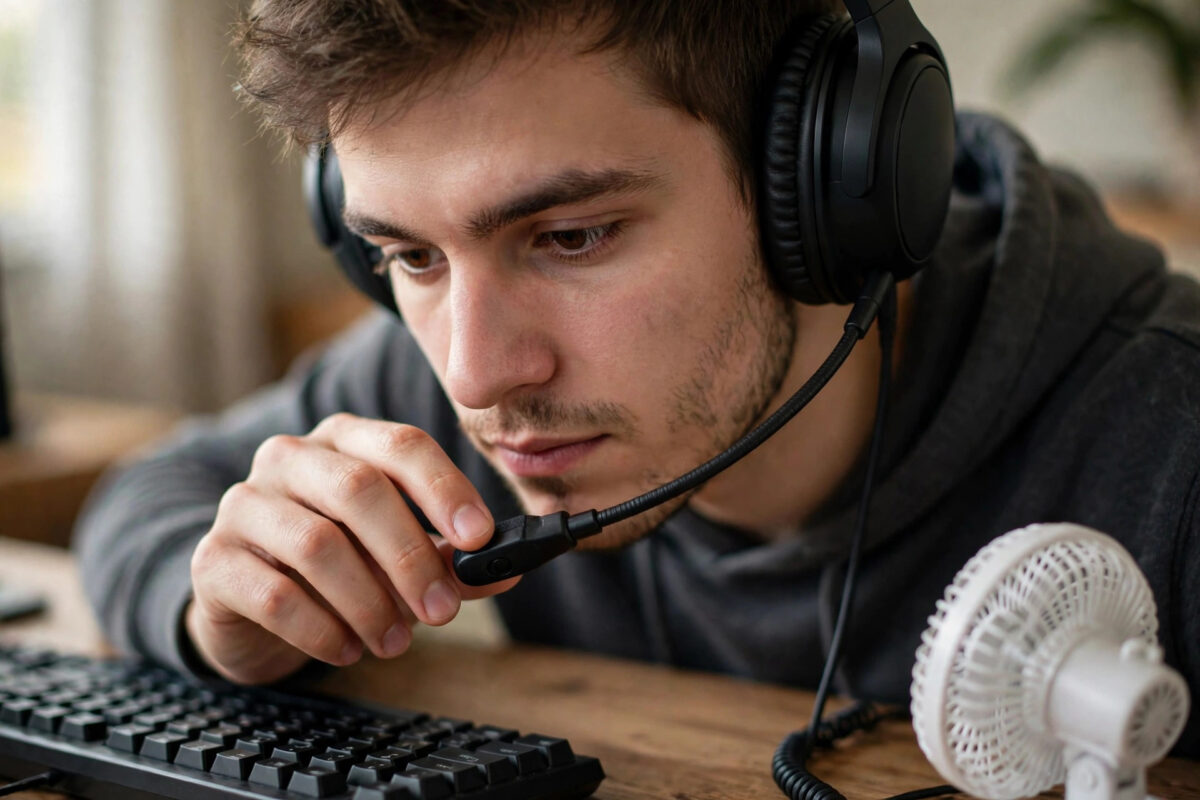
Nothing ruins a party chat faster than hearing your own voice bounce back a second later, or listening to a friend’s keyboard, fan, and television under every word they say. Echo and background noise are annoying, but they usually have clear causes and practical fixes.
Often a lower gain, better position, or one changed setting removes most of the problem.
Quick Answer
To fix echo and background noise in a gaming headset, lower your microphone level so it stays in the good zone, move the boom a few centimetres from the corner of your mouth, and make sure game sound is not leaking from speakers or an open headset into the mic. Turn on noise suppression if your console or headset offers it, and ask friends with echo to use headphones instead of TV speakers.
First, Work Out Who Is Causing the Echo
Echo is often blamed on the person who hears it, but the cause is usually at the other end. If you hear yourself echo, your friend’s microphone is probably picking up your voice from their speakers or from a loud headset and sending it back to you.
Use this simple test:
- Ask everyone in the party to mute themselves one at a time.
- Speak after each person mutes.
- When the echo stops, the person who just muted is the source.
- That person should check speakers, volume, and microphone position first.
Background noise is simpler: the noisy microphone belongs to whoever carries fan, typing, or music sounds.
Lower Microphone Gain and Set the Level Properly
A microphone set too high hears the whole room. It picks up your headset sound, your controller clicks, and the fan across the room, then your console sends all of it to the party.
- On PS5, go to Settings, then Sound, then Microphone, then Adjust Microphone Level.
- Speak at your normal volume and lower the slider until your voice is clearly in the Good zone, not pinned at the top.
- On Xbox, open headset audio settings from the guide and lower microphone sensitivity where available, then test in a party.
- On PC or a headset app, lower input gain in small steps and record a test after each change.
- Ask friends if you sound clearer, not just quieter. The goal is a strong voice with less room sound.
Do not judge only by a meter while you are silent. Speak real sentences, laugh, and press controller buttons, because those are the sounds that reveal a gain problem.
Position the Microphone Correctly
Position can fix noise without any software. A boom that is too far away forces you to raise gain. A boom directly in front of your mouth catches breath and harsh popping sounds.
- Place the boom tip near the corner of your mouth, about two to three centimetres away.
- Angle it slightly down or to the side so your breath passes beside it, not straight into it.
- Use a foam cover or pop filter if your headset came with one. It softens breath noise.
- For a headset without a boom, keep your voice steady and avoid turning away, because the built-in microphone is already at a disadvantage.
- Do not let the microphone rub against clothing, a hood, jewellery, or a controller cable.
If your detachable boom is loose, push it fully into its port. A loose boom can crackle, fade, and pick up handling noise that sounds like background interference.
Stop Sound Leaking From Speakers and Headphones
The most common echo source is sound escaping into a microphone.
TV and Speaker Leak
If one player uses TV speakers while wearing a microphone, the microphone hears the game and every voice in the party. The fix is simple: that player should put game and chat sound into headphones, or lower the TV greatly and move the microphone away from the speakers. Headphones are the proper long-term answer.
Open-Back and Loud Headset Leak
Some headsets let sound escape by design, and any headset played very loud can leak into its own boom. Lower headphone volume to a comfortable level. If echo only happens during loud explosions or music, volume leak is likely. Closed-back headsets usually leak less for chat use.
If you are setting up a headset from scratch, our guide on connecting a gaming headset to PS5 for game and chat audio includes the output and balance settings that prevent several echo problems before they start.
Use Noise Suppression and Echo Settings
Many platforms offer software help. Turn it on and test it, because poor settings can also make your voice sound robotic if pushed too far.
- PlayStation: Check microphone settings and party options for noise-related controls on your model and system version, and keep system software updated.
- Xbox: Look for noise suppression in party chat settings on supported consoles and in the Xbox app.
- Headset apps: Brands often provide noise cancellation, sidetone, and gate controls in a companion app or PC software.
- In-game settings: Some games have their own voice activation threshold, noise gate, and echo options.
A voice activation threshold, sometimes called a gate, keeps the microphone closed until you speak above a set level. Raise it slightly if fans trigger your microphone between sentences. Raise it too much and the start of your words will be cut off, so adjust in small steps.
Sony explains supported audio controls in its PlayStation Support guide to headset and sound settings, which is useful when a menu name differs on your system version.
Reduce Noise in the Room Itself
Software cannot fully save a microphone in a noisy room. Small physical changes make a big difference and cost nothing.
- Move a desk fan so it does not blow across the microphone, or turn it to a lower setting during chat.
- Close windows near traffic and doors to rooms with a loud television.
- Put a keyboard on a mat or towel to soften clatter, and keep it away from the microphone.
- Move away from fridges, air conditioners, and PC towers with loud fans.
- Soft furnishings help. Curtains, rugs, and cushions absorb reflections that make a voice sound harsh and echoing in an empty room.
- Warn your household during important matches if you can, rather than raising your voice over them, which raises gain problems for everyone.
Check Sidetone and Double Audio Sources
Sidetone, also called mic monitoring, plays your own voice back into your headset so you do not shout. Too much sidetone can sound like echo even when your friends hear you perfectly. If only you hear the problem, lower mic monitoring in console or headset settings.
Double sources cause a stronger delay echo. For example, a streamer might hear voice through both a console and a capture device, or a player might join party chat on both console and phone app at once. Leave the chat on one device only and mute the other path.
Also check that you are not in both party chat and game chat with the same friends in a way that duplicates voices. Choose one channel for the group.
Common Mistakes to Avoid
- Raising gain to be heard: If friends cannot hear you, check mute and position before gain. High gain mainly adds noise.
- Blaming the person who reports echo: The reporter is usually hearing a leak from someone else’s setup. Use the one-by-one mute test.
- Playing through TV speakers with a live mic: This almost guarantees echo for the whole party.
- Setting the noise gate too high: Friends will miss the first word of every sentence. Test with normal speech.
- Ignoring headset volume: Very loud closed headsets can still leak into a sensitive boom. Turn down and lower gain together.
- Using voice chat on two devices: Console plus phone app at the same time creates confusing duplicate audio.
When a New Headset Actually Helps
If your microphone crackles on every device, the boom is damaged, or a cheap built-in mic picks up everything despite careful gain and position, hardware may be the limit. A headset with a clear detachable boom, good passive isolation, and reliable mute controls is a sensible upgrade for regular party players.
Before buying, test a friend’s headset on your console. If their headset is clean in your room, your settings are fine and your old microphone is the problem. If every headset sounds noisy, work on gain and room noise first.
Conclusion
Echo usually comes from sound leaking into someone’s microphone, while background noise usually comes from gain that is too high, poor microphone position, or a loud room. Find the source with a mute test, set levels carefully, keep the boom close to the corner of your mouth, and use noise suppression sensibly. Those steps make party chat clearer for everyone without spending money.
Frequently Asked Questions
Why do I hear myself echo but my friends do not?
Your voice is probably leaking from a friend’s speakers or loud headset into their microphone and returning to you. Ask them to use headphones, lower volume, and reduce microphone gain. If only you hear your own voice instantly, also check your sidetone level.
What is the best microphone level for gaming?
Your normal speaking voice should sit comfortably in the console’s Good zone, rising on louder words without staying at the maximum. If the meter moves a lot when you are silent, gain is too high or the room is too noisy.
Does noise cancelling on headphones stop my friends hearing noise?
Not always. Headphone noise cancelling mainly improves what you hear. Your friends benefit from microphone noise suppression, a good boom position, and lower gain. Check which type your headset offers.
Why does my microphone pick up my keyboard so much?
Your gain may be high, the microphone may be far from your mouth, or the keyboard may be close and loud. Move the boom closer, lower gain, and place a mat under the keyboard.
Can a wired headset echo?
Yes. Echo is about sound leaking into a microphone and settings, not only about wireless connections. A wired headset played loudly near its boom, or used with TV speakers, can echo just as much.



Leave a Reply