
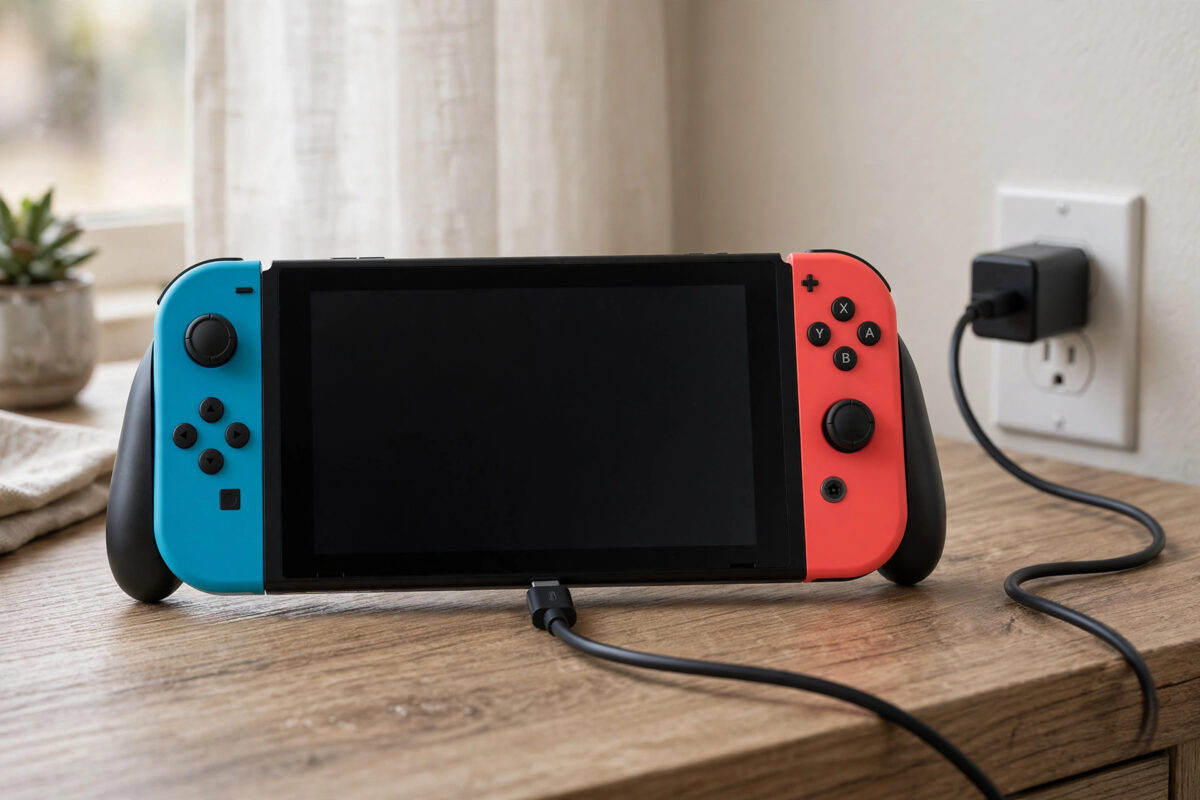
A Nintendo Switch that will not charge or turn on can look completely dead, even when the problem is small. In many cases the battery is simply flat, the charger is not working, or the console has frozen and needs a hard reset. The good news is that you can test most causes at home in a few minutes.
This guide walks you through every safe check, step by step. Start at the top and work down in order. Do not open the console, and do not force anything into the charging port.
Quick Answer
Plug your Switch directly into the official Nintendo AC adapter, leave it charging for at least 30 minutes, then hold the Power button for 12 to 15 seconds and press it once more to restart. If it still does not turn on, try a different wall socket, inspect the USB-C port and cable for damage, and test with another official charger. A console that shows no sign of life after these steps may have a faulty battery, port, or charger and needs repair.
First, Work Out What Is Actually Happening
Different symptoms point to different faults. Before you change cables or settings, look closely at what your console is doing. This saves time and stops you fixing the wrong thing.
Common symptoms to check
- The screen is black and nothing happens when you press Power.
- The battery icon appears briefly, then the screen goes black again.
- The console charges in the dock but not with a cable, or the other way round.
- The charging light or battery symbol never appears at all.
- The console feels warm but the screen stays off.
Step 1: Charge It Properly and Wait
Many Switch consoles look dead because the battery has run completely flat. When that happens, the screen can stay black for several minutes even after you plug it in. A short charge is not always enough to wake it.
- Remove the console from the dock.
- Plug the official Nintendo Switch AC adapter directly into the console using the USB-C port on the bottom.
- Plug the adapter into a wall socket that you know works. Test the socket with a phone charger or a lamp first.
- Leave the console charging for at least 30 minutes without pressing buttons.
- After 30 minutes, press the Power button once and wait a few seconds.
Step 2: Do a Hard Reset
If the console has frozen, it can appear to be off while it is actually stuck on a black screen. A hard reset forces it to shut down fully, and it does not delete your games or save data.
- Unplug the charger, or leave it plugged in if the battery is flat.
- Hold the Power button on the top of the console for 12 to 15 seconds. Count slowly.
- Let go of the button and wait 10 seconds.
- Press the Power button once, as you normally would.
- Watch for the Nintendo logo. If it appears, let the console boot fully and then charge it to 100 percent.
If the logo appears and then the console turns off again, the battery is probably too low to finish starting. Plug it back in, leave it for another 30 minutes, and try again.
Step 3: Check the Charger, Cable, and Dock
The Switch needs more power than a normal phone charger provides. A weak charger may keep the battery from going down, but it may not be strong enough to wake a flat console or charge it while you play.
What to test
- Use the official adapter: The Nintendo adapter is rated for the Switch and is the best tool for testing. Borrow one if you can.
- Inspect the cable: Look for cuts, bends, fraying, or a loose USB-C plug. A damaged cable can fail without looking badly broken.
- Try a direct connection: Charge the console without the dock first. If direct charging works but dock charging does not, the dock, its power supply, or its cable may be at fault.
- Change the socket: Avoid extension leads and USB hubs for this test. Plug straight into the wall.
- Check the dock connections: If you use the dock, make sure its AC adapter is firmly plugged into the back of the dock and into the wall.
Nintendo explains the correct charging setup in its official Nintendo Support guidance for Switch charging. Following that setup matters, because third-party docks and chargers vary a lot in quality and power output.
If your console charges with one adapter and not another, you have found the problem. Replace the faulty adapter with an official or trusted, correctly rated replacement rather than the cheapest option you can find.
Step 4: Inspect the USB-C Port
The charging port on the bottom of the Switch collects dust and pocket fluff over time. It can also be damaged if a cable is forced in at an angle. A poor connection in the port is a very common reason for charging problems.
- Turn the console off if you can, and unplug the charger.
- Shine a light into the USB-C port and look for fluff, dirt, or bent parts.
- Check whether the cable sits straight and firm when plugged in, or whether it wobbles a lot and falls out easily.
- If you see loose dust, blow gently with clean, dry air. Do not use a metal pin, needle, or knife, as these can short or bend the contacts.
- Plug the cable in again and check whether the charging symbol appears.
If the port looks bent, cracked, or burnt, or if the plug only works at one angle, stop testing it. Repeated plugging can make port damage worse. That kind of fault needs a proper repair.
Step 5: Rule Out a Display Problem
Sometimes the console is on, but the screen is not showing anything. Sounds, button clicks, or a response when you place it in the dock can be clues.
Press the volume buttons and listen for sounds. Try docking the console and turning on your TV. If the picture appears on the TV, the console itself is working and the built-in screen or its connection may be faulty. If you need help with that side of things, our guide on fixing a Switch that will not display on the TV through the dock covers the dock and HDMI checks in detail, although here the opposite result can tell you the screen is the issue.
What If the Switch Got Wet or Was Dropped?
If the console was dropped, sat on, or exposed to water, do not keep trying to charge it. Liquid and charging do not mix, and powering a damaged battery can make things worse.
When It Is Time for a Repair
Contact support or a trusted repair shop if you have done all of the following and the console still shows no life: charged it directly for an hour with the official adapter, completed a hard reset, tried a second working socket and charger, and checked the port looks clean and undamaged. You can start that process through Nintendo Support for Switch repair options.
Common Mistakes to Avoid
- Using a weak phone charger for testing: It may not deliver enough power to wake a flat Switch, so you can wrongly think the console is dead.
- Not waiting long enough: A fully flat battery can need 30 to 60 minutes before the screen responds.
- Cleaning the port with metal: Pins and needles can damage the small contacts inside the USB-C port.
- Forcing a loose cable: Wiggling and bending the plug can turn a small port problem into an expensive one.
- Opening the console at home: This can void your warranty and damage the battery. Leave internal repairs to professionals.
- Assuming the dock is fine: Always test direct charging without the dock to separate dock faults from console faults.
Conclusion
Most Switch consoles that will not charge or turn on are fixed by three simple things: a proper charge with the official adapter, a 12 to 15 second hard reset, and a careful check of the cable and port. Work through the steps in order, give a flat battery real time to recover, and avoid forcing or opening anything. If the console still shows no sign of life after an hour of direct charging and a reset with a known working charger, it is time for a professional repair.
Frequently Asked Questions
How long should I charge a dead Switch before trying to turn it on?
Leave it for at least 30 minutes, and up to an hour if the battery was completely flat. The screen can stay black during the first part of charging, which is normal for a deeply discharged battery.
Will a hard reset delete my games or save data?
No. Holding the Power button for 12 to 15 seconds just forces the console to shut down and restart. Your games, accounts, and save data stay on the console.
Can I use a phone charger to charge my Switch?
You can in an emergency, but many phone chargers are too weak to wake a flat console or charge it quickly. For testing and regular charging, the official Nintendo AC adapter is the safest choice.
Why does my Switch charge in handheld mode but not in the dock?
The dock may not be getting power, its adapter may be faulty, or the connection inside the dock may be damaged. Check the dock adapter is plugged in at both ends and test the console with direct charging to confirm.
What does it mean if the battery icon flashes and then disappears?
It usually means the battery is extremely low. Plug the console directly into the official adapter, leave it alone for 30 to 60 minutes, and then try turning it on again.



Leave a Reply