
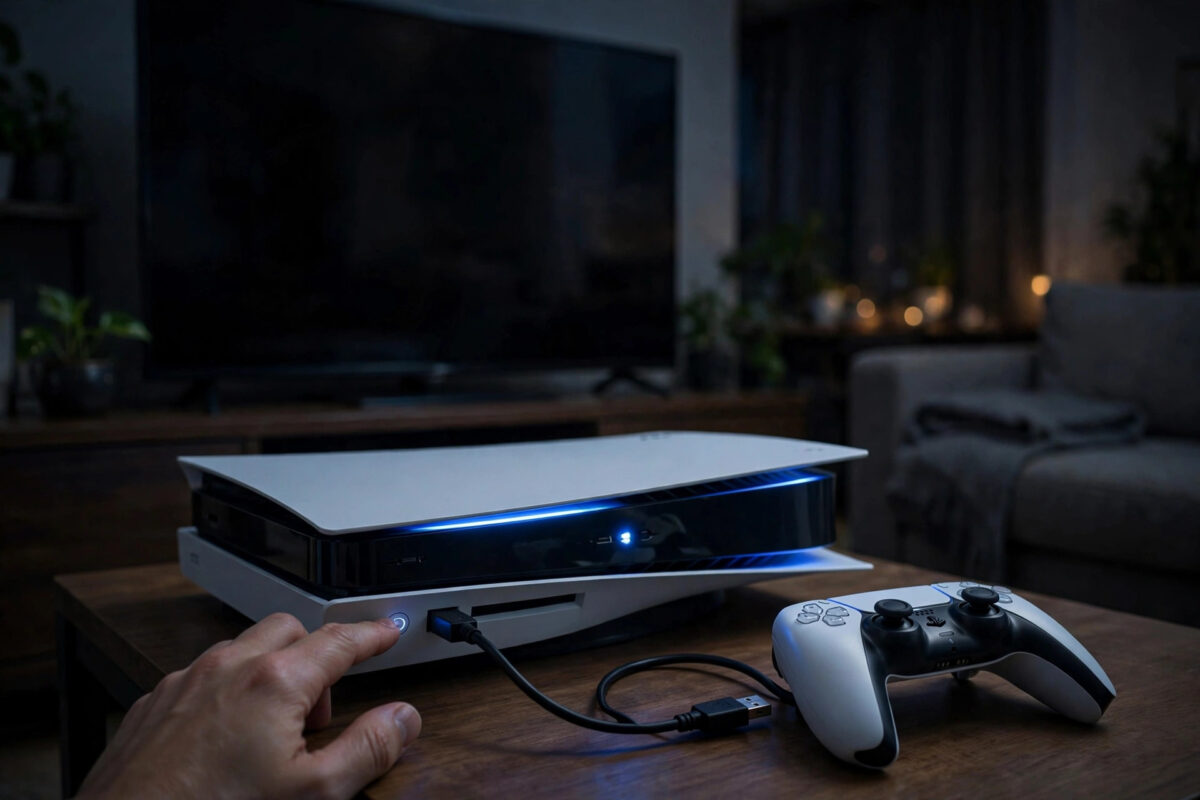
When a PlayStation 5 will not boot normally, freezes on a black screen, or gets stuck in a loop of errors, safe mode is the tool Sony built for exactly that moment. Safe mode starts the console with only the most basic functions, so you can repair system software, clear damaged cache files, rebuild the database, or reset settings without the usual software getting in the way. Many players feel nervous the first time they use it, but the steps are simple. This guide shows you how to start a PS5 in safe mode and what each menu option does.
Quick Answer
To start a PS5 in safe mode, turn the console completely off, then press and hold the power button until you hear a second beep, about seven seconds after the first. Connect your DualSense controller with a USB cable, press the PS button, and the safe mode menu will appear. From there you can restart the PS5, clear the cache, rebuild the database, update or reinstall system software, or reset the console.
What Is PS5 Safe Mode?
Safe mode is a special startup state that loads only the essential parts of the PS5 system. Because it skips the normal home screen, your profile extras, and background processes, it can start even when a standard boot fails.
Think of it as a repair workshop for the console. From the safe mode menu you can restart the system, change video output settings, update the system software from a USB drive or the internet, restore default settings, clear the cache, rebuild the database, and, as a last resort, reset the console or reinstall the system software completely.
Safe mode itself does not delete anything. Your games and saves are only removed if you personally choose one of the reset options and confirm it. Simply entering safe mode and choosing Restart PS5 is completely harmless.
Players most often need safe mode when the console will not turn on properly, shows a blank or distorted picture, crashes repeatedly, has a failed update, or suffers from slow and glitchy behaviour that needs a cache clear or database rebuild.
What You Need Before You Start
- A USB data cable for your DualSense controller. The controller cannot connect wirelessly in safe mode at first. Many failed attempts are caused by charge-only cables, so use the cable that came with the console if possible.
- Access to the console power button. You start safe mode from the physical button on the console, not the controller. On the disc model the button is the longer one; on the Digital Edition there is a single button.
- A working display connection. Safe mode uses a low, basic resolution so it works on almost any TV or monitor. Make sure your HDMI cable is secure.
- Time and stable power. Some safe mode tasks, such as a database rebuild, can take a while. Do not start them on unstable power.
Step-by-Step: How to Start a PS5 in Safe Mode
- Turn the PS5 off completely. If it is on, press the PS button, select Power, then Turn Off PS5. If it is frozen, press and hold the power button on the console until it shuts down.
- Wait until the power indicator light goes out completely. The console must be fully off, not in rest mode. If the light is orange, it is in rest mode; turn it on and shut it down properly, or hold the power button until it turns fully off.
- Press and hold the power button. You will hear one beep right away. Keep holding.
- Continue holding for about seven seconds until you hear a second beep. Release the button now.
- Connect the DualSense controller to the console with a USB cable.
- Press the PS button on the controller. The safe mode menu appears on screen.
- Use the controller to choose the option you need, as explained in the next section.
If the console simply starts normally, you released the button too early or the console was not fully off. Repeat the steps and listen carefully for that second beep. If your console beeps twice but nothing shows on screen, check the HDMI input and cable before trying again.
For the official version of these steps, Sony publishes them on the PlayStation guide to using safe mode on PS5 consoles, which also lists the current menu wording for the latest system software.
The PS5 Safe Mode Menu Explained
Understanding each option stops you from choosing a destructive one by mistake. The order can vary slightly by system version.
Restart PS5
Exits safe mode and starts the console normally. Use this if you entered safe mode by accident or have finished your repair.
Change Video Output
Lets you change resolution or adjust HDCP settings. Useful when the screen is blank, flickering, or showing an unsupported mode after moving the console to a different TV or monitor.
Update System Software
Updates the console from a USB drive, a disc, or the internet. This is the option to use if a normal update failed and the console cannot boot properly.
Restore Default Settings
Returns system settings to their factory defaults without deleting games, saves, or user data. Helpful when a changed setting is causing display or network problems.
Clear Cache and Rebuild Database
Offers two tools. Clear System Software Cache removes temporary files. Rebuild Database rescans your storage and rebuilds the content index without deleting games or saves. These are the safest repair options for glitches and slowness.
Reset PS5
Deletes all users and user data and returns the console to factory condition, while keeping the system software installed. Use only after backing up and trying safer options.
Reset PS5 (Reinstall System Software)
The strongest option. It deletes everything and reinstalls the system software from a USB drive. Reserve it for a console that cannot boot or crashes on everything after all other fixes.
If your boot problem appears alongside unstable online behaviour after repairs, it is also worth checking how to change your NAT type to open on a games console once the console starts normally again, so your network settings are clean as well.
What to Do If Your PS5 Will Not Enter Safe Mode
If the console will not respond at all, start with power. Unplug the power cable from the back of the console, wait at least one minute, then plug it back in and try the two-beep method again. This drains leftover power and clears some stubborn states.
If the console turns on but shows nothing, try a different HDMI cable and a different HDMI port on the TV. Test another screen if you can. Safe mode displays in a basic resolution, so a total lack of picture usually points to the cable, the port, or the display rather than the console software.
If the controller will not connect, swap the USB cable, try the other USB ports, and make sure you press the PS button after connecting. A faulty or charge-only cable is the single most common reason safe mode seems not to work.
If the console beeps, flashes its light, and turns off again repeatedly, or if it cannot stay on long enough to use safe mode, that can indicate a power or hardware fault. At that stage, contact support through the PlayStation hardware and repairs support pages instead of forcing repeated attempts.
Common Mistakes to Avoid
- Starting from rest mode. Safe mode needs a complete shutdown. An orange light means rest mode, and the two-beep method will not work as expected.
- Releasing the power button after one beep. The first beep is just the press registering. Keep holding for the second beep.
- Trying to pair the controller by Bluetooth. Safe mode starts with a wired connection only. Plug in the USB cable, then press the PS button.
- Choosing a reset option when a rebuild would do. Read each menu item carefully. Reset PS5 deletes your data; rebuilding the database does not.
- Disconnecting power during safe mode repairs. Whether the console is updating software or rebuilding the database, let the process finish fully.
- Skipping the simple checks. A loose HDMI cable or a bad USB cable causes many “won’t boot” scares. Check cables before assuming the console is broken.
Conclusion
Starting a PS5 in safe mode is straightforward once you know the two-beep method: shut the console fully down, hold the power button until the second beep, connect the controller by USB, and choose your repair option. Safe mode itself deletes nothing, and its gentler tools, such as clearing the cache and rebuilding the database, solve most boot and glitch problems. Save the reset options for true last resorts, and contact PlayStation Support if the console cannot stay on at all.
Frequently Asked Questions
Will entering safe mode delete my games or saves?
No. Entering safe mode and using options such as Restart PS5, Clear Cache, or Rebuild Database does not delete your content. Only the Reset PS5 options erase data, and the console warns you before you confirm them.
Why does my PS5 only beep once and start normally?
You likely released the power button too early, or the console was in rest mode. Shut it down completely, wait for the light to go out, then hold the power button for a full seven seconds until the second beep.
Why won’t my controller work in safe mode?
The controller must be connected with a USB data cable. Charge-only cables, faulty cables, or trying to use Bluetooth will all fail. Try the cable supplied with the console and a different USB port.
What is the first safe mode option I should try for glitches?
Start with Clear Cache and Rebuild Database, choosing Clear System Software Cache first. If glitches continue, rebuild the database. These options are safe, keep all your data, and fix a wide range of system problems.
My PS5 shows no picture in safe mode. What should I check?
Check the HDMI cable, try a different port or cable, confirm the TV is on the right input, and use the Change Video Output option if a picture appears briefly. If no screen works at all, contact PlayStation Support for hardware help.



Leave a Reply