
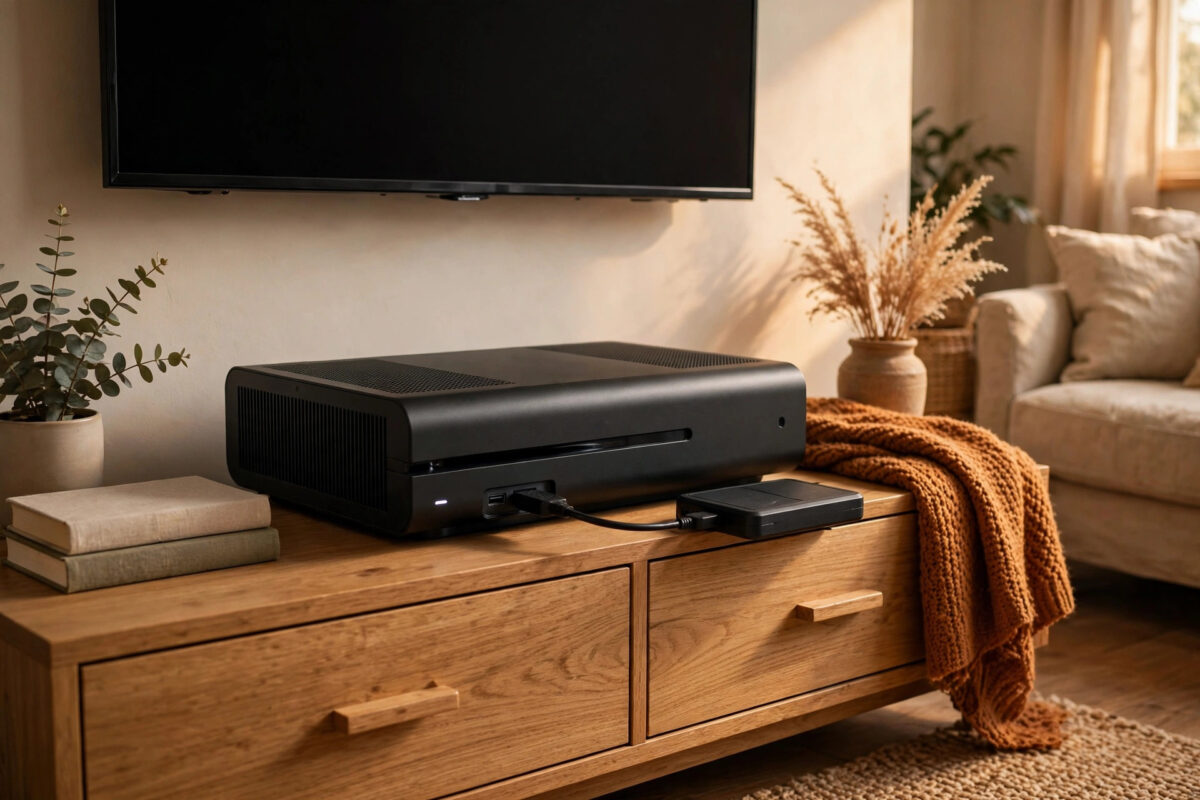
With game sizes regularly passing 100GB, juggling PS5 storage becomes a weekly chore. The good news is that moving games between the internal SSD, an M.2 expansion SSD, and a USB external drive is built into the console and is much faster than downloading anything again. This guide explains what can move where, the exact steps for each direction, and the rules that trip people up.
Quick Answer
To move PS5 games between storage, go to Settings, Storage, pick the drive the game is currently on, select the game, and choose Move to move it to another drive. PS5 games can be stored on a USB external drive but can only be played from internal storage or an M.2 expansion SSD. PS4 games can both be stored and played from a USB drive. Moving is far faster than redownloading, especially on slower internet connections.
Know the Three Storage Types
- Console storage (internal SSD). The built-in drive. Plays PS5 and PS4 games. Fastest, but the smallest, at roughly 667GB usable on the original model.
- M.2 expansion SSD. A second internal drive you install in the expansion slot. Behaves exactly like the built-in drive and plays PS5 games directly.
- USB extended storage. An external hard drive or SSD plugged into a USB port. Stores PS5 games as a parking space, and both stores and plays PS4 games.
If you are considering the expansion route, our guide on installing an extra internal SSD in a PS5 covers the whole process in about ten minutes of work.
Step-by-Step: Moving Games Between Drives
- Open Settings, then Storage.
- Choose the storage device that currently holds the game: Console Storage, M.2 SSD Storage, or USB Extended Storage.
- Select Games and Apps.
- Open the Items You Can Move section, or select individual games from the list.
- Tick the games you want to move. You can move several at once.
- Choose Move, then confirm the destination drive.
- Wait for the transfer to finish. A progress bar shows the remaining time, and you cannot play a game while it is moving.
Setting a Default Install Location
Rather than constantly shuffling games, set sensible defaults. In Settings, Storage, Installation Location, you can choose where new PS5 games install and, separately, where PS4 games install. A good arrangement is PS5 games to the M.2 SSD or internal drive, and PS4 games straight to a USB drive where they play perfectly well. Sony also lets you set newly captured videos and photos to internal storage only, which keeps the USB drive purely for games.
The USB Drive Rules That Matter
USB extended storage has conditions. The drive must be between 250GB and 8TB, connect directly to the console (not through a hub), and support USB 3.0 speeds or better. Only one USB extended storage drive can be used at a time, and the console formats it for its own use, erasing everything on it. You cannot store the same game in two places at once; moving is a relocation, not a copy. Sony sets out the full requirements on its official USB extended storage page, which is worth reading before buying a drive for this purpose.
How Long Does Moving Take?
Moving between the internal SSD and an M.2 SSD is quick, often several hundred megabytes per second, so a 100GB game may take only a few minutes. Moving to or from a USB drive depends on that drive: a USB SSD is reasonably quick, while a spinning USB hard drive can take 20 to 40 minutes for a large game. Even the slowest move usually beats redownloading on an average home connection, and it uses no data allowance.
Speeding Up Your Storage Strategy
- Park, do not delete. Finished with a PS5 game for now? Move it to the USB drive instead of deleting, so returning to it takes minutes, not hours.
- Keep multiplayer favourites internal. Games you play daily should live on the fastest storage so updates and load times stay snappy.
- Watch the “Other” category. Storage labelled Other is system data that shrinks and grows on its own. If it looks huge, a restart usually settles it.
- Delete capture clutter. Gameplay clips pile up quietly. Clearing the Media Gallery is the fastest free space that has nothing to do with games at all, and your save data is never touched by it.
Problems and Fixes
- The Move option is missing. You are probably viewing the game from the wrong storage screen, or the game is currently running or updating. Close it and try again.
- “Not enough space” during a move. The destination needs the game’s full size free. Delete or move something else first.
- The USB drive is not recognised. Plug it directly into a rear USB port, confirm it meets the size and speed requirements, and let the console format it.
- A moved PS5 game will not launch from USB. That is expected behaviour. PS5 games must be moved back to internal or M.2 storage before they can be played.
Planning a Storage Layout That Works Long Term
A little organisation saves constant shuffling. Many players settle on a three-tier system: the internal SSD holds the two or three games in daily rotation plus the operating favourites, the M.2 SSD (if fitted) holds the wider active library, and the USB drive becomes the archive for finished games and the full PS4 collection. The rule that keeps it working is simple: when you finish a game, park it the same day rather than letting it squat on fast storage for months. Also label what lives where by checking storage screens before a big download, so the console is not forced to squeeze a 150GB install into the wrong drive. Finally, if you share the console with family, agree the system once — nothing creates storage chaos faster than three people installing wherever there happens to be room.
Moving Games vs Downloading Again: The Honest Comparison
Redownloading is sometimes genuinely the better choice. If your broadband is fast (500 Mbps or more) and unmetered, grabbing a game fresh overnight can be simpler than drive management. Moving wins when your connection is slow, capped, or shared, when the game has huge patches you would have to fetch again on top of the base download, or when you swap between the same games repeatedly. The real enemy is the worst of both worlds: deleting a game, then redownloading it and its updates three times in a month. Pick a strategy per game based on how often you return to it, and your storage stops being a recurring chore.
Conclusion
Moving games is the smart way to live with limited PS5 storage. Keep the games you play on internal or M.2 storage, park the rest on a USB drive, and set default install locations so the console files things sensibly on its own. You will spend your time playing instead of watching download bars.
Frequently Asked Questions
Can I copy a game instead of moving it?
No. The PS5 only moves games between drives; it does not keep two copies. This design prevents duplicate installs from eating space.
Do my save files move with the game?
Save data is stored separately from game installs and does not move with them. Your saves stay safe on the console regardless of where the game itself lives.
Can I use two USB drives at once for storage?
Only one USB extended storage drive can be active at a time. You can swap drives, but the console will only recognise the one currently designated for extended storage.
Is an external SSD much faster than an external hard drive?
Yes, noticeably. Transfers to a USB SSD can be several times faster, and PS4 games load faster from it too. A hard drive still works fine if budget matters more than speed.
Will moving a game lose my progress or settings?
No. The game install moves as a complete package, and saves, settings, and add-ons remain linked to it. When you move it back, everything is exactly as you left it.



Leave a Reply