
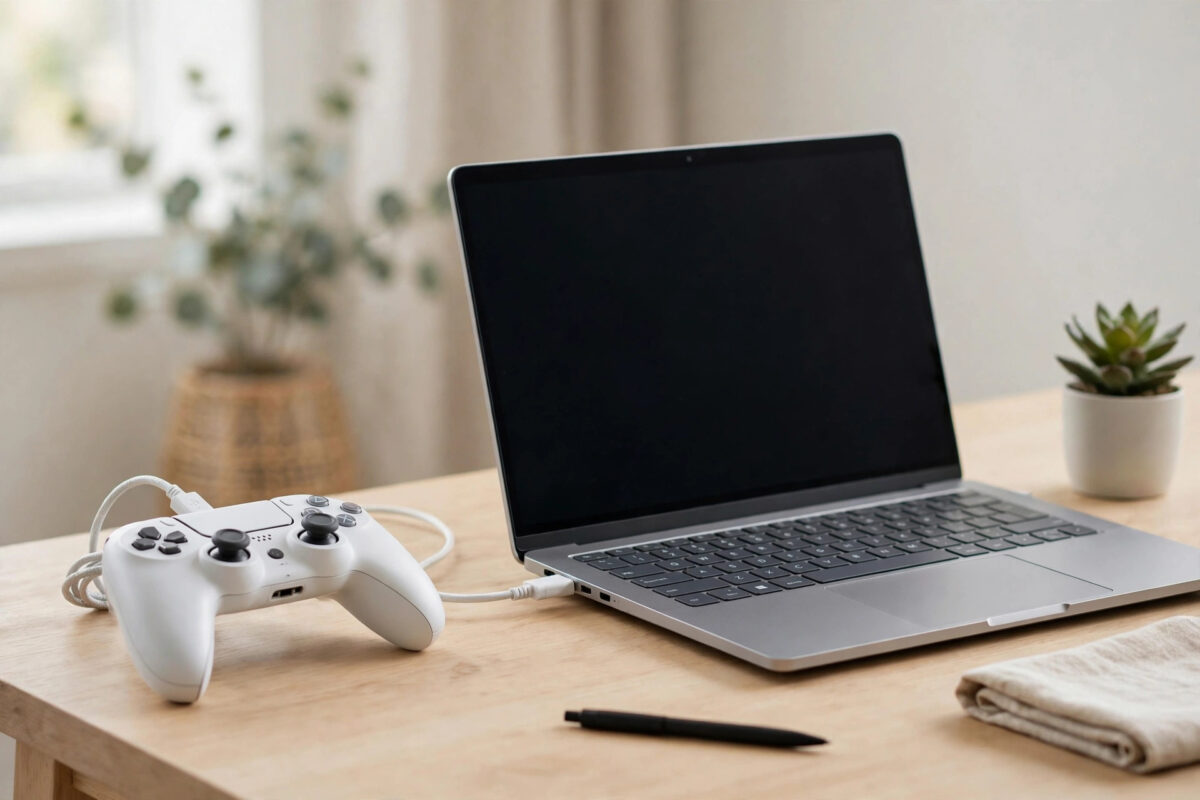
You do not need a PS5 nearby to keep your DualSense controller up to date. Sony provides a free Windows app that updates the controller’s firmware over a USB cable, which is perfect if you mainly play on PC or your console is elsewhere. This guide walks you through the whole PC update process, plus what to do when the app refuses to see your controller.
Quick Answer
To update PS5 controller firmware using a PC, download Sony’s free “Firmware updater for DualSense wireless controller” app from the official PlayStation website, install it on Windows, and launch it. Connect the DualSense to the PC with a USB-C data cable, and the app will show the current firmware version and offer any available update. Click Update, keep the controller plugged in and untouched until the app confirms completion, then disconnect safely.
Why Controller Firmware Updates Matter
Firmware is the small software program running inside the controller itself. Sony’s updates have improved stick and trigger behaviour, fixed connection dropouts, and refined battery reporting over the DualSense’s life. If your controller drifts slightly, disconnects, or behaves oddly after a console update, firmware is one of the first things to check. Keeping it current also ensures new features in Sony’s PC games, such as adaptive trigger profiles, work as intended.
What You Need
- A Windows PC (the updater is a Windows app; there is no Mac version)
- A USB-C cable that carries data, not just charging. The cable supplied with the controller works.
- Your DualSense controller with a reasonable amount of charge, although the cable powers it during the update
- An internet connection so the app can fetch the latest firmware
- About ten minutes, including download and installation
Step-by-Step: Updating With the Sony Firmware Updater
- Go to the official PlayStation page for the updater and download the app. Sony hosts it on its Firmware updater for DualSense page, which guarantees you get the genuine tool rather than a copy from a download site.
- Run the installer and accept the prompts. The app is small and installs in under a minute.
- Launch “Firmware updater for DualSense wireless controller” from your Start menu.
- Connect the DualSense to the PC using the USB-C cable. Use a port directly on the PC rather than a hub if possible.
- The app detects the controller and displays its current firmware version. If a newer version exists, an Update button appears.
- Click Update and wait. Do not unplug the cable, close the app, or let the PC sleep during the process. The light bar may change colour, which is normal.
- When the app reports the update is complete, close it and unplug the controller. The controller is ready to use on PC or console.
If the App Does Not Detect Your Controller
- Swap the cable. Many USB-C cables sold for phones are charge-only. Try the cable that came with the controller or another known data cable.
- Change USB port. Front-panel and hub ports occasionally fail to enumerate devices. A rear motherboard port is the most reliable.
- Close other controller software. Steam, DS4Windows, and similar tools can claim the controller. Exit them fully, then reopen the updater.
- Disconnect Bluetooth. If the controller is also connected by Bluetooth, turn Bluetooth off on the PC so the wired connection is the only path.
- Run the app as it asks. If Windows requests permission for the installer or app, allow it; the updater needs low-level USB access to work.
Updating the DualSense Edge Controller
The premium DualSense Edge uses the same updater app on PC, and the process is identical: cable in, launch the app, update. Edge owners should also check for updates after swapping stick modules, since module behaviour is partly firmware-driven. Note that custom profiles for the Edge are managed through the PS5 or the PlayStation Accessories app rather than the firmware tool.
After the Update: Quick Checks
Reconnect the controller the way you normally play and test a game for a few minutes. Check that inputs feel right, the light bar behaves normally, and pairing still works if you use Bluetooth. If you updated to chase a specific problem like drift or dropouts, test that exact scenario. Drift in particular has several other causes, so if it persists, work through our DualSense drift fixes next. Sony also notes that you can update a controller from the PS5 itself under Settings, Accessories, Controllers, which is a handy cross-check if the PC route fails completely; the details sit on the PlayStation controller pairing and update page.
Common Mistakes to Avoid
- Downloading the updater from unofficial sites. Third-party download portals bundle junk with tools like this. Only use the PlayStation website.
- Unplugging mid-update. Interrupting a firmware write can leave the controller unresponsive until it is reflashed. Wait for the completion message.
- Using a charge-only cable and blaming the app. This is the number one reason the controller does not appear. Test your cable by transferring a file to a phone.
- Letting the laptop sleep. Set it to stay awake during the update, or keep it plugged in and active.
How Often Should You Update?
Sony does not release controller firmware on a fixed schedule; updates arrive a few times a year, often alongside major PS5 system updates. A sensible habit is to check whenever you update the console itself, or roughly every couple of months if you play mainly on PC. There is no harm in checking more often — the app simply tells you the controller is already up to date. Avoid the opposite extreme of hunting for unofficial firmware files online: firmware should only ever come from Sony’s app or the console, because modified controller firmware from strangers is a genuine security and reliability risk.
Updating a Controller You Use on Several Devices
If your DualSense splits its time between a PC, a PS5, and maybe a phone, firmware updates do not affect your pairings — the controller remembers every device after an update. What can change is behaviour: an update that improves trigger feel or connection stability applies everywhere you use the pad. One practical tip for multi-device players is to keep one “home” method for updates, either the PC app or the console, so you always know where you last checked. And if you updated because of connection problems, remember firmware is only one of several possible causes — battery condition, interference, and pairing corruption are at least as common.
Conclusion
Sony’s PC firmware updater makes DualSense maintenance easy even if you never touch a PS5. Download the genuine app from PlayStation, connect with a proper data cable, and let the update finish without interruption. It takes minutes, solves a surprising number of controller quirks, and keeps your pad ready for both PC and console play.
Frequently Asked Questions
Is the DualSense firmware updater available for Mac?
No. Sony only provides the standalone updater for Windows. Mac users need to update the controller through a PS5 console, or use a Windows PC borrowed for a few minutes.
Will updating firmware erase my controller settings?
No. Pairing information and standard settings survive a firmware update. Profiles stored in the controller on a DualSense Edge also remain intact.
How do I check my controller’s current firmware version?
The updater app shows the version as soon as it detects the controller. On a PS5, the version appears under Settings, Accessories, Controllers, Wireless Controller Device Software.
Can I update two controllers at once?
No. The app updates one controller at a time. Update the first, unplug it, then connect the second and repeat the process.
My update failed halfway. Is the controller broken?
Usually not. Reconnect it, restart the app, and run the update again. The updater is designed to recover an incomplete update. If the controller stays unresponsive, a pinhole reset followed by a fresh update attempt almost always revives it.



Leave a Reply