
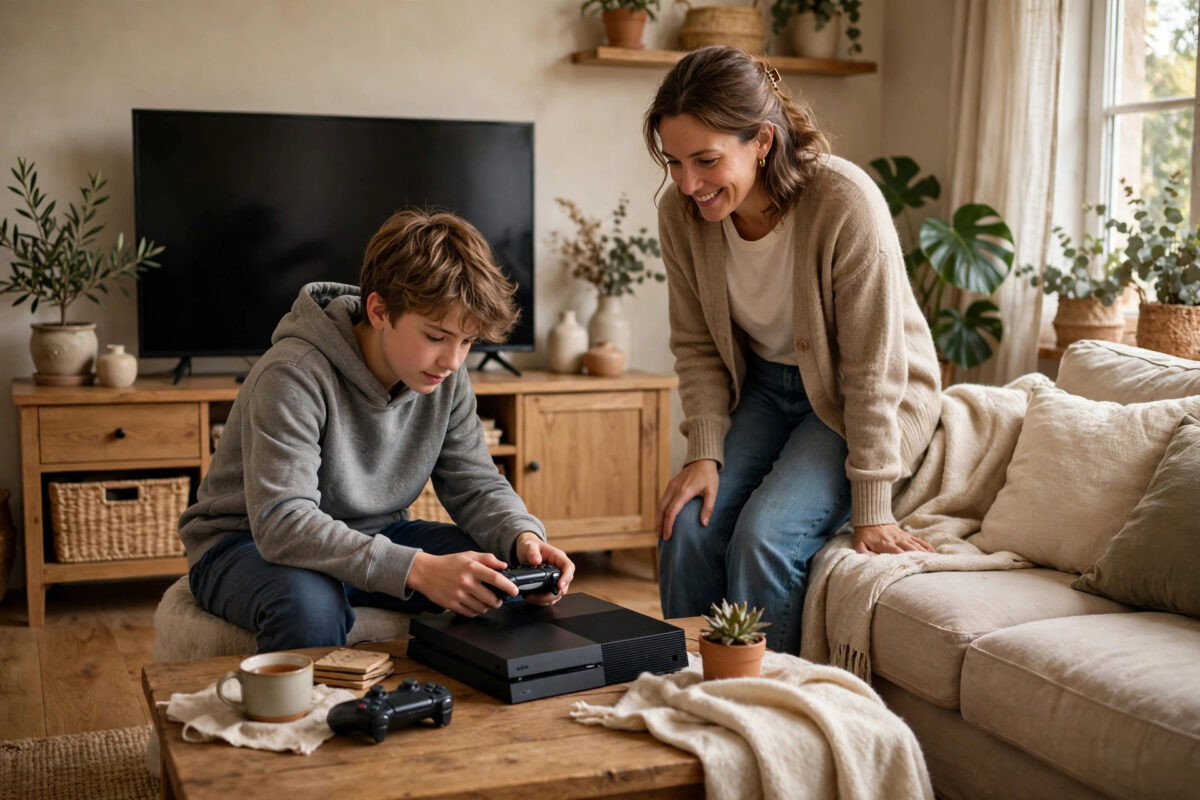
A PlayStation Network account holds your games, trophies, friends, wallet funds, and save data, so creating it safely matters as much as creating it quickly. A weak password or a careless date of birth can lock you out of purchases worth hundreds of pounds. This guide shows you how to set up a PSN account the secure way, with the right settings from day one.
Quick Answer
To create a PlayStation Network account safely, sign up on the console, the PlayStation website, or the PlayStation App using an email address you control. Choose a long, unique password you use nowhere else, enter your real date of birth because it cannot be changed and is used for account recovery, then immediately turn on two-step verification. Finish by reviewing your privacy settings so strangers cannot message you or see your activity.
What You Need Before Signing Up
- An email address you check regularly and can access on your phone
- Your correct date of birth, which Sony uses to verify your identity
- A phone number for two-step verification codes
- A password idea that is long, unique, and not used on any other site
- The country you actually live in, since the account region is permanent
Step-by-Step: Creating the Account on PS5
- Turn on the console and, on the user selection screen, choose Add User, then Get Started.
- Accept the terms, then choose Create an Account when asked to sign in.
- Enter your date of birth exactly as it appears on your ID. Take your time here, because this field can never be edited later.
- Select your country and language. This decides your PlayStation Store, your currency, and the games available to you.
- Type the email address that will become your sign-in ID, then create your password.
- Choose an online ID. This is the name other players see. Pick something you will still be happy with in five years, and avoid using your real full name.
- Open the verification email Sony sends and confirm the address to activate the account.
You can also register on a computer through the official PlayStation account creation page, which walks through the same fields with extra help text for each one.
Choose a Password That Actually Protects You
Your PSN account is a high-value target because it often has a payment card attached and a library of paid games. Use a passphrase of at least four random words plus a number, something like a short sentence you can remember but nobody could guess. Never reuse your email password, and never use the same password you use for social media. If you use a password manager, let it generate and store the password for you. Change it once a year, and change it immediately if you ever get an email about a sign-in you do not recognise.
Turn On Two-Step Verification Immediately
This is the single most important safety step, and it takes two minutes:
- On the PS5, go to Settings, then Users and Accounts, then Security.
- Select 2-Step Verification and choose Activate.
- Pick text message or an authenticator app. An authenticator app is the stronger option because text messages can be intercepted if your SIM is swapped.
- Enter the code you receive to confirm it works.
- Save the backup codes Sony gives you somewhere safe, such as a notes app protected by your phone lock or a printed copy at home.
Sony explains the options in its own words on the PlayStation two-step verification help page, including how to sign in on older devices with device setup passwords.
Set Your Privacy Settings Before You Play
New accounts are fairly open by default. Go to Settings, Users and Accounts, Privacy, and view or change your privacy settings. Set messages to Friends Only so strangers cannot send you spam or scams. Decide who can see your games, trophies, and online status. If the account is for a younger player, consider a family account instead, so an adult manages spending and communication. If you have just unpacked the console itself, our guide to setting up a PS5 for the first time covers where these menus sit during the first boot.
Mistakes That Put New Accounts at Risk
- Faking your date of birth. Recovery checks ask for it. A wrong date can mean permanent loss of the account.
- Buying cheap games or credit from random websites. Accounts and codes sold outside official channels are often stolen, and Sony bans accounts that use them.
- Sharing your password for game sharing. Anyone with your password can change it and take the account. Never give it out, even to friends.
- Ignoring sign-in alert emails. If Sony emails you about a login from a new place and it was not you, change your password and check two-step verification right away.
- Using a throwaway email. If you lose access to the email inbox, password resets and verification codes become very difficult.
Protecting an Account You Already Have
If your PSN account already exists and you skipped some of these steps at signup, you can fix almost everything today. Change a weak or reused password from the account management page or console settings. Add or correct your security information, and enable two-step verification if it is not already on. The one thing you cannot fix is a wrong date of birth or wrong region, because both are permanent; if either is dangerously wrong on an account with little on it, starting fresh with a new account is sometimes the wiser move. Review your authorised devices and payment methods once or twice a year, remove anything you do not recognise, and check the transaction history for purchases you did not make.
Recognising PSN Scams and Phishing
Most account thefts begin with a trick, not a hack. Watch for messages from “players” offering free games, cheap credit, or help from “Sony support” in exchange for your login details — real Sony staff never ask for your password, in a message or anywhere else. Phishing emails copy Sony’s design and push you to sign in through a link; instead, always go to the official site or your console directly. Scammers also promote fake giveaway websites during big game launches. If an offer sounds too good to be true and needs your password, it is a theft attempt, every time. Report suspicious messages through the console’s reporting tools so the accounts get removed.
Conclusion
A safe PSN account takes only a few minutes longer to create than a careless one. Use a real date of birth, a permanent region that matches where you live, a unique long password, and two-step verification switched on before you add any payment method. Do that, tighten the privacy settings, and your games, wallet, and saves stay under your control.
Frequently Asked Questions
Is a PlayStation Network account free?
Yes. Creating an account and using most features costs nothing. You only pay if you buy games, add wallet funds, or subscribe to PlayStation Plus for online multiplayer on most paid games and monthly extras.
Can I change my PSN account region later?
No. The country is locked at creation and cannot be changed. If you moved abroad permanently, most people create a second account for the new region while keeping the old one for their existing library.
What happens if I forget my PSN password?
Use the Forgot Password option on the sign-in screen. Sony sends a reset link to your account email, and you will need your date of birth to confirm your identity, which is why entering it correctly at sign-up matters so much.
Can I change my online ID?
Yes, the first change is free and later changes cost a small fee. A few older PS4 games can have issues with changed IDs, so pick a name you like from the start if you can.
Should children have their own PSN accounts?
Yes. A child account created under a family manager is safer than sharing an adult account. It lets the adult control spending, play time, age ratings, and who the child can communicate with.



Leave a Reply