
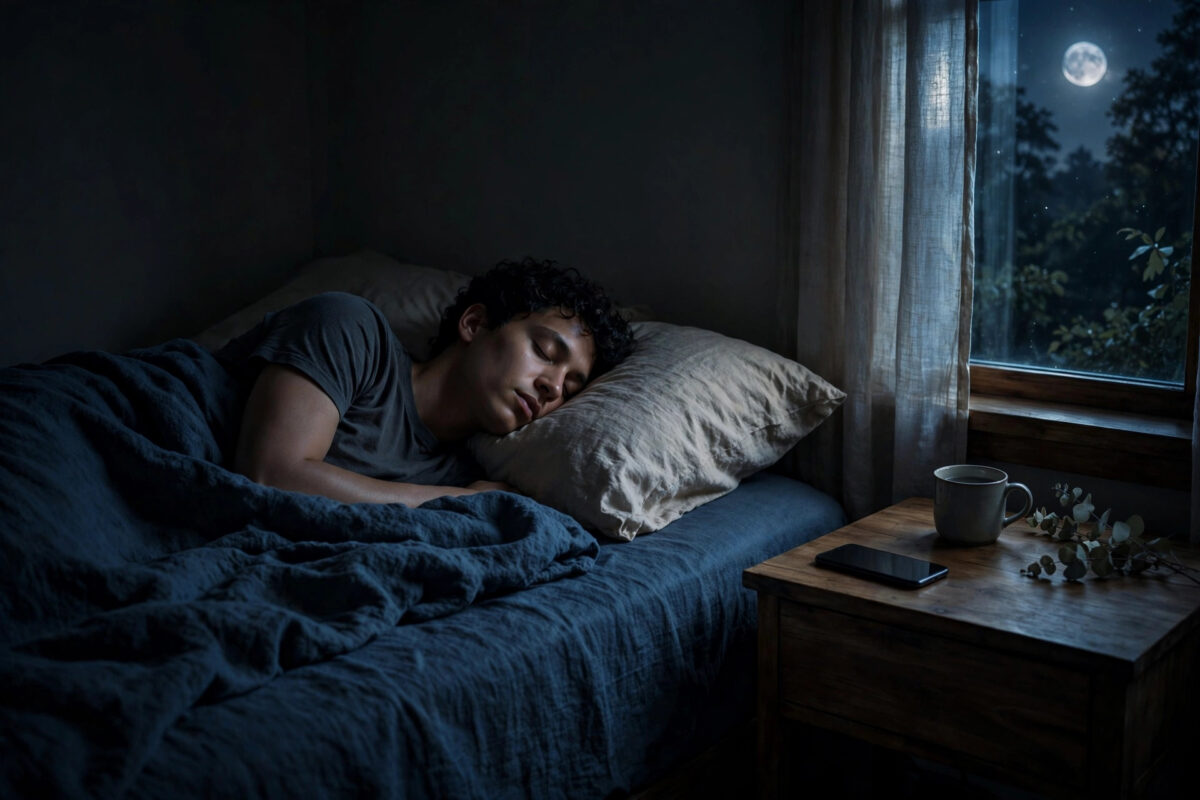
It is 2 a.m. and your iPhone lights up the whole room for a delivery update you do not care about until morning. Screen wake-ups at night do more than annoy you. They break your sleep, disturb a partner, and slowly drain the battery with every glow. The good news is that iOS gives you several layers of control, from a proper Sleep Focus schedule to small settings that stop the screen lighting up at all.
In this guide, you will learn the cleanest way to silence night-time screen wake-ups: setting up Sleep Focus, scheduling it automatically, choosing the few people and apps that may still reach you, and fixing the sneaky settings, like notifications lighting the screen when Focus is not on. The steps are written for iOS 27 and the iPhone 18 range, and they work on older iPhones too.
Quick Answer
To stop iPhone notifications from waking the screen at night, set up Sleep Focus. Go to Settings, tap Focus, tap Sleep, set a schedule for your bedtime and wake time, and allow only essential people and apps. While Sleep Focus is on, notifications are silenced and will not light up your Lock Screen. You can also turn Sleep Focus on manually from Control Centre by tapping Focus and choosing Sleep.
Why Your Screen Lights Up at Night in the First Place
By default, your iPhone is designed to get your attention, so the Lock Screen wakes when a notification arrives. That is helpful during the day and unhelpful at 3 a.m. Email, shopping apps, social media, and group chats all follow this rule unless you tell iOS otherwise. Raise to Wake and Tap to Wake can also light the screen if the phone is moved on a bedside table.
iOS solves this with Focus, which changes which notifications get through based on what you are doing. Sleep is the Focus mode built for the night. When it is active, notifications are held back silently and the Lock Screen dims. Nothing is deleted; everything waits in Notification Centre until morning.
Step 1: Set Up Sleep Focus
Sleep Focus works best when it is connected to the Health app sleep schedule, which also powers your alarm and sleep tracking. Set it up once and it runs every night automatically.
- Open Settings and tap Focus.
- Tap Sleep. If you do not see it, tap the plus button and choose Sleep from the list.
- Tap “Set Up Sleep in Health” if prompted, or open the Health app, tap Browse, tap Sleep, and set your sleep schedule with a bedtime and wake-up time for each day of the week.
- Back in Settings, Focus, Sleep, confirm that “Use Schedule from Health” or your chosen schedule is turned on, so Sleep Focus starts and ends with your sleep times.
- Under “Turn On Automatically,” you can also allow Sleep Focus to start a little before bedtime as part of a wind-down period.
Apple’s official overview of the feature, in its guide on how to use Focus and Sleep Focus on iPhone, explains how schedules, wind-down time, and the Sleep Lock Screen work together. It is worth a quick read if you also use an Apple Watch, because the same schedule controls bedtime behaviour on your wrist.
Step 2: Choose Who Can Still Reach You
Total silence worries some people, especially parents or anyone on call for family emergencies. Sleep Focus lets you make careful exceptions instead of turning everything off and hoping for the best.
- Go to Settings, Focus, Sleep, then tap People.
- Choose “Allow Notifications From” and add only the people who genuinely may need you at night, such as your partner, children, or an elderly parent.
- Tap Apps, choose “Allow Notifications From,” and add only truly urgent apps, if any. Most people should leave this list empty.
- Under Phone Calls, decide who can call through. A sensible choice is allowing calls from your allowed people only.
- Turn on “Allow Repeated Calls” if you want a second call from the same person within three minutes to ring, which is a classic genuine-emergency signal.
Everyone else is not blocked forever. Their messages and notifications arrive silently and are waiting in the morning. If you want finer control for other times of day too, such as work hours, our guide on how to create a custom Focus mode on iPhone shows how to build extra Focus profiles with their own people, apps, and schedules.
Step 3: Dim the Lock Screen and Hide Badges
Inside Settings, Focus, Sleep, tap Options and review a few display settings that make nights darker and calmer. Turn on the option to dim the Lock Screen during Sleep, where available, so even the clock display is softer if you glance at the phone. Make sure “Show On Lock Screen” for silenced notifications is set the way you prefer; hiding silenced notifications from the Lock Screen entirely means the screen has nothing to show you until morning. You can also hide notification badges, so red dots do not tempt you to unlock the phone during a midnight wake-up.
The Sleep Lock Screen itself is intentionally plain. If you have set a special Lock Screen for Sleep through the Focus customisation screens, keep it simple and dark. A bright wallpaper linked to Sleep Focus defeats the purpose, even with notifications silenced.
Step 4: Stop Other Things That Wake the Screen
Sleep Focus handles notifications, but a few separate settings can still light your phone up. Check these as well:
- Raise to Wake. Go to Settings, Display & Brightness, and turn off Raise to Wake if the screen lights up whenever the phone shifts on your bedside table.
- Tap to Wake. On supported models, Settings, Accessibility, Touch lets you turn off Tap or Swipe to Wake, useful if pets or bedding keep touching the screen.
- Always On display. On Pro models, the Always On Lock Screen already dims heavily during Sleep Focus. If it still bothers you, turn off Always On in Display & Brightness and rely on total darkness instead.
- Charging behaviour. A loose cable that connects and disconnects can wake the screen repeatedly. Use a good cable, or charge the phone face down once Sleep Focus is on.
- Apple Watch and other devices. If notifications mirror to a watch, set the watch to follow the iPhone’s Focus so one device does not buzz while the other stays silent.
Turning Sleep Focus On Manually and Early
Schedules cover most nights, but life is not always scheduled. A nap, an early night, or a long flight all benefit from switching Sleep Focus on by hand. Swipe down from the top of the screen to open Control Centre, tap Focus, then tap Sleep. The crescent moon icon confirms it is active. Tap it again in the morning, or let your schedule end it automatically. You can also ask Siri to turn on Sleep Focus, which is handy when you are already in bed and the phone is across the room on its charger.
Common Mistakes That Let Notifications Through
- Using Do Not Disturb but never scheduling it. A manual mode you forget to enable fails on your tired nights. Automate Sleep Focus with your Health schedule.
- Allowing too many apps. Every allowed app is a possible screen wake-up. Delivery, shopping, and news apps almost never need night access.
- Forgetting per-app overrides. Some apps have “Time Sensitive” alerts that can break through Focus if you permit them. Review Settings, Notifications for chatty apps and turn off Time Sensitive delivery where it is not truly urgent.
- Leaving a second device unsynced. An iPad on the dresser with Focus sharing off can light up even when your iPhone is silent. Turn on “Share Across Devices” in Settings, Focus, so every device follows the same mode.
- Silencing notifications but not calls from everyone. Check the Phone settings inside Sleep Focus. If calls are allowed from everyone, a wrong number at midnight still wakes you fully.
Conclusion
Stopping your iPhone from lighting up at night is mostly a one-time setup. Create a sleep schedule in Health, link it to Sleep Focus, allow only the people who truly matter, and tidy up the extra wake sources like Raise to Wake and loose charging cables. After that, your nights stay dark, your sleep stays unbroken, and every notification waits politely until morning. If your routine changes, adjust the schedule rather than abandoning the system, and your iPhone will keep respecting your rest every single night.
Frequently Asked Questions
Will my alarm still work with Sleep Focus on?
Yes. Alarms set in the Clock app and the wake-up alarm from your Health sleep schedule ring normally during Sleep Focus. Sleep Focus silences notifications and most calls, but it is designed to let your alarms through so you wake up on time.
Can family still reach me in an emergency?
Yes, if you set it up that way. Add close family to the allowed people list in Sleep Focus, and turn on Allow Repeated Calls so a second call within three minutes rings. Emergency contacts calling twice is the standard way to break through safely.
What is the difference between Sleep Focus and Do Not Disturb?
Both silence notifications. Sleep Focus is built for the night: it connects to your Health sleep schedule, dims the Lock Screen, and supports wind-down time. Do Not Disturb is a general-purpose mode often used for meetings, driving, or quiet hours at any time of day.
Why does my screen still light up even with Sleep Focus on?
Usually something other than a notification is waking it: Raise to Wake, Tap to Wake, a loose charging cable reconnecting, or an allowed app sending an alert. Check the extra settings in Step 4 of this guide and review your allowed apps list.
Do silenced notifications disappear by morning?
No. Notifications received during Sleep Focus are stored in Notification Centre and shown as silenced. You can review everything after you wake up, and senders are optionally told that your notifications are silenced if you enable Focus status in Messages.



Leave a Reply